
Creating a User Profile Widget with Editable Avatar in Flutter
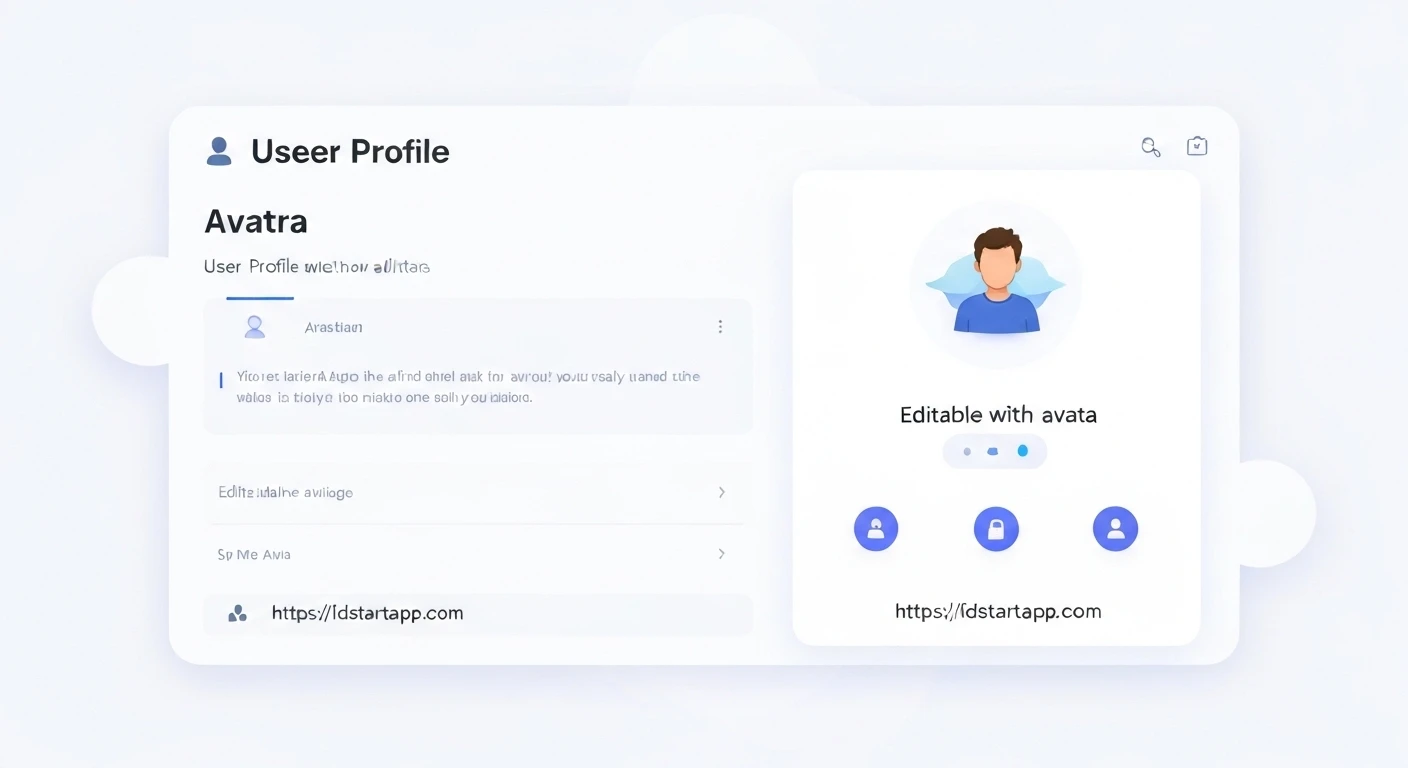
User profiles are a fundamental component in many modern applications, providing a personalized experience for users. A key feature of these profiles is often an avatar, allowing users to visually represent themselves. Enhancing this with an editable avatar functionality not only improves user engagement but also offers greater personalization. This article will guide you through creating a professional user profile widget in Flutter, complete with an editable avatar using the image_picker package.
1. Prerequisites and Setup
To enable image selection from the gallery or camera, we'll use the image_picker package. First, add it to your pubspec.yaml file:
dependencies:
  flutter:
    sdk: flutter
  image_picker: ^1.1.2 # Use the latest version
After adding the dependency, run flutter pub get to fetch the package.
You'll also need to configure platform-specific permissions:
- iOS: Add the following keys to your
Info.plistfile (located inios/Runner/Info.plist):<key>NSPhotoLibraryUsageDescription</key> <string>Allow access to your photo library to select a profile picture.</string> <key>NSCameraUsageDescription</key> <string>Allow access to your camera to take a profile picture.</string> <key>NSMicrophoneUsageDescription</key> <string>Allow access to your microphone for video recording (optional, if using video).</string> - Android: The
image_pickerpackage automatically adds necessary permissions for Android 10 (API 29) and above. For older Android versions, ensure you haveREAD_EXTERNAL_STORAGEandCAMERApermissions if you target older APIs and use a custom manifest (though modern Android handles most of this automatically withimage_picker).
2. Core Widget Structure
Our editable profile widget will be a StatefulWidget because its state (the chosen avatar image) will change over time. We'll manage the image path or file within its state.
import 'dart:io';
import 'package:flutter/material.dart';
import 'package:image_picker/image_picker.dart';

class UserProfileWidget extends StatefulWidget {
  final String userName;
  final String userEmail;
  final String? initialAvatarUrl; // For network image or initial asset

  const UserProfileWidget({
    Key? key,
    required this.userName,
    required this.userEmail,
    this.initialAvatarUrl,
  }) : super(key: key);

  @override
  State<UserProfileWidget> createState() => _UserProfileWidgetState();
}

class _UserProfileWidgetState extends State<UserProfileWidget> {
  File? _avatarImage;
  final ImagePicker _picker = ImagePicker();

  @override
  void initState() {
    super.initState();
    // Potentially load initial avatar if it's a local file path
    if (widget.initialAvatarUrl != null && !widget.initialAvatarUrl!.startsWith('http')) {
      _avatarImage = File(widget.initialAvatarUrl!);
    }
  }

  // ... (methods for picking image and building UI will go here)
  @override
  Widget build(BuildContext context) {
    return Column(
      children: [
        // Avatar section
        _buildAvatarSection(),
        SizedBox(height: 20),
        Text(
          widget.userName,
          style: TextStyle(fontSize: 24, fontWeight: FontWeight.bold),
        ),
        SizedBox(height: 5),
        Text(
          widget.userEmail,
          style: TextStyle(fontSize: 16, color: Colors.grey[600]),
        ),
        // Other profile details can be added here
      ],
    );
  }
}
3. Designing the Editable Avatar Section
We'll use a Stack to layer the avatar image and an edit icon. The CircleAvatar will display the image, and a Positioned IconButton will serve as the editable trigger.
  Widget _buildAvatarSection() {
    ImageProvider<Object> avatarProvider;

    if (_avatarImage != null) {
      avatarProvider = FileImage(_avatarImage!);
    } else if (widget.initialAvatarUrl != null) {
      // Check if it's a network URL
      if (widget.initialAvatarUrl!.startsWith('http')) {
        avatarProvider = NetworkImage(widget.initialAvatarUrl!);
      } else {
        // Assume it's an asset or local file path
        avatarProvider = AssetImage(widget.initialAvatarUrl!);
      }
    } else {
      avatarProvider = AssetImage('assets/default_avatar.png'); // Provide a default asset
    }

    return Center(
      child: Stack(
        children: [
          CircleAvatar(
            radius: 70,
            backgroundColor: Colors.grey.shade200,
            backgroundImage: avatarProvider,
            child: _avatarImage == null && widget.initialAvatarUrl == null
                ? Icon(Icons.person, size: 80, color: Colors.grey.shade400)
                : null,
          ),
          Positioned(
            bottom: 0,
            right: 0,
            child: GestureDetector(
              onTap: _pickImage,
              child: Container(
                padding: EdgeInsets.all(4),
                decoration: BoxDecoration(
                  color: Colors.blue,
                  shape: BoxShape.circle,
                  border: Border.all(color: Colors.white, width: 2),
                ),
                child: Icon(
                  Icons.edit,
                  color: Colors.white,
                  size: 20,
                ),
              ),
            ),
          ),
        ],
      ),
    );
  }
Note: You might need to add a default_avatar.png to your assets folder and declare it in pubspec.yaml.
flutter:
  uses-material-design: true
  assets:
    - assets/default_avatar.png
4. Implementing Image Selection Logic
The _pickImage method will be responsible for showing the image picker and updating the state with the selected image.
  Future<void> _pickImage() async {
    final ImageSource? source = await showModalBottomSheet<ImageSource>(
      context: context,
      builder: (BuildContext context) {
        return SafeArea(
          child: Column(
            mainAxisSize: MainAxisSize.min,
            children: <Widget>[
              ListTile(
                leading: Icon(Icons.photo_library),
                title: Text('Photo Library'),
                onTap: () {
                  Navigator.pop(context, ImageSource.gallery);
                },
              ),
              ListTile(
                leading: Icon(Icons.camera_alt),
                title: Text('Camera'),
                onTap: () {
                  Navigator.pop(context, ImageSource.camera);
                },
              ),
            ],
          ),
        );
      },
    );

    if (source != null) {
      final XFile? pickedFile = await _picker.pickImage(source: source, imageQuality: 80);
      if (pickedFile != null) {
        setState(() {
          _avatarImage = File(pickedFile.path);
        });
        // In a real application, you would typically upload this image
        // to a server and save the new avatar URL to your user's profile data.
        _uploadAvatarImage(_avatarImage!);
      }
    }
  }

  // Placeholder for an actual image upload function
  void _uploadAvatarImage(File imageFile) {
    // Implement your image upload logic here.
    // This might involve calling an API, using Firebase Storage, etc.
    print('Uploading image: ${imageFile.path}');
    // After successful upload, you would typically update the user's profile
    // in your backend with the new avatar URL and potentially refresh the UI
    // if the avatar is displayed elsewhere.
  }
5. Complete User Profile Widget Example
Here's the complete code for the UserProfileWidget, ready to be integrated into your Flutter application:
import 'dart:io';
import 'package:flutter/material.dart';
import 'package:image_picker/image_picker.dart';

class UserProfileWidget extends StatefulWidget {
  final String userName;
  final String userEmail;
  final String? initialAvatarUrl; // For network image or initial asset/file path

  const UserProfileWidget({
    Key? key,
    required this.userName,
    required this.userEmail,
    this.initialAvatarUrl,
  }) : super(key: key);

  @override
  State<UserProfileWidget> createState() => _UserProfileWidgetState();
}

class _UserProfileWidgetState extends State<UserProfileWidget> {
  File? _avatarImage;
  final ImagePicker _picker = ImagePicker();

  @override
  void initState() {
    super.initState();
    // If initialAvatarUrl is provided and is a local file path,
    // initialize _avatarImage with it. Network images are handled directly by NetworkImage.
    if (widget.initialAvatarUrl != null && !widget.initialAvatarUrl!.startsWith('http')) {
      _avatarImage = File(widget.initialAvatarUrl!);
    }
  }

  Future<void> _pickImage() async {
    final ImageSource? source = await showModalBottomSheet<ImageSource>(
      context: context,
      builder: (BuildContext context) {
        return SafeArea(
          child: Column(
            mainAxisSize: MainAxisSize.min,
            children: <Widget>[
              ListTile(
                leading: Icon(Icons.photo_library),
                title: Text('Photo Library'),
                onTap: () {
                  Navigator.pop(context, ImageSource.gallery);
                },
              ),
              ListTile(
                leading: Icon(Icons.camera_alt),
                title: Text('Camera'),
                onTap: () {
                  Navigator.pop(context, ImageSource.camera);
                },
              ),
            ],
          ),
        );
      },
    );

    if (source != null) {
      final XFile? pickedFile = await _picker.pickImage(source: source, imageQuality: 80);
      if (pickedFile != null) {
        setState(() {
          _avatarImage = File(pickedFile.path);
        });
        // In a real application, you would typically upload this image
        // to a server and save the new avatar URL to your user's profile data.
        _uploadAvatarImage(_avatarImage!);
      }
    }
  }

  void _uploadAvatarImage(File imageFile) {
    // Implement your image upload logic here.
    // This might involve calling an API, using Firebase Storage, AWS S3, etc.
    print('Uploading image: ${imageFile.path}');
    // After successful upload, you would typically update the user's profile
    // in your backend with the new avatar URL and potentially refresh the UI
    // if the avatar is displayed elsewhere.
    // For example:
    // SomeApiService().uploadProfilePicture(imageFile).then((newUrl) {
    //   // Update user's profile with newUrl
    // });
  }

  Widget _buildAvatarSection() {
    ImageProvider<Object> avatarProvider;

    if (_avatarImage != null) {
      avatarProvider = FileImage(_avatarImage!);
    } else if (widget.initialAvatarUrl != null) {
      if (widget.initialAvatarUrl!.startsWith('http')) {
        avatarProvider = NetworkImage(widget.initialAvatarUrl!);
      } else {
        // Assume it's an asset or local file path if not http
        avatarProvider = AssetImage(widget.initialAvatarUrl!);
      }
    } else {
      // Fallback to a default asset image
      avatarProvider = AssetImage('assets/default_avatar.png');
    }

    return Center(
      child: Stack(
        children: [
          CircleAvatar(
            radius: 70,
            backgroundColor: Colors.grey.shade200,
            backgroundImage: avatarProvider,
            child: _avatarImage == null && (widget.initialAvatarUrl == null || !widget.initialAvatarUrl!.startsWith('http'))
                ? Icon(Icons.person, size: 80, color: Colors.grey.shade400) // Only show icon if no image is set at all
                : null,
          ),
          Positioned(
            bottom: 0,
            right: 0,
            child: GestureDetector(
              onTap: _pickImage,
              child: Container(
                padding: EdgeInsets.all(4),
                decoration: BoxDecoration(
                  color: Colors.blue,
                  shape: BoxShape.circle,
                  border: Border.all(color: Colors.white, width: 2),
                ),
                child: Icon(
                  Icons.edit,
                  color: Colors.white,
                  size: 20,
                ),
              ),
            ),
          ),
        ],
      ),
    );
  }

  @override
  Widget build(BuildContext context) {
    return Padding(
      padding: const EdgeInsets.all(16.0),
      child: Column(
        children: [
          _buildAvatarSection(),
          SizedBox(height: 20),
          Text(
            widget.userName,
            style: TextStyle(fontSize: 24, fontWeight: FontWeight.bold),
          ),
          SizedBox(height: 5),
          Text(
            widget.userEmail,
            style: TextStyle(fontSize: 16, color: Colors.grey[600]),
          ),
          SizedBox(height: 20),
          // Add more profile details or actions here
          ListTile(
            leading: Icon(Icons.settings),
            title: Text('Account Settings'),
            onTap: () {
              // Navigate to settings
            },
          ),
          ListTile(
            leading: Icon(Icons.logout),
            title: Text('Logout'),
            onTap: () {
              // Handle logout
            },
          ),
        ],
      ),
    );
  }
}
To use this widget, you can integrate it into your main application structure like this:
import 'package:flutter/material.dart';
import 'user_profile_widget.dart'; // Assuming the file name

void main() {
  runApp(MyApp());
}

class MyApp extends StatelessWidget {
  @override
  Widget build(BuildContext context) {
    return MaterialApp(
      title: 'User Profile Demo',
      theme: ThemeData(
        primarySwatch: Colors.blue,
      ),
      home: Scaffold(
        appBar: AppBar(
          title: Text('My Profile'),
        ),
        body: SingleChildScrollView(
          child: UserProfileWidget(
            userName: 'John Doe',
            userEmail: '[email protected]',
            // Example for a network image:
            // initialAvatarUrl: 'https://cdn.pixabay.com/photo/2015/10/05/22/37/blank-profile-picture-973460_960_720.png',
            // Example for an asset image:
            // initialAvatarUrl: 'assets/default_avatar.png',
            // Example for a local file path (after being picked previously):
            // initialAvatarUrl: '/data/user/0/com.example.app/cache/image_picker7363653457502392762.jpg',
          ),
        ),
      ),
    );
  }
}
Conclusion
By following these steps, you can create a robust and user-friendly profile widget in Flutter with an editable avatar. This implementation not only covers the UI aspect but also integrates image selection using image_picker. Remember that for a production application, you would extend the _uploadAvatarImage function to connect with your backend service (e.g., Firebase Storage, AWS S3, or a custom API) to persist the selected avatar and ensure data integrity across user sessions.