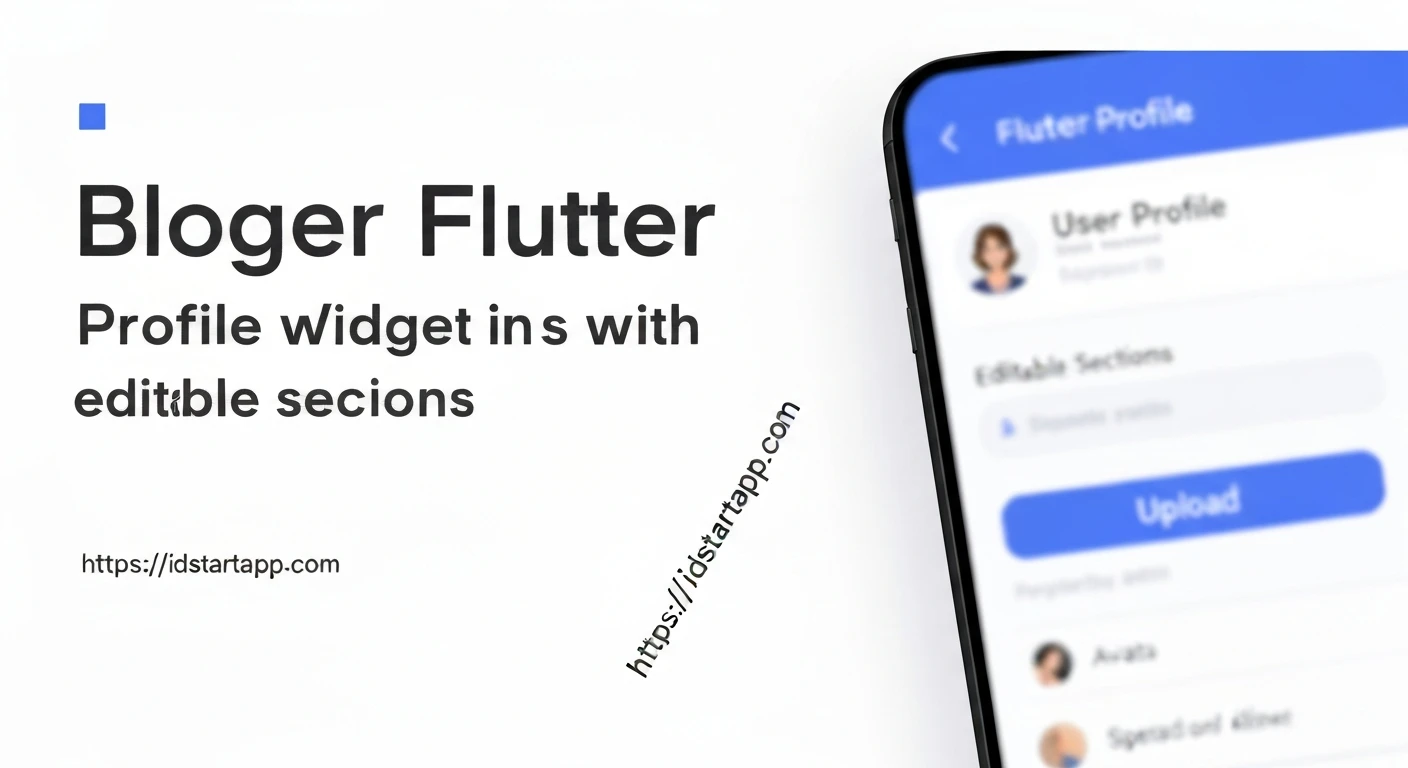

Creating a Profile Page Widget with Editable Sections and Avatar Upload in Flutter
Profile pages are a crucial component in almost any modern application, providing users with a personalized space to view and manage their information. A well-designed profile page enhances user experience by offering clear displays of data and intuitive ways to update it. This article will guide you through building a dynamic profile page widget in Flutter, complete with editable text sections and an avatar upload feature.
Setting Up Your Flutter Project
First, ensure you have the necessary dependency for image picking. Add image_picker to your pubspec.yaml file:
dependencies:
  flutter:
    sdk: flutter
  image_picker: ^1.1.0 # Use the latest version
After adding, run flutter pub get.
1. Data Model for User Profile
We'll start by defining a simple data model to represent our user's profile information. This class will hold the user's name, email, and a URL for their avatar.
import 'dart:io';

class UserProfile {
  String name;
  String email;
  String? avatarUrl; // Can be a local path or a network URL
  File? localAvatarFile; // To hold a newly selected image file

  UserProfile({
    required this.name,
    required this.email,
    this.avatarUrl,
    this.localAvatarFile,
  });

  // Example factory constructor for initial data
  factory UserProfile.initial() {
    return UserProfile(
      name: 'John Doe',
      email: '[email protected]',
      avatarUrl: 'https://via.placeholder.com/150', // Default placeholder
    );
  }
}
2. The Core Profile Page Widget
Our profile page will be a StatefulWidget to manage the state of the editable fields and the avatar image.
import 'package:flutter/material.dart';
import 'package:image_picker/image_picker.dart';
import 'dart:io'; // Required for File

// Assuming UserProfile class is defined as above

class UserProfilePage extends StatefulWidget {
  const UserProfilePage({super.key});

  @override
  State createState() => _UserProfilePageState();
}

class _UserProfilePageState extends State {
  late UserProfile _userProfile;
  bool _isEditing = false;
  final ImagePicker _picker = ImagePicker();

  // Controllers for editable text fields
  late TextEditingController _nameController;
  late TextEditingController _emailController;

  @override
  void initState() {
    super.initState();
    _userProfile = UserProfile.initial(); // Initialize with dummy data
    _nameController = TextEditingController(text: _userProfile.name);
    _emailController = TextEditingController(text: _userProfile.email);
  }

  @override
  void dispose() {
    _nameController.dispose();
    _emailController.dispose();
    super.dispose();
  }

  // ... (rest of the code for avatar upload and editable fields)

  @override
  Widget build(BuildContext context) {
    return Scaffold(
      appBar: AppBar(
        title: const Text('Profile'),
        actions: [
          IconButton(
            icon: Icon(_isEditing ? Icons.save : Icons.edit),
            onPressed: () {
              setState(() {
                if (_isEditing) {
                  // Save changes
                  _userProfile.name = _nameController.text;
                  _userProfile.email = _emailController.text;
                  // In a real app, you would send this data to a backend.
                  // For now, we just update the local state.
                  ScaffoldMessenger.of(context).showSnackBar(
                    const SnackBar(content: Text('Profile saved!')),
                  );
                }
                _isEditing = !_isEditing;
              });
            },
          ),
        ],
      ),
      body: SingleChildScrollView(
        padding: const EdgeInsets.all(16.0),
        child: Column(
          children: [
            _buildAvatarSection(),
            const SizedBox(height: 24),
            _buildEditableField(
              label: 'Name',
              controller: _nameController,
              icon: Icons.person,
            ),
            const SizedBox(height: 16),
            _buildEditableField(
              label: 'Email',
              controller: _emailController,
              icon: Icons.email,
              keyboardType: TextInputType.emailAddress,
            ),
            // Add more editable fields as needed
          ],
        ),
      ),
    );
  }
}
3. Implementing Avatar Upload
We'll create a dedicated widget or section for the avatar, allowing users to tap on it to pick a new image from their gallery or camera.
// Inside _UserProfilePageState class

  Future _pickImage() async {
    final XFile? pickedFile = await _picker.pickImage(source: ImageSource.gallery);
    if (pickedFile != null) {
      setState(() {
        _userProfile.localAvatarFile = File(pickedFile.path);
        // If you were uploading to a server, you'd handle the upload here
        // and update _userProfile.avatarUrl with the new URL.
      });
    }
  }

  Widget _buildAvatarSection() {
    ImageProvider avatarImage;

    if (_userProfile.localAvatarFile != null) {
      avatarImage = FileImage(_userProfile.localAvatarFile!);
    } else if (_userProfile.avatarUrl != null && _userProfile.avatarUrl!.startsWith('http')) {
      avatarImage = NetworkImage(_userProfile.avatarUrl!);
    } else {
      avatarImage = const AssetImage('assets/default_avatar.png'); // Provide a default asset
    }

    return Center(
      child: GestureDetector(
        onTap: _isEditing ? _pickImage : null, // Only allow picking when editing
        child: Stack(
          children: [
            CircleAvatar(
              radius: 60,
              backgroundImage: avatarImage,
              backgroundColor: Colors.grey.shade200,
              child: _userProfile.localAvatarFile == null && _userProfile.avatarUrl == null
                  ? const Icon(Icons.person, size: 60, color: Colors.grey)
                  : null,
            ),
            if (_isEditing)
              Positioned(
                bottom: 0,
                right: 0,
                child: CircleAvatar(
                  backgroundColor: Theme.of(context).primaryColor,
                  radius: 20,
                  child: const Icon(
                    Icons.camera_alt,
                    color: Colors.white,
                    size: 18,
                  ),
                ),
              ),
          ],
        ),
      ),
    );
  }
Remember to add a default avatar image in your assets/ folder and declare it in pubspec.yaml:
flutter:
  uses-material-design: true
  assets:
    - assets/default_avatar.png
4. Building Editable Information Sections
To handle editable fields, we'll create a helper method _buildEditableField. This method will conditionally render a TextFormField when in editing mode, or a simple Text widget when not.
// Inside _UserProfilePageState class

  Widget _buildEditableField({
    required String label,
    required TextEditingController controller,
    required IconData icon,
    TextInputType keyboardType = TextInputType.text,
  }) {
    return Column(
      crossAxisAlignment: CrossAxisAlignment.start,
      children: [
        Padding(
          padding: const EdgeInsets.only(bottom: 8.0),
          child: Text(
            label,
            style: TextStyle(
              fontWeight: FontWeight.bold,
              color: Colors.grey.shade700,
            ),
          ),
        ),
        _isEditing
            ? TextFormField(
                controller: controller,
                keyboardType: keyboardType,
                decoration: InputDecoration(
                  prefixIcon: Icon(icon),
                  border: const OutlineInputBorder(),
                  isDense: true,
                ),
                style: const TextStyle(fontSize: 16),
              )
            : Container(
                padding: const EdgeInsets.symmetric(vertical: 12, horizontal: 16),
                decoration: BoxDecoration(
                  color: Colors.grey.shade100,
                  borderRadius: BorderRadius.circular(8),
                ),
                child: Row(
                  children: [
                    Icon(icon, color: Colors.grey.shade600),
                    const SizedBox(width: 12),
                    Expanded(
                      child: Text(
                        controller.text,
                        style: const TextStyle(fontSize: 16),
                      ),
                    ),
                  ],
                ),
              ),
      ],
    );
  }
5. Assembling the Profile Page
The build method of _UserProfilePageState combines all these components within a Scaffold. We've already outlined this in section 2.
The AppBar contains an action button that toggles the _isEditing state. When _isEditing is true, it shows a "Save" icon, and when false, it shows an "Edit" icon. Tapping "Save" updates the _userProfile object with the new data from the TextEditingControllers.
6. State Management and Persistence
In this example, state management is handled locally within the StatefulWidget using setState. For larger applications, you might consider more robust state management solutions like Provider, BLoC, Riverpod, or GetX.
Regarding persistence, this implementation only updates the local UserProfile object in memory. In a real-world application, after a user clicks "Save" and a new avatar is picked, you would:
- Upload the new image file to a server (e.g., Firebase Storage, AWS S3).
- Receive the new avatar URL from the server.
- Send the updated profile data (including the new avatar URL) to your backend API.
- Handle success or failure responses.
These backend interactions would typically involve asynchronous operations and error handling.
Conclusion
You have successfully built a Flutter profile page widget with editable sections and an avatar upload feature. This widget is dynamic, allowing users to update their information seamlessly. You can further enhance this by adding data validation, more complex UI elements, animations, and robust error handling. Integrating with a backend service will make your profile page fully functional and persistent across app sessions.