
Building a Recipe List Widget with Category Chips in Flutter
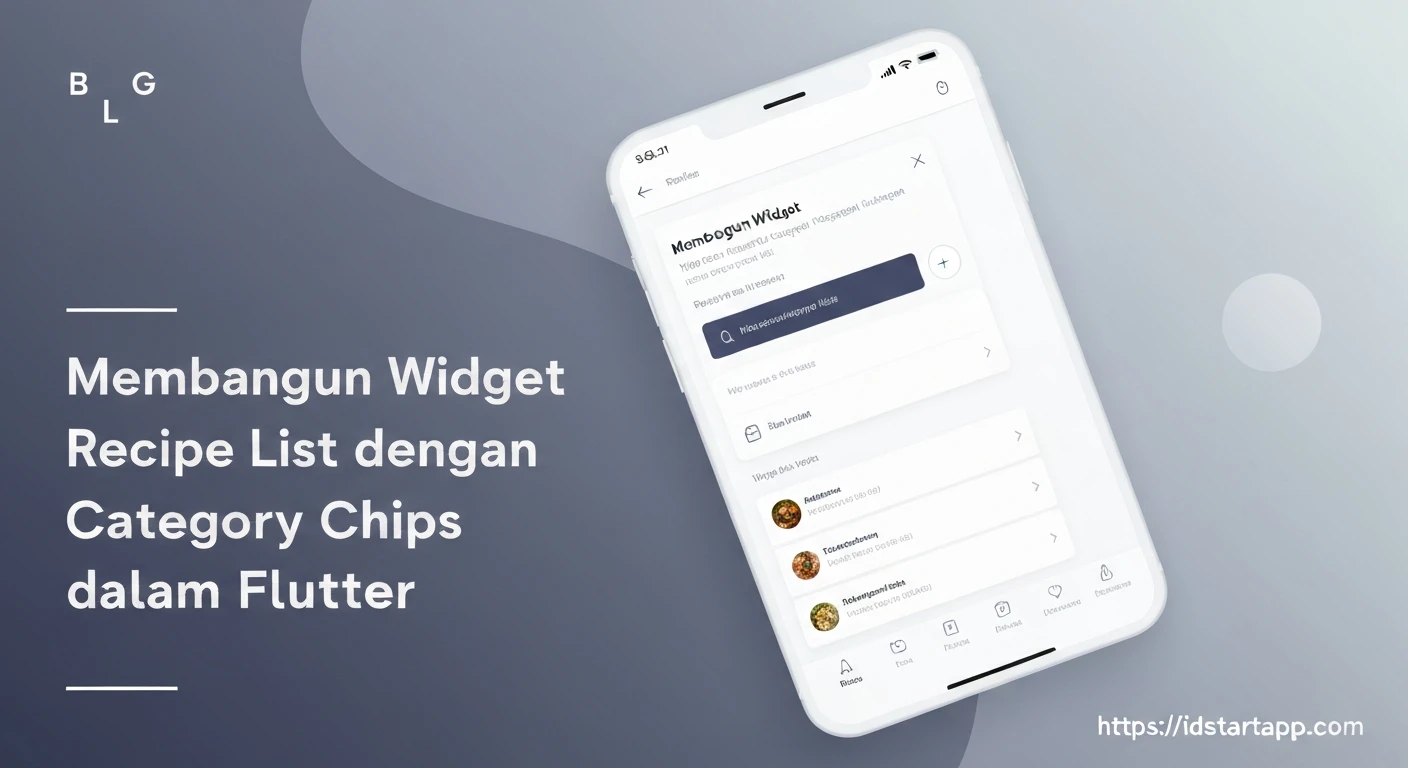
Creating dynamic and interactive user interfaces is a cornerstone of modern application development. In Flutter, widgets are the building blocks that allow us to achieve this with elegance and efficiency. This article will guide you through building a "Recipe List" widget featuring "Category Chips" for filtering, providing users with an intuitive way to browse recipes by cuisine, meal type, or dietary preference.
We will construct several key components:
- A data model for our recipes.
- Interactive category chips for filtering.
- A list view to display the recipes.
- A main screen to orchestrate the filtering logic and UI.
1. The Recipe Data Model
First, let's define a simple data model for our Recipe. This class will hold properties like the recipe's ID, name, description, and a list of categories it belongs to.
Create a file named recipe.dart:
class Recipe {
  final String id;
  final String name;
  final String description;
  final List categories; // e.g., 'Breakfast', 'Dinner', 'Vegetarian'

  Recipe({
    required this.id,
    required this.name,
    required this.description,
    required this.categories,
  });
}
2. Displaying the Recipe List
Next, we'll create a widget responsible solely for displaying a given list of recipes. This widget will be stateless, meaning it doesn't manage its own internal state, and will simply render the recipes it receives.
Create a file named recipe_list_view.dart:
import 'package:flutter/material.dart';
import 'recipe.dart'; // Assuming recipe.dart is in the same directory

class RecipeListView extends StatelessWidget {
  final List recipes;

  const RecipeListView({Key? key, required this.recipes}) : super(key: key);

  @override
  Widget build(BuildContext context) {
    if (recipes.isEmpty) {
      return const Center(
        child: Text('No recipes found for the selected categories.'),
      );
    }
    return ListView.builder(
      itemCount: recipes.length,
      itemBuilder: (context, index) {
        final recipe = recipes[index];
        return Card(
          margin: const EdgeInsets.symmetric(horizontal: 16.0, vertical: 8.0),
          child: Padding(
            padding: const EdgeInsets.all(16.0),
            child: Column(
              crossAxisAlignment: CrossAxisAlignment.start,
              children: [
                Text(
                  recipe.name,
                  style: const TextStyle(
                    fontSize: 18,
                    fontWeight: FontWeight.bold,
                  ),
                ),
                const SizedBox(height: 8),
                Text(recipe.description),
                const SizedBox(height: 8),
                Wrap(
                  spacing: 8.0,
                  children: recipe.categories
                      .map((category) => Chip(label: Text(category)))
                      .toList(),
                ),
              ],
            ),
          ),
        );
      },
    );
  }
}
3. Building Interactive Category Chips and the Main Screen
The core logic for filtering will reside in a StatefulWidget that manages the selected categories. We will use Flutter's ChoiceChip widget to represent each category, allowing users to select or deselect them. The main screen will fetch all available categories from our dummy data, display them as chips, and pass the filtered list to our RecipeListView.
Create a file named home_screen.dart:
import 'package:flutter/material.dart';
import 'recipe.dart';
import 'recipe_list_view.dart';

class HomeScreen extends StatefulWidget {
  const HomeScreen({Key? key}) : super(key: key);

  @override
  State createState() => _HomeScreenState();
}

class _HomeScreenState extends State {
  // Dummy data for our recipes
  final List _allRecipes = [
    Recipe(
      id: 'r1',
      name: 'Spaghetti Carbonara',
      description: 'Classic Italian pasta dish with eggs, hard cheese, cured pork, and black pepper.',
      categories: ['Dinner', 'Italian'],
    ),
    Recipe(
      id: 'r2',
      name: 'Vegetable Stir-fry',
      description: 'A quick and healthy stir-fry with assorted vegetables and tofu.',
      categories: ['Dinner', 'Vegetarian', 'Quick'],
    ),
    Recipe(
      id: 'r3',
      name: 'Pancakes',
      description: 'Fluffy pancakes for a perfect breakfast or brunch.',
      categories: ['Breakfast', 'Dessert'],
    ),
    Recipe(
      id: 'r4',
      name: 'Chicken Curry',
      description: 'A rich and aromatic chicken curry with Indian spices.',
      categories: ['Dinner', 'Indian'],
    ),
    Recipe(
      id: 'r5',
      name: 'Fruit Salad',
      description: 'A refreshing mix of seasonal fruits.',
      categories: ['Breakfast', 'Vegetarian', 'Quick'],
    ),
  ];

  Set _selectedCategories = {}; // Stores currently selected categories
  late List _availableCategories; // All unique categories from recipes

  @override
  void initState() {
    super.initState();
    // Extract all unique categories from the recipes and sort them
    _availableCategories = _allRecipes
        .expand((recipe) => recipe.categories) // Flatten all category lists
        .toSet() // Get unique categories
        .toList() // Convert to a list
        ..sort(); // Sort alphabetically
  }

  // Toggles the selection state of a category chip
  void _toggleCategory(String category, bool isSelected) {
    setState(() {
      if (isSelected) {
        _selectedCategories.add(category);
      } else {
        _selectedCategories.remove(category);
      }
    });
  }

  // Computes the list of recipes based on selected categories
  List get _filteredRecipes {
    if (_selectedCategories.isEmpty) {
      return _allRecipes; // If no categories are selected, show all recipes
    } else {
      // Filter recipes where at least one of their categories matches a selected category
      return _allRecipes.where((recipe) {
        return recipe.categories.any((category) => _selectedCategories.contains(category));
      }).toList();
    }
  }

  @override
  Widget build(BuildContext context) {
    return Scaffold(
      appBar: AppBar(
        title: const Text('Recipe List'),
      ),
      body: Column(
        children: [
          // Horizontal scrollable list of category chips
          Padding(
            padding: const EdgeInsets.all(8.0),
            child: SingleChildScrollView(
              scrollDirection: Axis.horizontal,
              child: Row(
                children: _availableCategories.map((category) {
                  final isSelected = _selectedCategories.contains(category);
                  return Padding(
                    padding: const EdgeInsets.symmetric(horizontal: 4.0),
                    child: ChoiceChip(
                      label: Text(category),
                      selected: isSelected,
                      onSelected: (selected) {
                        _toggleCategory(category, selected);
                      },
                      // Customize selected chip appearance
                      selectedColor: Theme.of(context).primaryColor,
                      labelStyle: TextStyle(
                        color: isSelected ? Colors.white : Theme.of(context).textTheme.bodyText1?.color,
                      ),
                    ),
                  );
                }).toList(),
              ),
            ),
          ),
          // Expanded widget to ensure RecipeListView takes remaining space
          Expanded(
            child: RecipeListView(recipes: _filteredRecipes),
          ),
        ],
      ),
    );
  }
}
4. The Main Application Entry Point
Finally, set up the basic Flutter application to display our HomeScreen.
Modify your main.dart file:
import 'package:flutter/material.dart';
import 'home_screen.dart'; // Assuming home_screen.dart is in the same directory

void main() {
  runApp(const MyApp());
}

class MyApp extends StatelessWidget {
  const MyApp({Key? key}) : super(key: key);

  @override
  Widget build(BuildContext context) {
    return MaterialApp(
      title: 'Recipe App',
      theme: ThemeData(
        primarySwatch: Colors.blue,
        visualDensity: VisualDensity.adaptivePlatformDensity,
      ),
      home: const HomeScreen(),
    );
  }
}
Conclusion
By following these steps, you have successfully built a Flutter application that displays a list of recipes and allows users to filter them dynamically using interactive category chips. This architecture separates concerns effectively: a data model for recipes, a stateless widget for displaying the list, and a stateful widget for managing filtering logic and orchestrating the UI.
This pattern can be extended further:
- Implement a search bar for text-based filtering.
- Add navigation to a detailed recipe view when a card is tapped.
- Integrate with a backend API or local database for persistent storage and dynamic data loading.
- Enhance UI/UX with animations or more sophisticated chip designs.
This foundational understanding of state management with interactive widgets is crucial for building engaging and functional Flutter applications.