
Building a Recipe Category Grid Widget with Overlay Gradient and Tap Action in Flutter
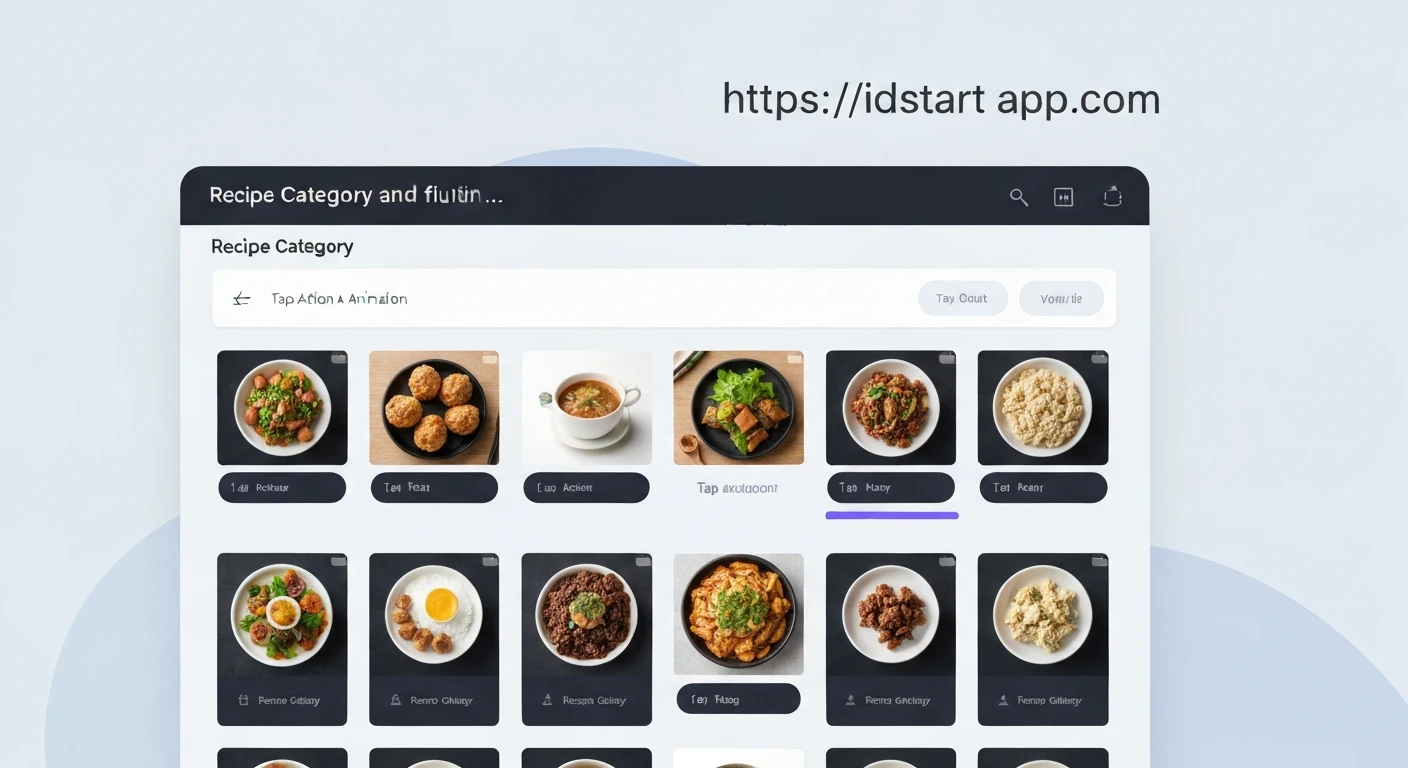
Creating engaging and intuitive user interfaces is crucial for any modern application. In Flutter, we can achieve this with custom widgets that combine visual appeal with interactive functionality. This article will guide you through building a "Recipe Category Grid" widget, featuring a visually appealing overlay gradient and a responsive tap action, perfect for navigation in a recipe application.
Understanding the Core ComponentsOur widget will consist of several key elements working in harmony:
- Grid Layout: Displaying categories in a responsive grid using
GridView.builder. - Category Item: Each grid cell will represent a single recipe category, showing an image and its name.
- Overlay Gradient: A translucent gradient overlay on top of the image to enhance readability of the category name and add a modern aesthetic.
- Tap Action: Allowing users to tap on a category to trigger a specific action, such as navigating to a list of recipes within that category.
First, let's create a simple data model to represent our recipe categories.
class RecipeCategory {
  final String id;
  final String title;
  final String imageUrl;

  const RecipeCategory({
    required this.id,
    required this.title,
    required this.imageUrl,
  });
}
This widget will be responsible for rendering a single category within the grid. It will feature a background image, a gradient overlay, the category title, and an InkWell for tap detection.
import 'package:flutter/material.dart';

class CategoryGridItem extends StatelessWidget {
  final RecipeCategory category;
  final VoidCallback onTap;

  const CategoryGridItem({
    Key? key,
    required this.category,
    required this.onTap,
  }) : super(key: key);

  @override
  Widget build(BuildContext context) {
    return InkWell(
      onTap: onTap,
      splashColor: Theme.of(context).primaryColor.withOpacity(0.7),
      borderRadius: BorderRadius.circular(15),
      child: Container(
        decoration: BoxDecoration(
          borderRadius: BorderRadius.circular(15),
          boxShadow: [
            BoxShadow(
              color: Colors.black.withOpacity(0.2),
              spreadRadius: 1,
              blurRadius: 5,
              offset: Offset(0, 3),
            ),
          ],
        ),
        child: ClipRRect(
          borderRadius: BorderRadius.circular(15),
          child: Stack(
            children: [
              // Background Image
              Positioned.fill(
                child: Image.network(
                  category.imageUrl,
                  fit: BoxFit.cover,
                  errorBuilder: (context, error, stackTrace) {
                    return Container(
                      color: Colors.grey[300],
                      child: Icon(Icons.broken_image, size: 50, color: Colors.grey[600]),
                    );
                  },
                ),
              ),
              // Overlay Gradient
              Positioned.fill(
                child: DecoratedBox(
                  decoration: BoxDecoration(
                    gradient: LinearGradient(
                      colors: [
                        Colors.black.withOpacity(0.6),
                        Colors.transparent,
                      ],
                      begin: Alignment.bottomCenter,
                      end: Alignment.topCenter,
                    ),
                  ),
                ),
              ),
              // Category Title
              Positioned(
                bottom: 10,
                left: 10,
                right: 10,
                child: Text(
                  category.title,
                  style: const TextStyle(
                    color: Colors.white,
                    fontSize: 20,
                    fontWeight: FontWeight.bold,
                  ),
                  maxLines: 2,
                  overflow: TextOverflow.ellipsis,
                ),
              ),
            ],
          ),
        ),
      ),
    );
  }
}
This widget will arrange multiple CategoryGridItem widgets into a scrollable grid. We'll use GridView.builder for efficient rendering.
import 'package:flutter/material.dart';
// Assuming RecipeCategory and CategoryGridItem are in the same project or imported correctly
// import 'path_to_your_category_model.dart';
// import 'path_to_your_category_grid_item.dart';

class RecipeCategoryGrid extends StatelessWidget {
  final List<RecipeCategory> categories;
  final Function(RecipeCategory category) onCategoryTap;

  const RecipeCategoryGrid({
    Key? key,
    required this.categories,
    required this.onCategoryTap,
  }) : super(key: key);

  @override
  Widget build(BuildContext context) {
    return GridView.builder(
      padding: const EdgeInsets.all(15),
      gridDelegate: const SliverGridDelegateWithFixedCrossAxisCount(
        crossAxisCount: 2, // Two columns
        childAspectRatio: 3 / 2, // Aspect ratio of each item
        crossAxisSpacing: 15, // Horizontal spacing
        mainAxisSpacing: 15, // Vertical spacing
      ),
      itemCount: categories.length,
      itemBuilder: (context, index) {
        final category = categories[index];
        return CategoryGridItem(
          category: category,
          onTap: () => onCategoryTap(category),
        );
      },
    );
  }
}
Now, let's integrate our new widget into a Flutter screen.
import 'package:flutter/material.dart';
// Assuming RecipeCategory, CategoryGridItem, and RecipeCategoryGrid are imported
// import 'path_to_your_widgets.dart';

class CategoryScreen extends StatefulWidget {
  const CategoryScreen({Key? key}) : super(key: key);

  @override
  State<CategoryScreen> createState() => _CategoryScreenState();
}

class _CategoryScreenState extends State<CategoryScreen> {
  final List<RecipeCategory> _dummyCategories = const [
    RecipeCategory(
      id: 'c1',
      title: 'Italian',
      imageUrl: 'https://cdn.pixabay.com/photo/2016/11/29/05/07/pizza-1867160_1280.jpg',
    ),
    RecipeCategory(
      id: 'c2',
      title: 'Quick & Easy',
      imageUrl: 'https://cdn.pixabay.com/photo/2018/03/31/19/29/schnitzel-3279045_1280.jpg',
    ),
    RecipeCategory(
      id: 'c3',
      title: 'Hamburgers',
      imageUrl: 'https://cdn.pixabay.com/photo/2014/10/23/18/05/burger-500054_1280.jpg',
    ),
    RecipeCategory(
      id: 'c4',
      title: 'German',
      imageUrl: 'https://cdn.pixabay.com/photo/2018/03/31/19/29/schnitzel-3279045_1280.jpg',
    ),
    RecipeCategory(
      id: 'c5',
      title: 'Light & Lovely',
      imageUrl: 'https://cdn.pixabay.com/photo/2018/04/23/21/51/salad-3345879_1280.jpg',
    ),
    RecipeCategory(
      id: 'c6',
      title: 'Exotic',
      imageUrl: 'https://cdn.pixabay.com/photo/2017/01/29/12/57/curry-2016892_1280.jpg',
    ),
    RecipeCategory(
      id: 'c7',
      title: 'Breakfast',
      imageUrl: 'https://cdn.pixabay.com/photo/2017/03/24/11/17/breakfast-2171556_1280.jpg',
    ),
    RecipeCategory(
      id: 'c8',
      title: 'Asian',
      imageUrl: 'https://cdn.pixabay.com/photo/2018/03/06/11/38/pad-thai-3203923_1280.jpg',
    ),
  ];

  void _handleCategoryTap(RecipeCategory category) {
    // Implement your navigation logic here
    ScaffoldMessenger.of(context).showSnackBar(
      SnackBar(
        content: Text('Tapped on ${category.title}'),
        duration: const Duration(seconds: 1),
      ),
    );
    // Example: Navigator.of(context).push(MaterialPageRoute(builder: (ctx) => RecipesScreen(category: category)));
  }

  @override
  Widget build(BuildContext context) {
    return Scaffold(
      appBar: AppBar(
        title: const Text('Recipe Categories'),
      ),
      body: RecipeCategoryGrid(
        categories: _dummyCategories,
        onCategoryTap: _handleCategoryTap,
      ),
    );
  }
}
By following these steps, you've successfully created a reusable and visually appealing recipe category grid widget in Flutter. This widget not only presents information clearly but also enhances user interaction with its gradient overlay and tap functionality. You can further customize this by adjusting gradient colors, font styles, grid layout properties, or adding animations for a truly unique user experience.