
Building an Animated Recipe Category Grid Widget with Gradient Overlay and Tap Action in Flutter
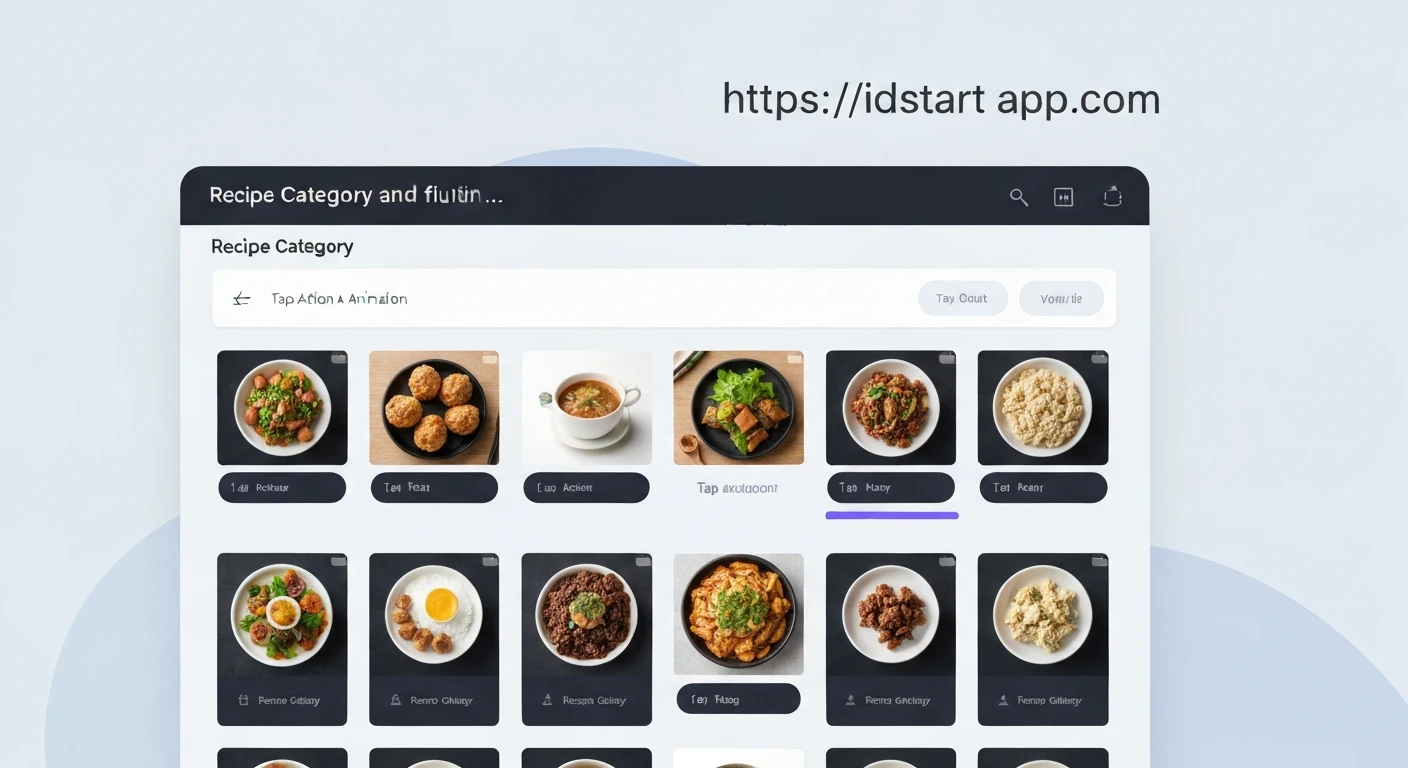
Creating an intuitive and visually appealing user interface is paramount for any modern application. In a recipe app, a grid of categories allows users to quickly discover different types of cuisines or dishes. This article details how to build a dynamic Recipe Category Grid widget in Flutter, complete with an overlay gradient for better text readability, an interactive tap action, and subtle animations for an enhanced user experience.
Our goal is to create a reusable component that displays categories with an image, a transparent gradient overlay, the category name, and an animation that triggers when the user taps on an item.
1. Defining the Recipe Category Data Model
First, let's define a simple data model for our recipe categories. This model will hold the category's ID, name, and an image URL.
class Category {
  final String id;
  final String name;
  final String imageUrl;

  const Category({
    required this.id,
    required this.name,
    required this.imageUrl,
  });
}

// Example data
const DUMMY_CATEGORIES = [
  Category(
    id: 'c1',
    name: 'Italian',
    imageUrl: 'https://cdn.pixabay.com/photo/2014/10/22/19/27/pizza-498565_960_720.jpg',
  ),
  Category(
    id: 'c2',
    name: 'Quick & Easy',
    imageUrl: 'https://cdn.pixabay.com/photo/2017/01/11/11/32/burger-1970220_960_720.jpg',
  ),
  Category(
    id: 'c3',
    name: 'Hamburgers',
    imageUrl: 'https://cdn.pixabay.com/photo/2016/03/05/19/02/hamburger-1238246_960_720.jpg',
  ),
  Category(
    id: 'c4',
    name: 'German',
    imageUrl: 'https://cdn.pixabay.com/photo/2016/01/22/02/08/sausages-1155988_960_720.jpg',
  ),
  Category(
    id: 'c5',
    name: 'Light & Lovely',
    imageUrl: 'https://cdn.pixabay.com/photo/2016/08/11/08/04/salad-1584090_960_720.jpg',
  ),
  Category(
    id: 'c6',
    name: 'Exotic',
    imageUrl: 'https://cdn.pixabay.com/photo/2017/02/15/15/17/bowl-2069002_960_720.jpg',
  ),
  Category(
    id: 'c7',
    name: 'Breakfast',
    imageUrl: 'https://cdn.pixabay.com/photo/2017/03/24/19/33/breakfast-2172778_960_720.jpg',
  ),
  Category(
    id: 'c8',
    name: 'Asian',
    imageUrl: 'https://cdn.pixabay.com/photo/2017/01/10/22/50/ramen-1969018_960_720.jpg',
  ),
  Category(
    id: 'c9',
    name: 'French',
    imageUrl: 'https://cdn.pixabay.com/photo/2016/11/19/11/31/crepe-1838640_960_720.jpg',
  ),
  Category(
    id: 'c10',
    name: 'Summer',
    imageUrl: 'https://cdn.pixabay.com/photo/2017/08/06/15/06/watermelon-2592750_960_720.jpg',
  ),
];
2. Building the Category Grid Item Widget
Each item in the grid will be a separate widget. To incorporate animation and tap effects, we'll make this a StatefulWidget.
The _CategoryGridItemState will manage an AnimationController to handle the scaling animation when the item is tapped. We'll initialize and dispose of the controller properly.
import 'package:flutter/material.dart';
import 'package:flutter_app/models/category.dart'; // Assuming your Category model is here

class CategoryGridItem extends StatefulWidget {
  final Category category;
  final void Function(Category category) onSelectCategory;

  const CategoryGridItem({
    super.key,
    required this.category,
    required this.onSelectCategory,
  });

  @override
  State createState() => _CategoryGridItemState();
}

class _CategoryGridItemState extends State
    with SingleTickerProviderStateMixin {
  late AnimationController _controller;
  late Animation _scaleAnimation;

  @override
  void initState() {
    super.initState();
    _controller = AnimationController(
      vsync: this,
      duration: const Duration(milliseconds: 200),
    );
    _scaleAnimation = Tween(begin: 1.0, end: 0.95).animate(
      CurvedAnimation(
        parent: _controller,
        curve: Curves.easeOut,
      ),
    );
  }

  @override
  void dispose() {
    _controller.dispose();
    super.dispose();
  }

  void _handleTap() async {
    await _controller.forward(); // Scale down
    await Future.delayed(const Duration(milliseconds: 100)); // Small pause
    await _controller.reverse(); // Scale back up
    widget.onSelectCategory(widget.category);
  }

  // ... build method will go here
}
The build method for each grid item will use a Stack to layer the image, the gradient overlay, and the category name text. A GestureDetector will wrap the entire stack to handle tap actions and trigger the animation.
// ... (inside _CategoryGridItemState class, after _handleTap method)

  @override
  Widget build(BuildContext context) {
    return ScaleTransition(
      scale: _scaleAnimation,
      child: GestureDetector(
        onTap: _handleTap,
        child: Card(
          elevation: 4,
          shape: RoundedRectangleBorder(
            borderRadius: BorderRadius.circular(15),
          ),
          clipBehavior: Clip.antiAlias, // Ensures content respects border radius
          child: Stack(
            fit: StackFit.expand,
            children: [
              // 1. Background Image
              Image.network(
                widget.category.imageUrl,
                fit: BoxFit.cover,
                errorBuilder: (context, error, stackTrace) =>
                    const Center(child: Icon(Icons.broken_image)),
              ),
              // 2. Gradient Overlay for Text Readability
              Positioned.fill(
                child: DecoratedBox(
                  decoration: BoxDecoration(
                    gradient: LinearGradient(
                      colors: [
                        Colors.black.withOpacity(0.0), // Transparent top
                        Colors.black.withOpacity(0.7), // Darker bottom
                      ],
                      begin: Alignment.topCenter,
                      end: Alignment.bottomCenter,
                      stops: const [0.5, 1.0], // Start gradient halfway
                    ),
                  ),
                ),
              ),
              // 3. Category Name Text
              Positioned(
                bottom: 16,
                left: 16,
                right: 16,
                child: Text(
                  widget.category.name,
                  style: const TextStyle(
                    color: Colors.white,
                    fontSize: 20,
                    fontWeight: FontWeight.bold,
                    shadows: [
                      Shadow(
                        blurRadius: 4.0,
                        color: Colors.black,
                        offset: Offset(2.0, 2.0),
                      ),
                    ],
                  ),
                  textAlign: TextAlign.start,
                  maxLines: 2,
                  overflow: TextOverflow.ellipsis,
                ),
              ),
            ],
          ),
        ),
      ),
    );
  }
3. Creating the Main Recipe Category Grid Widget
Now, let's create the parent widget that will lay out these individual category items in a grid. We'll use GridView.builder for efficient rendering, especially with a large number of categories.
// ... (import Category and CategoryGridItem)

class RecipeCategoryGrid extends StatelessWidget {
  final List categories;
  final void Function(Category category) onSelectCategory;

  const RecipeCategoryGrid({
    super.key,
    required this.categories,
    required this.onSelectCategory,
  });

  @override
  Widget build(BuildContext context) {
    return GridView.builder(
      padding: const EdgeInsets.all(16),
      gridDelegate: const SliverGridDelegateWithFixedCrossAxisCount(
        crossAxisCount: 2, // 2 items per row
        childAspectRatio: 3 / 2, // Aspect ratio of each item
        crossAxisSpacing: 20, // Horizontal spacing
        mainAxisSpacing: 20, // Vertical spacing
      ),
      itemCount: categories.length,
      itemBuilder: (ctx, index) {
        return CategoryGridItem(
          category: categories[index],
          onSelectCategory: onSelectCategory,
        );
      },
    );
  }
}
4. Integrating and Using the Widget
Finally, you can integrate this RecipeCategoryGrid widget into your application's UI, for example, on a home screen. Here's how you might use it, navigating to a new screen when a category is selected.
import 'package:flutter/material.dart';
import 'package:flutter_app/widgets/recipe_category_grid.dart'; // Adjust path
import 'package:flutter_app/models/category.dart'; // Adjust path
// import 'package:flutter_app/screens/recipes_screen.dart'; // Assuming you have a screen to navigate to

class CategoriesScreen extends StatelessWidget {
  const CategoriesScreen({super.key});

  void _selectCategory(BuildContext context, Category category) {
    // Example navigation: Push a new screen showing recipes for the selected category
    // Navigator.of(context).push(
    //   MaterialPageRoute(
    //     builder: (ctx) => RecipesScreen(
    //       title: category.name,
    //       categoryId: category.id,
    //     ),
    //   ),
    // );
    // For this example, let's just print to console
    print('Selected category: ${category.name}');
    ScaffoldMessenger.of(context).showSnackBar(
      SnackBar(content: Text('Navigating to ${category.name} recipes!')),
    );
  }

  @override
  Widget build(BuildContext context) {
    return Scaffold(
      appBar: AppBar(
        title: const Text('Recipe Categories'),
      ),
      body: RecipeCategoryGrid(
        categories: DUMMY_CATEGORIES, // Using our example data
        onSelectCategory: (category) {
          _selectCategory(context, category);
        },
      ),
    );
  }
}
Conclusion
By combining GridView.builder, Stack for layering, DecoratedBox for gradients, GestureDetector for interactivity, and AnimationController for a subtle tap effect, we've created a robust and visually engaging Recipe Category Grid widget in Flutter. This component is not only functional for navigation but also provides a polished user experience with its gradient overlay and animation. You can further enhance this by adding hero animations for images, different types of tap feedback, or even a shimmer loading effect while images are being fetched.