
Building a Profile Avatar Widget with Status Indicator in Flutter
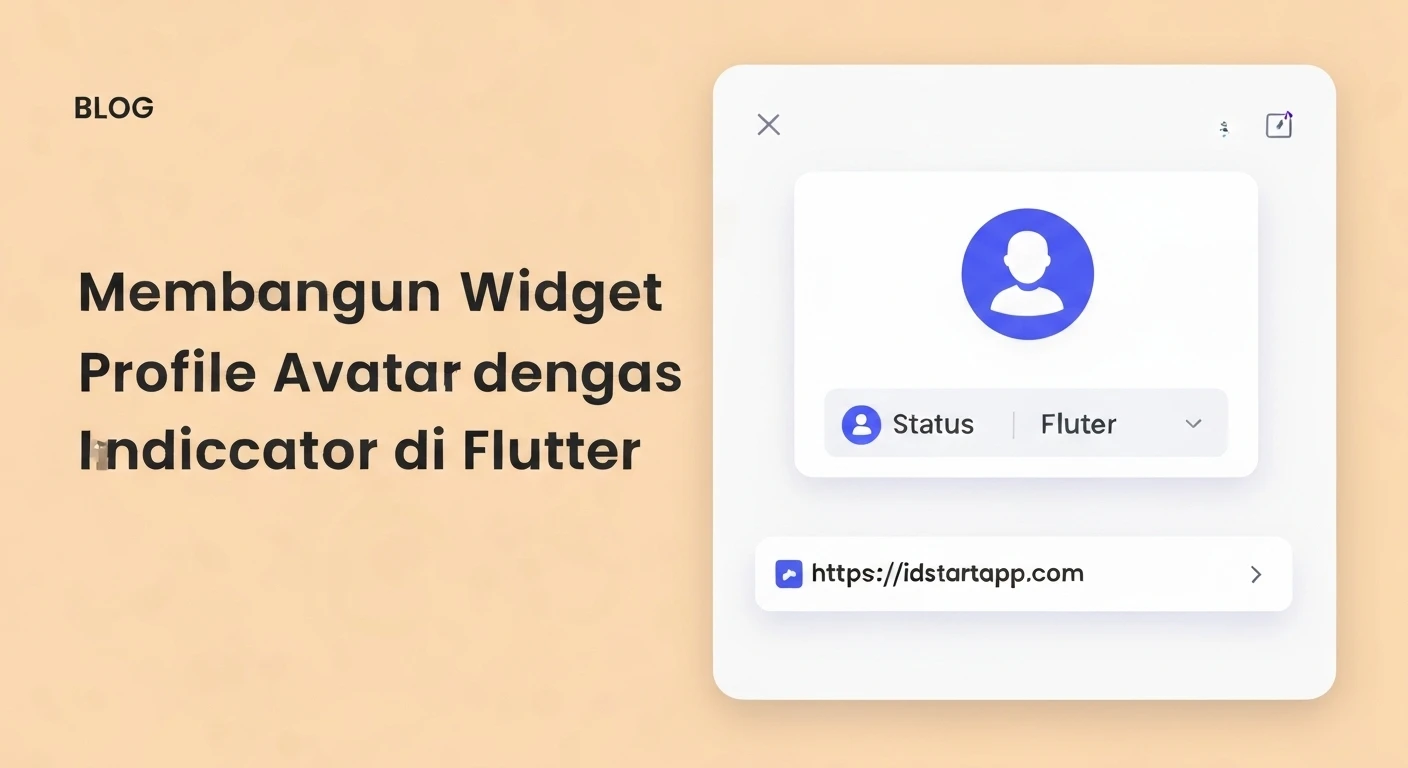
In modern applications, displaying user profiles often involves showing an avatar image alongside a visual indicator of their current status (e.g., online, offline, busy). This seemingly simple UI element can significantly enhance user experience by providing immediate visual cues. In Flutter, creating such a widget is straightforward thanks to its powerful composition model. This article will guide you through building a reusable Profile Avatar widget with a dynamic status indicator.
Understanding the Core Components
Before diving into the code, let's identify the primary Flutter widgets we'll leverage:
CircleAvatar: The perfect widget for displaying circular user profile images.Stack: A widget that allows positioning multiple children on top of each other. This is crucial for placing the status indicator over the avatar.Positioned: Used within aStackto control the exact placement of a child widget relative to the stack's edges.Container: A versatile widget that can be used to create the circular status indicator, providing control over its size, color, and shape.
Step-by-Step Implementation
1. Basic Profile Avatar
First, let's start with a simple CircleAvatar to display a user's image. We'll use NetworkImage for demonstration, but you could also use AssetImage or FileImage.
import 'package:flutter/material.dart';

class BasicAvatarExample extends StatelessWidget {
  @override
  Widget build(BuildContext context) {
    return Center(
      child: CircleAvatar(
        radius: 50,
        backgroundImage: NetworkImage('https://via.placeholder.com/150'),
      ),
    );
  }
}
2. Adding the Status Indicator Overlay
To place the status indicator, we'll wrap the CircleAvatar in a Stack. The indicator itself will be a small circular Container positioned at the bottom-right corner of the avatar.
import 'package:flutter/material.dart';

class AvatarWithStatusExample extends StatelessWidget {
  @override
  Widget build(BuildContext context) {
    return Center(
      child: Stack(
        children: [
          CircleAvatar(
            radius: 50,
            backgroundImage: NetworkImage('https://via.placeholder.com/150'),
          ),
          Positioned(
            bottom: 0,
            right: 0,
            child: Container(
              width: 20,
              height: 20,
              decoration: BoxDecoration(
                color: Colors.green, // Example: online status
                shape: BoxShape.circle,
                border: Border.all(
                  color: Colors.white, // White border for contrast
                  width: 3,
                ),
              ),
            ),
          ),
        ],
      ),
    );
  }
}
3. Creating a Reusable Widget
To make this component reusable across your application, it's best to encapsulate it within a StatelessWidget. We'll introduce properties for the image URL, avatar radius, and status type. Using an enum for status makes the code cleaner and less error-prone.
import 'package:flutter/material.dart';

enum UserStatus { online, offline, busy, away }

class ProfileAvatarWithStatus extends StatelessWidget {
  final String imageUrl;
  final double radius;
  final UserStatus status;
  final double statusIndicatorSize;
  final double statusBorderWidth;
  final Color statusBorderColor;

  const ProfileAvatarWithStatus({
    Key? key,
    required this.imageUrl,
    this.radius = 40,
    this.status = UserStatus.offline,
    this.statusIndicatorSize = 12, // Default size for the indicator
    this.statusBorderWidth = 2,
    this.statusBorderColor = Colors.white,
  }) : super(key: key);

  Color _getStatusColor(UserStatus status) {
    switch (status) {
      case UserStatus.online:
        return Colors.green;
      case UserStatus.offline:
        return Colors.grey;
      case UserStatus.busy:
        return Colors.red;
      case UserStatus.away:
        return Colors.orange;
      default:
        return Colors.grey;
    }
  }

  @override
  Widget build(BuildContext context) {
    // Calculate indicator position dynamically relative to avatar radius
    // This ensures the indicator stays on the edge regardless of avatar size
    final double indicatorOffset = radius * 0.1; // Small offset from edge

    return Stack(
      children: [
        CircleAvatar(
          radius: radius,
          backgroundImage: NetworkImage(imageUrl),
          backgroundColor: Colors.grey.shade200, // Placeholder color
        ),
        Positioned(
          bottom: indicatorOffset,
          right: indicatorOffset,
          child: Container(
            width: statusIndicatorSize,
            height: statusIndicatorSize,
            decoration: BoxDecoration(
              color: _getStatusColor(status),
              shape: BoxShape.circle,
              border: Border.all(
                color: statusBorderColor,
                width: statusBorderWidth,
              ),
            ),
          ),
        ),
      ],
    );
  }
}
4. Usage Example
Now that we have our reusable ProfileAvatarWithStatus widget, let's see how to integrate it into a Flutter application. We'll display a few avatars with different statuses and sizes.
import 'package:flutter/material.dart';
// Assuming ProfileAvatarWithStatus and UserStatus enum are defined above or in a separate file.

void main() {
  runApp(MyApp());
}

class MyApp extends StatelessWidget {
  @override
  Widget build(BuildContext context) {
    return MaterialApp(
      title: 'Profile Avatar Demo',
      theme: ThemeData(
        primarySwatch: Colors.blue,
        visualDensity: VisualDensity.adaptivePlatformDensity,
      ),
      home: Scaffold(
        appBar: AppBar(
          title: Text('Profile Avatars with Status'),
        ),
        body: Center(
          child: Column(
            mainAxisAlignment: MainAxisAlignment.spaceEvenly,
            children: [
              ProfileAvatarWithStatus(
                imageUrl: 'https://images.unsplash.com/photo-1535713875002-d1d0cfd8041c?auto=format&fit=crop&w=600&q=80',
                radius: 60,
                status: UserStatus.online,
                statusIndicatorSize: 20,
              ),
              ProfileAvatarWithStatus(
                imageUrl: 'https://images.unsplash.com/photo-1544005313-94ddf0286df2?auto=format&fit=crop&w=600&q=80',
                radius: 50,
                status: UserStatus.busy,
                statusIndicatorSize: 18,
                statusBorderColor: Colors.purple,
                statusBorderWidth: 2.5,
              ),
              ProfileAvatarWithStatus(
                imageUrl: 'https://images.unsplash.com/photo-1507003211169-e69da814c7fc?auto=format&fit=crop&w=600&q=80',
                radius: 40,
                status: UserStatus.offline,
                statusIndicatorSize: 16,
              ),
              ProfileAvatarWithStatus(
                imageUrl: 'https://images.unsplash.com/photo-1506794778202-cad84cf45f1d?auto=format&fit=crop&w=600&q=80',
                radius: 30,
                status: UserStatus.away,
                statusIndicatorSize: 14,
                statusBorderColor: Colors.black,
              ),
            ],
          ),
        ),
      ),
    );
  }
}
Enhancements and Considerations
While the widget above is functional, here are some further enhancements and considerations:
- Error Handling and Placeholder: For
NetworkImage, consider using thefadeImage,errorImage, or a package likecached_network_imageto handle loading states, errors, and caching more gracefully. - Tap Gesture: Wrap the entire
Stackin aGestureDetectorif you want the avatar to be tappable (e.g., to view the user's full profile). - Animation: For a more dynamic feel, you could animate the status indicator (e.g., a subtle pulse for online status) using
AnimatedContaineror explicit animations. - Accessibility: Ensure that the status indicator's color contrast is sufficient and consider adding semantic labels for screen readers.
- Custom Status Indicators: Instead of just a colored circle, you could pass a custom widget for the status indicator (e.g., an icon for "busy").
- Local Assets: If avatars are local assets, adjust the
backgroundImageproperty to useAssetImage(widget.imageUrl).
Conclusion
Building a Profile Avatar widget with a status indicator in Flutter is an excellent example of how combining simple widgets like CircleAvatar, Stack, and Positioned allows for the creation of rich and interactive UI components. By encapsulating this logic into a reusable widget, you can maintain a clean codebase and easily apply a consistent look and feel across your application, significantly enhancing the user experience.