
Building a Drag & Drop Calendar Scheduler Widget in Flutter
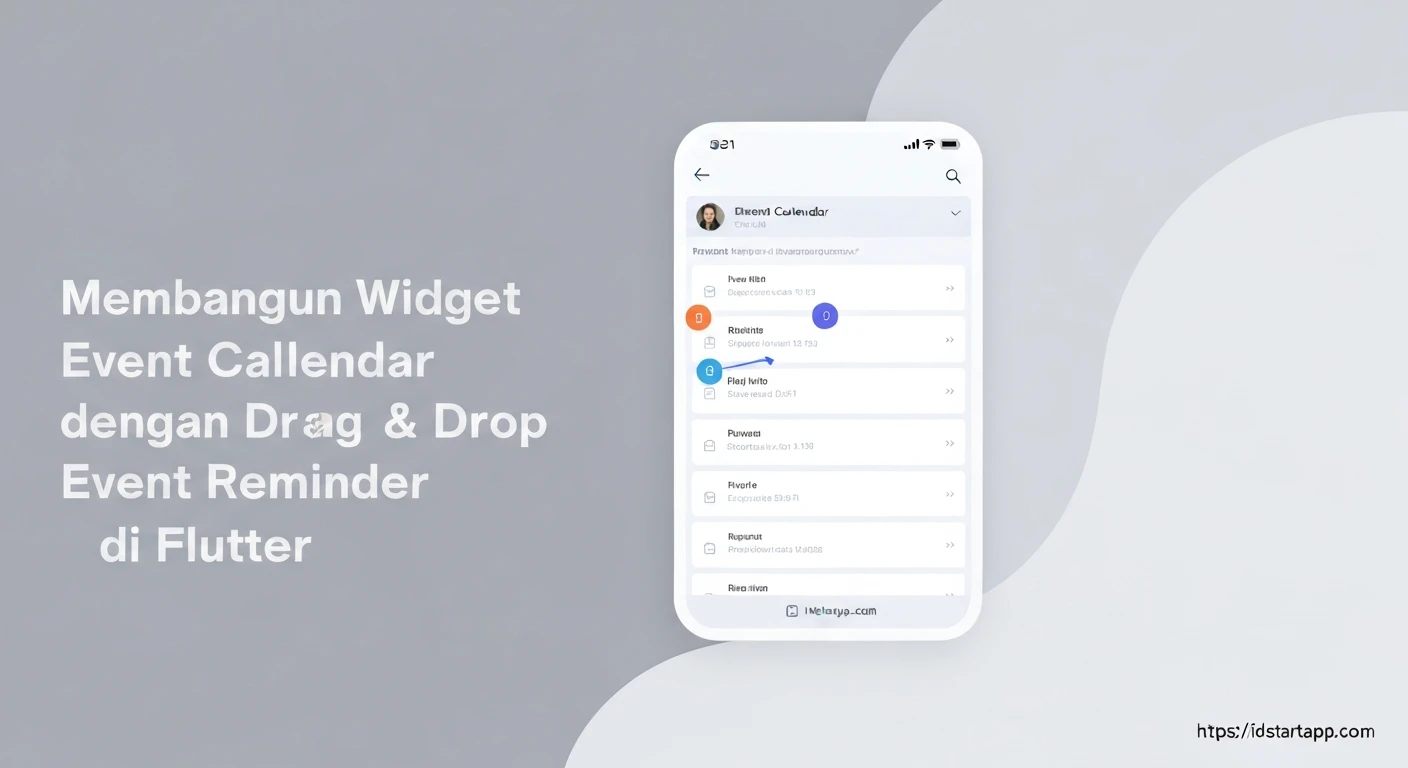
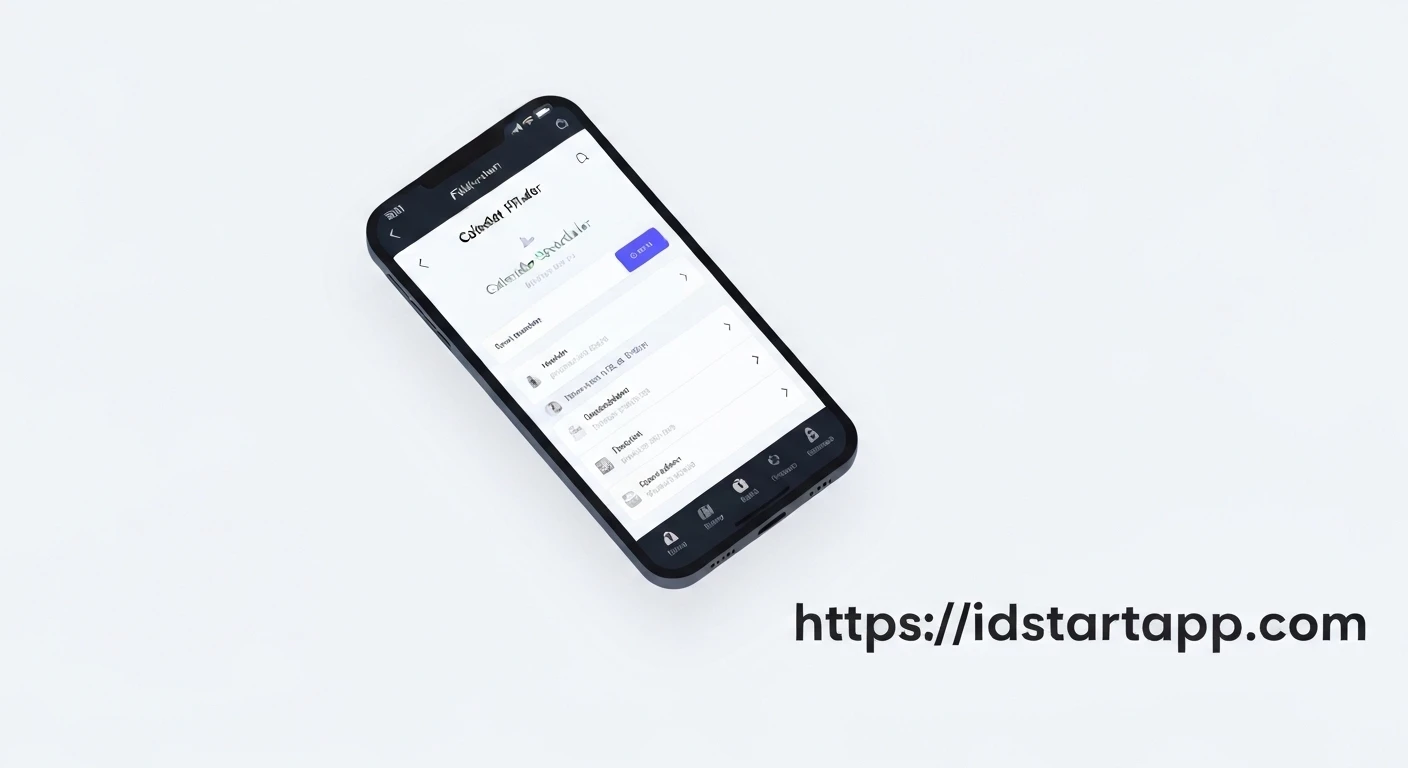
Modern applications frequently require intuitive ways for users to manage their schedules. A calendar scheduler widget with drag & drop functionality offers a highly interactive and user-friendly experience, allowing users to effortlessly re-arrange or modify event timings. This article will guide you through the process of building such a widget in Flutter, leveraging its powerful UI toolkit and gesture detection capabilities.
Understanding the Core Components
At the heart of a drag & drop calendar scheduler are several key Flutter concepts:
- State Management: To handle event data and UI updates. For simplicity, we'll use
StatefulWidgetandsetState, but advanced apps might opt for Provider, BLoC, or Riverpod. DraggableWidget: This widget makes its child draggable. It carries a piece of data that can be transferred to aDragTarget.DragTargetWidget: This widget accepts data dropped onto it. It defines how to react when a draggable is hovering over it, when it's dropped, or when it leaves.- Date & Time Handling: Essential for managing event schedules and displaying them correctly on the calendar.
- Calendar Grid Layout: To visually represent days and time slots where events can be placed or moved.
1. Data Model: Defining an Event
First, let's define a simple data model for our events. Each event will need a unique ID, a title, and start/end times.
import 'package:flutter/material.dart';

class CalendarEvent {
  final String id;
  String title;
  DateTime startTime;
  DateTime endTime;
  Color color;

  CalendarEvent({
    required this.id,
    required this.title,
    required this.startTime,
    required this.endTime,
    this.color = Colors.blue,
  });

  // Helper to create a copy for state updates if needed
  CalendarEvent copyWith({
    String? id,
    String? title,
    DateTime? startTime,
    DateTime? endTime,
    Color? color,
  }) {
    return CalendarEvent(
      id: id ?? this.id,
      title: title ?? this.title,
      startTime: startTime ?? this.startTime,
      endTime: endTime ?? this.endTime,
      color: color ?? this.color,
    );
  }
}
2. Setting Up the Calendar Scheduler Widget
We'll create a StatefulWidget to hold our events and manage their state. For demonstration, we'll display a simple week view, where each day can be a DragTarget.
import 'package:flutter/material.dart';
import 'package:intl/intl.dart'; // For date formatting, add intl dependency in pubspec.yaml

// (CalendarEvent class goes here as defined above)

class CalendarSchedulerPage extends StatefulWidget {
  const CalendarSchedulerPage({Key? key}) : super(key: key);

  @override
  State createState() => _CalendarSchedulerPageState();
}

class _CalendarSchedulerPageState extends State {
  List<CalendarEvent> _events = [];
  DateTime _currentWeekStart = DateTime.now().subtract(Duration(days: DateTime.now().weekday - 1));

  @override
  void initState() {
    super.initState();
    // Initialize with some dummy events
    _events = [
      CalendarEvent(
        id: '1',
        title: 'Project Meeting',
        startTime: _currentWeekStart.add(Duration(days: 1, hours: 10)), // Tuesday 10 AM
        endTime: _currentWeekStart.add(Duration(days: 1, hours: 11)),
        color: Colors.redAccent,
      ),
      CalendarEvent(
        id: '2',
        title: 'Team Sync',
        startTime: _currentWeekStart.add(Duration(days: 3, hours: 14)), // Thursday 2 PM
        endTime: _currentWeekStart.add(Duration(days: 3, hours: 15, minutes: 30)),
        color: Colors.green,
      ),
    ];
  }

  void _onEventDropped(CalendarEvent event, DateTime newDay) {
    setState(() {
      // Calculate the duration of the event
      final Duration eventDuration = event.endTime.difference(event.startTime);

      // Preserve the original time of day, only change the date
      final DateTime newStartTime = DateTime(
        newDay.year,
        newDay.month,
        newDay.day,
        event.startTime.hour,
        event.startTime.minute,
      );
      final DateTime newEndTime = newStartTime.add(eventDuration);

      final int index = _events.indexWhere((e) => e.id == event.id);
      if (index != -1) {
        _events[index] = event.copyWith(
          startTime: newStartTime,
          endTime: newEndTime,
        );
      }
    });
    ScaffoldMessenger.of(context).showSnackBar(
      SnackBar(content: Text('Event "${event.title}" moved to ${DateFormat('EEEE, MMM d').format(newDay)}')),
    );
  }

  @override
  Widget build(BuildContext context) {
    return Scaffold(
      appBar: AppBar(
        title: const Text('Calendar Scheduler'),
      ),
      body: Column(
        children: [
          _buildWeekHeader(),
          Expanded(
            child: GridView.builder(
              padding: const EdgeInsets.all(8.0),
              gridDelegate: const SliverGridDelegateWithFixedCrossAxisCount(
                crossAxisCount: 7, // 7 days in a week
                childAspectRatio: 0.7, // Adjust as needed
                crossAxisSpacing: 4.0,
                mainAxisSpacing: 4.0,
              ),
              itemCount: 7,
              itemBuilder: (context, index) {
                final DateTime day = _currentWeekStart.add(Duration(days: index));
                return _buildDayCell(day);
              },
            ),
          ),
        ],
      ),
    );
  }

  Widget _buildWeekHeader() {
    final DateTime weekEnd = _currentWeekStart.add(const Duration(days: 6));
    return Padding(
      padding: const EdgeInsets.all(8.0),
      child: Text(
        '${DateFormat('MMM d').format(_currentWeekStart)} - ${DateFormat('MMM d, yyyy').format(weekEnd)}',
        style: const TextStyle(fontSize: 18, fontWeight: FontWeight.bold),
      ),
    );
  }

  Widget _buildDayCell(DateTime day) {
    final List<CalendarEvent> dayEvents = _events
        .where((event) =>
            event.startTime.year == day.year &&
            event.startTime.month == day.month &&
            event.startTime.day == day.day)
        .toList();

    return DragTarget<CalendarEvent>(
      onWillAcceptWithDetails: (details) => true, // Always accept any event
      onAcceptWithDetails: (details) {
        _onEventDropped(details.data, day);
      },
      builder: (context, candidateData, rejectedData) {
        return Container(
          decoration: BoxDecoration(
            color: candidateData.isNotEmpty ? Colors.lightBlue.shade100 : Colors.grey.shade100,
            border: Border.all(color: Colors.grey.shade300),
            borderRadius: BorderRadius.circular(8.0),
          ),
          child: Column(
            crossAxisAlignment: CrossAxisAlignment.stretch,
            children: [
              Padding(
                padding: const EdgeInsets.all(4.0),
                child: Text(
                  DateFormat('EEE d').format(day),
                  textAlign: TextAlign.center,
                  style: TextStyle(
                    fontWeight: FontWeight.bold,
                    color: day.weekday == DateTime.saturday || day.weekday == DateTime.sunday
                        ? Colors.red
                        : Colors.black,
                  ),
                ),
              ),
              Expanded(
                child: SingleChildScrollView(
                  child: Column(
                    children: dayEvents.map((event) => _buildEventCard(event)).toList(),
                  ),
                ),
              ),
            ],
          ),
        );
      },
    );
  }

  Widget _buildEventCard(CalendarEvent event) {
    return Draggable<CalendarEvent>(
      data: event, // The data carried by this draggable
      feedback: Material( // Visual feedback when dragging
        elevation: 4.0,
        child: Container(
          padding: const EdgeInsets.all(4.0),
          decoration: BoxDecoration(
            color: event.color.withOpacity(0.7),
            borderRadius: BorderRadius.circular(4.0),
          ),
          width: 100, // Fixed width for feedback
          child: Text(
            event.title,
            style: const TextStyle(color: Colors.white, fontSize: 12),
            overflow: TextOverflow.ellipsis,
          ),
        ),
      ),
      childWhenDragging: Container( // What to show in place of the original when dragging
        height: 30, // Occupy space
        color: Colors.grey.shade200,
        margin: const EdgeInsets.all(2.0),
      ),
      child: Card( // The actual event card
        margin: const EdgeInsets.symmetric(horizontal: 2.0, vertical: 2.0),
        color: event.color,
        child: Padding(
          padding: const EdgeInsets.all(4.0),
          child: Column(
            crossAxisAlignment: CrossAxisAlignment.start,
            children: [
              Text(
                event.title,
                style: const TextStyle(color: Colors.white, fontSize: 12, fontWeight: FontWeight.bold),
                overflow: TextOverflow.ellipsis,
              ),
              Text(
                '${DateFormat('HH:mm').format(event.startTime)} - ${DateFormat('HH:mm').format(event.endTime)}',
                style: const TextStyle(color: Colors.white70, fontSize: 10),
              ),
            ],
          ),
        ),
      ),
    );
  }
}
3. Explanation of Key Parts
CalendarEvent Data Model
This class defines the structure of our event objects, including ID, title, start/end times, and a color. The copyWith method is a common pattern for immutability, allowing you to easily create a new event object with updated properties.
_CalendarSchedulerPageState
_events: A list ofCalendarEventobjects that represents all scheduled items._currentWeekStart: Helps in determining which week is currently displayed.initState: Populates_eventswith some initial dummy data._onEventDropped(CalendarEvent event, DateTime newDay): This is the core logic for handling drops. When an event is dropped onto a new day, this method updates the event'sstartTimeandendTimeto reflect the new date, while preserving the original time of day and duration.
_buildDayCell(DateTime day)
Each cell in our GridView represents a day and acts as a DragTarget:
DragTarget<CalendarEvent>: It specifies that it can accept data of typeCalendarEvent.onWillAcceptWithDetails: (details) => true: This callback is invoked when a draggable is dragged over this target. Returningtruemeans this target is willing to accept the dropped data.onAcceptWithDetails: (details) { _onEventDropped(details.data, day); }: This is called when a draggable is successfully dropped onto this target. We extract theCalendarEventdata and call our handler.builder: (context, candidateData, rejectedData) { ... }: This function builds the UI for theDragTarget. It provides lists ofcandidateData(items currently hovering) andrejectedData(items that were rejected). We usecandidateData.isNotEmptyto provide visual feedback (a lighter blue background) when an event is hovered over the day.
- Inside the
DragTarget, we filter_eventsto show only those scheduled for the currentday.
_buildEventCard(CalendarEvent event)
Each event displayed within a day cell is wrapped in a Draggable widget:
Draggable<CalendarEvent>: This makes the event card draggable.data: event: This is the actualCalendarEventobject that will be passed to any acceptingDragTarget.feedback: ...: This is the widget that is displayed under the user's finger while dragging. We use a simpleMaterialcard with the event title.childWhenDragging: ...: This is the widget that remains in the original position while the item is being dragged. We use a simple grey box to indicate that the space is temporarily occupied.child: Card(...): This is the actual visual representation of the event when it's not being dragged.
4. Enhancements and Further Considerations
This implementation provides a solid foundation. Here are ideas for further enhancements:
- Time Slot Dropping: Instead of dropping on a whole day, divide each day cell into time slots (e.g., hourly). Each slot would be a
DragTarget, allowing users to drop events at specific times. This would require more complex layout and drop logic to calculate precise new start/end times. - Resizing Events: Introduce drag handles on events to allow users to visually extend or shrink their duration. This often involves
GestureDetectorwith custom hit testing or specialized libraries. - Different Calendar Views: Implement day view, month view, or agenda view.
- Scrolling: Make the calendar scrollable horizontally for week-by-week navigation or vertically for a continuous day/month view.
- Event Details: Add functionality to tap on an event to view/edit details.
- Conflict Detection: Implement logic to check for overlapping events when an event is dropped.
- Backend Integration: Connect to a backend API to persist event changes.
- Animations: Smooth animations for events moving or snapping into place.
Conclusion
Building an interactive calendar scheduler with drag & drop in Flutter demonstrates the power and flexibility of its widget system. By combining Draggable and DragTarget widgets with thoughtful state management, you can create highly intuitive and engaging user interfaces for managing schedules. This foundation can be extended with various features to build a sophisticated and production-ready calendar application.