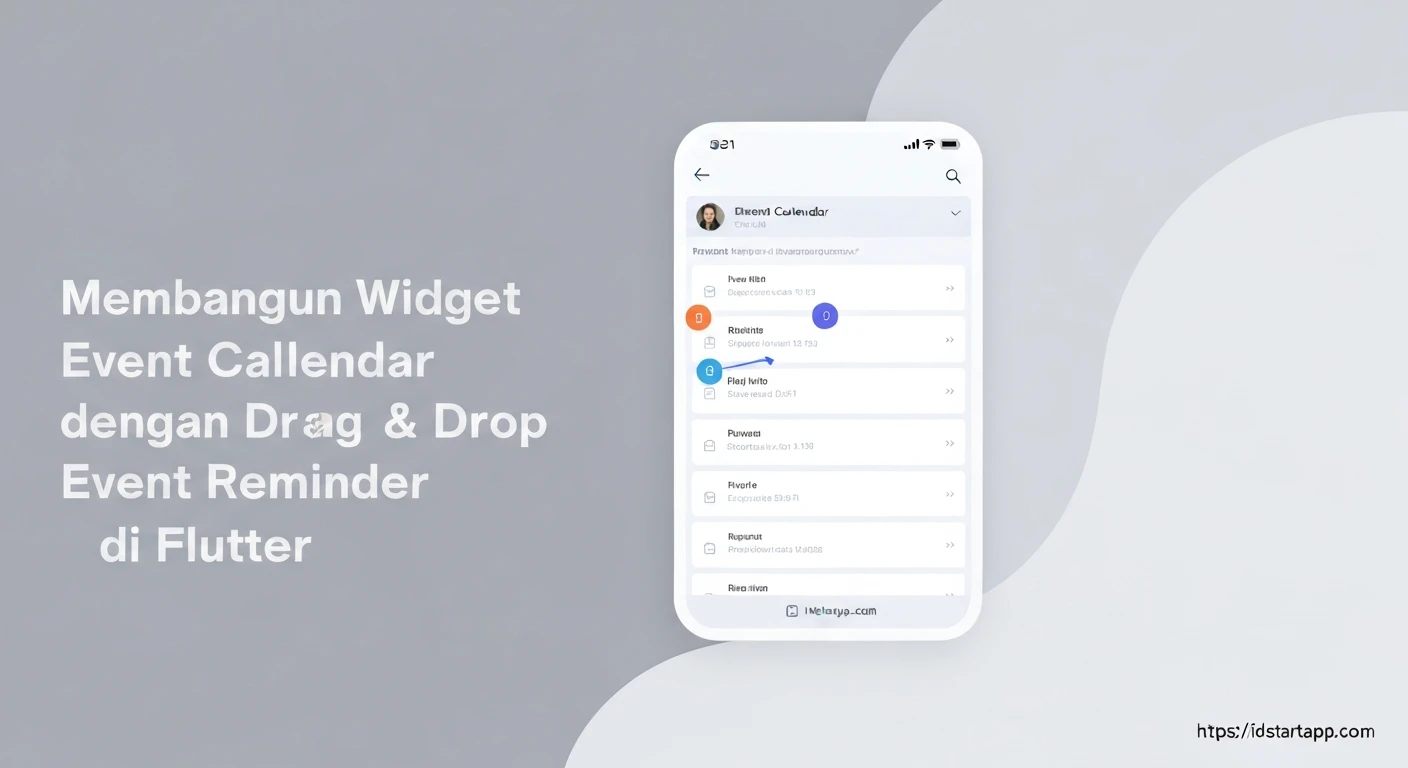

Building an Event Calendar Widget with Drag & Drop Event and Reminder in Flutter
Creating an interactive event calendar is a common requirement for many modern applications, from productivity tools to social platforms. A sophisticated calendar widget not only displays events but also allows users to manage them intuitively. This article explores how to build such a widget in Flutter, incorporating drag & drop functionality for events and a robust reminder system.
1. Introduction to the Core Concept
Our goal is to develop a Flutter widget that displays a calendar, allows users to drag existing events to reschedule them, and provides a mechanism to set local reminders for each event. This involves understanding Flutter's widget tree, state management, gesture detectors, and local notification plugins.
2. Designing the Event Model
First, we need a data model to represent an event. This model should include details like the event title, description, start date and time, and a unique identifier.
import 'package:flutter/material.dart';

class CalendarEvent {
  final String id;
  String title;
  String description;
  DateTime dateTime;
  bool hasReminder; // To track if a reminder is set

  CalendarEvent({
    required this.id,
    required this.title,
    this.description = '',
    required this.dateTime,
    this.hasReminder = false,
  });

  // Helper for unique ID
  static String generateId() => UniqueKey().toString();

  // For simplicity, we'll implement a copyWith method
  CalendarEvent copyWith({
    String? id,
    String? title,
    String? description,
    DateTime? dateTime,
    bool? hasReminder,
  }) {
    return CalendarEvent(
      id: id ?? this.id,
      title: title ?? this.title,
      description: description ?? this.description,
      dateTime: dateTime ?? this.dateTime,
      hasReminder: hasReminder ?? this.hasReminder,
    );
  }
}
3. Setting Up the Calendar View
For the calendar display, we can leverage an existing package like table_calendar or build a custom grid. For this example, we'll focus on the drag & drop mechanism assuming we have a visual representation of "days" where events can be dropped. Each "day" cell in our calendar will act as a DragTarget.
import 'package:flutter/material.dart';
import 'package:intl/intl.dart';
// Assuming CalendarEvent class is defined

class EventCalendarWidget extends StatefulWidget {
  const EventCalendarWidget({Key? key}) : super(key: key);

  @override
  State createState() => _EventCalendarWidgetState();
}

class _EventCalendarWidgetState extends State {
  // A map to store events, keyed by date (e.g., "2023-10-26")
  final Map<String, List<CalendarEvent>> _events = {};

  @override
  void initState() {
    super.initState();
    _initializeEvents();
  }

  void _initializeEvents() {
    final now = DateTime.now();
    final today = DateTime(now.year, now.month, now.day);
    final tomorrow = today.add(const Duration(days: 1));

    _addEvent(CalendarEvent(
      id: CalendarEvent.generateId(),
      title: 'Meeting with Client A',
      dateTime: today.add(const Duration(hours: 10)),
    ));
    _addEvent(CalendarEvent(
      id: CalendarEvent.generateId(),
      title: 'Team Standup',
      dateTime: today.add(const Duration(hours: 14)),
    ));
    _addEvent(CalendarEvent(
      id: CalendarEvent.generateId(),
      title: 'Project Deadline',
      dateTime: tomorrow.add(const Duration(hours: 9)),
    ));
  }

  void _addEvent(CalendarEvent event) {
    final dateKey = DateFormat('yyyy-MM-dd').format(event.dateTime);
    setState(() {
      _events.putIfAbsent(dateKey, () => []).add(event);
      _events[dateKey]!.sort((a, b) => a.dateTime.compareTo(b.dateTime));
    });
  }

  void _updateEventDate(CalendarEvent event, DateTime newDate) {
    final oldDateKey = DateFormat('yyyy-MM-dd').format(event.dateTime);
    final newDateKey = DateFormat('yyyy-MM-dd').format(newDate);

    setState(() {
      // Remove from old date
      _events[oldDateKey]?.removeWhere((e) => e.id == event.id);
      if (_events[oldDateKey]?.isEmpty ?? false) {
        _events.remove(oldDateKey);
      }

      // Add to new date with updated dateTime
      final updatedEvent = event.copyWith(
        dateTime: DateTime(
          newDate.year,
          newDate.month,
          newDate.day,
          event.dateTime.hour,
          event.dateTime.minute,
        ),
      );
      _events.putIfAbsent(newDateKey, () => []).add(updatedEvent);
      _events[newDateKey]!.sort((a, b) => a.dateTime.compareTo(b.dateTime));
    });
    // Here you might want to cancel/reschedule existing reminders
  }

  // Simplified calendar grid for demonstration
  @override
  Widget build(BuildContext context) {
    final today = DateTime.now();
    return Scaffold(
      appBar: AppBar(title: const Text('Event Calendar')),
      body: Column(
        children: [
          _buildDayCell(today),
          _buildDayCell(today.add(const Duration(days: 1))),
          _buildDayCell(today.add(const Duration(days: 2))),
          // ... more days
        ],
      ),
    );
  }

  Widget _buildDayCell(DateTime date) {
    final dateKey = DateFormat('yyyy-MM-dd').format(date);
    final dayEvents = _events[dateKey] ?? [];

    return DragTarget<CalendarEvent>(
      onAcceptWithDetails: (details) {
        final draggedEvent = details.data;
        _updateEventDate(draggedEvent, date);
        ScaffoldMessenger.of(context).showSnackBar(
          SnackBar(content: Text('Event "${draggedEvent.title}" moved to ${DateFormat('MMM dd').format(date)}')),
        );
      },
      builder: (context, candidateData, rejectedData) {
        return Container(
          margin: const EdgeInsets.all(8.0),
          decoration: BoxDecoration(
            color: candidateData.isNotEmpty ? Colors.blue.shade100 : Colors.white,
            borderRadius: BorderRadius.circular(8.0),
            border: Border.all(color: Colors.grey.shade300),
          ),
          child: Column(
            crossAxisAlignment: CrossAxisAlignment.start,
            children: [
              Padding(
                padding: const EdgeInsets.all(8.0),
                child: Text(
                  DateFormat('EEEE, MMM dd').format(date),
                  style: const TextStyle(fontWeight: FontWeight.bold, fontSize: 16),
                ),
              ),
              const Divider(height: 1),
              ...dayEvents.map((event) => _buildEventItem(event)).toList(),
              if (dayEvents.isEmpty && candidateData.isEmpty)
                const Padding(
                  padding: EdgeInsets.all(8.0),
                  child: Text('No events'),
                ),
              if (candidateData.isNotEmpty)
                const Center(
                  child: Padding(
                    padding: EdgeInsets.all(8.0),
                    child: Text('Drop event here', style: TextStyle(color: Colors.blue)),
                  ),
                ),
            ],
          ),
        );
      },
    );
  }

  Widget _buildEventItem(CalendarEvent event) {
    return Draggable<CalendarEvent>(
      data: event, // The data passed during drag
      feedback: Material(
        elevation: 4.0,
        child: Container(
          padding: const EdgeInsets.all(8.0),
          color: Colors.blue.shade200.withOpacity(0.8),
          child: Text(event.title, style: const TextStyle(color: Colors.white)),
        ),
      ),
      childWhenDragging: Container( // What to show in place of the original item
        padding: const EdgeInsets.all(8.0),
        color: Colors.grey.shade200,
        child: Text(event.title, style: const TextStyle(color: Colors.grey)),
      ),
      child: Container(
        margin: const EdgeInsets.symmetric(horizontal: 8.0, vertical: 4.0),
        padding: const EdgeInsets.all(8.0),
        decoration: BoxDecoration(
          color: Colors.blue.shade50,
          borderRadius: BorderRadius.circular(4.0),
          border: Border.all(color: Colors.blue.shade100),
        ),
        child: Row(
          children: [
            Expanded(
              child: Text(
                '${DateFormat('HH:mm').format(event.dateTime)} - ${event.title}',
                style: const TextStyle(fontSize: 14),
              ),
            ),
            IconButton(
              icon: Icon(
                event.hasReminder ? Icons.notifications_active : Icons.notifications_none,
                color: event.hasReminder ? Colors.orange : Colors.grey,
              ),
              onPressed: () {
                _toggleReminder(event);
              },
            ),
          ],
        ),
      ),
    );
  }

  void _toggleReminder(CalendarEvent event) {
    // Implementation for setting/cancelling reminder will go here
    setState(() {
      event.hasReminder = !event.hasReminder;
    });
    if (event.hasReminder) {
      _scheduleReminder(event);
    } else {
      _cancelReminder(event);
    }
  }

  void _scheduleReminder(CalendarEvent event) {
    // Placeholder for scheduling reminder
    print('Scheduling reminder for ${event.title} at ${event.dateTime}');
    ScaffoldMessenger.of(context).showSnackBar(
      SnackBar(content: Text('Reminder set for "${event.title}"')),
    );
  }

  void _cancelReminder(CalendarEvent event) {
    // Placeholder for cancelling reminder
    print('Cancelling reminder for ${event.title}');
    ScaffoldMessenger.of(context).showSnackBar(
      SnackBar(content: Text('Reminder cancelled for "${event.title}"')),
    );
  }
}
4. Implementing Drag & Drop Functionality
Flutter's built-in Draggable and DragTarget widgets are perfect for this. An event item will be a Draggable, and each calendar day will be a DragTarget.
Draggable Widget
The Draggable widget represents the item that can be dragged. It requires three main parameters:
data: The data associated with the draggable item, which will be passed to theDragTarget. We'll pass ourCalendarEventobject.feedback: A widget that is displayed under the user's finger while dragging.child: The widget that is displayed when not dragging.childWhenDragging: The widget that is displayed in place of thechildwhen dragging starts.
Refer to the _buildEventItem method in the previous code snippet for its implementation.
DragTarget Widget
The DragTarget widget defines an area where a Draggable can be dropped. It requires:
onAcceptWithDetails: A callback function that is invoked when aDraggableis successfully dropped onto this target. This is where we update our event's date.builder: A function that returns the widget to display. It provides information about currently dragged data over the target (candidateData) and data that was rejected (rejectedData), allowing for visual feedback.
Refer to the _buildDayCell method for its implementation. When an event is dropped, the _updateEventDate method is called to move the event to the new date within our state.
5. Integrating Reminder Functionality with Local Notifications
To implement reminders, we'll use the flutter_local_notifications package. First, add it to your pubspec.yaml:
dependencies:
  flutter:
    sdk: flutter
  flutter_local_notifications: ^16.1.0
  timezone: ^0.9.2
  intl: ^0.18.1 # For date formatting
Next, initialize the plugin and handle permissions (especially for Android 13+ and iOS):
import 'package:flutter_local_notifications/flutter_local_notifications.dart';
import 'package:timezone/data/latest.dart' as tz;
import 'package:timezone/timezone.dart' as tz;

// ... Inside _EventCalendarWidgetState

final FlutterLocalNotificationsPlugin flutterLocalNotificationsPlugin =
    FlutterLocalNotificationsPlugin();

@override
void initState() {
  super.initState();
  _initializeNotifications();
  _initializeEvents(); // Ensure this is called after notifications
}

Future<void> _initializeNotifications() async {
  tz.initializeTimeZones();
  final String currentTimeZone = await flutterLocalNotificationsPlugin.resolvePlatformSpecificImplementation<
      AndroidFlutterLocalNotificationsPlugin>()?.getTimeZoneName() ?? 'Etc/UTC';
  tz.set
  tz.setLocalLocation(tz.getLocation(currentTimeZone)); // Set local timezone

  const AndroidInitializationSettings initializationSettingsAndroid =
      AndroidInitializationSettings('@mipmap/ic_launcher');

  const DarwinInitializationSettings initializationSettingsIOS =
      DarwinInitializationSettings(
        requestAlertPermission: true,
        requestBadgePermission: true,
        requestSoundPermission: true,
      );

  const InitializationSettings initializationSettings = InitializationSettings(
    android: initializationSettingsAndroid,
    iOS: initializationSettingsIOS,
  );

  await flutterLocalNotificationsPlugin.initialize(
    initializationSettings,
    onDidReceiveNotificationResponse: (NotificationResponse notificationResponse) async {
      // Handle tap on notification here
      print('Notification tapped: ${notificationResponse.payload}');
    },
  );

  // Request permissions for newer Android versions (Android 13+)
  if (Theme.of(context).platform == TargetPlatform.android) {
    final AndroidFlutterLocalNotificationsPlugin? androidImplementation =
        flutterLocalNotificationsPlugin.resolvePlatformSpecificImplementation<
            AndroidFlutterLocalNotificationsPlugin>();
    await androidImplementation?.requestNotificationsPermission();
  }
}

Future<void> _scheduleReminder(CalendarEvent event) async {
  // Ensure the reminder is in the future
  if (event.dateTime.isBefore(DateTime.now())) {
    print("Cannot schedule reminder for past event: ${event.title}");
    return;
  }

  const AndroidNotificationDetails androidPlatformChannelSpecifics =
      AndroidNotificationDetails(
    'event_calendar_channel_id',
    'Event Reminders',
    channelDescription: 'Notifications for your calendar events',
    importance: Importance.max,
    priority: Priority.high,
    showWhen: false,
  );

  const DarwinNotificationDetails iOSPlatformChannelSpecifics =
      DarwinNotificationDetails();

  const NotificationDetails platformChannelSpecifics = NotificationDetails(
    android: androidPlatformChannelSpecifics,
    iOS: iOSPlatformChannelSpecifics,
  );

  // Convert DateTime to a tz.TZDateTime for scheduling
  final scheduledDate = tz.TZDateTime.from(
    event.dateTime,
    tz.local,
  );

  await flutterLocalNotificationsPlugin.zonedSchedule(
    event.id.hashCode, // Unique ID for each notification
    'Event Reminder: ${event.title}',
    event.description.isNotEmpty ? event.description : 'Your event is starting soon!',
    scheduledDate,
    platformChannelSpecifics,
    androidScheduleMode: AndroidScheduleMode.exactAllowWhileIdle,
    uiLocalNotificationDateInterpretation: UILocalNotificationDateInterpretation.absoluteTime,
    matchDateTimeComponents: DateTimeComponents.dateAndTime, // For rescheduling on time zone changes
    payload: event.id, // Optional payload to pass data
  );

  setState(() {
    event.hasReminder = true;
  });
  ScaffoldMessenger.of(context).showSnackBar(
    SnackBar(content: Text('Reminder set for "${event.title}"')),
  );
}

Future<void> _cancelReminder(CalendarEvent event) async {
  await flutterLocalNotificationsPlugin.cancel(event.id.hashCode); // Cancel using the same unique ID
  setState(() {
    event.hasReminder = false;
  });
  ScaffoldMessenger.of(context).showSnackBar(
    SnackBar(content: Text('Reminder cancelled for "${event.title}"')),
  );
}
6. State Management and UI/UX Considerations
For a small application, setState as shown above is sufficient. For larger applications with more complex data flow, consider state management solutions like Provider, Riverpod, or Bloc to manage your event data more effectively.
UI/UX Tips:
- Visual Feedback: Provide clear visual cues when dragging an event over a valid drop target (e.g., changing the background color of the day cell).
- Accessibility: Ensure the widget is accessible, providing alternative ways to interact for users who cannot use drag & drop (e.g., context menus for rescheduling).
- Timezone Handling: Be mindful of timezones when scheduling events and reminders, especially for users who travel. The
timezonepackage helps with this. - Clear Event Display: Show event times and titles clearly within each day cell.
- Error Handling: Implement robust error handling for notification scheduling failures or permission issues.
7. Conclusion
Building an event calendar widget with drag & drop and reminders in Flutter significantly enhances user experience by making event management intuitive and efficient. By combining Flutter's powerful widget system with external packages like flutter_local_notifications, developers can create highly interactive and feature-rich applications. Remember to continuously refine the UI/UX and consider robust state management for scalable applications.