
Building an Event Card Widget with Countdown Timer in Flutter
Introduction
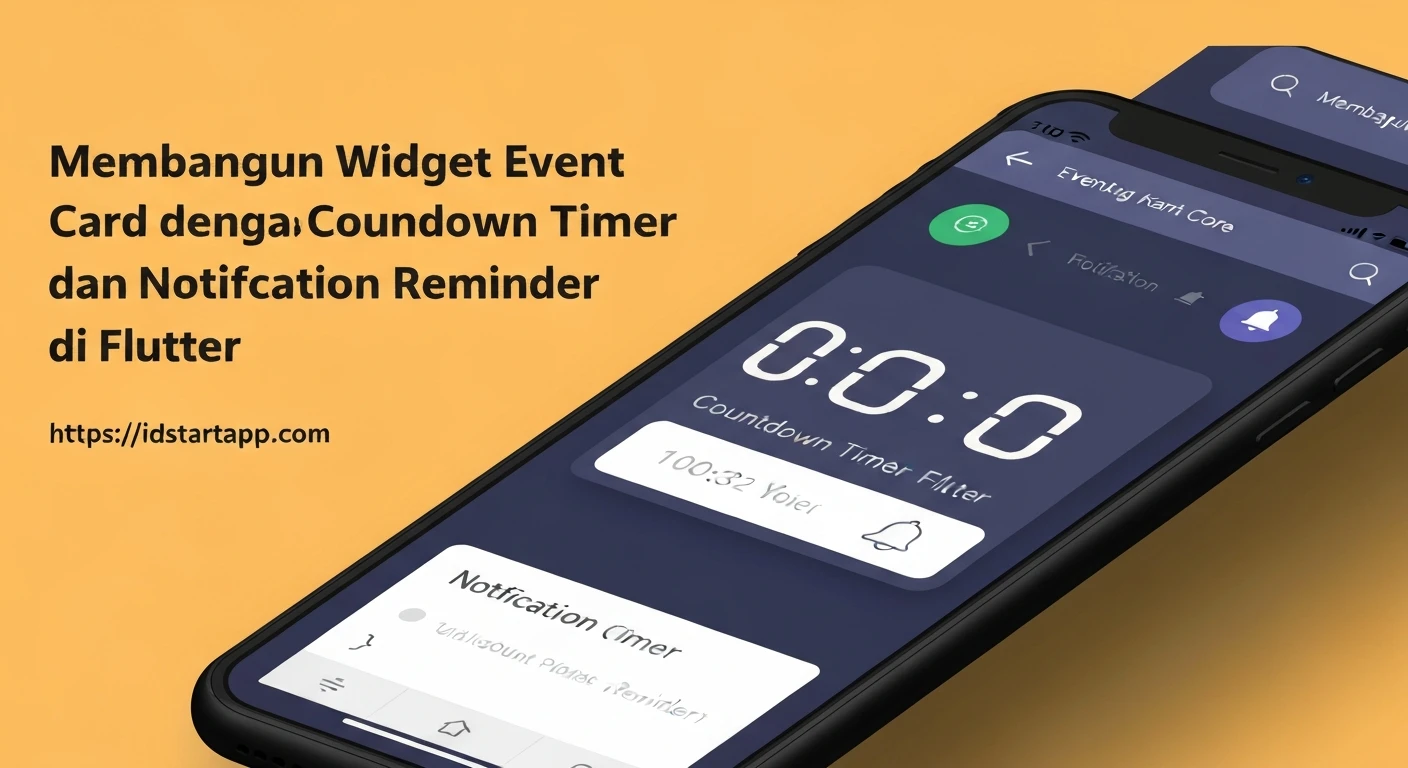
In modern applications, displaying upcoming events with a real-time countdown timer is a common and highly engaging feature. Whether it's for a product launch, a webinar, or a conference, a visual countdown builds anticipation and helps users keep track of important dates. This article will guide you through building a dynamic Event Card widget in Flutter, complete with a live countdown timer.
Prerequisites
To follow along with this tutorial, you should have:
- Basic knowledge of Flutter and Dart.
- Flutter SDK installed and configured.
- An IDE like VS Code or Android Studio.
Core Concepts
Before diving into the code, let's briefly touch upon the core Flutter and Dart concepts we'll be utilizing:
StatefulWidget: Our Event Card will need to update its UI dynamically every second as the countdown changes, makingStatefulWidgetthe perfect choice.DateTime: Dart'sDateTimeclass will be used to represent the event's target time and the current time.Duration: The difference between twoDateTimeobjects results in aDuration, which can then be broken down into days, hours, minutes, and seconds.Timer.periodic: This Dart class allows us to execute a callback function repeatedly at specified intervals, which is essential for updating the countdown every second.setState(): Called within ourStatefulWidget, this method will trigger a rebuild of the widget's UI, reflecting the updated countdown time.
Step-by-Step Implementation
1. Setting Up the Project
First, create a new Flutter project if you haven't already:
flutter create event_countdown_app
cd event_countdown_app
Then, open the project in your preferred IDE.
2. Designing the Basic Event Card UI
We'll start by creating the foundational structure for our event card. This will be a StatefulWidget that takes the event's title, location, and target DateTime as parameters.
Create a new file, say lib/event_card.dart, and add the following code:
import 'package:flutter/material.dart';

class EventCard extends StatefulWidget {
  final String eventTitle;
  final String eventLocation;
  final DateTime eventDateTime;

  const EventCard({
    Key? key,
    required this.eventTitle,
    required this.eventLocation,
    required this.eventDateTime,
  }) : super(key: key);

  @override
  _EventCardState createState() => _EventCardState();
}

class _EventCardState extends State {
  // Placeholder for countdown text
  String _countdownText = 'Loading...';

  @override
  Widget build(BuildContext context) {
    return Card(
      margin: const EdgeInsets.all(16.0),
      elevation: 4,
      shape: RoundedRectangleBorder(borderRadius: BorderRadius.circular(12)),
      child: Padding(
        padding: const EdgeInsets.all(16.0),
        child: Column(
          crossAxisAlignment: CrossAxisAlignment.start,
          children: [
            Text(
              widget.eventTitle,
              style: Theme.of(context).textTheme.headline5?.copyWith(fontWeight: FontWeight.bold),
            ),
            const SizedBox(height: 8),
            Text(
              widget.eventLocation,
              style: Theme.of(context).textTheme.subtitle1?.copyWith(color: Colors.grey[700]),
            ),
            const SizedBox(height: 16),
            const Divider(),
            const SizedBox(height: 16),
            Row(
              children: [
                const Icon(Icons.timer, color: Colors.blue),
                const SizedBox(width: 8),
                Text(
                  _countdownText, // This will be updated by the timer
                  style: Theme.of(context).textTheme.headline6?.copyWith(color: Colors.blue),
                ),
              ],
            ),
          ],
        ),
      ),
    );
  }
}
3. Implementing the Countdown Logic
Now, let's add the heart of our widget: the countdown timer. We'll use dart:async for the Timer class.
Inside _EventCardState, add the necessary imports, state variables, and methods:
import 'dart:async'; // Don't forget this import!
import 'package:flutter/material.dart';

// ... (Rest of EventCard class definition)

class _EventCardState extends State {
  Duration _timeRemaining = Duration.zero;
  Timer? _timer;
  String _countdownText = ''; // Initialize empty or with a default

  @override
  void initState() {
    super.initState();
    _startTimer();
  }

  @override
  void dispose() {
    _timer?.cancel(); // Important: Cancel the timer to prevent memory leaks
    super.dispose();
  }

  void _startTimer() {
    _timeRemaining = widget.eventDateTime.difference(DateTime.now());

    // If event is in the past, set duration to zero and update text
    if (_timeRemaining.isNegative) {
      _timeRemaining = Duration.zero;
      _updateCountdownText();
      return;
    }

    _timer = Timer.periodic(const Duration(seconds: 1), (timer) {
      setState(() {
        _timeRemaining = widget.eventDateTime.difference(DateTime.now());
        _updateCountdownText();
        if (_timeRemaining.isNegative) {
          _timeRemaining = Duration.zero; // Ensure it doesn't go negative on display
          _timer?.cancel(); // Stop timer when event starts/passes
        }
      });
    });
  }

  void _updateCountdownText() {
    if (_timeRemaining == Duration.zero) {
      _countdownText = 'Event Has Started!';
    } else if (_timeRemaining.isNegative) { // Should ideally be caught earlier, but good for safety
      _countdownText = 'Event Has Passed!';
    } else {
      int days = _timeRemaining.inDays;
      int hours = _timeRemaining.inHours % 24;
      int minutes = _timeRemaining.inMinutes % 60;
      int seconds = _timeRemaining.inSeconds % 60;

      String formattedHours = hours.toString().padLeft(2, '0');
      String formattedMinutes = minutes.toString().padLeft(2, '0');
      String formattedSeconds = seconds.toString().padLeft(2, '0');

      if (days > 0) {
        _countdownText = '${days}d $formattedHours:$formattedMinutes:$formattedSeconds';
      } else {
        _countdownText = '$formattedHours:$formattedMinutes:$formattedSeconds';
      }
    }
  }

  @override
  Widget build(BuildContext context) {
    // ... (rest of the build method from step 2)
    // Ensure _countdownText is used in the Text widget for the countdown
    return Card(
      margin: const EdgeInsets.all(16.0),
      elevation: 4,
      shape: RoundedRectangleBorder(borderRadius: BorderRadius.circular(12)),
      child: Padding(
        padding: const EdgeInsets.all(16.0),
        child: Column(
          crossAxisAlignment: CrossAxisAlignment.start,
          children: [
            Text(
              widget.eventTitle,
              style: Theme.of(context).textTheme.headline5?.copyWith(fontWeight: FontWeight.bold),
            ),
            const SizedBox(height: 8),
            Text(
              widget.eventLocation,
              style: Theme.of(context).textTheme.subtitle1?.copyWith(color: Colors.grey[700]),
            ),
            const SizedBox(height: 16),
            const Divider(),
            const SizedBox(height: 16),
            Row(
              children: [
                const Icon(Icons.timer, color: Colors.blue),
                const SizedBox(width: 8),
                Text(
                  _countdownText, // This will now display the live countdown
                  style: Theme.of(context).textTheme.headline6?.copyWith(color: Colors.blue),
                ),
              ],
            ),
          ],
        ),
      ),
    );
  }
}
Explanation:
- We introduce
_timeRemaining(aDuration) to store the difference between the event time and now. _timer(aTimer) is declared to hold our periodic timer instance.initState()calls_startTimer()when the widget is created.dispose()is crucial: it cancels the timer to prevent resource leaks when the widget is removed from the widget tree._startTimer()initializes_timeRemainingand then sets up aTimer.periodicthat fires every second.- Inside the timer's callback,
setState()is called to recalculate_timeRemaining, update_countdownText, and rebuild the UI. - If
_timeRemainingbecomes zero or negative, the timer is canceled, and a "Event Has Started!" message is displayed. _updateCountdownText()formats theDurationinto a user-friendly string. It usespadLeft(2, '0')to ensure single-digit numbers are padded with a leading zero (e.g., 5 becomes 05).
4. Integrating into Your App
Finally, let's use our EventCard widget in the main application file (lib/main.dart).
import 'package:flutter/material.dart';
import 'package:event_countdown_app/event_card.dart'; // Adjust import path if needed

void main() {
  runApp(const MyApp());
}

class MyApp extends StatelessWidget {
  const MyApp({Key? key}) : super(key: key);

  @override
  Widget build(BuildContext context) {
    return MaterialApp(
      title: 'Event Countdown',
      theme: ThemeData(
        primarySwatch: Colors.blue,
        visualDensity: VisualDensity.adaptivePlatformDensity,
      ),
      home: Scaffold(
        appBar: AppBar(
          title: const Text('Upcoming Events'),
          centerTitle: true,
        ),
        body: ListView(
          padding: const EdgeInsets.symmetric(vertical: 16.0),
          children: [
            EventCard(
              eventTitle: 'Flutter Global Summit',
              eventLocation: 'Online via YouTube Live',
              eventDateTime: DateTime.now().add(const Duration(days: 7, hours: 10, minutes: 45, seconds: 30)),
            ),
            EventCard(
              eventTitle: 'Dart Language Update Webinar',
              eventLocation: 'Zoom Meeting',
              eventDateTime: DateTime.now().add(const Duration(hours: 2, minutes: 15)),
            ),
            EventCard(
              eventTitle: 'Local Dev Meetup',
              eventLocation: 'Community Hall A',
              eventDateTime: DateTime.now().add(const Duration(minutes: 5)),
            ),
            EventCard(
              eventTitle: 'Past Event Example',
              eventLocation: 'Virtual',
              eventDateTime: DateTime.now().subtract(const Duration(hours: 3, minutes: 20)), // An event in the past
            ),
          ],
        ),
      ),
    );
  }
}
Run your application:
flutter run
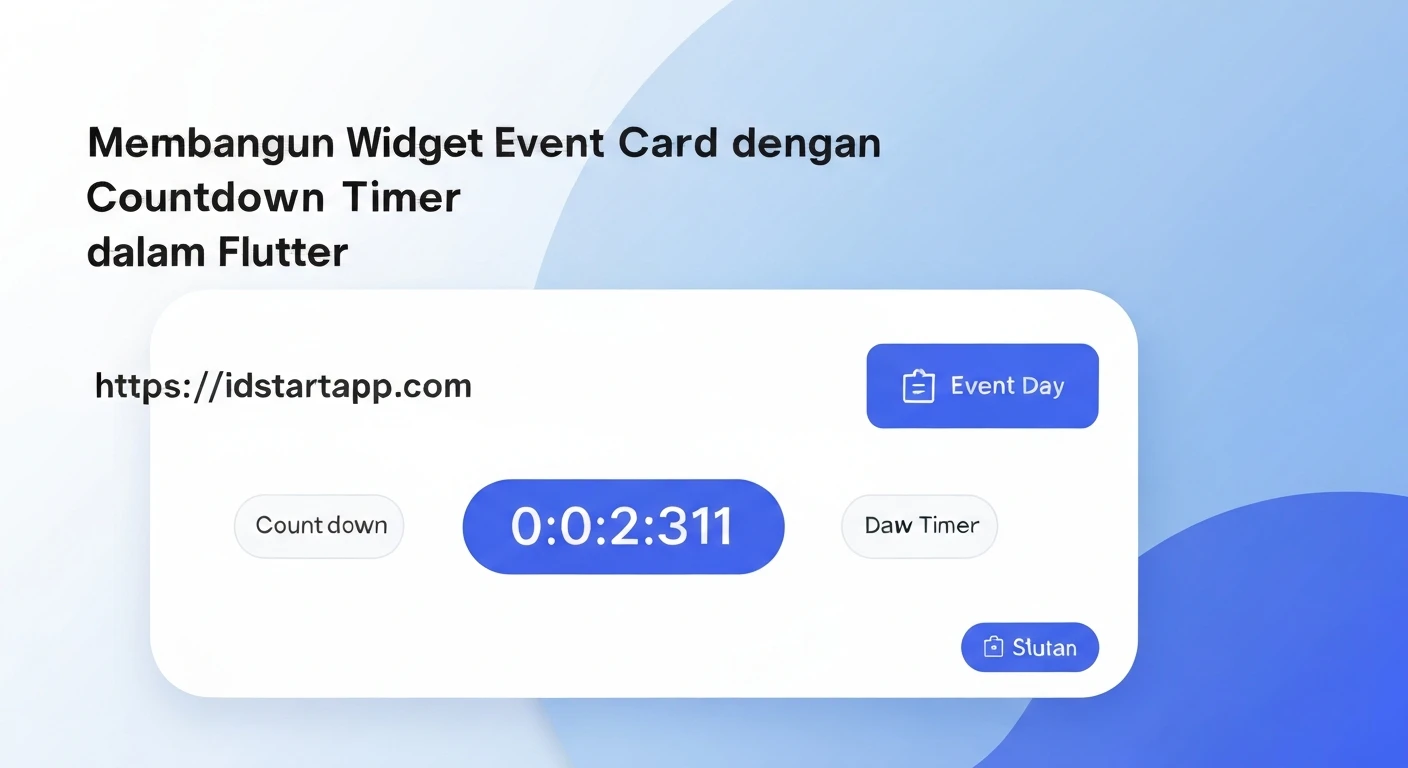
You should now see a list of event cards, each displaying a live countdown timer that updates every second!
Conclusion
You've successfully built a reusable Event Card widget with a real-time countdown timer in Flutter. This widget effectively demonstrates the power of StatefulWidget for dynamic UI updates, the utility of Dart's DateTime and Duration classes for time calculations, and the importance of resource management with Timer.periodic and dispose(). You can further enhance this widget by adding more styling, animations, or even different display formats for the countdown based on the remaining time.