
Building an Event Card Widget with Countdown Timer and Notification Reminder in Flutter
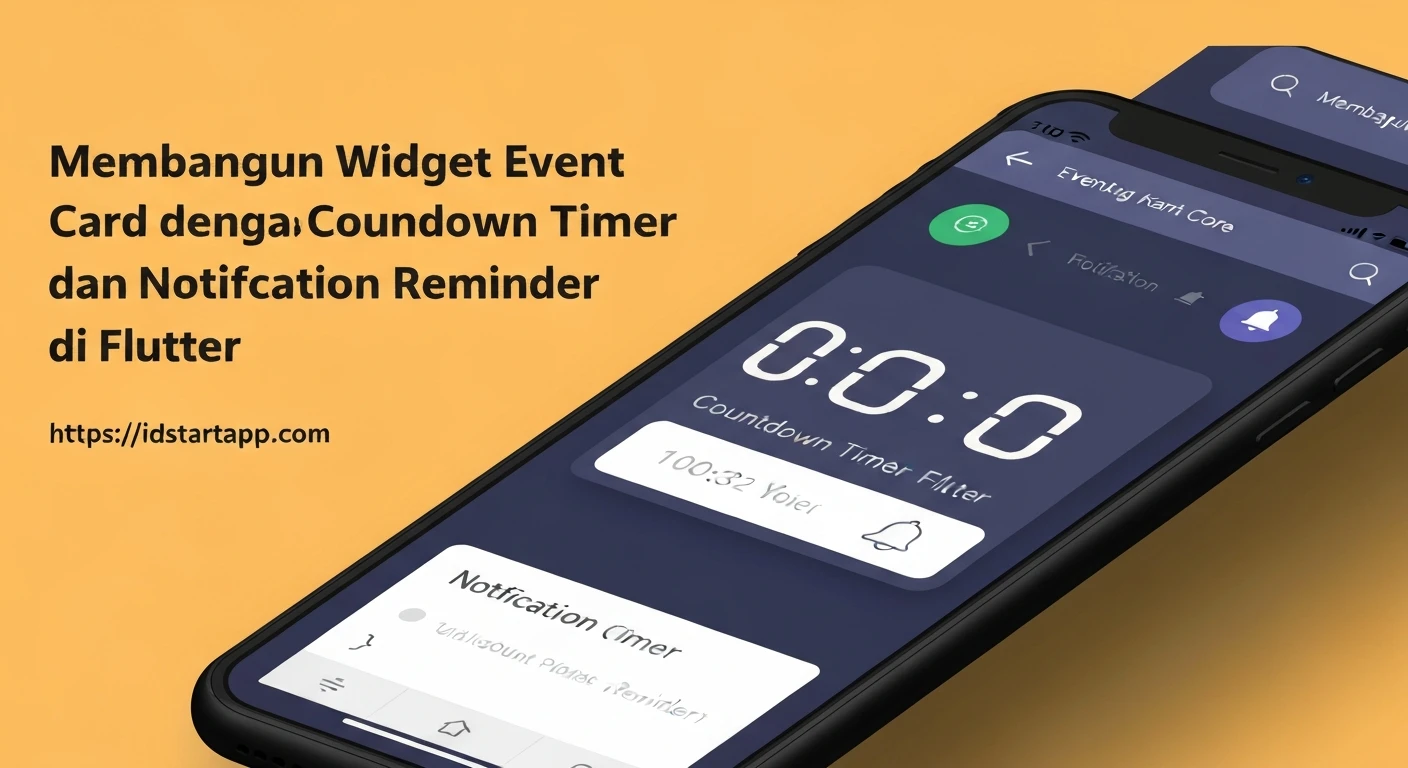
Event management applications frequently require visually engaging UI elements that provide users with critical information at a glance. A common and highly effective component is the event card, which often includes a countdown timer to the event and a convenient notification reminder feature. This article will guide you through the process of building a robust Flutter widget that encapsulates these functionalities, enhancing user experience and engagement.
1. Project Setup and Dependencies
Before diving into the code, you'll need to add the necessary package for local notifications to your pubspec.yaml file.
dependencies:
  flutter:
    sdk: flutter
  flutter_local_notifications: ^17.0.0 # Use the latest version
After adding the dependency, run flutter pub get to fetch the package.
Platform-Specific Setup (Brief Overview)
- Android: No major code changes are typically required beyond ensuring the application icon is properly configured in the manifest.
-
iOS: You might need to add notification permissions to your
Info.plistand some setup inAppDelegate.swiftorAppDelegate.mfor handling notifications while the app is in the foreground.
2. Event Data Model
Let's define a simple data model to represent an event. This will make it easier to pass event details around.
import 'package:flutter/foundation.dart';

class Event {
  final String title;
  final String description;
  final DateTime eventDateTime;
  final String location;
  final int id; // Unique ID for notifications

  Event({
    required this.title,
    required this.description,
    required this.eventDateTime,
    required this.location,
    required this.id,
  });
}
3. Initializing Local Notifications
It's crucial to initialize the flutter_local_notifications plugin early in your application's lifecycle, typically in the main function or a dedicated service.
import 'package:flutter/material.dart';
import 'package:flutter_local_notifications/flutter_local_notifications.dart';
import 'package:timezone/data/latest_all.dart' as tz;
import 'package:timezone/timezone.dart' as tz;

// Global instance for notifications
final FlutterLocalNotificationsPlugin flutterLocalNotificationsPlugin =
    FlutterLocalNotificationsPlugin();

Future initializeNotifications() async {
  tz.initializeAll(); // Initialize timezone data

  const AndroidInitializationSettings initializationSettingsAndroid =
      AndroidInitializationSettings('@mipmap/ic_launcher');

  const DarwinInitializationSettings initializationSettingsIOS =
      DarwinInitializationSettings(
    requestAlertPermission: true,
    requestBadgePermission: true,
    requestSoundPermission: true,
  );

  const InitializationSettings initializationSettings = InitializationSettings(
    android: initializationSettingsAndroid,
    iOS: initializationSettingsIOS,
  );

  await flutterLocalNotificationsPlugin.initialize(
    initializationSettings,
    onDidReceiveNotificationResponse:
        (NotificationResponse notificationResponse) async {
      // Handle notification tap
      debugPrint('Notification tapped with payload: ${notificationResponse.payload}');
    },
  );
}

void main() async {
  WidgetsFlutterBinding.ensureInitialized();
  await initializeNotifications();
  runApp(const MyApp());
}

class MyApp extends StatelessWidget {
  const MyApp({super.key});

  @override
  Widget build(BuildContext context) {
    return MaterialApp(
      title: 'Event Reminder App',
      theme: ThemeData(
        primarySwatch: Colors.blue,
      ),
      home: EventListPage(),
    );
  }
}
4. The Event Card Widget
The EventCard will be a StatefulWidget to manage its internal state, specifically the countdown timer.
import 'dart:async';
import 'package:flutter/material.dart';
import 'package:intl/intl.dart'; // For date formatting
import 'package:flutter_local_notifications/flutter_local_notifications.dart';
import 'package:timezone/timezone.dart' as tz;
import 'package:timezone/data/latest_all.dart' as tz;

// Assuming the Event model and flutterLocalNotificationsPlugin are defined globally or passed.
// For this snippet, we'll assume they are accessible.

class EventCard extends StatefulWidget {
  final Event event;

  const EventCard({super.key, required this.event});

  @override
  State createState() => _EventCardState();
}

class _EventCardState extends State {
  Timer? _timer;
  Duration _timeRemaining = Duration.zero;
  bool _isNotificationScheduled = false; // To track reminder status

  @override
  void initState() {
    super.initState();
    _startCountdown();
    _checkNotificationStatus(); // Check if a notification is already scheduled
  }

  void _startCountdown() {
    _updateTimeRemaining(); // Initial update
    _timer = Timer.periodic(const Duration(seconds: 1), (timer) {
      if (mounted) {
        setState(() {
          _updateTimeRemaining();
        });
      }
    });
  }

  void _updateTimeRemaining() {
    _timeRemaining = widget.event.eventDateTime.difference(DateTime.now());
    if (_timeRemaining.isNegative) {
      _timeRemaining = Duration.zero;
      _timer?.cancel();
    }
  }

  String _formatDuration(Duration duration) {
    if (duration.isNegative) {
      return "Event Passed";
    }

    String twoDigits(int n) => n.toString().padLeft(2, "0");
    String days = duration.inDays.toString();
    String hours = twoDigits(duration.inHours.remainder(24));
    String minutes = twoDigits(duration.inMinutes.remainder(60));
    String seconds = twoDigits(duration.inSeconds.remainder(60));

    if (duration.inDays > 0) {
      return "${days}d ${hours}h ${minutes}m ${seconds}s";
    } else if (duration.inHours > 0) {
      return "${hours}h ${minutes}m ${seconds}s";
    } else if (duration.inMinutes > 0) {
      return "${minutes}m ${seconds}s";
    } else {
      return "${seconds}s";
    }
  }

  Future _scheduleNotification() async {
    // Schedule notification 30 minutes before the event
    final notificationTime = widget.event.eventDateTime.subtract(const Duration(minutes: 30));

    if (notificationTime.isBefore(DateTime.now())) {
      // Cannot schedule notification in the past
      ScaffoldMessenger.of(context).showSnackBar(
        const SnackBar(content: Text('Cannot schedule reminder for a past or very soon event.')),
      );
      return;
    }

    await flutterLocalNotificationsPlugin.zonedSchedule(
      widget.event.id,
      'Event Reminder: ${widget.event.title}',
      'Your event "${widget.event.title}" is starting in 30 minutes at ${widget.event.location}.',
      tz.TZDateTime.from(notificationTime, tz.local),
      const NotificationDetails(
        android: AndroidNotificationDetails(
          'event_channel_id',
          'Event Reminders',
          channelDescription: 'Notifications for upcoming events',
          importance: Importance.high,
          priority: Priority.high,
          ticker: 'ticker',
        ),
        iOS: DarwinNotificationDetails(),
      ),
      androidScheduleMode: AndroidScheduleMode.exactAllowWhileIdle,
      uiLocalNotificationDateInterpretation: UILocalNotificationDateInterpretation.absoluteTime,
      payload: 'event_id_${widget.event.id}',
    );

    if (mounted) {
      setState(() {
        _isNotificationScheduled = true;
      });
      ScaffoldMessenger.of(context).showSnackBar(
        const SnackBar(content: Text('Reminder set for 30 minutes before the event!')),
      );
    }
  }

  Future _cancelNotification() async {
    await flutterLocalNotificationsPlugin.cancel(widget.event.id);
    if (mounted) {
      setState(() {
        _isNotificationScheduled = false;
      });
      ScaffoldMessenger.of(context).showSnackBar(
        const SnackBar(content: Text('Reminder cancelled.')),
      );
    }
  }

  // A basic check to see if a notification for this ID might be scheduled
  // This is a simplified check, for robust checks you might need to query pending notifications.
  void _checkNotificationStatus() async {
    final List pendingNotifications =
        await flutterLocalNotificationsPlugin.pendingNotificationRequests();
    final bool isScheduled = pendingNotifications.any((req) => req.id == widget.event.id);
    if (mounted) {
      setState(() {
        _isNotificationScheduled = isScheduled;
      });
    }
  }

  @override
  Widget build(BuildContext context) {
    final bool eventPassed = _timeRemaining.isNegative && _timeRemaining != Duration.zero;

    return Card(
      margin: const EdgeInsets.all(16.0),
      elevation: 4,
      shape: RoundedRectangleBorder(borderRadius: BorderRadius.circular(12)),
      child: Padding(
        padding: const EdgeInsets.all(16.0),
        child: Column(
          crossAxisAlignment: CrossAxisAlignment.start,
          children: [
            Text(
              widget.event.title,
              style: const TextStyle(
                fontSize: 22,
                fontWeight: FontWeight.bold,
                color: Colors.deepPurple,
              ),
            ),
            const SizedBox(height: 8),
            Text(
              widget.event.description,
              style: const TextStyle(fontSize: 16, color: Colors.grey),
            ),
            const Divider(height: 20, thickness: 1),
            Row(
              children: [
                const Icon(Icons.calendar_today, size: 18, color: Colors.grey),
                const SizedBox(width: 8),
                Text(
                  DateFormat('EEE, MMM d, yyyy').format(widget.event.eventDateTime),
                  style: const TextStyle(fontSize: 15),
                ),
              ],
            ),
            const SizedBox(height: 4),
            Row(
              children: [
                const Icon(Icons.access_time, size: 18, color: Colors.grey),
                const SizedBox(width: 8),
                Text(
                  DateFormat('hh:mm a').format(widget.event.eventDateTime),
                  style: const TextStyle(fontSize: 15),
                ),
              ],
            ),
            const SizedBox(height: 4),
            Row(
              children: [
                const Icon(Icons.location_on, size: 18, color: Colors.grey),
                const SizedBox(width: 8),
                Expanded(
                  child: Text(
                    widget.event.location,
                    style: const TextStyle(fontSize: 15),
                    overflow: TextOverflow.ellipsis,
                  ),
                ),
              ],
            ),
            const SizedBox(height: 16),
            Align(
              alignment: Alignment.center,
              child: Container(
                padding: const EdgeInsets.symmetric(horizontal: 12, vertical: 8),
                decoration: BoxDecoration(
                  color: eventPassed ? Colors.redAccent.withOpacity(0.1) : Colors.green.withOpacity(0.1),
                  borderRadius: BorderRadius.circular(8),
                ),
                child: Text(
                  _formatDuration(_timeRemaining),
                  style: TextStyle(
                    fontSize: 24,
                    fontWeight: FontWeight.bold,
                    color: eventPassed ? Colors.redAccent : Colors.green,
                  ),
                ),
              ),
            ),
            const SizedBox(height: 16),
            if (!eventPassed)
              Align(
                alignment: Alignment.center,
                child: ElevatedButton.icon(
                  onPressed: _isNotificationScheduled ? _cancelNotification : _scheduleNotification,
                  icon: Icon(_isNotificationScheduled ? Icons.notifications_off : Icons.notifications_active),
                  label: Text(_isNotificationScheduled ? 'Reminder Set' : 'Set Reminder'),
                  style: ElevatedButton.styleFrom(
                    backgroundColor: _isNotificationScheduled ? Colors.orange : Colors.blue,
                    foregroundColor: Colors.white,
                    padding: const EdgeInsets.symmetric(horizontal: 20, vertical: 12),
                    shape: RoundedRectangleBorder(borderRadius: BorderRadius.circular(10)),
                  ),
                ),
              ),
          ],
        ),
      ),
    );
  }

  @override
  void dispose() {
    _timer?.cancel();
    super.dispose();
  }
}
5. Using the EventCard Widget
You can now use the EventCard widget in any parent widget, for example, in a list of events.
import 'package:flutter/material.dart';
// Assuming Event and EventCard are defined in their respective files
// import 'event_model.dart';
// import 'event_card.dart';

class EventListPage extends StatelessWidget {
  final List events = [
    Event(
      id: 0,
      title: 'Flutter Widgets Workshop',
      description: 'An interactive session on advanced Flutter widgets.',
      eventDateTime: DateTime.now().add(const Duration(days: 2, hours: 3, minutes: 15)),
      location: 'Online via Zoom',
    ),
    Event(
      id: 1,
      title: 'Monthly Team Meeting',
      description: 'Discussion on project progress and upcoming tasks.',
      eventDateTime: DateTime.now().add(const Duration(minutes: 5)),
      location: 'Conference Room 3B',
    ),
    Event(
      id: 2,
      title: 'Past Event Example',
      description: 'This event has already happened.',
      eventDateTime: DateTime.now().subtract(const Duration(days: 1)),
      location: 'Virtual',
    ),
  ];

  EventListPage({super.key});

  @override
  Widget build(BuildContext context) {
    return Scaffold(
      appBar: AppBar(
        title: const Text('Upcoming Events'),
        backgroundColor: Colors.deepPurple,
      ),
      body: ListView.builder(
        itemCount: events.length,
        itemBuilder: (context, index) {
          return EventCard(event: events[index]);
        },
      ),
    );
  }
}
Conclusion
By following this guide, you've successfully built a dynamic EventCard widget in Flutter that features a real-time countdown timer and an integrated notification reminder system. This solution enhances user engagement by keeping them informed and prepared for upcoming events. Remember to handle edge cases like events in the past and consider more advanced notification strategies for production applications, such as persistent notifications or different reminder intervals.