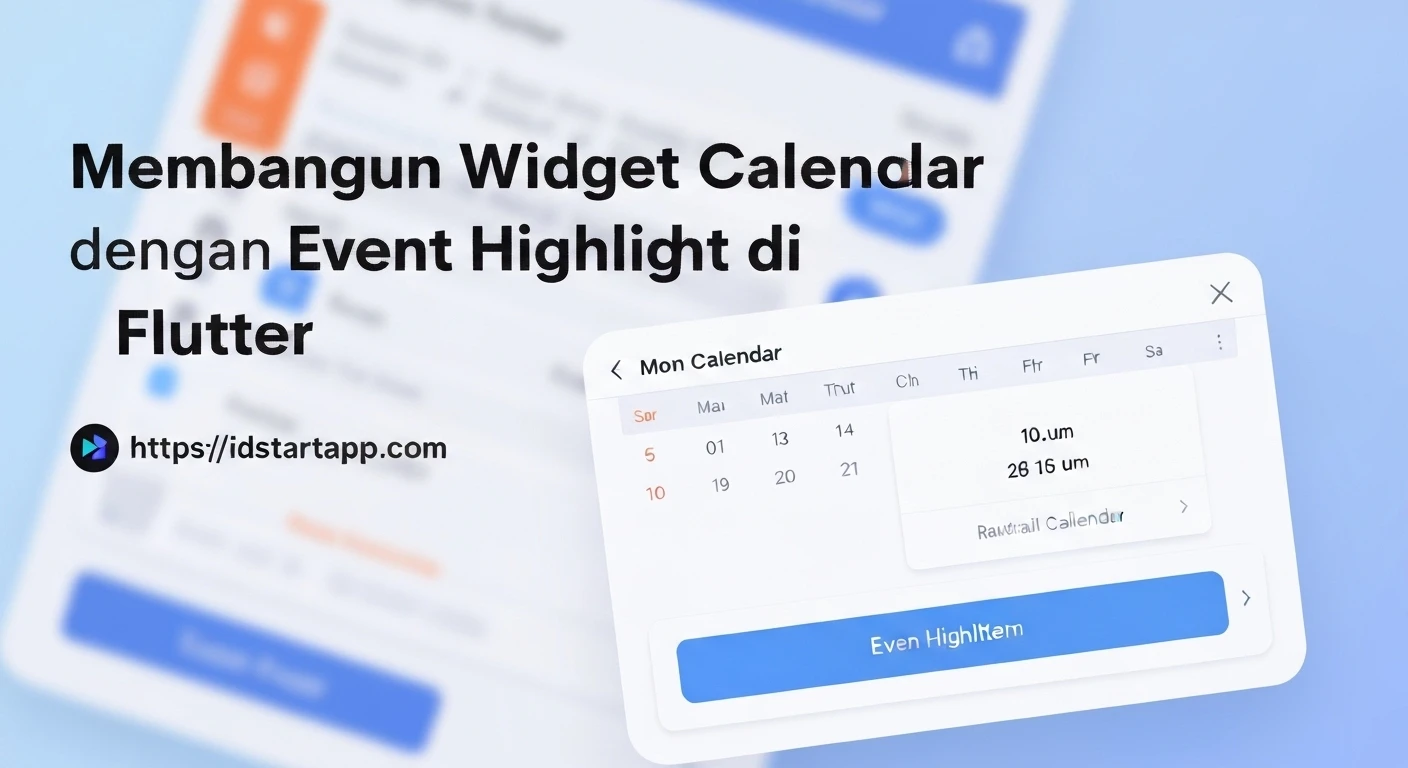

Building a Calendar Widget with Event Highlights in Flutter
Modern mobile applications often require sophisticated UI components to enhance user experience. A highly requested feature, especially for productivity, scheduling, and event-driven apps, is a calendar widget capable of displaying and highlighting events. Flutter, with its powerful UI toolkit, provides an excellent platform for building such custom widgets. This article will guide you through creating a dynamic calendar widget with event highlighting capabilities in Flutter, leveraging the popular table_calendar package for efficiency.
Why a Custom Calendar with Event Highlighting?
While basic date pickers are built-in, a full-fledged calendar with custom event markers offers several advantages:
- Enhanced User Experience: Users can quickly identify important dates at a glance.
- Contextual Information: Provides immediate visual cues for upcoming meetings, tasks, or special occasions.
- Branding and Aesthetics: Allows for complete control over the calendar's look and feel, aligning it with the app's overall design language.
- Interactivity: Supports seamless navigation, date selection, and event detail display.
Prerequisites
To follow along, you should have a basic understanding of Flutter development and Dart programming. We'll be using the table_calendar package, so ensure your Flutter environment is set up.
Setting Up Your Project
First, create a new Flutter project or open an existing one. Then, add the table_calendar package to your pubspec.yaml file:
dependencies:
  flutter:
    sdk: flutter
  table_calendar: ^3.0.0 # Use the latest stable version
Run flutter pub get to fetch the new dependency.
Defining the Event Model
To highlight events, we first need a way to represent them. A simple data model for an event might include a title and a date. You can extend this with additional properties like description, time, or color.
class Event {
  final String title;
  final DateTime date; // Optional: Could store a full DateTime if time is relevant

  const Event(this.title, this.date);

  @override
  String toString() => title;

  // For `table_calendar` event comparison (optional, but good practice)
  @override
  bool operator ==(Object other) =>
      identical(this, other) ||
      other is Event &&
          runtimeType == other.runtimeType &&
          title == other.title &&
          date.year == other.date.year &&
          date.month == other.date.month &&
          date.day == other.date.day;

  @override
  int get hashCode => title.hashCode ^ date.year.hashCode ^ date.month.hashCode ^ date.day.hashCode;
}
Implementing the Calendar Widget
Now, let's integrate table_calendar and add the event highlighting logic. We'll create a stateful widget to manage the selected date and displayed events.
1. Initialize Calendar Controller and Event Map
Inside your StatefulWidget's `_State` class, you'll need to initialize a `TableCalendar` controller and a map to store your events, typically grouped by date.
import 'package:flutter/material.dart';
import 'package:table_calendar/table_calendar.dart';
import 'package:intl/intl.dart'; // For date formatting

// Your Event class definition goes here (as defined above)
class Event {
  final String title;
  final DateTime date;

  const Event(this.title, this.date);

  @override
  String toString() => title;

  @override
  bool operator ==(Object other) =>
      identical(this, other) ||
      other is Event &&
          runtimeType == other.runtimeType &&
          title == other.title &&
          date.year == other.date.year &&
          date.month == other.date.month &&
          date.day == other.date.day;

  @override
  int get hashCode => title.hashCode ^ date.year.hashCode ^ date.month.hashCode ^ date.day.hashCode;
}

class CalendarWithEvents extends StatefulWidget {
  const CalendarWithEvents({super.key});

  @override
  State createState() => _CalendarWithEventsState();
}

class _CalendarWithEventsState extends State {
  late final ValueNotifier<List<Event>> _selectedEvents;
  CalendarFormat _calendarFormat = CalendarFormat.month;
  RangeSelectionMode _rangeSelectionMode = RangeSelectionMode.disabled;
  DateTime _focusedDay = DateTime.now();
  DateTime? _selectedDay;

  // A sample map of events for demonstration. In a real app, this would come from a backend or local storage.
  final Map<DateTime, List<Event>> _events = {
    DateTime.utc(2023, 10, 20): [const Event('Meeting', DateTime.utc(2023, 10, 20))],
    DateTime.utc(2023, 10, 21): [
      const Event('Team Lunch', DateTime.utc(2023, 10, 21)),
      const Event('Project Deadline', DateTime.utc(2023, 10, 21)),
    ],
    DateTime.utc(2023, 10, 25): [const Event('Conference', DateTime.utc(2023, 10, 25))],
    DateTime.utc(2023, 11, 5): [const Event('Holiday', DateTime.utc(2023, 11, 5))],
    DateTime.utc(2023, 11, 10): [
      const Event('Client Presentation', DateTime.utc(2023, 11, 10)),
      const Event('Travel Day', DateTime.utc(2023, 11, 10)),
    ],
  };

  @override
  void initState() {
    super.initState();
    _selectedDay = _focusedDay;
    _selectedEvents = ValueNotifier(_getEventsForDay(_selectedDay!));
  }

  @override
  void dispose() {
    _selectedEvents.dispose();
    super.dispose();
  }

  List<Event> _getEventsForDay(DateTime day) {
    // Normalize the date to UTC without time for consistent mapping
    final normalizedDay = DateTime.utc(day.year, day.month, day.day);
    return _events[normalizedDay] ?? [];
  }

  void _onDaySelected(DateTime selectedDay, DateTime focusedDay) {
    if (!isSameDay(_selectedDay, selectedDay)) {
      setState(() {
        _selectedDay = selectedDay;
        _focusedDay = focusedDay;
        _rangeSelectionMode = RangeSelectionMode.disabled;
      });
      _selectedEvents.value = _getEventsForDay(selectedDay);
    }
  }

  @override
  Widget build(BuildContext context) {
    return Scaffold(
      appBar: AppBar(
        title: const Text('Event Calendar'),
      ),
      body: Column(
        children: [
          TableCalendar<Event>(
            firstDay: DateTime.utc(2020, 1, 1),
            lastDay: DateTime.utc(2030, 12, 31),
            focusedDay: _focusedDay,
            selectedDayPredicate: (day) => isSameDay(_selectedDay, day),
            rangeStartDay: null, // No range selection for this example
            rangeEndDay: null,   // No range selection for this example
            calendarFormat: _calendarFormat,
            rangeSelectionMode: _rangeSelectionMode,
            eventLoader: _getEventsForDay, // Crucial for highlighting events
            startingDayOfWeek: StartingDayOfWeek.monday,
            calendarStyle: CalendarStyle(
              outsideDaysVisible: false,
              todayDecoration: BoxDecoration(
                color: Colors.blue.withOpacity(0.5),
                shape: BoxShape.circle,
              ),
              selectedDecoration: const BoxDecoration(
                color: Colors.blue,
                shape: BoxShape.circle,
              ),
              markerDecoration: const BoxDecoration(
                color: Colors.red, // Color of the event highlight dot/marker
                shape: BoxShape.circle,
              ),
            ),
            headerStyle: const HeaderStyle(
              formatButtonVisible: false,
              titleCentered: true,
            ),
            onDaySelected: _onDaySelected,
            onFormatChanged: (format) {
              if (_calendarFormat != format) {
                setState(() {
                  _calendarFormat = format;
                });
              }
            },
            onPageChanged: (focusedDay) {
              _focusedDay = focusedDay;
            },
            // Custom builders for more fine-grained control over UI
            // dayBuilder: (context, day, focusedDay) {
            //   // Example: custom background for specific days
            //   if (day.weekday == DateTime.sunday) {
            //     return Container(
            //       decoration: BoxDecoration(
            //         color: Colors.pink.withOpacity(0.1),
            //         shape: BoxShape.circle,
            //       ),
            //       alignment: Alignment.center,
            //       child: Text(
            //         '${day.day}',
            //         style: const TextStyle(color: Colors.red),
            //       ),
            //     );
            //   }
            //   return null; // Let table_calendar handle other days
            // },
            // eventLoader: defines what events are tied to each day
            // markerBuilder: (context, date, events) {
            //   if (events.isNotEmpty) {
            //     return Positioned(
            //       right: 1,
            //       bottom: 1,
            //       child: _buildEventsMarker(date, events),
            //     );
            //   }
            //   return null;
            // },
          ),
          const SizedBox(height: 8.0),
          Expanded(
            child: ValueListenableBuilder<List<Event>>(
              valueListenable: _selectedEvents,
              builder: (context, value, _) {
                return ListView.builder(
                  itemCount: value.length,
                  itemBuilder: (context, index) {
                    return Container(
                      margin: const EdgeInsets.symmetric(
                        horizontal: 12.0,
                        vertical: 4.0,
                      ),
                      decoration: BoxDecoration(
                        border: Border.all(),
                        borderRadius: BorderRadius.circular(12.0),
                      ),
                      child: ListTile(
                        onTap: () => print('${value[index].title} tapped!'),
                        title: Text('${value[index].title} on ${DateFormat('MMM dd, yyyy').format(value[index].date)}'),
                      ),
                    );
                  },
                );
              },
            ),
          ),
        ],
      ),
    );
  }
}
Key Concepts for Event Highlighting:
_eventsMap: This map holds your event data, where keys areDateTimeobjects (representing days) and values are lists ofEventobjects for that day. It's crucial to normalize theDateTimekeys (e.g., to UTC and without time components) to ensure consistent matching with dates provided bytable_calendar._getEventsForDayFunction: This function is passed totable_calendar'seventLoaderproperty. For any given day,table_calendarcalls this function to determine what events are associated with it. If this function returns a non-empty list,table_calendarwill automatically display a default marker (a small dot) on that day.calendarStyle.markerDecoration: You can customize the appearance of the default event marker using this property withinCalendarStyle. In our example, we set it to a red circle.markerBuilder(Advanced Customization): If the default marker isn't sufficient,table_calendarprovides amarkerBuildercallback. This allows you to return any widget to represent events on a specific day. You could display multiple dots, event counts, or custom icons.
Displaying Selected Day's Events
Below the calendar, we've added an Expanded widget containing a ValueListenableBuilder. This builder listens to changes in _selectedEvents (a ValueNotifier) and rebuilds the ListView.builder to show the events for the currently selected day. When _onDaySelected is called, it updates _selectedEvents.value, triggering the UI to refresh.
Customization and Styling
table_calendar offers extensive customization options:
CalendarStyle: Control the appearance of days, weekends, selected days, today's date, and event markers.HeaderStyle: Customize the header that displays the current month and year, including buttons for changing the format.builders: For ultimate control, you can use variousbuilders(e.g.,dayBuilder,markerBuilder,dowBuilderfor day of week) to provide entirely custom widgets for different parts of the calendar. This is where you can implement highly unique highlighting patterns, such as badges with event counts or different colored indicators for different event types.
For example, to create a custom event marker that shows the number of events:
// Inside _CalendarWithEventsState class

// ... other code ...

Widget _buildEventsMarker(DateTime date, List<Event> events) {
  return AnimatedContainer(
    duration: const Duration(milliseconds: 300),
    decoration: BoxDecoration(
      shape: BoxShape.circle,
      color: Colors.deepOrange[300],
    ),
    width: 16.0,
    height: 16.0,
    child: Center(
      child: Text(
        '${events.length}',
        style: const TextStyle().copyWith(
          color: Colors.white,
          fontSize: 12.0,
        ),
      ),
    ),
  );
}

// Then, in your TableCalendar widget:
// ...
          TableCalendar<Event>(
            // ... other properties ...
            markerBuilder: (context, date, events) {
              if (events.isNotEmpty) {
                return Positioned(
                  right: 1,
                  bottom: 1,
                  child: _buildEventsMarker(date, events),
                );
              }
              return null;
            },
          ),
// ...
Uncommenting and implementing the markerBuilder in the `TableCalendar` widget will override the default markerDecoration and use your custom widget instead.
Conclusion
Building a robust calendar widget with event highlighting in Flutter is straightforward, especially when utilizing powerful packages like table_calendar. By defining a clear event model, correctly mapping events to dates, and leveraging the package's extensive customization options, you can create a visually appealing and highly functional calendar that significantly enhances user interaction within your application. This foundation can be extended further to include features like event creation, editing, filtering, and integration with backend services.