
Building a Calendar Event Scheduler Widget in Flutter
Creating an interactive calendar event scheduler is a common requirement for many mobile applications, ranging from personal organizers to professional booking systems. Flutter, with its rich set of widgets and robust ecosystem, provides an excellent platform for building such features efficiently. This article will guide you through the process of constructing a dynamic calendar event scheduler widget using Flutter, leveraging popular third-party libraries for a seamless experience.
1. Introduction to the Calendar Event Scheduler
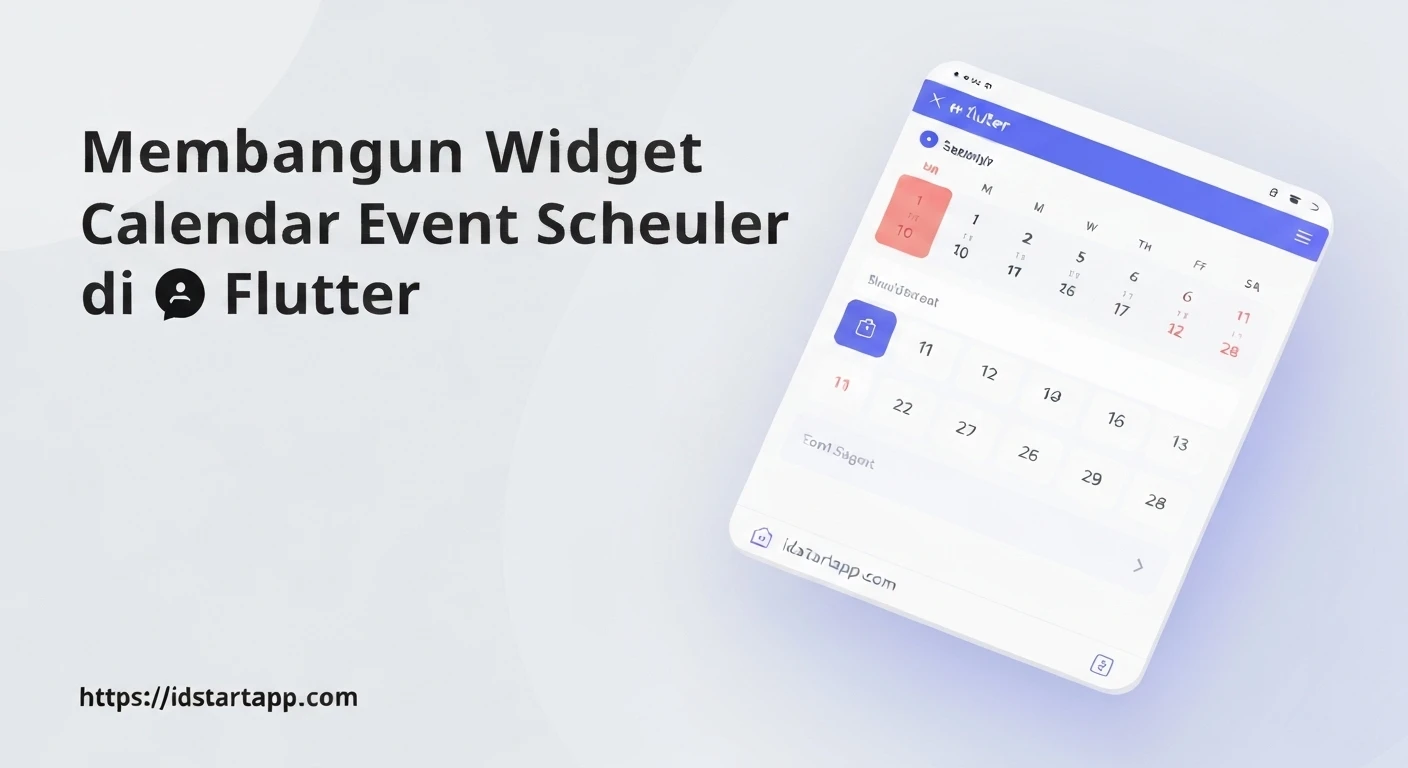
Our goal is to build a widget that displays a calendar, allows users to select specific dates, view events scheduled for those dates, and add new events. Key functionalities will include:
- Displaying a month-view calendar.
- Highlighting days with events.
- Allowing selection of a specific date.
- Listing events for the selected date.
- Providing an interface to add new events.
2. Project Setup and Dependencies
First, ensure you have Flutter installed and set up. Create a new Flutter project:
flutter create calendar_scheduler
cd calendar_scheduler
Next, we'll need a powerful calendar library. table_calendar is an excellent choice, providing highly customizable calendar views. We'll also use intl for date formatting and parsing, which is often useful.
Add these dependencies to your pubspec.yaml file:
dependencies:
  flutter:
    sdk: flutter
  table_calendar: ^3.0.9 # Use the latest version
  intl: ^0.18.1        # Use the latest version
Run flutter pub get to fetch the new packages.
3. Defining the Event Data Structure
Before we build the UI, let's define a simple class to represent an event. For simplicity, an event will just have a title.
// lib/models/event.dart
class Event {
  final String title;

  const Event(this.title);

  @override
  String toString() => title;
}
4. Implementing the Calendar Widget
Now, let's start building our main widget. We'll use a StatefulWidget to manage the calendar's state, such as the currently focused day and selected events.
Open lib/main.dart and replace its content with the following structure:
import 'package:flutter/material.dart';
import 'package:table_calendar/table_calendar.dart';
import 'package:intl/intl.dart';
import 'package:calendar_scheduler/models/event.dart'; // Make sure this path is correct

void main() {
  runApp(const MyApp());
}

class MyApp extends StatelessWidget {
  const MyApp({super.key});

  @override
  Widget build(BuildContext context) {
    return MaterialApp(
      title: 'Flutter Calendar Scheduler',
      theme: ThemeData(
        primarySwatch: Colors.blue,
      ),
      home: const CalendarSchedulerPage(),
    );
  }
}

class CalendarSchedulerPage extends StatefulWidget {
  const CalendarSchedulerPage({super.key});

  @override
  _CalendarSchedulerPageState createState() => _CalendarSchedulerPageState();
}

class _CalendarSchedulerPageState extends State {
  late final ValueNotifier> _selectedEvents;
  CalendarFormat _calendarFormat = CalendarFormat.month;
  DateTime _focusedDay = DateTime.now();
  DateTime? _selectedDay;

  // A map to store events. Key: DateTime, Value: List of Events
  Map> kEvents = {
    // Example events (remove in production or load dynamically)
    DateTime.utc(2023, 10, 20): [const Event('Meeting with John')],
    DateTime.utc(2023, 10, 22): [const Event('Project Deadline'), const Event('Client Call')],
  };

  @override
  void initState() {
    super.initState();
    _selectedDay = _focusedDay;
    _selectedEvents = ValueNotifier(_getEventsForDay(_selectedDay!));
  }

  @override
  void dispose() {
    _selectedEvents.dispose();
    super.dispose();
  }

  // Helper function to normalize DateTime objects for map lookup
  DateTime _getNormalizedDateTime(DateTime dateTime) {
    return DateTime.utc(dateTime.year, dateTime.month, dateTime.day);
  }

  List _getEventsForDay(DateTime day) {
    // Normalize the input day to match the keys in kEvents
    final normalizedDay = _getNormalizedDateTime(day);
    return kEvents[normalizedDay] ?? [];
  }

  void _onDaySelected(DateTime selectedDay, DateTime focusedDay) {
    if (!isSameDay(_selectedDay, selectedDay)) {
      setState(() {
        _selectedDay = selectedDay;
        _focusedDay = focusedDay;
      });
      _selectedEvents.value = _getEventsForDay(selectedDay);
    }
  }

  @override
  Widget build(BuildContext context) {
    return Scaffold(
      appBar: AppBar(
        title: const Text('Calendar Event Scheduler'),
      ),
      body: Column(
        children: [
          TableCalendar(
            firstDay: DateTime.utc(2020, 1, 1),
            lastDay: DateTime.utc(2030, 12, 31),
            focusedDay: _focusedDay,
            selectedDayPredicate: (day) => isSameDay(_selectedDay, day),
            calendarFormat: _calendarFormat,
            eventLoader: _getEventsForDay,
            startingDayOfWeek: StartingDayOfWeek.monday,
            calendarStyle: CalendarStyle(
              outsideDaysVisible: false,
              markerDecoration: BoxDecoration(
                color: Colors.blue[300],
                shape: BoxShape.circle,
              ),
            ),
            headerStyle: HeaderStyle(
              formatButtonVisible: false,
              titleCentered: true,
              titleTextFormatter: (date, locale) => DateFormat.yMMMM(locale).format(date),
            ),
            onDaySelected: _onDaySelected,
            onFormatChanged: (format) {
              if (_calendarFormat != format) {
                setState(() {
                  _calendarFormat = format;
                });
              }
            },
            onPageChanged: (focusedDay) {
              _focusedDay = focusedDay;
            },
          ),
          const SizedBox(height: 8.0),
          Expanded(
            child: ValueListenableBuilder>(
              valueListenable: _selectedEvents,
              builder: (context, value, _) {
                return ListView.builder(
                  itemCount: value.length,
                  itemBuilder: (context, index) {
                    return Container(
                      margin: const EdgeInsets.symmetric(
                        horizontal: 12.0,
                        vertical: 4.0,
                      ),
                      decoration: BoxDecoration(
                        border: Border.all(),
                        borderRadius: BorderRadius.circular(12.0),
                      ),
                      child: ListTile(
                        onTap: () => print('${value[index]}'),
                        title: Text('${value[index]}'),
                      ),
                    );
                  },
                );
              },
            ),
          ),
        ],
      ),
      floatingActionButton: FloatingActionButton(
        onPressed: () => _showAddEventDialog(),
        child: const Icon(Icons.add),
      ),
    );
  }

  void _showAddEventDialog() async {
    await showDialog(
      context: context,
      builder: (context) => AlertDialog(
        title: const Text('Add New Event'),
        content: TextFormField(
          controller: _eventController,
          decoration: const InputDecoration(labelText: 'Event Title'),
        ),
        actions: [
          TextButton(
            onPressed: () => Navigator.pop(context),
            child: const Text('Cancel'),
          ),
          TextButton(
            onPressed: () {
              if (_eventController.text.isEmpty) return;
              setState(() {
                final normalizedSelectedDay = _getNormalizedDateTime(_selectedDay!);
                kEvents.update(
                  normalizedSelectedDay,
                  (value) => [...value, Event(_eventController.text)],
                  ifAbsent: () => [Event(_eventController.text)],
                );
                _selectedEvents.value = _getEventsForDay(_selectedDay!);
                _eventController.clear();
              });
              Navigator.pop(context);
            },
            child: const Text('Add'),
          ),
        ],
      ),
    );
  }
}
5. Adding Event Creation Functionality
To allow users to add new events, we need a TextEditingController for the input field and a dialog to display it. Add the following to your _CalendarSchedulerPageState class:
  final TextEditingController _eventController = TextEditingController();

  // ... rest of your state class ...

  @override
  void dispose() {
    _selectedEvents.dispose();
    _eventController.dispose(); // Don't forget to dispose controllers
    super.dispose();
  }

  // ... add the _showAddEventDialog method (already included in the full snippet above) ...
The _showAddEventDialog function creates an AlertDialog with a TextFormField. When the "Add" button is pressed, it updates the kEvents map and then refreshes the displayed events for the selected day by updating _selectedEvents.value.
6. Explanation of Key Components
TableCalendarWidget: This is the core calendar view.firstDayandlastDay: Define the range of dates the calendar can display.focusedDay: The day that the calendar currently focuses on (e.g., the month containing this day is shown).selectedDayPredicate: A callback that determines if a day should be marked as "selected". We useisSameDayto compare the current day with_selectedDay.calendarFormat: Controls the view (month, two weeks, week). We've set it toCalendarFormat.month.eventLoader: Crucial for displaying events. It takes aDateTimeand returns aListof events for that day. Our_getEventsForDayfunction handles this.onDaySelected: A callback triggered when a user taps on a day. It updates_selectedDayand refreshes the event list.calendarStyle: Customizes the appearance of the calendar, including event markers.headerStyle: Customizes the header displaying the month and year.
ValueNotifier> _selectedEvents: This holds the list of events for the currently selected day. UsingValueNotifierwithValueListenableBuilderensures that only the event list UI rebuilds when events are added or the day changes, making it efficient.Map> kEvents: Our simple in-memory data store for all events. For a real application, this would typically interact with a database or API. Note the use of_getNormalizedDateTimeto ensure consistent keys in the map, asDateTimeobjects with different times but the same date are distinct.FloatingActionButton: Provides an easy way to trigger the "Add Event" dialog.
7. Running the Application
With all the code in place, save your files and run the application:
flutter run
You should now see a calendar, be able to select days, see example events (if you kept them), and add new events which will immediately appear for the selected date.
8. Conclusion and Further Enhancements
You have successfully built a basic yet functional calendar event scheduler widget in Flutter. This application provides a solid foundation that can be extended with many more features:
- Event Editing/Deletion: Add functionality to modify or remove existing events.
- Persistence: Store events in a local database (e.g., SQLite with
sqflite, Hive) or a cloud service (e.g., Firebase Firestore) so they persist across app sessions. - Recurring Events: Implement logic for events that repeat daily, weekly, or monthly.
- Event Details Screen: Navigate to a new screen to show full details of an event.
- Customizable UI: Allow users to customize colors, fonts, and calendar views.
- Time-based Events: Include specific start and end times for events.
- Internationalization: Support multiple languages and date formats.
By leveraging powerful Flutter widgets and community libraries like table_calendar, developing complex UI features like a calendar event scheduler becomes a much more manageable and enjoyable task.