
Creating a Recipe Detail Widget with Step Timer in Flutter
In modern cooking applications, user experience is paramount. Beyond just displaying ingredients and instructions, providing interactive tools can significantly enhance how users follow a recipe. One such powerful feature is a recipe detail widget that not only presents step-by-step instructions but also incorporates a step-specific timer, allowing users to accurately time each part of their cooking process.
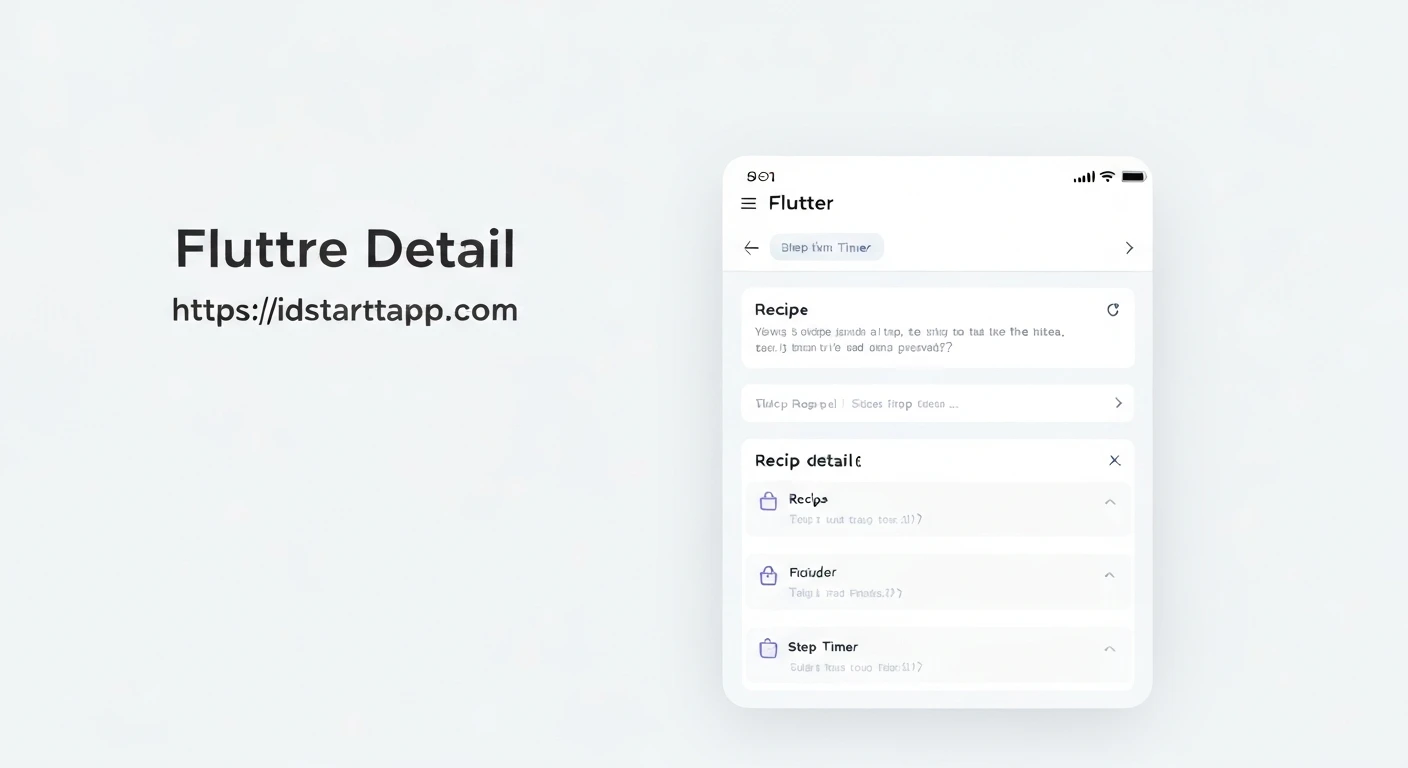
This article will guide you through building a Flutter widget that displays recipe details, navigates through cooking steps, and includes a customizable timer for each step. This functionality is crucial for recipes that require precise timing, ensuring better results and a more engaging cooking journey.
Prerequisites
- Basic understanding of Flutter widgets (StatefulWidget, StatelessWidget).
- Familiarity with Dart programming language.
- Knowledge of state management in Flutter (
setState).
1. Defining the Recipe Model
First, let's define the data structure for our recipe. We'll need a model for the recipe itself, and another for individual cooking steps, including a duration for each step.
class RecipeStep {
  final String description;
  final int durationInSeconds; // Duration for this step

  RecipeStep({required this.description, required this.durationInSeconds});
}

class Recipe {
  final String title;
  final String description;
  final List<String> ingredients;
  final List<RecipeStep> steps;

  Recipe({
    required this.title,
    required this.description,
    required this.ingredients,
    required this.steps,
  });
}
2. Setting Up the Recipe Detail Screen
Our recipe detail screen will be a StatefulWidget because we need to manage the current step, timer state, and elapsed time dynamically. It will display the recipe title, ingredients, the current step's instructions, and the timer.
import 'dart:async';
import 'package:flutter/material.dart';

// (Insert Recipe and RecipeStep models here)

class RecipeDetailScreen extends StatefulWidget {
  final Recipe recipe;

  const RecipeDetailScreen({Key? key, required this.recipe}) : super(key: key);

  @override
  _RecipeDetailScreenState createState() => _RecipeDetailScreenState();
}

class _RecipeDetailScreenState extends State<RecipeDetailScreen> {
  int _currentStepIndex = 0;
  Timer? _timer;
  int _elapsedSeconds = 0;
  bool _isTimerRunning = false;

  @override
  void initState() {
    super.initState();
    _resetTimer(); // Initialize timer for the first step
  }

  @override
  void dispose() {
    _timer?.cancel();
    super.dispose();
  }

  // Timer methods will go here
  // Step navigation methods will go here
  // Build method will go here
}
3. Implementing Timer Logic
The core of our interactive feature is the timer. We need methods to start, pause, and reset the timer, updating the UI every second. The timer should be specific to the current recipe step's duration.
// Inside _RecipeDetailScreenState

void _startTimer() {
  if (!_isTimerRunning) {
    _isTimerRunning = true;
    _timer = Timer.periodic(const Duration(seconds: 1), (timer) {
      if (_elapsedSeconds < widget.recipe.steps[_currentStepIndex].durationInSeconds) {
        setState(() {
          _elapsedSeconds++;
        });
      } else {
        _timer?.cancel();
        setState(() {
          _isTimerRunning = false;
        });
        // Optionally trigger a notification or visual cue that time is up
      }
    });
  }
}

void _pauseTimer() {
  _timer?.cancel();
  setState(() {
    _isTimerRunning = false;
  });
}

void _resetTimer() {
  _timer?.cancel();
  setState(() {
    _elapsedSeconds = 0;
    _isTimerRunning = false;
  });
}

String _formatTime(int totalSeconds) {
  final int minutes = totalSeconds ~/ 60;
  final int seconds = totalSeconds % 60;
  return '${minutes.toString().padLeft(2, '0')}:${seconds.toString().padLeft(2, '0')}';
}
4. Implementing Step Navigation
Users need to move between steps. We'll add methods to navigate to the next or previous step, ensuring the timer resets for the new step's duration.
// Inside _RecipeDetailScreenState

void _nextStep() {
  if (_currentStepIndex < widget.recipe.steps.length - 1) {
    _pauseTimer();
    setState(() {
      _currentStepIndex++;
      _resetTimer(); // Reset timer for the new step
    });
  }
}

void _previousStep() {
  if (_currentStepIndex > 0) {
    _pauseTimer();
    setState(() {
      _currentStepIndex--;
      _resetTimer(); // Reset timer for the new step
    });
  }
}
5. Building the User Interface
Now, let's assemble the UI. We'll display the current step's description, the timer, and control buttons (Start/Pause, Reset, Next, Previous). A Column widget will organize these elements vertically.
// Inside _RecipeDetailScreenState

@override
Widget build(BuildContext context) {
  final currentStep = widget.recipe.steps[_currentStepIndex];
  final int totalStepDuration = currentStep.durationInSeconds;
  final int remainingSeconds = totalStepDuration - _elapsedSeconds;

  return Scaffold(
    appBar: AppBar(
      title: Text(widget.recipe.title),
    ),
    body: Padding(
      padding: const EdgeInsets.all(16.0),
      child: Column(
        crossAxisAlignment: CrossAxisAlignment.start,
        children: [
          Text(
            'Step ${_currentStepIndex + 1}/${widget.recipe.steps.length}',
            style: Theme.of(context).textTheme.headline6,
          ),
          const SizedBox(height: 8),
          Text(
            currentStep.description,
            style: Theme.of(context).textTheme.bodyText1,
          ),
          const SizedBox(height: 24),
          Center(
            child: Column(
              children: [
                Text(
                  _formatTime(remainingSeconds),
                  style: Theme.of(context).textTheme.headline1?.copyWith(fontSize: 48),
                ),
                const SizedBox(height: 16),
                Row(
                  mainAxisAlignment: MainAxisAlignment.center,
                  children: [
                    ElevatedButton(
                      onPressed: _isTimerRunning ? _pauseTimer : _startTimer,
                      child: Text(_isTimerRunning ? 'Pause' : 'Start'),
                    ),
                    const SizedBox(width: 16),
                    ElevatedButton(
                      onPressed: _resetTimer,
                      child: const Text('Reset'),
                    ),
                  ],
                ),
              ],
            ),
          ),
          const Spacer(), // Pushes navigation buttons to the bottom
          Row(
            mainAxisAlignment: MainAxisAlignment.spaceBetween,
            children: [
              ElevatedButton(
                onPressed: _currentStepIndex > 0 ? _previousStep : null,
                child: const Text('Previous'),
              ),
              ElevatedButton(
                onPressed: _currentStepIndex < widget.recipe.steps.length - 1 ? _nextStep : null,
                child: const Text('Next'),
              ),
            ],
          ),
        ],
      ),
    ),
  );
}
6. Example Usage
To see this in action, you can use an example recipe and push the RecipeDetailScreen in your Flutter app.
// In your main.dart or another screen

void main() {
  runApp(MyApp());
}

class MyApp extends StatelessWidget {
  @override
  Widget build(BuildContext context) {
    return MaterialApp(
      title: 'Recipe App',
      theme: ThemeData(
        primarySwatch: Colors.blue,
      ),
      home: RecipeListPage(), // Or directly show RecipeDetailScreen for testing
    );
  }
}

class RecipeListPage extends StatelessWidget {
  final Recipe exampleRecipe = Recipe(
    title: 'Fluffy Pancakes',
    description: 'Perfectly light and fluffy pancakes for breakfast.',
    ingredients: [
      '1 1/2 cups all-purpose flour',
      '3 1/2 teaspoons baking powder',
      '1 teaspoon salt',
      '1 tablespoon white sugar',
      '1 1/4 cups milk',
      '1 egg',
      '3 tablespoons melted butter'
    ],
    steps: [
      RecipeStep(description: 'In a large bowl, sift together the flour, baking powder, salt and sugar.', durationInSeconds: 30),
      RecipeStep(description: 'In a separate bowl, beat the egg and milk. Stir in the melted butter.', durationInSeconds: 45),
      RecipeStep(description: 'Pour the milk mixture into the flour mixture; whisk until smooth.', durationInSeconds: 60),
      RecipeStep(description: 'Heat a lightly oiled griddle or frying pan over medium high heat.', durationInSeconds: 15),
      RecipeStep(description: 'Pour 1/4 cup of batter per pancake onto the griddle. Cook until bubbles form on the surface, about 2 minutes. Flip and cook until golden brown.', durationInSeconds: 180),
      RecipeStep(description: 'Serve immediately with your favorite toppings.', durationInSeconds: 10),
    ],
  );

  @override
  Widget build(BuildContext context) {
    return Scaffold(
      appBar: AppBar(
        title: const Text('Recipes'),
      ),
      body: Center(
        child: ElevatedButton(
          onPressed: () {
            Navigator.push(
              context,
              MaterialPageRoute(
                builder: (context) => RecipeDetailScreen(recipe: exampleRecipe),
              ),
            );
          },
          child: const Text('View Pancakes Recipe'),
        ),
      ),
    );
  }
}
Conclusion
By following these steps, you have successfully created a dynamic and interactive recipe detail widget in Flutter. This widget not only guides users through each cooking step but also provides a vital step-specific timer, making the cooking experience more precise and enjoyable. You can further enhance this widget by adding features like visual progress indicators for the timer, sound notifications when a step's timer finishes, or even integrating text-to-speech for hands-free navigation.