
Creating a Recipe Detail Widget with Nutrition Information in Flutter
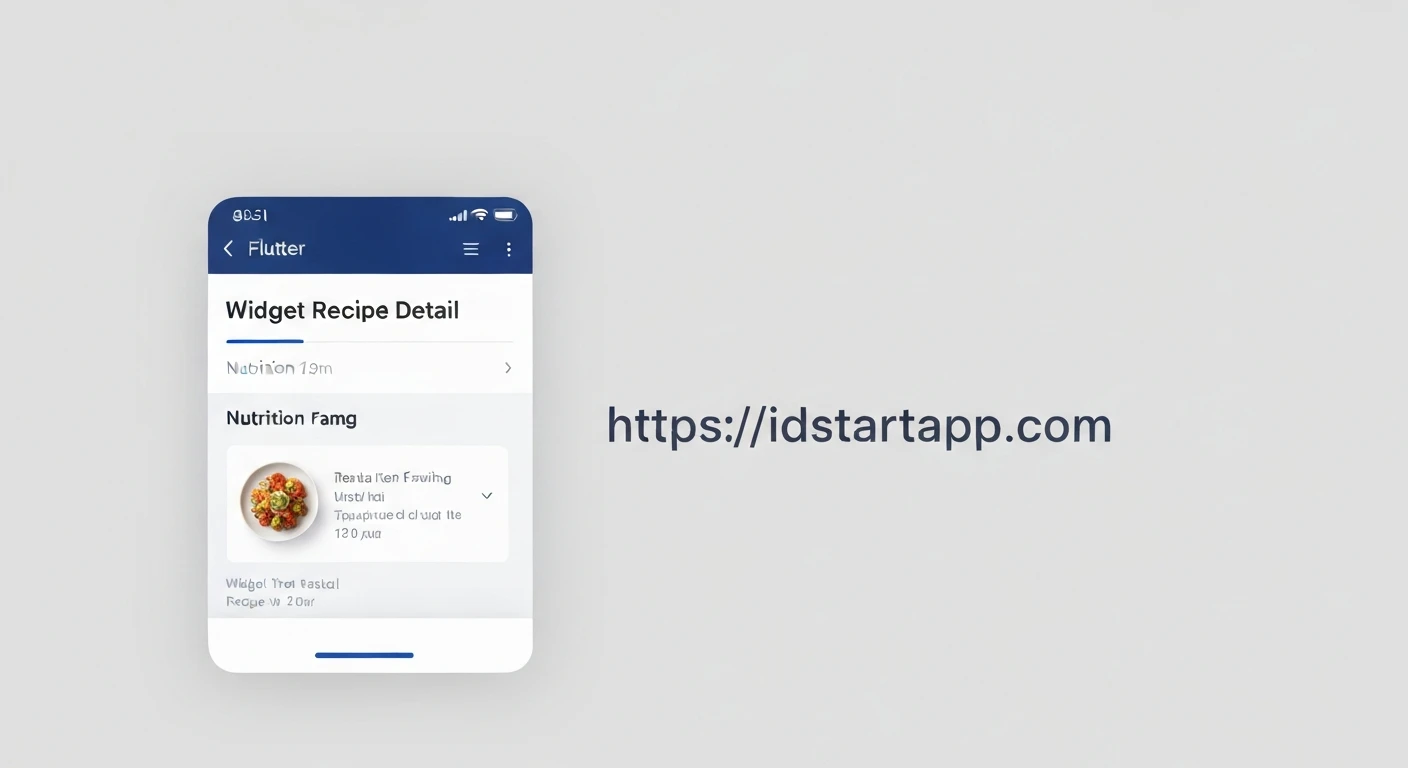
In modern recipe applications, a compelling user experience goes beyond just listing ingredients and instructions. Providing detailed nutritional information empowers users to make informed dietary choices and adds significant value. This article will guide you through building a Flutter widget that displays comprehensive recipe details, including a dedicated section for nutritional facts.
1. Introduction
A well-designed recipe detail screen is crucial for any recipe application. It serves as the primary interface for users to consume the content of a recipe. Integrating nutrition information transforms a basic recipe viewer into a powerful tool for health-conscious users. We will focus on creating a reusable Flutter widget that neatly presents a recipe's name, image, description, ingredients, instructions, and, critically, a breakdown of its nutritional values.
2. Prerequisites
- Basic understanding of Flutter and Dart.
- A Flutter project setup.
- Familiarity with stateful and stateless widgets.
3. Data Models: Defining Recipe and Nutrition
Before building the UI, we need to establish robust data models to represent our recipe and its associated nutrition information.
Recipe Model (recipe_model.dart)
class Recipe {
  final String id;
  final String title;
  final String imageUrl;
  final String description;
  final List<String> ingredients;
  final List<String> instructions;
  final NutritionInfo nutrition;

  Recipe({
    required this.id,
    required this.title,
    required this.imageUrl,
    required this.description,
    required this.ingredients,
    required this.instructions,
    required this.nutrition,
  });

  factory Recipe.fromJson(Map<String, dynamic> json) {
    return Recipe(
      id: json['id'] as String,
      title: json['title'] as String,
      imageUrl: json['imageUrl'] as String,
      description: json['description'] as String,
      ingredients: List<String>.from(json['ingredients']),
      instructions: List<String>.from(json['instructions']),
      nutrition: NutritionInfo.fromJson(json['nutrition']),
    );
  }
}
nutrition_info.dart)
class NutritionInfo {
  final double calories;
  final double protein;
  final double fat;
  final double carbohydrates;
  final double fiber;
  final double sugar;
  final double sodium;

  NutritionInfo({
    required this.calories,
    required this.protein,
    required this.fat,
    required this.carbohydrates,
    this.fiber = 0.0,
    this.sugar = 0.0,
    this.sodium = 0.0,
  });

  factory NutritionInfo.fromJson(Map<String, dynamic> json) {
    return NutritionInfo(
      calories: (json['calories'] as num).toDouble(),
      protein: (json['protein'] as num).toDouble(),
      fat: (json['fat'] as num).toDouble(),
      carbohydrates: (json['carbohydrates'] as num).toDouble(),
      fiber: (json['fiber'] as num?)?.toDouble() ?? 0.0,
      sugar: (json['sugar'] as num?)?.toDouble() ?? 0.0,
      sodium: (json['sodium'] as num?)?.toDouble() ?? 0.0,
    );
  }
}
4. Building the Recipe Detail Widget
We'll create a RecipeDetailScreen widget that takes a Recipe object and lays out its various components using SingleChildScrollView to ensure the content is scrollable.
recipe_detail_screen.dart
import 'package:flutter/material.dart';
import 'package:your_app_name/models/recipe_model.dart'; // Adjust import path
import 'package:your_app_name/models/nutrition_info.dart'; // Adjust import path

class RecipeDetailScreen extends StatelessWidget {
  final Recipe recipe;

  const RecipeDetailScreen({Key? key, required this.recipe}) : super(key: key);

  @override
  Widget build(BuildContext context) {
    return Scaffold(
      appBar: AppBar(
        title: Text(recipe.title),
      ),
      body: SingleChildScrollView(
        padding: const EdgeInsets.all(16.0),
        child: Column(
          crossAxisAlignment: CrossAxisAlignment.start,
          children: [
            // Recipe Image
            ClipRRect(
              borderRadius: BorderRadius.circular(10),
              child: Image.network(
                recipe.imageUrl,
                height: 250,
                width: double.infinity,
                fit: BoxFit.cover,
                errorBuilder: (context, error, stackTrace) => Container(
                  height: 250,
                  width: double.infinity,
                  color: Colors.grey[300],
                  child: Icon(Icons.broken_image, size: 100, color: Colors.grey[600]),
                ),
              ),
            ),
            const SizedBox(height: 20),

            // Recipe Title & Description
            Text(
              recipe.title,
              style: Theme.of(context).textTheme.headlineMedium?.copyWith(
                    fontWeight: FontWeight.bold,
                  ),
            ),
            const SizedBox(height: 10),
            Text(
              recipe.description,
              style: Theme.of(context).textTheme.bodyLarge,
            ),
            const SizedBox(height: 30),

            // Ingredients Section
            Text(
              'Ingredients',
              style: Theme.of(context).textTheme.headlineSmall?.copyWith(
                    fontWeight: FontWeight.bold,
                  ),
            ),
            const SizedBox(height: 10),
            ...recipe.ingredients.map((ingredient) => Padding(
              padding: const EdgeInsets.symmetric(vertical: 4.0),
              child: Row(
                crossAxisAlignment: CrossAxisAlignment.start,
                children: [
                  const Text('• ', style: TextStyle(fontSize: 16)),
                  Expanded(
                    child: Text(
                      ingredient,
                      style: Theme.of(context).textTheme.bodyLarge,
                    ),
                  ),
                ],
              ),
            )).toList(),
            const SizedBox(height: 30),

            // Instructions Section
            Text(
              'Instructions',
              style: Theme.of(context).textTheme.headlineSmall?.copyWith(
                    fontWeight: FontWeight.bold,
                  ),
            ),
            const SizedBox(height: 10),
            ...recipe.instructions.asMap().entries.map((entry) => Padding(
              padding: const EdgeInsets.symmetric(vertical: 4.0),
              child: Row(
                crossAxisAlignment: CrossAxisAlignment.start,
                children: [
                  Text(
                    '${entry.key + 1}. ',
                    style: Theme.of(context).textTheme.bodyLarge?.copyWith(
                      fontWeight: FontWeight.bold,
                    ),
                  ),
                  Expanded(
                    child: Text(
                      entry.value,
                      style: Theme.of(context).textTheme.bodyLarge,
                    ),
                  ),
                ],
              ),
            )).toList(),
            const SizedBox(height: 30),

            // Nutrition Information Section
            _NutritionInfoWidget(nutrition: recipe.nutrition),
          ],
        ),
      ),
    );
  }
}
5. Creating the Nutrition Information Widget
This dedicated widget will neatly display all the nutritional facts using a combination of Column and Row widgets for a clean, tabular layout.
_nutrition_info_widget.dart (or inline in recipe_detail_screen.dart)
import 'package:flutter/material.dart';
import 'package:your_app_name/models/nutrition_info.dart'; // Adjust import path

class _NutritionInfoWidget extends StatelessWidget {
  final NutritionInfo nutrition;

  const _NutritionInfoWidget({Key? key, required this.nutrition}) : super(key: key);

  Widget _buildNutritionRow(String label, String value, BuildContext context, {bool isBold = false}) {
    return Padding(
      padding: const EdgeInsets.symmetric(vertical: 4.0),
      child: Row(
        mainAxisAlignment: MainAxisAlignment.spaceBetween,
        children: [
          Text(
            label,
            style: Theme.of(context).textTheme.bodyLarge?.copyWith(
                  fontWeight: isBold ? FontWeight.bold : FontWeight.normal,
                ),
          ),
          Text(
            value,
            style: Theme.of(context).textTheme.bodyLarge?.copyWith(
                  fontWeight: isBold ? FontWeight.bold : FontWeight.normal,
                ),
          ),
        ],
      ),
    );
  }

  @override
  Widget build(BuildContext context) {
    return Column(
      crossAxisAlignment: CrossAxisAlignment.start,
      children: [
        Text(
          'Nutrition Information (per serving)',
          style: Theme.of(context).textTheme.headlineSmall?.copyWith(
                fontWeight: FontWeight.bold,
              ),
        ),
        const SizedBox(height: 10),
        Container(
          padding: const EdgeInsets.all(12.0),
          decoration: BoxDecoration(
            color: Colors.grey[100],
            borderRadius: BorderRadius.circular(8),
            border: Border.all(color: Colors.grey[300]!),
          ),
          child: Column(
            children: [
              _buildNutritionRow('Calories', '${nutrition.calories.toStringAsFixed(0)} kcal', context, isBold: true),
              _buildNutritionRow('Protein', '${nutrition.protein.toStringAsFixed(1)}g', context),
              _buildNutritionRow('Fat', '${nutrition.fat.toStringAsFixed(1)}g', context),
              _buildNutritionRow('Carbohydrates', '${nutrition.carbohydrates.toStringAsFixed(1)}g', context),
              Divider(color: Colors.grey[300]),
              _buildNutritionRow('Fiber', '${nutrition.fiber.toStringAsFixed(1)}g', context),
              _buildNutritionRow('Sugar', '${nutrition.sugar.toStringAsFixed(1)}g', context),
              _buildNutritionRow('Sodium', '${nutrition.sodium.toStringAsFixed(1)}mg', context),
            ],
          ),
        ),
      ],
    );
  }
}
6. Integrating and Displaying the Widget
To display your RecipeDetailScreen, you would typically navigate to it from a list of recipes, passing the selected Recipe object.
main.dart or a recipe list screen)
import 'package:flutter/material.dart';
import 'package:your_app_name/models/recipe_model.dart';
import 'package:your_app_name/models/nutrition_info.dart';
import 'package:your_app_name/screens/recipe_detail_screen.dart'; // Adjust path

void main() {
  runApp(const MyApp());
}

class MyApp extends StatelessWidget {
  const MyApp({Key? key}) : super(key: key);

  @override
  Widget build(BuildContext context) {
    // Create some dummy data for demonstration
    final dummyNutrition = NutritionInfo(
      calories: 350.0,
      protein: 25.5,
      fat: 15.0,
      carbohydrates: 30.0,
      fiber: 5.2,
      sugar: 8.1,
      sodium: 450.0,
    );

    final dummyRecipe = Recipe(
      id: 'r1',
      title: 'Spicy Chicken Stir-Fry',
      imageUrl: 'https://cdn.pixabay.com/photo/2018/07/18/19/00/burrito-3547846_1280.jpg',
      description: 'A quick and delicious spicy chicken stir-fry packed with vegetables and flavor.',
      ingredients: [
        '2 chicken breasts, sliced',
        '1 tbsp soy sauce',
        '1 tbsp sesame oil',
        '1 tsp ginger, grated',
        '1 clove garlic, minced',
        '1 red bell pepper, sliced',
        '1 broccoli head, chopped',
        '1/2 onion, sliced',
        'Cooked rice for serving',
      ],
      instructions: [
        'Marinate chicken in soy sauce, sesame oil, ginger, and garlic for 15 minutes.',
        'Heat oil in a large skillet or wok over medium-high heat.',
        'Add chicken and stir-fry until cooked through. Remove from pan.',
        'Add bell pepper, broccoli, and onion to the pan. Stir-fry for 5-7 minutes until tender-crisp.',
        'Return chicken to the pan. Stir everything together.',
        'Serve hot over cooked rice.',
      ],
      nutrition: dummyNutrition,
    );

    return MaterialApp(
      title: 'Recipe App',
      theme: ThemeData(
        primarySwatch: Colors.green,
        visualDensity: VisualDensity.adaptivePlatformDensity,
      ),
      home: RecipeDetailScreen(recipe: dummyRecipe),
    );
  }
}
7. Best Practices and Further Enhancements
-
Error Handling: Implement robust error handling for image loading (as shown in
Image.networkwitherrorBuilder) and data fetching (e.g., showing a placeholder or error message if nutrition data is missing). -
Loading States: When fetching recipe data from an API, display a loading indicator (e.g.,
CircularProgressIndicator) until the data is available. - Styling and Theming: Utilize Flutter's theming capabilities to ensure a consistent look and feel across your application.
- Dynamic Units: Allow users to switch between different units (e.g., grams vs. ounces, kJ vs. kcal) for nutrition values based on their preferences.
- Interactive Elements: Consider adding features like a "Add to Favorites" button, sharing options, or even a serving size adjuster that dynamically updates nutrition info.
- Accessibility: Ensure that text sizes are legible and color contrasts are sufficient for all users.
8. Conclusion
By following this guide, you have successfully built a professional and feature-rich RecipeDetailWidget in Flutter, complete with comprehensive nutrition information. This not only enhances the user experience but also transforms your recipe application into a more valuable resource for health-conscious individuals. The modular approach, separating data models from UI components, ensures maintainability and scalability for future enhancements.