
Building a Recipe List Widget with Filter & Search in Flutter
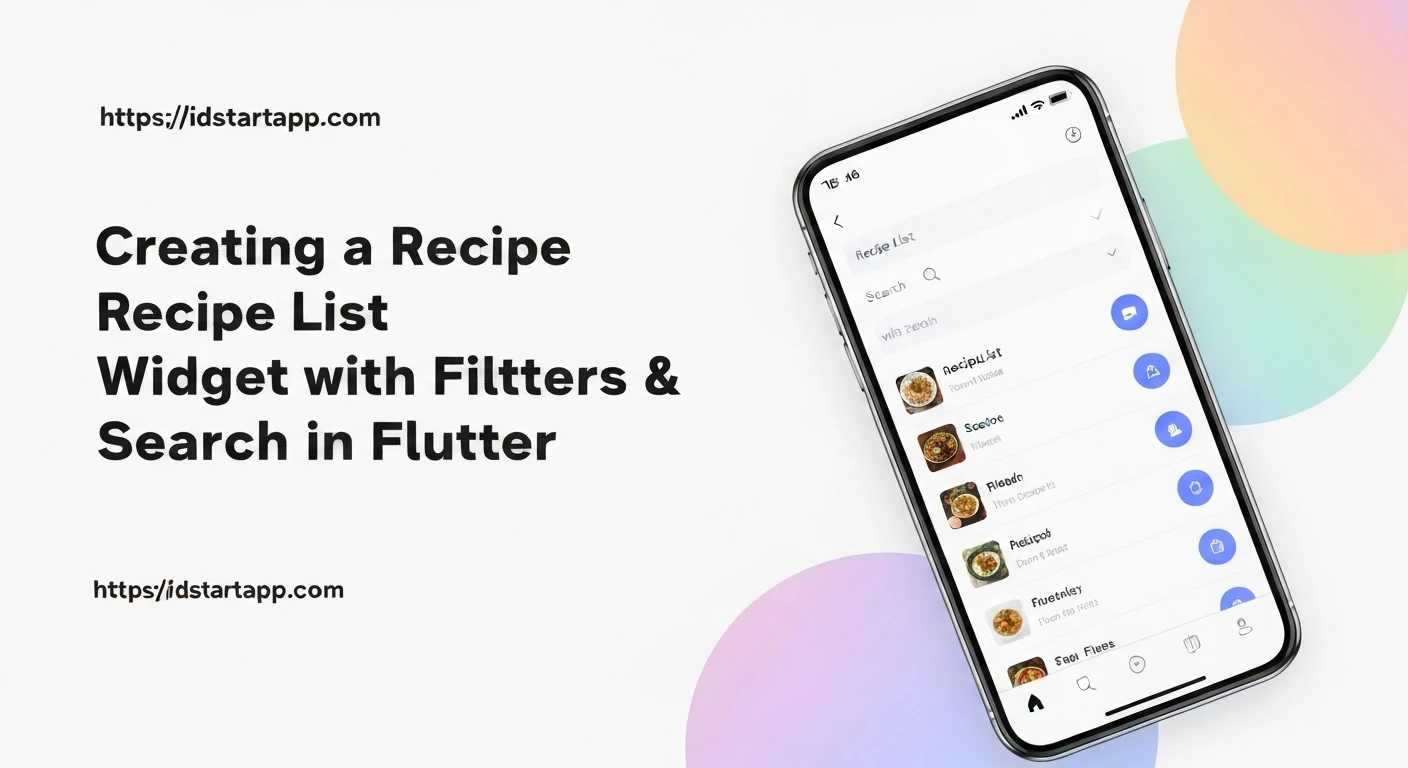
Creating dynamic lists with filtering and search capabilities is a fundamental requirement for many mobile applications, especially those dealing with catalogs, menus, or, in this case, recipes. A well-implemented recipe list allows users to quickly find desired dishes, significantly enhancing the user experience. This article will guide you through building a Flutter widget that displays a list of recipes, complete with an interactive search bar for efficient filtering.
1. Defining the Recipe Model
First, let's define a Dart class to represent our Recipe. This model will structure the data for each recipe, including its title, description, ingredients, and an image URL.
class Recipe {
  final String id;
  final String title;
  final String description;
  final List<String> ingredients;
  final String imageUrl;
  final String category;

  Recipe({
    required this.id,
    required this.title,
    required this.description,
    required this.ingredients,
    required this.imageUrl,
    required this.category,
  });
}
2. Preparing Dummy Data
For demonstration purposes, we'll create a list of dummy Recipe objects. In a real application, this data would typically come from an API or a local database.
final List<Recipe> _allRecipes = [
  Recipe(
    id: 'r1',
    title: 'Spaghetti Carbonara',
    description: 'A classic Italian pasta dish with eggs, hard cheese, cured pork, and black pepper.',
    ingredients: ['Spaghetti', 'Eggs', 'Pancetta', 'Pecorino Romano', 'Black Pepper'],
    imageUrl: 'https://cdn.pixabay.com/photo/2018/07/18/19/09/spaghetti-3547372_960_720.jpg',
    category: 'Italian',
  ),
  Recipe(
    id: 'r2',
    title: 'Chicken Tikka Masala',
    description: 'Roasted chunks of chicken in a spiced curry sauce. A dish of Indian origin.',
    ingredients: ['Chicken', 'Yogurt', 'Ginger', 'Garlic', 'Tomatoes', 'Cream', 'Spices'],
    imageUrl: 'https://cdn.pixabay.com/photo/2019/02/10/06/20/chicken-tikka-masala-3987012_960_720.jpg',
    category: 'Indian',
  ),
  Recipe(
    id: 'r3',
    title: 'Vegetable Stir-Fry',
    description: 'A quick and healthy Asian dish with mixed vegetables and a savory sauce.',
    ingredients: ['Broccoli', 'Carrots', 'Bell Peppers', 'Soy Sauce', 'Ginger', 'Garlic', 'Noodles'],
    imageUrl: 'https://cdn.pixabay.com/photo/2017/01/17/14/06/stir-fry-1987553_960_720.jpg',
    category: 'Asian',
  ),
  Recipe(
    id: 'r4',
    title: 'Beef Stroganoff',
    description: 'A Russian dish of sautéed pieces of beef served in a sauce with smetana (sour cream).',
    ingredients: ['Beef', 'Mushrooms', 'Onions', 'Sour Cream', 'Mustard', 'Beef Broth'],
    imageUrl: 'https://cdn.pixabay.com/photo/2016/10/26/12/32/beef-stroganoff-1771142_960_720.jpg',
    category: 'Russian',
  ),
  Recipe(
    id: 'r5',
    title: 'Sushi Rolls',
    description: 'Traditional Japanese dish of prepared vinegared rice, usually with some sugar and salt, accompanied by a variety of ingredients.',
    ingredients: ['Sushi Rice', 'Nori', 'Fish', 'Vegetables', 'Soy Sauce', 'Wasabi'],
    imageUrl: 'https://cdn.pixabay.com/photo/2017/01/22/16/09/sushi-200000_960_720.jpg',
    category: 'Japanese',
  ),
  Recipe(
    id: 'r6',
    title: 'Tacos',
    description: 'A traditional Mexican dish consisting of a small hand-sized corn or wheat tortilla topped with a filling.',
    ingredients: ['Tortillas', 'Ground Beef', 'Lettuce', 'Cheese', 'Salsa', 'Onions'],
    imageUrl: 'https://cdn.pixabay.com/photo/2019/08/17/01/01/tacos-4411135_960_720.jpg',
    category: 'Mexican',
  ),
];
3. Building the Recipe Card Widget
To display each recipe attractively, we'll create a reusable RecipeCard widget. This widget will be responsible for the layout and presentation of individual recipe details within the list.
import 'package:flutter/material.dart';

class RecipeCard extends StatelessWidget {
  final Recipe recipe;

  const RecipeCard({Key? key, required this.recipe}) : super(key: key);

  @override
  Widget build(BuildContext context) {
    return Card(
      margin: const EdgeInsets.symmetric(horizontal: 16, vertical: 8),
      elevation: 4,
      shape: RoundedRectangleBorder(borderRadius: BorderRadius.circular(12)),
      child: InkWell(
        onTap: () {
          // Handle tap, e.g., navigate to recipe detail screen
          print('Tapped on ${recipe.title}');
        },
        borderRadius: BorderRadius.circular(12),
        child: Padding(
          padding: const EdgeInsets.all(12.0),
          child: Row(
            children: [
              ClipRRect(
                borderRadius: BorderRadius.circular(8),
                child: Image.network(
                  recipe.imageUrl,
                  width: 100,
                  height: 100,
                  fit: BoxFit.cover,
                  errorBuilder: (context, error, stackTrace) => Container(
                    width: 100,
                    height: 100,
                    color: Colors.grey[300],
                    child: Icon(Icons.broken_image, color: Colors.grey[600]),
                  ),
                ),
              ),
              const SizedBox(width: 12),
              Expanded(
                child: Column(
                  crossAxisAlignment: CrossAxisAlignment.start,
                  children: [
                    Text(
                      recipe.title,
                      style: const TextStyle(
                        fontSize: 18,
                        fontWeight: FontWeight.bold,
                      ),
                      maxLines: 1,
                      overflow: TextOverflow.ellipsis,
                    ),
                    const SizedBox(height: 4),
                    Text(
                      recipe.description,
                      style: TextStyle(fontSize: 14, color: Colors.grey[600]),
                      maxLines: 2,
                      overflow: TextOverflow.ellipsis,
                    ),
                    const SizedBox(height: 8),
                    Wrap(
                      spacing: 6,
                      runSpacing: 4,
                      children: recipe.ingredients
                          .take(3) // Show first 3 ingredients as chips
                          .map((ingredient) => Chip(
                                label: Text(ingredient, style: const TextStyle(fontSize: 12)),
                                visualDensity: VisualDensity.compact,
                              ))
                          .toList(),
                    ),
                  ],
                ),
              ),
            ],
          ),
        ),
      ),
    );
  }
}
4. Implementing the Recipe List Screen with Search and Filter Logic
The RecipeListScreen will be a StatefulWidget to manage the search state and update the list of displayed recipes dynamically. It will include a search bar in the AppBar that toggles visibility and filters the recipes based on user input.
import 'package:flutter/material.dart';

// (Recipe Model and Dummy Data, and RecipeCard widget definitions go here)
// Make sure Recipe class, _allRecipes list, and RecipeCard widget are accessible.

class RecipeListScreen extends StatefulWidget {
  const RecipeListScreen({Key? key}) : super(key: key);

  @override
  _RecipeListScreenState createState() => _RecipeListScreenState();
}

class _RecipeListScreenState extends State<RecipeListScreen> {
  final TextEditingController _searchController = TextEditingController();
  List<Recipe> _filteredRecipes = [];
  bool _isSearching = false;

  @override
  void initState() {
    super.initState();
    _filteredRecipes = _allRecipes; // Initialize with all recipes
    _searchController.addListener(_onSearchChanged);
  }

  @override
  void dispose() {
    _searchController.removeListener(_onSearchChanged);
    _searchController.dispose();
    super.dispose();
  }

  void _onSearchChanged() {
    _searchRecipes(_searchController.text);
  }

  void _searchRecipes(String query) {
    setState(() {
      if (query.isEmpty) {
        _filteredRecipes = _allRecipes;
      } else {
        _filteredRecipes = _allRecipes.where((recipe) {
          final lowerCaseQuery = query.toLowerCase();
          return recipe.title.toLowerCase().contains(lowerCaseQuery) ||
                 recipe.description.toLowerCase().contains(lowerCaseQuery) ||
                 recipe.ingredients.any((ingredient) => ingredient.toLowerCase().contains(lowerCaseQuery)) ||
                 recipe.category.toLowerCase().contains(lowerCaseQuery);
        }).toList();
      }
    });
  }

  void _toggleSearch() {
    setState(() {
      _isSearching = !_isSearching;
      if (!_isSearching) {
        _searchController.clear();
        _searchRecipes(''); // Reset filter when search is closed
      }
    });
  }

  @override
  Widget build(BuildContext context) {
    return Scaffold(
      appBar: AppBar(
        title: _isSearching
            ? TextField(
                controller: _searchController,
                autofocus: true,
                style: const TextStyle(color: Colors.white),
                cursorColor: Colors.white,
                decoration: const InputDecoration(
                  hintText: 'Search recipes...',
                  hintStyle: TextStyle(color: Colors.white70),
                  border: InputBorder.none,
                  prefixIcon: Icon(Icons.search, color: Colors.white70),
                  suffixIcon: Icon(Icons.clear, color: Colors.white70),
                ),
                onChanged: _searchRecipes,
                onSubmitted: _searchRecipes,
              )
            : const Text('Recipe List'),
        actions: [
          IconButton(
            icon: Icon(_isSearching ? Icons.close : Icons.search),
            onPressed: _toggleSearch,
          ),
        ],
      ),
      body: _filteredRecipes.isEmpty
          ? const Center(
              child: Text(
                'No recipes found.',
                style: TextStyle(fontSize: 18, color: Colors.grey),
              ),
            )
          : ListView.builder(
              itemCount: _filteredRecipes.length,
              itemBuilder: (context, index) {
                return RecipeCard(recipe: _filteredRecipes[index]);
              },
            ),
    );
  }
}
5. Running the Application
Finally, to see our recipe list in action, we'll set up the main MyApp widget that runs the RecipeListScreen.
import 'package:flutter/material.dart';

// Ensure the Recipe model, _allRecipes list, RecipeCard, and RecipeListScreen
// are all defined or imported in the same file or accessible scope.

void main() {
  runApp(const MyApp());
}

class MyApp extends StatelessWidget {
  const MyApp({Key? key}) : super(key: key);

  @override
  Widget build(BuildContext context) {
    return MaterialApp(
      title: 'Recipe App',
      theme: ThemeData(
        primarySwatch: Colors.blue,
        visualDensity: VisualDensity.adaptivePlatformDensity,
        appBarTheme: const AppBarTheme(
          backgroundColor: Colors.deepPurple, // Custom AppBar color
          foregroundColor: Colors.white, // Text and icon color
        ),
      ),
      home: const RecipeListScreen(),
    );
  }
}
Conclusion
By following these steps, you've successfully created a Flutter recipe list widget that is both functional and user-friendly. The implementation includes a clear data model, a reusable UI component for individual recipes, and an effective search mechanism that filters the list in real-time. This foundational structure can be easily extended with more complex filtering options (e.g., by category or dietary restrictions), sorting capabilities, and integration with backend services to fetch real-world data, providing a robust starting point for any recipe-centric application.