
Building a Recipe Card Widget with Favorite Toggle & Share Button in Flutter
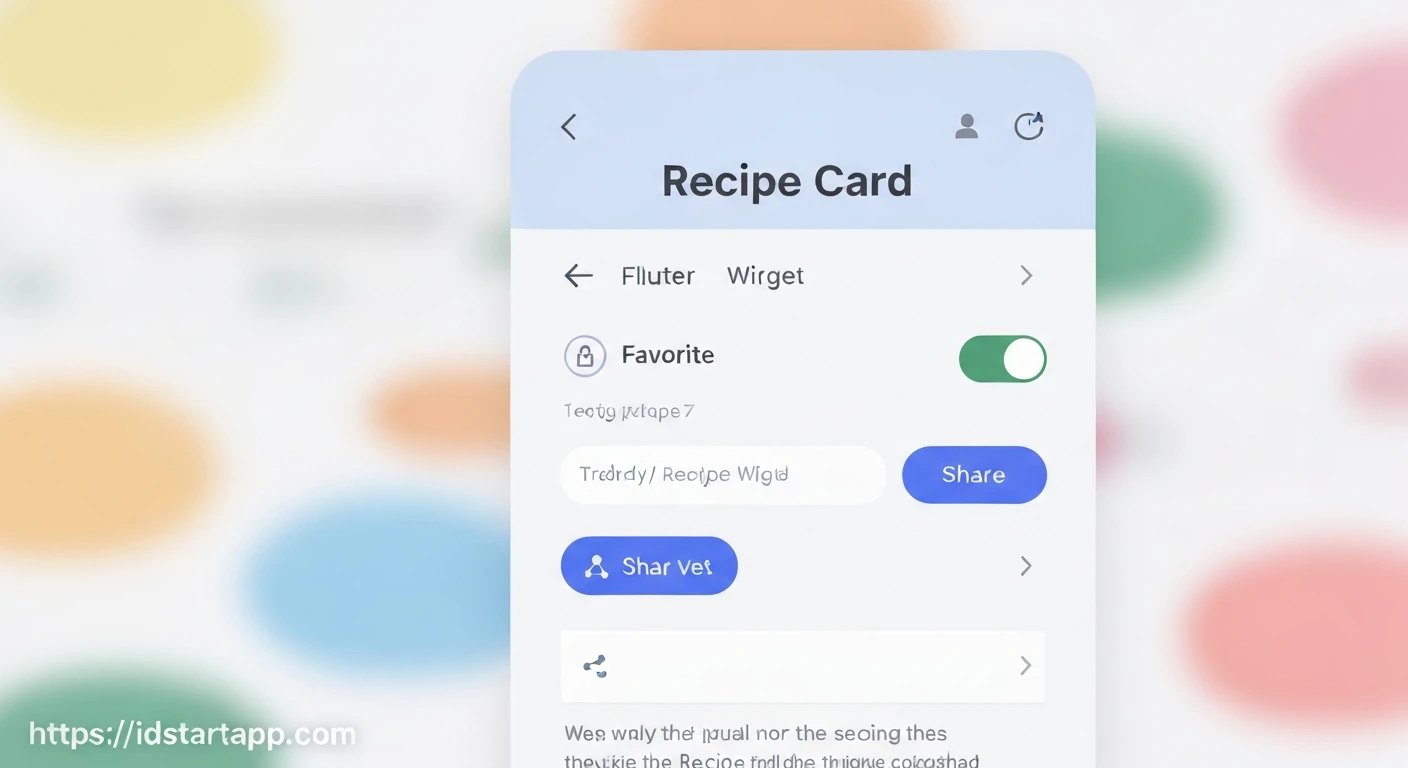
Creating engaging and interactive user interfaces is crucial for modern mobile applications. In Flutter, building reusable widgets that encapsulate both UI and functionality is a common practice. This article will guide you through the process of developing a "Recipe Card" widget, complete with a favorite toggle and a share button, enhancing user experience and interaction.
1. Defining the Recipe Model
First, let's establish a data model for our recipes. This model will hold all the necessary information for a single recipe, including its unique ID, title, image, ingredients, instructions, and a boolean to track its favorite status.
// lib/models/recipe_model.dart
class Recipe {
  final String id;
  final String title;
  final String imageUrl;
  final String ingredients;
  final String instructions;
  bool isFavorite; // This property will be mutable for the toggle

  Recipe({
    required this.id,
    required this.title,
    required this.imageUrl,
    required this.ingredients,
    required this.instructions,
    this.isFavorite = false, // Default to not favorite
  });
}
2. Adding Dependencies
To implement the share functionality, we'll use the popular share_plus package. Add it to your pubspec.yaml file:
dependencies:
  flutter:
    sdk: flutter
  share_plus: ^latest_version_available # e.g., ^7.0.2
After adding, run flutter pub get to fetch the package.
3. Building the Core Recipe Card Widget
Our recipe card will be a StatefulWidget because its internal state (the favorite status) can change. It will display the recipe's image, title, and other details, along with interactive buttons.
// lib/widgets/recipe_card_widget.dart
import 'package:flutter/material.dart';
import 'package:share_plus/share_plus.dart'; // Import for share functionality
import 'package:your_app_name/models/recipe_model.dart'; // Adjust import path

class RecipeCard extends StatefulWidget {
  final Recipe recipe;
  // Callback to inform the parent widget about favorite status changes
  final Function(String recipeId, bool isFavorite) onFavoriteToggle;

  const RecipeCard({
    Key? key,
    required this.recipe,
    required this.onFavoriteToggle,
  }) : super(key: key);

  @override
  State createState() => _RecipeCardState();
}

class _RecipeCardState extends State {
  late bool _isFavorite; // Internal state for favorite status

  @override
  void initState() {
    super.initState();
    _isFavorite = widget.recipe.isFavorite; // Initialize with recipe's current status
  }

  // Method to handle sharing the recipe details
  void _shareRecipe(Recipe recipe) {
    final String shareText =
        "Check out this delicious recipe: ${recipe.title}\n\n"
        "Ingredients: ${recipe.ingredients}\n\n"
        "Instructions: ${recipe.instructions}\n\n"
        "Find more recipes on #YourRecipeApp!"; // Customize with your app's link or hashtag

    Share.share(shareText, subject: 'Recipe: ${recipe.title}');
  }

  @override
  Widget build(BuildContext context) {
    return Card(
      margin: const EdgeInsets.all(10),
      elevation: 5,
      shape: RoundedRectangleBorder(borderRadius: BorderRadius.circular(15)),
      child: Column(
        crossAxisAlignment: CrossAxisAlignment.start,
        children: [
          // Image Section with overlayed title
          Stack(
            children: [
              ClipRRect(
                borderRadius: const BorderRadius.vertical(top: Radius.circular(15)),
                child: Image.network(
                  widget.recipe.imageUrl,
                  height: 200,
                  width: double.infinity,
                  fit: BoxFit.cover,
                  errorBuilder: (context, error, stackTrace) => Container(
                    height: 200,
                    color: Colors.grey[300],
                    child: const Center(child: Icon(Icons.broken_image, size: 50)),
                  ),
                ),
              ),
              Positioned(
                bottom: 10,
                right: 10,
                child: Container(
                  padding: const EdgeInsets.symmetric(horizontal: 10, vertical: 5),
                  decoration: BoxDecoration(
                    color: Colors.black54,
                    borderRadius: BorderRadius.circular(10),
                  ),
                  child: Text(
                    widget.recipe.title,
                    style: const TextStyle(
                      color: Colors.white,
                      fontSize: 18,
                      fontWeight: FontWeight.bold,
                    ),
                    softWrap: true,
                    overflow: TextOverflow.fade,
                  ),
                ),
              ),
            ],
          ),
          Padding(
            padding: const EdgeInsets.all(15),
            child: Column(
              crossAxisAlignment: CrossAxisAlignment.start,
              children: [
                // Favorite and Share Buttons
                Row(
                  mainAxisAlignment: MainAxisAlignment.spaceBetween,
                  children: [
                    // This Expanded widget is optional, if title is also here uncomment it
                    // Expanded(
                    //   child: Text(
                    //     widget.recipe.title,
                    //     style: Theme.of(context).textTheme.headlineSmall,
                    //     overflow: TextOverflow.ellipsis,
                    //   ),
                    // ),
                    Row(
                      children: [
                        IconButton(
                          icon: Icon(
                            _isFavorite ? Icons.favorite : Icons.favorite_border,
                            color: _isFavorite ? Colors.red : Colors.grey,
                          ),
                          onPressed: () {
                            setState(() {
                              _isFavorite = !_isFavorite; // Toggle internal state
                            });
                            // Call the callback to notify parent widget
                            widget.onFavoriteToggle(widget.recipe.id, _isFavorite);
                          },
                        ),
                        IconButton(
                          icon: const Icon(Icons.share, color: Colors.blueGrey),
                          onPressed: () {
                            _shareRecipe(widget.recipe); // Call share method
                          },
                        ),
                      ],
                    ),
                  ],
                ),
                const SizedBox(height: 10),
                Text(
                  'Ingredients:',
                  style: Theme.of(context).textTheme.titleMedium?.copyWith(fontWeight: FontWeight.bold),
                ),
                const SizedBox(height: 5),
                Text(widget.recipe.ingredients),
                const SizedBox(height: 10),
                Text(
                  'Instructions:',
                  style: Theme.of(context).textTheme.titleMedium?.copyWith(fontWeight: FontWeight.bold),
                ),
                const SizedBox(height: 5),
                Text(widget.recipe.instructions),
              ],
            ),
          ),
        ],
      ),
    );
  }
}
4. Using the Recipe Card Widget
To display a list of recipe cards, you can use a ListView.builder within a StatefulWidget. The parent widget will manage the list of Recipe objects and provide the onFavoriteToggle callback.
// lib/screens/recipe_list_screen.dart (or your main.dart)
import 'package:flutter/material.dart';
import 'package:your_app_name/models/recipe_model.dart';
import 'package:your_app_name/widgets/recipe_card_widget.dart';

class RecipeListScreen extends StatefulWidget {
  const RecipeListScreen({Key? key}) : super(key: key);

  @override
  State createState() => _RecipeListScreenState();
}

class _RecipeListScreenState extends State {
  // Sample list of recipes
  final List _recipes = [
    Recipe(
      id: 'r1',
      title: 'Spaghetti Carbonara',
      imageUrl: 'https://images.unsplash.com/photo-1621996346534-e7703083e20e?ixlib=rb-4.0.3&ixid=M3wxMjA3fDB8MHxwaG90by1wYWdlfHx8fGVufDB8fHx8fA%3D%3D&auto=format&fit=crop&w=1974&q=80',
      ingredients: 'Spaghetti, Eggs, Pecorino Romano, Guanciale, Black Pepper',
      instructions: 'Cook spaghetti. Fry guanciale until crispy. Whisk eggs and cheese. Combine all ingredients in a warm pan with pasta water to create a creamy sauce.',
      isFavorite: true,
    ),
    Recipe(
      id: 'r2',
      title: 'Caprese Salad',
      imageUrl: 'https://images.unsplash.com/photo-1620584288015-32e6e3c0b0b8?ixlib=rb-4.0.3&ixid=M3wxMjA3fDB8MHxwaG90by1wYWdlfHx8fGVufDB8fHx8fA%3D%3D&auto=format&fit=crop&w=1974&q=80',
      ingredients: 'Tomatoes, Mozzarella, Fresh Basil, Olive Oil, Balsamic Glaze',
      instructions: 'Slice tomatoes and mozzarella. Arrange with basil leaves. Drizzle with olive oil and balsamic glaze. Season with salt and pepper to taste.',
    ),
    Recipe(
      id: 'r3',
      title: 'Chicken Tikka Masala',
      imageUrl: 'https://images.unsplash.com/photo-1589302631526-9d3e8e163b0b?ixlib=rb-4.0.3&ixid=M3wxMjA3fDB8MHxwaG90by1wYWdlfHx8fGVufDB8fHx8fA%3D%3D&auto=format&fit=crop&w=1974&q=80',
      ingredients: 'Chicken, Yogurt, Ginger-Garlic paste, Spices, Tomatoes, Cream',
      instructions: 'Marinate chicken in yogurt and spices. Grill or pan-fry chicken. Cook onions, ginger-garlic, and spices. Add tomatoes, cook, then add cream and chicken. Simmer.',
    ),
  ];

  // Callback function to handle favorite toggling from the RecipeCard
  void _toggleFavorite(String recipeId, bool isFavorite) {
    setState(() {
      final recipeIndex = _recipes.indexWhere((recipe) => recipe.id == recipeId);
      if (recipeIndex != -1) {
        _recipes[recipeIndex].isFavorite = isFavorite;
        // In a real application, you would also persist this change
        // to a local database (e.g., Hive, SQLite) or a backend server.
        print('Recipe ${recipeId} favorite status updated to: ${isFavorite}');
      }
    });
  }

  @override
  Widget build(BuildContext context) {
    return Scaffold(
      appBar: AppBar(
        title: const Text('My Recipe Book'),
      ),
      body: ListView.builder(
        itemCount: _recipes.length,
        itemBuilder: (context, index) {
          return RecipeCard(
            recipe: _recipes[index],
            onFavoriteToggle: _toggleFavorite, // Pass the callback
          );
        },
      ),
    );
  }
}
Conclusion
You have successfully built a dynamic Recipe Card widget in Flutter, featuring a favorite toggle and a share button. This widget enhances user interaction by allowing them to mark recipes as favorites and easily share them with others. Key takeaways include:
- Utilizing
StatefulWidgetto manage internal state changes (like the favorite status). - Implementing callbacks (
onFavoriteToggle) to communicate state changes back to parent widgets. - Integrating external packages like
share_plusfor platform-specific functionalities. - Designing a clean and reusable UI component with Flutter's widget tree.
From here, you can further enhance this widget by adding navigation to a detailed recipe screen, integrating local storage for persistent favorite status, or connecting to a backend API for a more robust recipe management system.