
Building a Recipe Card Widget with Favorite Toggle in Flutter
Creating interactive and visually appealing UI components is a cornerstone of modern mobile application development. In Flutter, widgets are the fundamental building blocks, allowing developers to craft complex UIs from simpler, reusable pieces. This article will guide you through building a "Recipe Card" widget, a common UI pattern in food-related applications, complete with an interactive favorite toggle button.
Introduction to the Recipe Card
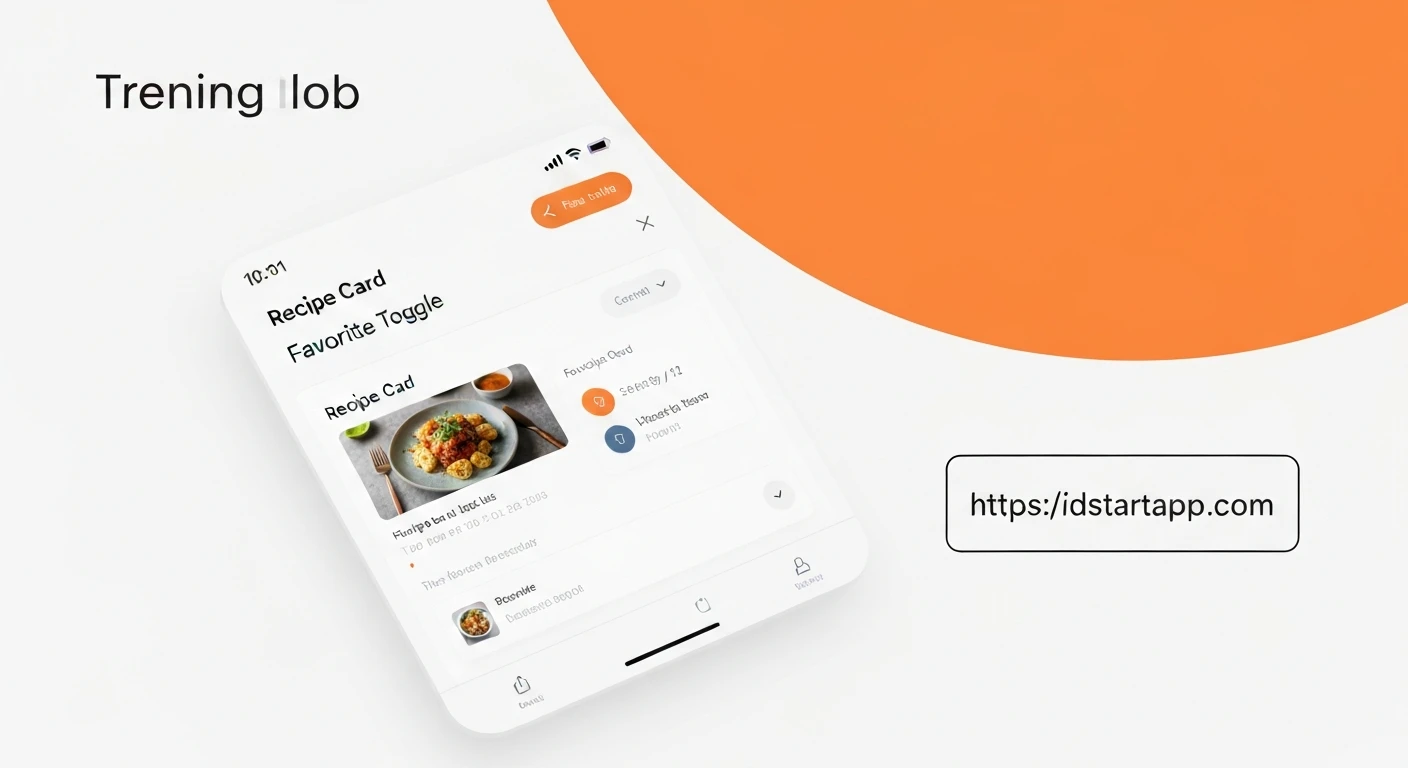
A recipe card typically displays essential information about a dish, such as its name, an image, and perhaps a short description. A "favorite" toggle enhances user experience by allowing users to bookmark recipes they like, making them easily retrievable later. We will build this widget to be reusable and manage its own state for the favorite feature.
Project Setup
First, ensure you have Flutter installed. Create a new Flutter project from your terminal:
flutter create recipe_app
cd recipe_app
Recipe Data Model
To represent our recipe data, let's define a simple Dart class. For organizational purposes, you might create a file named lib/models/recipe.dart. If you prefer a simpler structure for this example, you can place this class directly in main.dart.
class Recipe {
  final String id;
  final String title;
  final String imageUrl;
  final String description;
  bool isFavorite; // This will be mutable

  Recipe({
    required this.id,
    required this.title,
    required this.imageUrl,
    required this.description,
    this.isFavorite = false,
  });
}
Creating the Recipe Card Widget
Our RecipeCard will be a StatefulWidget because it needs to manage its own internal state, specifically whether the recipe is marked as a favorite or not. Let's create a new file lib/widgets/recipe_card.dart for this widget.
import 'package:flutter/material.dart';
import '../models/recipe.dart'; // Adjust path if you placed Recipe class elsewhere

class RecipeCard extends StatefulWidget {
  final Recipe recipe;

  const RecipeCard({
    Key? key,
    required this.recipe,
  }) : super(key: key);

  @override
  State createState() => _RecipeCardState();
}

class _RecipeCardState extends State {
  @override
  Widget build(BuildContext context) {
    return Card(
      margin: const EdgeInsets.all(10),
      elevation: 5,
      shape: RoundedRectangleBorder(
        borderRadius: BorderRadius.circular(15),
      ),
      child: Column(
        children: [
          // Recipe Image
          ClipRRect(
            borderRadius: const BorderRadius.vertical(top: Radius.circular(15)),
            child: Image.network(
              widget.recipe.imageUrl,
              height: 200,
              width: double.infinity,
              fit: BoxFit.cover,
              errorBuilder: (context, error, stackTrace) {
                return Container(
                  height: 200,
                  color: Colors.grey[300],
                  child: Center(
                    child: Icon(Icons.broken_image, size: 50, color: Colors.grey[600]),
                  ),
                );
              },
            ),
          ),
          // Title and Favorite Toggle
          Padding(
            padding: const EdgeInsets.all(15),
            child: Row(
              mainAxisAlignment: MainAxisAlignment.spaceBetween,
              children: [
                Expanded(
                  child: Text(
                    widget.recipe.title,
                    style: const TextStyle(
                      fontSize: 20,
                      fontWeight: FontWeight.bold,
                    ),
                    overflow: TextOverflow.ellipsis,
                  ),
                ),
                IconButton(
                  icon: Icon(
                    widget.recipe.isFavorite ? Icons.favorite : Icons.favorite_border,
                    color: widget.recipe.isFavorite ? Colors.red : Colors.grey,
                  ),
                  onPressed: () {
                    setState(() {
                      // Toggle the favorite status
                      widget.recipe.isFavorite = !widget.recipe.isFavorite;
                      // In a real application, you would also persist this change
                      // (e.g., to a database, shared preferences, or via a state management solution).
                      print('${widget.recipe.title} favorite status: ${widget.recipe.isFavorite}');
                    });
                  },
                ),
              ],
            ),
          ),
          // Description (Optional)
          Padding(
            padding: const EdgeInsets.symmetric(horizontal: 15, vertical: 8),
            child: Text(
              widget.recipe.description,
              style: TextStyle(
                fontSize: 14,
                color: Colors.grey[700],
              ),
              maxLines: 2,
              overflow: TextOverflow.ellipsis,
            ),
          ),
          const SizedBox(height: 10),
        ],
      ),
    );
  }
}
Inside the IconButton's onPressed callback, we utilize setState() to notify Flutter that the internal state of our widget has changed. We toggle the isFavorite property of the recipe object. When setState() is called, Flutter efficiently rebuilds the parts of the widget tree that depend on the changed state, causing the Icon to update its appearance based on the new value of widget.recipe.isFavorite.
It's important to understand that while we're directly modifying widget.recipe.isFavorite here, in a larger application with complex state requirements (e.g., if you have a list of favorites displayed on another screen), managing state across multiple widgets would typically involve a more robust state management solution like Provider, Riverpod, BLoC, or GetX. For this self-contained widget, modifying the passed-in object and using setState is effective to demonstrate the toggle functionality.
Integrating the Recipe Card into an App
Now, let's incorporate our RecipeCard into the main application file (lib/main.dart). We'll create a list of sample recipes and display them using a ListView.builder.
import 'package:flutter/material.dart';
import 'package:recipe_app/models/recipe.dart'; // Ensure correct path
import 'package:recipe_app/widgets/recipe_card.dart'; // Ensure correct path

void main() {
  runApp(const MyApp());
}

class MyApp extends StatelessWidget {
  const MyApp({Key? key}) : super(key: key);

  @override
  Widget build(BuildContext context) {
    return MaterialApp(
      title: 'Recipe App',
      theme: ThemeData(
        primarySwatch: Colors.blueGrey,
        visualDensity: VisualDensity.adaptivePlatformDensity,
      ),
      home: RecipeListScreen(),
    );
  }
}

class RecipeListScreen extends StatefulWidget {
  const RecipeListScreen({Key? key}) : super(key: key);

  @override
  State createState() => _RecipeListScreenState();
}

class _RecipeListScreenState extends State {
  // Sample data for demonstration
  final List _recipes = [
    Recipe(
      id: 'r1',
      title: 'Spaghetti Carbonara',
      imageUrl: 'https://images.unsplash.com/photo-1612874747714-c09a83d7353f?ixlib=rb-4.0.3&ixid=MnwxMjA3fDB8MHxwaG90by1wYWdlfHx8fGVufDB8fHx8&auto=format&fit=crop&w=1470&q=80',
      description: 'Classic Italian pasta dish with eggs, hard cheese, cured pork, and black pepper.',
      isFavorite: true, // Example of an initial favorite
    ),
    Recipe(
      id: 'r2',
      title: 'Chicken Tikka Masala',
      imageUrl: 'https://images.unsplash.com/photo-1589302168068-9647249a2a9e?ixlib=rb-4.0.3&ixid=MnwxMjA3fDB8MHxwaG90by1wYWdlfHx8fGVufDB8fHx8&auto=format&fit=crop&w=1470&q=80',
      description: 'Pieces of chicken cooked in a creamy spiced tomato sauce, a popular Indian dish.',
    ),
    Recipe(
      id: 'r3',
      title: 'Vegan Burger',
      imageUrl: 'https://images.unsplash.com/photo-1565294572230-22c608f4384e?ixlib=rb-4.0.3&ixid=MnwxMjA3fDB8MHxwaG90by1wYWdlfHx8fGVufDB8fHx8&auto=format&fit=crop&w=1470&q=80',
      description: 'Delicious plant-based burger patty with fresh toppings, a healthy alternative.',
    ),
    Recipe(
      id: 'r4',
      title: 'Sushi Platter',
      imageUrl: 'https://images.unsplash.com/photo-1626201306121-697960134444?ixlib=rb-4.0.3&ixid=MnwxMjA3fDB8MHxwaG90by1wYWdlfHx8fGVufDB8fHx8&auto=format&fit=crop&w=1470&q=80',
      description: 'An assortment of fresh sushi and sashimi.',
    ),
  ];

  @override
  Widget build(BuildContext context) {
    return Scaffold(
      appBar: AppBar(
        title: const Text('My Recipes'),
      ),
      body: ListView.builder(
        itemCount: _recipes.length,
        itemBuilder: (ctx, index) {
          return RecipeCard(recipe: _recipes[index]);
        },
      ),
    );
  }
}
Conclusion
You have successfully built a reusable RecipeCard widget in Flutter with an integrated favorite toggle functionality. This demonstrates how to combine visual design with interactive elements and manage state within a StatefulWidget. While this example uses local widget state, scaling this to a full application would often involve more sophisticated state management patterns to ensure data consistency and reactivity across different parts of your app. Experiment with different styles, add more recipe details like ingredients or cooking time, or explore persistence mechanisms to take your recipe application further!