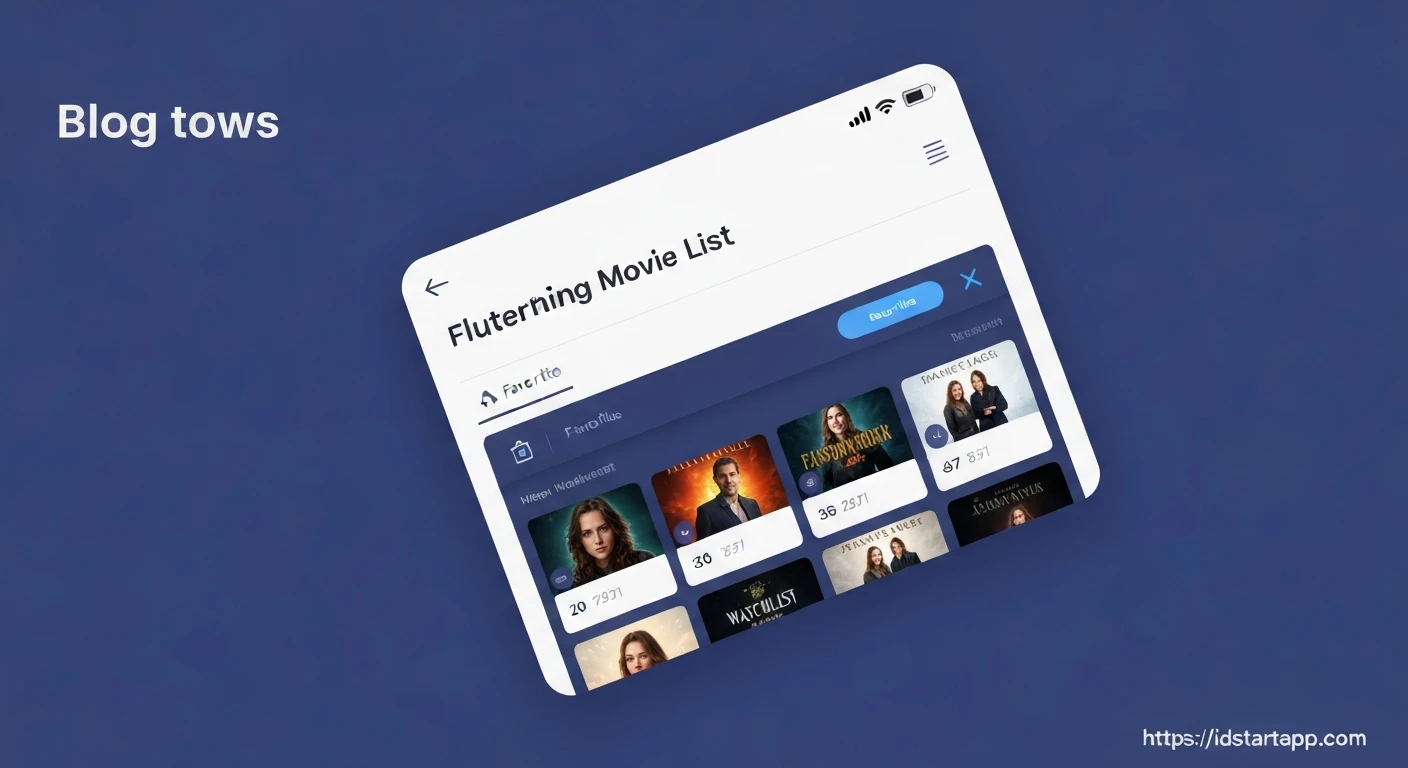

Building a Movie List Widget with Favorite, Watchlist, and Rating in Flutter
Creating interactive user interfaces that manage dynamic data is a core task in modern application development. In Flutter, building a feature-rich movie list widget that allows users to mark movies as favorites, add them to a watchlist, and assign ratings involves a combination of robust data modeling, efficient state management, and intuitive UI design. This article will guide you through the process of constructing such a widget from the ground up.
1. Defining the Movie Model
First, we need a data model to represent a single movie. This model will hold properties like the movie's ID, title, poster URL, and crucially, its interactive states: whether it's favorited, on the watchlist, and its current rating.
// lib/models/movie.dart
import 'package:flutter/foundation.dart';

class Movie with ChangeNotifier {
  final String id;
  final String title;
  final String posterUrl;
  bool _isFavorite;
  bool _isOnWatchlist;
  double _rating; // Rating from 0.0 to 5.0

  Movie({
    required this.id,
    required this.title,
    required this.posterUrl,
    bool isFavorite = false,
    bool isOnWatchlist = false,
    double rating = 0.0,
  })  : _isFavorite = isFavorite,
        _isOnWatchlist = isOnWatchlist,
        _rating = rating;

  bool get isFavorite => _isFavorite;
  bool get isOnWatchlist => _isOnWatchlist;
  double get rating => _rating;

  void toggleFavorite() {
    _isFavorite = !_isFavorite;
    notifyListeners();
  }

  void toggleWatchlist() {
    _isOnWatchlist = !_isOnWatchlist;
    notifyListeners();
  }

  void setRating(double newRating) {
    if (newRating >= 0.0 && newRating <= 5.0) {
      _rating = newRating;
      notifyListeners();
    }
  }
}
2. State Management with Provider
To manage a list of movies and update their states efficiently across the UI, we'll use the provider package. It's a robust and easy-to-use solution for state management in Flutter. We'll create a MovieProvider that holds our list of movies and provides methods to modify them.
// lib/providers/movie_provider.dart
import 'package:flutter/material.dart';
import '../models/movie.dart';

class MovieProvider with ChangeNotifier {
  final List<Movie> _movies = [
    Movie(
      id: 'm1',
      title: 'The Shawshank Redemption',
      posterUrl: 'https://m.media-amazon.com/images/M/MV5BNDE3ODcxYzMtY2YzZC00NmJkLWE1MTEtNGQ0YzYxNGQzZmQxXkEyXkFqcGdeQXVyMjMxNTQyMDA@._V1_FMjpg_UX1000_.jpg',
      rating: 4.8,
    ),
    Movie(
      id: 'm2',
      title: 'The Godfather',
      posterUrl: 'https://m.media-amazon.com/images/M/MV5BM2MyNjYxNmUtYjQ0OC00NTkyLThlZDctODQyNDQ2ZWEyYjE1XkEyXkFqcGdeQXVyNDYyMDk5MTU@._V1_.jpg',
      isFavorite: true,
      rating: 4.7,
    ),
    Movie(
      id: 'm3',
      title: 'The Dark Knight',
      posterUrl: 'https://m.media-amazon.com/images/M/MV5BMTMxNTMwODM0NF5BMl5BanBnXkFtZTcwODAyMTk2Mw@@._V1_.jpg',
      isOnWatchlist: true,
      rating: 4.5,
    ),
    Movie(
      id: 'm4',
      title: 'Pulp Fiction',
      posterUrl: 'https://m.media-amazon.com/images/M/MV5BNGNhMDIzZTUtNTBlZi00MTRlLWFjM2ItYzViMjYyMDEzOGVlXkEyXkFqcGdeQXVyNzkwMjQ5NzM@._V1_.jpg',
      rating: 4.2,
    ),
  ];

  List<Movie> get movies => [..._movies]; // Return a copy to prevent external modification

  Movie findById(String id) {
    return _movies.firstWhere((movie) => movie.id == id);
  }

  // Note: Toggle methods are handled directly by the Movie model itself
  // because each Movie instance is a ChangeNotifier.
  // We only need to notify MovieProvider if the list structure changes,
  // which it doesn't in this case for simple toggles.
  // However, for more complex state changes that affect the overall list
  // (e.g., adding/removing movies), methods would be here.
}
3. Crafting the Movie List UI
The UI will consist of a main screen that uses a MovieProvider to get the list of movies, and then displays them using a ListView.builder. Each item in the list will be represented by a MovieListItem widget.
3.1. Main Application Setup
Our main.dart will initialize the MovieProvider using ChangeNotifierProvider.
// lib/main.dart
import 'package:flutter/material.dart';
import 'package:provider/provider.dart';

import './providers/movie_provider.dart';
import './screens/movie_list_screen.dart';

void main() {
  runApp(const MyApp());
}

class MyApp extends StatelessWidget {
  const MyApp({super.key});

  @override
  Widget build(BuildContext context) {
    return ChangeNotifierProvider(
      create: (ctx) => MovieProvider(),
      child: MaterialApp(
        title: 'Movie Widget Demo',
        theme: ThemeData(
          primarySwatch: Colors.blueGrey,
          visualDensity: VisualDensity.adaptivePlatformDensity,
        ),
        home: const MovieListScreen(),
      ),
    );
  }
}
3.2. Movie List Screen
This screen will fetch movies from the MovieProvider and render them.
// lib/screens/movie_list_screen.dart
import 'package:flutter/material.dart';
import 'package:provider/provider.dart';

import '../providers/movie_provider.dart';
import '../widgets/movie_list_item.dart';

class MovieListScreen extends StatelessWidget {
  const MovieListScreen({super.key});

  @override
  Widget build(BuildContext context) {
    final movieProvider = Provider.of<MovieProvider>(context);
    final movies = movieProvider.movies;

    return Scaffold(
      appBar: AppBar(
        title: const Text('My Movie List'),
      ),
      body: ListView.builder(
        itemCount: movies.length,
        itemBuilder: (ctx, i) {
          return ChangeNotifierProvider.value(
            value: movies[i], // Provide each Movie instance
            child: const MovieListItem(),
          );
        },
      ),
    );
  }
}
3.3. Movie List Item Widget
This is where each movie's details and interactive elements will be displayed. We use Consumer<Movie> to listen for changes to an individual movie's state.
// lib/widgets/movie_list_item.dart
import 'package:flutter/material.dart';
import 'package:provider/provider.dart';

import '../models/movie.dart';

class MovieListItem extends StatelessWidget {
  const MovieListItem({super.key});

  Future<void> _showRatingDialog(BuildContext context, Movie movie) async {
    double? newRating = await showDialog<double>(
      context: context,
      builder: (BuildContext dialogContext) {
        double tempRating = movie.rating;
        return AlertDialog(
          title: const Text('Rate this Movie'),
          content: StatefulBuilder(
            builder: (BuildContext context, StateSetter setState) {
              return Column(
                mainAxisSize: MainAxisSize.min,
                children: [
                  Text('Current Rating: ${tempRating.toStringAsFixed(1)}'),
                  Slider(
                    value: tempRating,
                    min: 0.0,
                    max: 5.0,
                    divisions: 10, // For 0.5 increments
                    label: tempRating.toStringAsFixed(1),
                    onChanged: (value) {
                      setState(() {
                        tempRating = value;
                      });
                    },
                  ),
                ],
              );
            },
          ),
          actions: <Widget>[
            TextButton(
              child: const Text('Cancel'),
              onPressed: () {
                Navigator.of(dialogContext).pop(null); // Return null on cancel
              },
            ),
            ElevatedButton(
              child: const Text('Submit'),
              onPressed: () {
                Navigator.of(dialogContext).pop(tempRating); // Return the selected rating
              },
            ),
          ],
        );
      },
    );

    if (newRating != null) {
      movie.setRating(newRating);
    }
  }

  @override
  Widget build(BuildContext context) {
    return Consumer<Movie>(
      builder: (ctx, movie, child) {
        return Card(
          margin: const EdgeInsets.symmetric(horizontal: 15, vertical: 8),
          elevation: 5,
          child: Padding(
            padding: const EdgeInsets.all(8.0),
            child: Row(
              children: [
                Container(
                  width: 80,
                  height: 120,
                  decoration: BoxDecoration(
                    borderRadius: BorderRadius.circular(8),
                    image: DecorationImage(
                      image: NetworkImage(movie.posterUrl),
                      fit: BoxFit.cover,
                    ),
                  ),
                ),
                const SizedBox(width: 15),
                Expanded(
                  child: Column(
                    crossAxisAlignment: CrossAxisAlignment.start,
                    children: [
                      Text(
                        movie.title,
                        style: const TextStyle(
                          fontSize: 18,
                          fontWeight: FontWeight.bold,
                        ),
                      ),
                      const SizedBox(height: 5),
                      Row(
                        children: [
                          Icon(
                            Icons.star_rounded,
                            color: Colors.amber,
                            size: 20,
                          ),
                          const SizedBox(width: 4),
                          GestureDetector(
                            onTap: () => _showRatingDialog(context, movie),
                            child: Text(
                              movie.rating.toStringAsFixed(1),
                              style: const TextStyle(fontSize: 16),
                            ),
                          ),
                          const Spacer(),
                          IconButton(
                            icon: Icon(
                              movie.isFavorite ? Icons.favorite : Icons.favorite_border,
                              color: movie.isFavorite ? Colors.red : Colors.grey,
                            ),
                            onPressed: () {
                              movie.toggleFavorite();
                            },
                          ),
                          IconButton(
                            icon: Icon(
                              movie.isOnWatchlist ? Icons.bookmark : Icons.bookmark_border,
                              color: movie.isOnWatchlist ? Colors.blue : Colors.grey,
                            ),
                            onPressed: () {
                              movie.toggleWatchlist();
                            },
                          ),
                        ],
                      ),
                    ],
                  ),
                ),
              ],
            ),
          ),
        );
      },
    );
  }
}
4. Implementing Favorite and Watchlist Features
As seen in the MovieListItem widget, the favorite and watchlist functionalities are directly integrated using IconButtons. When pressed, these buttons call movie.toggleFavorite() or movie.toggleWatchlist() respectively. Since the Movie model itself extends ChangeNotifier, these calls trigger notifyListeners() within the individual Movie instance, causing the Consumer<Movie> in MovieListItem to rebuild only that specific item, efficiently updating its icon without rebuilding the entire list.
5. Integrating Rating Functionality
The rating feature in MovieListItem is implemented with a GestureDetector around the rating text. Tapping the rating text invokes the _showRatingDialog function. This function presents an AlertDialog containing a Slider that allows the user to select a rating from 0.0 to 5.0 (with 0.5 increments). Once a new rating is submitted, movie.setRating() is called, updating the movie's rating and triggering a UI rebuild for that item.
Conclusion
By following these steps, you've successfully built a sophisticated movie list widget in Flutter. This widget effectively displays movie information and provides interactive features for marking favorites, adding to a watchlist, and assigning ratings. The use of a clear data model and the Provider package ensures an organized, scalable, and performant solution for managing application state. This foundation can be further extended by integrating with real movie APIs, implementing local data persistence, adding search functionality, and enhancing the UI with animations.