
Building a Music Player Widget with Album Cover Animation in Flutter
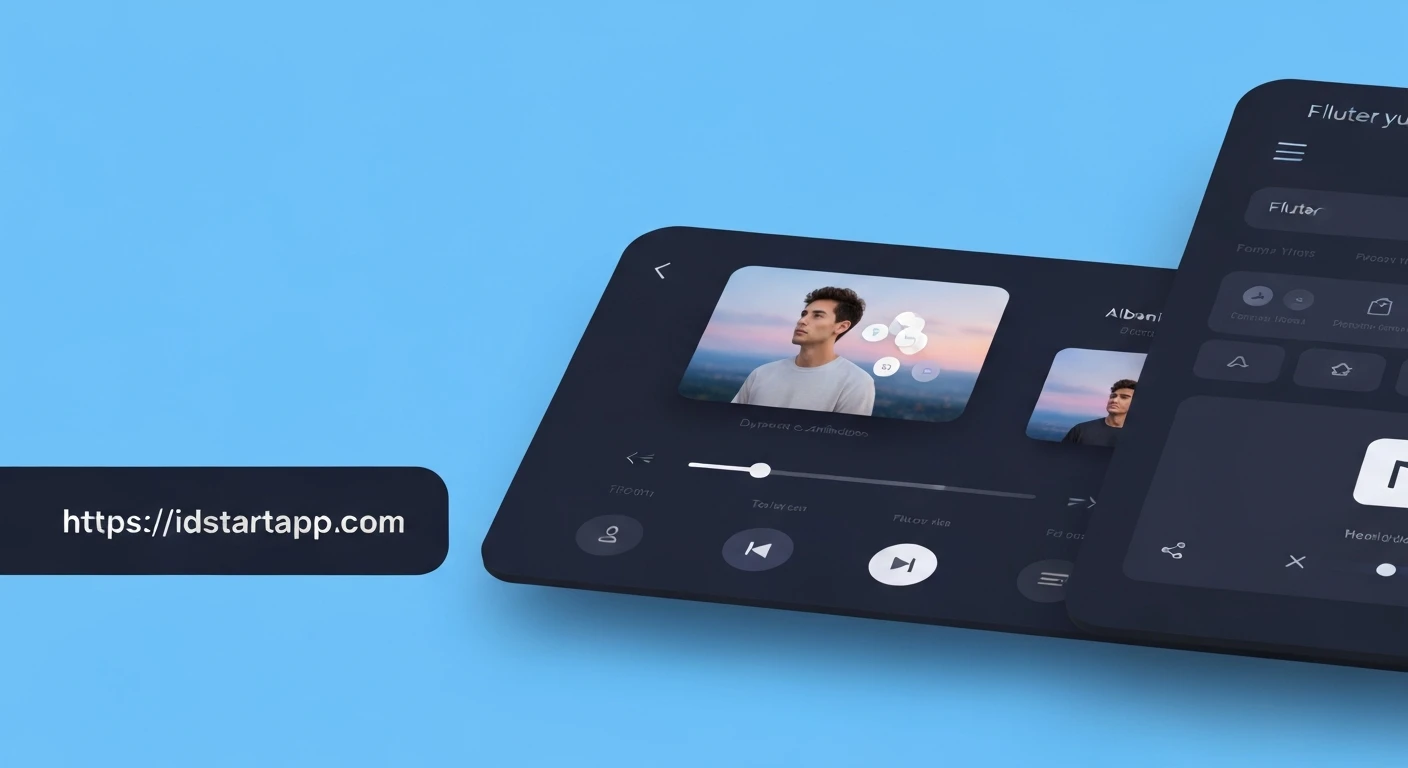
Creating a beautiful and interactive music player is a common requirement for many modern mobile applications. Flutter, with its rich set of widgets and robust animation framework, makes it incredibly intuitive to build such an experience. This article will guide you through building a music player widget in Flutter that features a dynamic album cover animation, enhancing the visual feedback during playback.
Prerequisites
- Basic understanding of Flutter and Dart.
- Flutter SDK installed and configured.
Project Setup and Dependencies
First, create a new Flutter project:
flutter create music_player_app
cd music_player_app
Next, add the necessary dependencies to your pubspec.yaml file. We'll use just_audio for robust audio playback, audio_video_progress_bar for a customizable progress bar, and provider for state management.
dependencies:
  flutter:
    sdk: flutter
  just_audio: ^0.9.36 # For audio playback
  audio_video_progress_bar: ^2.0.1 # For a custom progress bar
  provider: ^6.1.1 # For state management
  cached_network_image: ^3.3.1 # For loading album covers from network
Run flutter pub get to install these packages.
Core UI Structure
Our music player widget will primarily consist of a few key components:
- An animated album cover.
- Song title and artist information.
- A progress bar indicating current playback position.
- Playback control buttons (play/pause, previous, next).
Let's start by defining our main MusicPlayerScreen structure and a data model for our songs.
Create a file lib/models/song.dart:
import 'package:flutter/foundation.dart';

class Song {
  final String title;
  final String artist;
  final String albumCoverUrl;
  final String audioUrl;

  Song({
    required this.title,
    required this.artist,
    required this.albumCoverUrl,
    required this.audioUrl,
  });
}
We'll use Provider to manage the audio player's state, current song, and playback controls. Create lib/providers/music_player_provider.dart:
import 'package:flutter/foundation.dart';
import 'package:just_audio/just_audio.dart';
import 'package:music_player_app/models/song.dart';

class MusicPlayerProvider with ChangeNotifier {
  final AudioPlayer _audioPlayer = AudioPlayer();
  List<Song> _playlist = [];
  int _currentSongIndex = -1;
  PlayerState _playerState = PlayerState(false, ProcessingState.idle);

  MusicPlayerProvider() {
    _audioPlayer.playerStateStream.listen((state) {
      _playerState = state;
      notifyListeners();
    });
    _audioPlayer.playbackEventStream.listen((event) {
      // Handle playback events if needed
    });
  }

  PlayerState get playerState => _playerState;
  Song? get currentSong => _currentSongIndex != -1 && _currentSongIndex < _playlist.length
      ? _playlist[_currentSongIndex]
      : null;
  Duration get currentPosition => _audioPlayer.position;
  Duration get totalDuration => _audioPlayer.duration ?? Duration.zero;

  bool get isPlaying => _playerState.playing;
  bool get isBuffering => _playerState.processingState == ProcessingState.loading ||
                          _playerState.processingState == ProcessingState.buffering;

  Future<void> loadPlaylist(List<Song> songs) async {
    _playlist = songs;
    if (songs.isNotEmpty) {
      _currentSongIndex = 0;
      await _audioPlayer.setAudioSource(AudioSource.uri(Uri.parse(currentSong!.audioUrl)));
    }
    notifyListeners();
  }

  Future<void> play() async {
    await _audioPlayer.play();
  }

  Future<void> pause() async {
    await _audioPlayer.pause();
  }

  Future<void> seek(Duration position) async {
    await _audioPlayer.seek(position);
  }

  Future<void> playNext() async {
    if (_playlist.isEmpty) return;
    int nextIndex = (_currentSongIndex + 1) % _playlist.length;
    _currentSongIndex = nextIndex;
    await _audioPlayer.setAudioSource(AudioSource.uri(Uri.parse(currentSong!.audioUrl)));
    await play();
    notifyListeners();
  }

  Future<void> playPrevious() async {
    if (_playlist.isEmpty) return;
    int prevIndex = (_currentSongIndex - 1 + _playlist.length) % _playlist.length;
    _currentSongIndex = prevIndex;
    await _audioPlayer.setAudioSource(AudioSource.uri(Uri.parse(currentSong!.audioUrl)));
    await play();
    notifyListeners();
  }

  @override
  void dispose() {
    _audioPlayer.dispose();
    super.dispose();
  }
}
This is where the animation magic happens. We'll use an AnimationController and RotationTransition to rotate the album cover when a song is playing.
Create lib/widgets/album_cover_animation.dart:
import 'package:flutter/material.dart';
import 'package:cached_network_image/cached_network_image.dart';
import 'package:provider/provider.dart';
import 'package:music_player_app/providers/music_player_provider.dart';

class AlbumCoverAnimation extends StatefulWidget {
  final String? imageUrl;

  const AlbumCoverAnimation({super.key, this.imageUrl});

  @override
  State<AlbumCoverAnimation> createState() => _AlbumCoverAnimationState();
}

class _AlbumCoverAnimationState extends State<AlbumCoverAnimation> with SingleTickerProviderStateMixin {
  late AnimationController _animationController;

  @override
  void initState() {
    super.initState();
    _animationController = AnimationController(
      vsync: this,
      duration: const Duration(seconds: 10),
    )..repeat(); // Repeat indefinitely
  }

  @override
  void dispose() {
    _animationController.dispose();
    super.dispose();
  }

  @override
  Widget build(BuildContext context) {
    final musicPlayer = Provider.of<MusicPlayerProvider>(context);

    if (musicPlayer.isPlaying) {
      if (!_animationController.isAnimating) {
        _animationController.repeat();
      }
    } else {
      if (_animationController.isAnimating) {
        _animationController.stop();
      }
    }

    return AnimatedBuilder(
      animation: _animationController,
      builder: (context, child) {
        return Transform.rotate(
          angle: _animationController.value * 2 * 3.14159, // 0 to 2*PI radians
          child: Container(
            width: 250,
            height: 250,
            decoration: BoxDecoration(
              borderRadius: BorderRadius.circular(125), // Make it circular
              boxShadow: [
                BoxShadow(
                  color: Colors.black.withOpacity(0.3),
                  blurRadius: 15,
                  spreadRadius: 5,
                ),
              ],
            ),
            child: ClipOval(
              child: widget.imageUrl != null && widget.imageUrl!.isNotEmpty
                  ? CachedNetworkImage(
                      imageUrl: widget.imageUrl!,
                      fit: BoxFit.cover,
                      placeholder: (context, url) => const Center(child: CircularProgressIndicator()),
                      errorWidget: (context, url, error) => const Icon(Icons.music_note, size: 100),
                    )
                  : const Icon(Icons.music_note, size: 100, color: Colors.grey),
            ),
          ),
        );
      },
    );
  }
}
In this widget:
SingleTickerProviderStateMixinis used for the `AnimationController`._animationControllerrotates the image indefinitely.- We listen to the
MusicPlayerProviderto start or stop the animation based onisPlayingstatus. Transform.rotateapplies the rotation to the album cover.CachedNetworkImageis used for efficient loading and caching of album covers.
Now, let's assemble all the pieces into our main screen. This will be a StatefulWidget or use Consumer from Provider for reactive UI updates.
Replace the content of lib/main.dart with the following:
import 'package:flutter/material.dart';
import 'package:provider/provider.dart';
import 'package:audio_video_progress_bar/audio_video_progress_bar.dart';
import 'package:music_player_app/models/song.dart';
import 'package:music_player_app/providers/music_player_provider.dart';
import 'package:music_player_app/widgets/album_cover_animation.dart';

void main() {
  runApp(const MyApp());
}

class MyApp extends StatelessWidget {
  const MyApp({super.key});

  @override
  Widget build(BuildContext context) {
    return ChangeNotifierProvider(
      create: (context) => MusicPlayerProvider(),
      child: MaterialApp(
        title: 'Flutter Music Player',
        theme: ThemeData(
          primarySwatch: Colors.blue,
          brightness: Brightness.dark,
          scaffoldBackgroundColor: const Color(0xFF1C1C1E),
          appBarTheme: const AppBarTheme(
            backgroundColor: Color(0xFF1C1C1E),
            elevation: 0,
            centerTitle: true,
          ),
          textTheme: const TextTheme(
            titleLarge: TextStyle(color: Colors.white, fontSize: 24, fontWeight: FontWeight.bold),
            titleMedium: TextStyle(color: Colors.grey, fontSize: 18),
            labelLarge: TextStyle(color: Colors.white),
          ),
          iconTheme: const IconThemeData(color: Colors.white),
        ),
        home: const MusicPlayerScreen(),
      ),
    );
  }
}

class MusicPlayerScreen extends StatefulWidget {
  const MusicPlayerScreen({super.key});

  @override
  State<MusicPlayerScreen> createState() => _MusicPlayerScreenState();
}

class _MusicPlayerScreenState extends State<MusicPlayerScreen> {
  @override
  void initState() {
    super.initState();
    WidgetsBinding.instance.addPostFrameCallback((_) {
      final musicPlayer = Provider.of<MusicPlayerProvider>(context, listen: false);
      // Example playlist
      final playlist = [
        Song(
          title: "Summer Vibes",
          artist: "Electro Beats",
          albumCoverUrl: "https://picsum.photos/id/10/200/300",
          audioUrl: "https://www.soundhelix.com/examples/mp3/SoundHelix-Song-1.mp3",
        ),
        Song(
          title: "Chillwave Dream",
          artist: "Synth Rider",
          albumCoverUrl: "https://picsum.photos/id/100/200/300",
          audioUrl: "https://www.soundhelix.com/examples/mp3/SoundHelix-Song-2.mp3",
        ),
        Song(
          title: "Morning Glow",
          artist: "Acoustic Journey",
          albumCoverUrl: "https://picsum.photos/id/200/200/300",
          audioUrl: "https://www.soundhelix.com/examples/mp3/SoundHelix-Song-3.mp3",
        ),
      ];
      musicPlayer.loadPlaylist(playlist);
    });
  }

  @override
  Widget build(BuildContext context) {
    return Scaffold(
      appBar: AppBar(
        title: const Text('Now Playing'),
      ),
      body: Consumer<MusicPlayerProvider>(
        builder: (context, musicPlayer, child) {
          final currentSong = musicPlayer.currentSong;
          return Padding(
            padding: const EdgeInsets.all(20.0),
            child: Column(
              mainAxisAlignment: MainAxisAlignment.spaceAround,
              children: [
                AlbumCoverAnimation(imageUrl: currentSong?.albumCoverUrl),
                Column(
                  children: [
                    Text(
                      currentSong?.title ?? "No Song",
                      style: Theme.of(context).textTheme.titleLarge,
                      textAlign: TextAlign.center,
                    ),
                    const SizedBox(height: 8),
                    Text(
                      currentSong?.artist ?? "Unknown Artist",
                      style: Theme.of(context).textTheme.titleMedium,
                      textAlign: TextAlign.center,
                    ),
                  ],
                ),
                StreamBuilder<Duration?>(
                  stream: musicPlayer._audioPlayer.positionStream,
                  builder: (context, snapshot) {
                    final position = snapshot.data ?? Duration.zero;
                    final total = musicPlayer.totalDuration;
                    return ProgressBar(
                      progress: position,
                      buffered: musicPlayer._audioPlayer.bufferedPosition,
                      total: total,
                      onSeek: (duration) {
                        musicPlayer.seek(duration);
                      },
                      timeLabelTextStyle: Theme.of(context).textTheme.labelLarge,
                      progressBarColor: Colors.pinkAccent,
                      baseBarColor: Colors.white.withOpacity(0.24),
                      bufferedBarColor: Colors.white.withOpacity(0.24),
                      thumbColor: Colors.pinkAccent,
                    );
                  },
                ),
                Row(
                  mainAxisAlignment: MainAxisAlignment.spaceEvenly,
                  children: [
                    IconButton(
                      iconSize: 48,
                      icon: const Icon(Icons.skip_previous),
                      onPressed: musicPlayer.playPrevious,
                    ),
                    IconButton(
                      iconSize: 64,
                      icon: musicPlayer.isPlaying ? const Icon(Icons.pause_circle_filled) : const Icon(Icons.play_circle_filled),
                      onPressed: () {
                        if (musicPlayer.isPlaying) {
                          musicPlayer.pause();
                        } else {
                          musicPlayer.play();
                        }
                      },
                    ),
                    IconButton(
                      iconSize: 48,
                      icon: const Icon(Icons.skip_next),
                      onPressed: musicPlayer.playNext,
                    ),
                  ],
                ),
              ],
            ),
          );
        },
      ),
    );
  }
}
Explanation of Key Components:
ChangeNotifierProvider: Wraps the entire application to provide theMusicPlayerProviderinstance to all descendant widgets.MusicPlayerScreen: The main UI screen for our music player.initState: Loads an example playlist when the screen initializes.Consumer<MusicPlayerProvider>: Rebuilds its child wheneverMusicPlayerProvidercallsnotifyListeners().AlbumCoverAnimation: Displays the album cover and handles its rotation animation. ItsimageUrlis dynamically updated based on thecurrentSong.- Song Info: Displays the
currentSong's title and artist. StreamBuilder<Duration?>: Listens to thepositionStreamof_audioPlayerto update theProgressBarin real-time.ProgressBar: A customizable progress bar from theaudio_video_progress_barpackage, connected to the audio player's position and total duration.- Playback Controls: Buttons for previous, play/pause, and next. The play/pause icon changes dynamically based on
musicPlayer.isPlaying.
Running the Application
To see your music player in action, run the application from your terminal:
flutter run
You should see a music player screen with a spinning album cover when a song is playing, and static when paused.
Further Enhancements
- Error Handling: Implement robust error handling for audio loading and network issues.
- More Animations: Add subtle fade-in/out animations for song changes, or scale animations for buttons.
- Playlist Management: Allow users to add/remove songs from playlists, reorder songs, etc.
- Background Playback: Configure the app to allow audio playback even when the app is in the background. (Requires platform-specific setup).
- UI Customization: Explore more advanced UI designs and custom painting for a unique look.
- Volume Control: Add a slider for adjusting playback volume.
Conclusion
In this article, we've walked through building a functional music player widget in Flutter, complete with a dynamic album cover animation. By leveraging just_audio for robust playback, provider for state management, and Flutter's built-in animation framework, we created an engaging user experience. This foundation can be extended and customized to fit a wide array of application needs, demonstrating Flutter's power in crafting beautiful and performant UIs.