
Building a Movie Detail Page Widget with a Trailer Player in Flutter
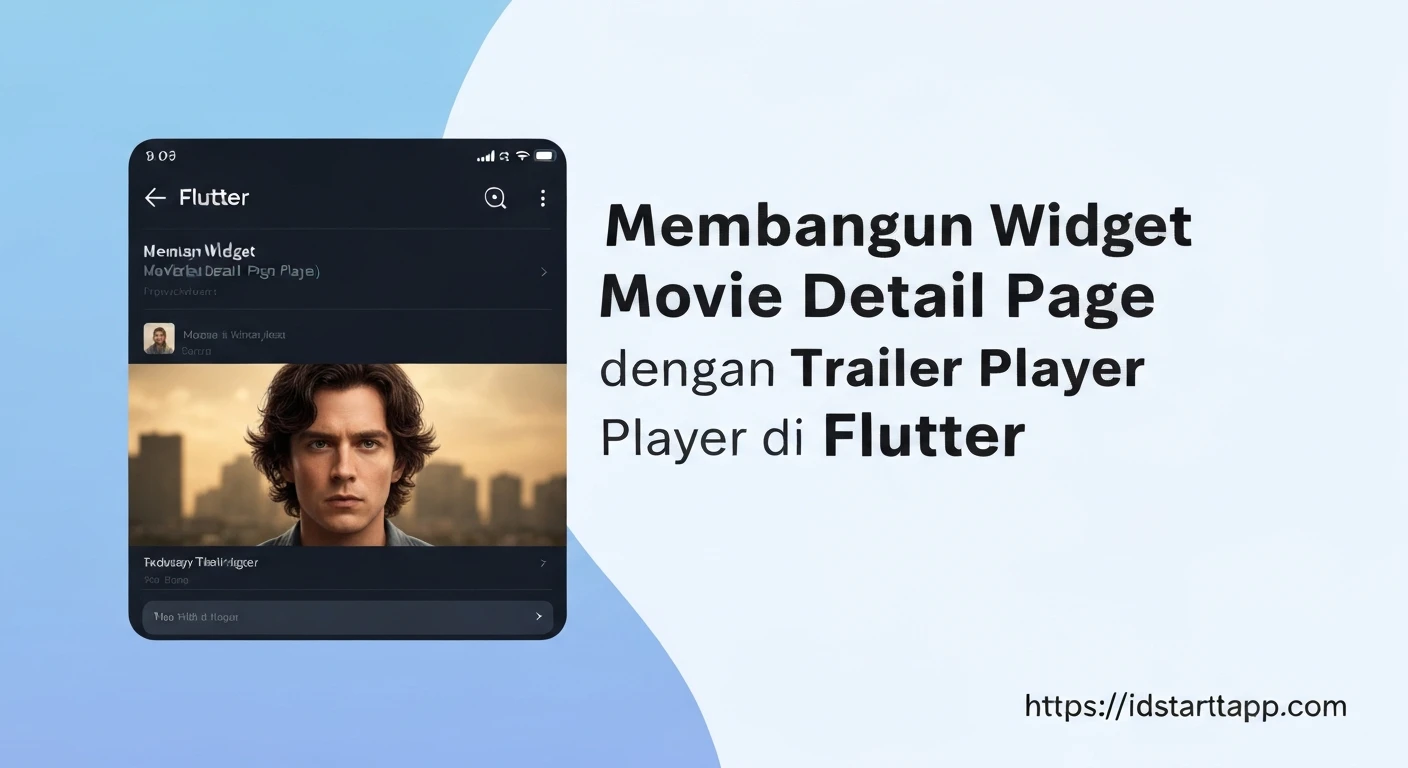
Creating engaging user interfaces is paramount in modern mobile applications. For media-rich apps like movie streamers or catalogs, a well-designed Movie Detail Page is crucial. This page not only presents essential information about a film but also enhances the user experience by providing a direct way to view trailers. In this article, we will walk through building a dynamic Movie Detail Page widget in Flutter, complete with a trailer player.
Prerequisites and Dependencies
Before diving into the code, ensure you have Flutter installed and set up. We'll need a few packages for network requests and YouTube video playback. Add the following to your pubspec.yaml file:
dependencies:
  flutter:
    sdk: flutter
  http: ^1.1.0 # For making HTTP requests
  youtube_player_flutter: ^8.1.0 # For playing YouTube videos
  cached_network_image: ^3.3.0 # Optional: For efficient image caching
After updating pubspec.yaml, run flutter pub get.
1. Movie Data Model
First, let's define a simple data model for our movie. This model will parse the movie details received from an API.
// lib/models/movie.dart
class Movie {
  final int id;
  final String title;
  final String overview;
  final String posterPath;
  final double voteAverage;
  final String? youtubeKey; // Added for trailer

  Movie({
    required this.id,
    required this.title,
    required this.overview,
    required this.posterPath,
    required this.voteAverage,
    this.youtubeKey,
  });

  factory Movie.fromJson(Map<String, dynamic> json) {
    return Movie(
      id: json['id'],
      title: json['title'],
      overview: json['overview'],
      posterPath: json['poster_path'],
      voteAverage: (json['vote_average'] as num).toDouble(),
      youtubeKey: null, // Will be fetched separately or populated later
    );
  }

  // Method to create a copy with a new youtubeKey
  Movie copyWith({String? youtubeKey}) {
    return Movie(
      id: this.id,
      title: this.title,
      overview: this.overview,
      posterPath: this.posterPath,
      voteAverage: this.voteAverage,
      youtubeKey: youtubeKey ?? this.youtubeKey,
    );
  }
}
2. API Service for Fetching Movie Details and Trailer
We'll create a simple API service to fetch movie details and its trailer. For demonstration purposes, we'll assume an API that provides movie details and a separate endpoint for videos. You'll need to replace YOUR_API_KEY and potentially the base URLs with a real API like TMDB.
// lib/services/api_service.dart
import 'dart:convert';
import 'package:http/http.dart' as http;
import '../models/movie.dart';

class ApiService {
  static const String _apiKey = 'YOUR_API_KEY'; // Replace with your actual API key
  static const String _baseUrl = 'https://api.themoviedb.org/3'; // Example TMDB base URL
  static const String _baseImageUrl = 'https://image.tmdb.org/t/p/w500';

  Future<Movie> fetchMovieDetail(int movieId) async {
    final response = await http.get(Uri.parse('$_baseUrl/movie/$movieId?api_key=$_apiKey'));

    if (response.statusCode == 200) {
      final movieJson = json.decode(response.body);
      Movie movie = Movie.fromJson(movieJson);

      // Fetch trailer key
      final videoResponse = await http.get(Uri.parse('$_baseUrl/movie/$movieId/videos?api_key=$_apiKey'));
      if (videoResponse.statusCode == 200) {
        final videoJson = json.decode(videoResponse.body);
        final List videos = videoJson['results'];
        // Find the first YouTube trailer
        final trailer = videos.firstWhere(
          (video) => video['site'] == 'YouTube' && video['type'] == 'Trailer',
          orElse: () => null,
        );
        if (trailer != null) {
          movie = movie.copyWith(youtubeKey: trailer['key']);
        }
      }
      return movie;
    } else {
      throw Exception('Failed to load movie details');
    }
  }

  String getPosterUrl(String path) {
    return '$_baseImageUrl$path';
  }
}
3. Building the Movie Detail Page Widget
The MovieDetailPage will be a StatefulWidget to manage the future data and the YouTube player controller. We will use a FutureBuilder to handle the asynchronous fetching of movie details.
// lib/pages/movie_detail_page.dart
import 'package:flutter/material.dart';
import 'package:cached_network_image/cached_network_image.dart';
import 'package:youtube_player_flutter/youtube_player_flutter.dart';
import '../models/movie.dart';
import '../services/api_service.dart';

class MovieDetailPage extends StatefulWidget {
  final int movieId;

  const MovieDetailPage({Key? key, required this.movieId}) : super(key: key);

  @override
  State<MovieDetailPage> createState() => _MovieDetailPageState();
}

class _MovieDetailPageState extends State<MovieDetailPage> {
  late Future<Movie> _movieDetail;
  YoutubePlayerController? _youtubeController;

  @override
  void initState() {
    super.initState();
    _movieDetail = ApiService().fetchMovieDetail(widget.movieId);
  }

  @override
  void dispose() {
    _youtubeController?.dispose();
    super.dispose();
  }

  void _initializeYoutubePlayer(String youtubeKey) {
    _youtubeController = YoutubePlayerController(
      initialVideoId: youtubeKey,
      flags: const YoutubePlayerFlags(
        autoPlay: false,
        mute: false,
      ),
    );
  }

  @override
  Widget build(BuildContext context) {
    return Scaffold(
      appBar: AppBar(
        title: const Text('Movie Details'),
        backgroundColor: Colors.black,
      ),
      body: FutureBuilder<Movie>(
        future: _movieDetail,
        builder: (context, snapshot) {
          if (snapshot.connectionState == ConnectionState.waiting) {
            return const Center(child: CircularProgressIndicator());
          } else if (snapshot.hasError) {
            return Center(child: Text('Error: ${snapshot.error}'));
          } else if (snapshot.hasData) {
            final movie = snapshot.data!;
            if (movie.youtubeKey != null && _youtubeController == null) {
              _initializeYoutubePlayer(movie.youtubeKey!);
            }
            return SingleChildScrollView(
              child: Column(
                crossAxisAlignment: CrossAxisAlignment.start,
                children: [
                  // Movie Poster and Trailer Section
                  if (_youtubeController != null)
                    YoutubePlayer(
                      controller: _youtubeController!,
                      showVideoProgressIndicator: true,
                      progressIndicatorColor: Colors.amber,
                      progressColors: const ProgressBarColors(
                        playedColor: Colors.amber,
                        handleColor: Colors.amberAccent,
                      ),
                    )
                  else
                    AspectRatio(
                      aspectRatio: 16 / 9, // Example aspect ratio
                      child: movie.posterPath.isNotEmpty
                          ? CachedNetworkImage(
                              imageUrl: ApiService().getPosterUrl(movie.posterPath),
                              fit: BoxFit.cover,
                              placeholder: (context, url) => const Center(child: CircularProgressIndicator()),
                              errorWidget: (context, url, error) => const Icon(Icons.error),
                            )
                          : const Center(child: Text('No Poster Available')),
                    ),

                  Padding(
                    padding: const EdgeInsets.all(16.0),
                    child: Column(
                      crossAxisAlignment: CrossAxisAlignment.start,
                      children: [
                        Text(
                          movie.title,
                          style: const TextStyle(
                            fontSize: 28,
                            fontWeight: FontWeight.bold,
                          ),
                        ),
                        const SizedBox(height: 8),
                        Row(
                          children: [
                            const Icon(Icons.star, color: Colors.amber, size: 20),
                            const SizedBox(width: 4),
                            Text(
                              '${movie.voteAverage.toStringAsFixed(1)}/10',
                              style: const TextStyle(fontSize: 16),
                            ),
                          ],
                        ),
                        const SizedBox(height: 16),
                        const Text(
                          'Overview:',
                          style: TextStyle(
                            fontSize: 20,
                            fontWeight: FontWeight.bold,
                          ),
                        ),
                        const SizedBox(height: 8),
                        Text(
                          movie.overview,
                          style: const TextStyle(fontSize: 16, height: 1.5),
                        ),
                      ],
                    ),
                  ),
                ],
              ),
            );
          }
          return const SizedBox.shrink(); // Should not happen
        },
      ),
    );
  }
}
4. Integrating into Your Application
To display the MovieDetailPage, you can navigate to it from another screen, for example, a list of movies. Here's how you might push it using Navigator:
// Example of how to use it
// In a StatefulWidget or StatelessWidget that has a BuildContext
// Say you have a movie ID from a list
int selectedMovieId = 550; // Example: Fight Club ID

Navigator.push(
  context,
  MaterialPageRoute(
    builder: (context) => MovieDetailPage(movieId: selectedMovieId),
  ),
);
Explanation of Key Components
FutureBuilder<Movie>: This widget is essential for handling asynchronous data. It listens to the state of aFuture(in our case,_movieDetail) and rebuilds its UI based on whether the data is loading (ConnectionState.waiting), has an error (snapshot.hasError), or has successfully loaded (snapshot.hasData).ApiService: Encapsulates network logic, making it cleaner to fetch data and construct image URLs.youtube_player_flutter: TheYoutubePlayerwidget takes aYoutubePlayerController. This controller is initialized with the YouTube video ID (youtubeKey) fetched from the API. The player is conditionally rendered: if a trailer key is available, the player is shown; otherwise, the movie poster is displayed.CachedNetworkImage: (Optional but recommended) This package efficiently loads and caches network images, improving performance and user experience by preventing repeated downloads.- UI Layout: A
SingleChildScrollViewwraps the content to prevent overflow, especially on smaller screens or with long movie overviews. AColumnorganizes the poster/trailer, title, rating, and overview vertically.
Conclusion
We've successfully built a dynamic Movie Detail Page in Flutter, capable of displaying detailed movie information and playing an embedded YouTube trailer. This setup provides a robust foundation, allowing for further enhancements such as adding cast and crew details, similar movies, user reviews, or a "favorite" button. By leveraging Flutter's reactive framework and powerful third-party packages, you can create rich and interactive media applications with relative ease.