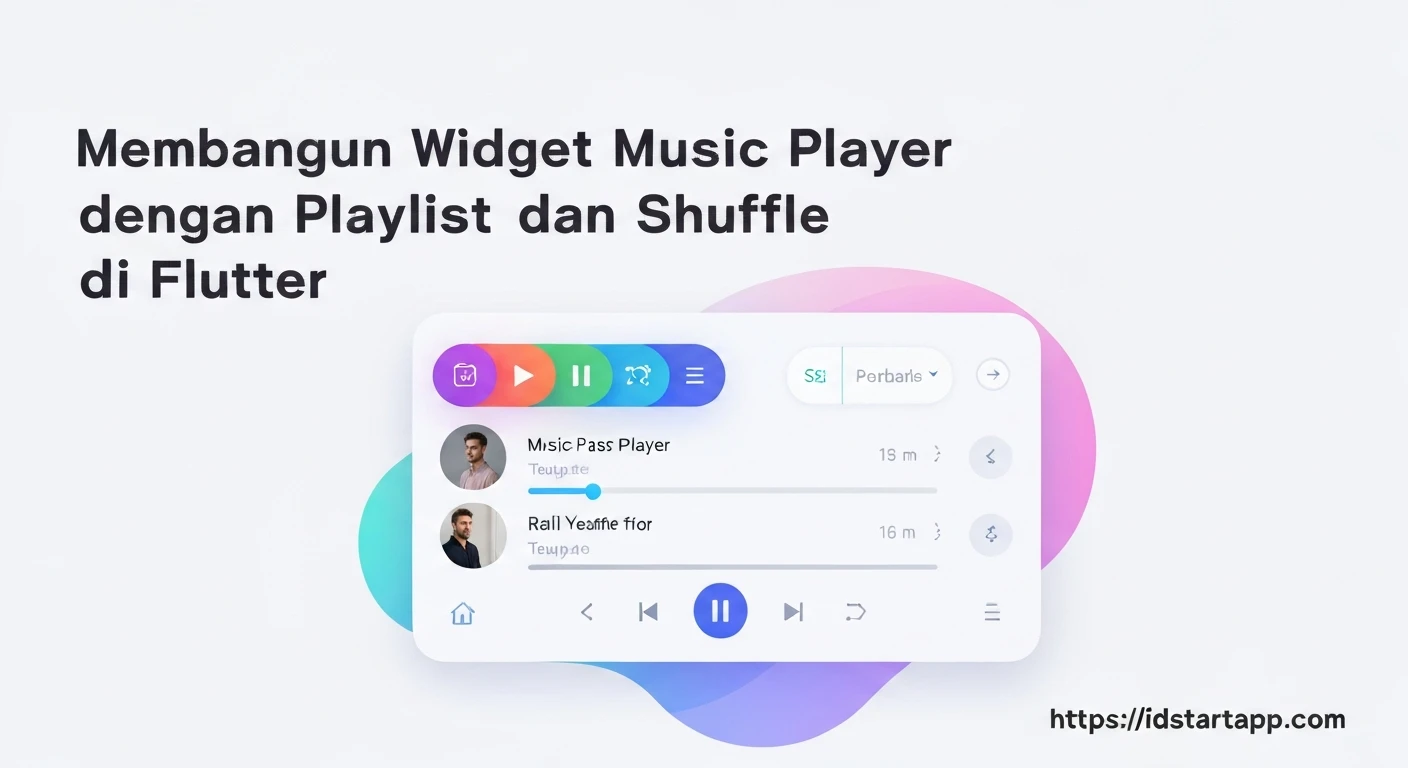

Building a Music Player Widget with Playlist and Shuffle in Flutter
Creating a robust music player in Flutter involves managing audio playback, handling playlists, and implementing features like shuffling. This article will guide you through building a reusable music player widget, demonstrating how to integrate audio playback, manage a playlist, and add shuffle functionality using the audioplayers package.
1. Project Setup and Dependencies
First, create a new Flutter project:
flutter create music_player_app
cd music_player_app
Next, add the audioplayers package to your pubspec.yaml file. This powerful package provides comprehensive audio playback capabilities.
dependencies:
  flutter:
    sdk: flutter
  audioplayers: ^5.0.0 # Use the latest version
Run flutter pub get to fetch the new dependency.
2. Data Model: The Song Class
To manage our music, we need a simple data model for a song. This class will hold the song's title, artist, and the URL to its audio source.
class Song {
  final String title;
  final String artist;
  final String url;

  Song({required this.title, required this.artist, required this.url});
}
3. Music Player Widget Structure
We'll create a StatefulWidget to manage the player's state, including the currently playing song, playback status, and playlist. For simplicity, we'll embed the playlist directly in the widget, but in a real application, you might fetch it from an API or a local database.
import 'package:flutter/material.dart';
import 'package:audioplayers/audioplayers.dart';
import 'dart:math';

// Song data model (defined above)
class Song {
  final String title;
  final String artist;
  final String url;

  Song({required this.title, required this.artist, required this.url});
}

class MusicPlayerWidget extends StatefulWidget {
  const MusicPlayerWidget({super.key});

  @override
  State createState() => _MusicPlayerWidgetState();
}

class _MusicPlayerWidgetState extends State {
  late AudioPlayer _audioPlayer;
  PlayerState _playerState = PlayerState.stopped;
  Duration _duration = Duration.zero;
  Duration _position = Duration.zero;

  List _playlist = [
    Song(title: "Song Title 1", artist: "Artist A", url: "https://www.soundhelix.com/examples/mp3/SoundHelix-Song-1.mp3"),
    Song(title: "Song Title 2", artist: "Artist B", url: "https://www.soundhelix.com/examples/mp3/SoundHelix-Song-2.mp3"),
    Song(title: "Song Title 3", artist: "Artist C", url: "https://www.soundhelix.com/examples/mp3/SoundHelix-Song-3.mp3"),
    Song(title: "Song Title 4", artist: "Artist D", url: "https://www.soundhelix.com/examples/mp3/SoundHelix-Song-4.mp3"),
  ];
  int _currentSongIndex = 0;
  bool _isShuffling = false;
  List _shuffledOrder = []; // Stores indices of the playlist in shuffled order

  @override
  void initState() {
    super.initState();
    _audioPlayer = AudioPlayer();
    _initAudioPlayer();
  }

  void _initAudioPlayer() {
    _audioPlayer.onPlayerStateChanged.listen((state) {
      setState(() {
        _playerState = state;
      });
    });

    _audioPlayer.onDurationChanged.listen((newDuration) {
      setState(() {
        _duration = newDuration;
      });
    });

    _audioPlayer.onPositionChanged.listen((newPosition) {
      setState(() {
        _position = newPosition;
      });
    });

    _audioPlayer.onPlayerComplete.listen((event) {
      _playNextSong();
    });
  }

  // ... rest of the methods and build method
  // ...
}
4. Core Playback Controls (Play, Pause, Stop)
The audioplayers package makes playback straightforward. We'll wrap these actions in helper methods.
// Inside _MusicPlayerWidgetState class

  Future _playSong(Song song) async {
    await _audioPlayer.stop(); // Stop any currently playing song
    await _audioPlayer.play(UrlSource(song.url));
    setState(() {
      // Update the current song index based on the song being played.
      // This is important when shuffle is turned off and we want to play a specific song.
      _currentSongIndex = _playlist.indexOf(song);
    });
  }

  Future _pauseSong() async {
    await _audioPlayer.pause();
  }

  Future _resumeSong() async {
    await _audioPlayer.resume();
  }

  Future _stopSong() async {
    await _audioPlayer.stop();
    setState(() {
      _position = Duration.zero;
      _playerState = PlayerState.stopped;
    });
  }
5. Playlist Navigation (Next, Previous)
Handling next and previous songs requires checking if shuffle is active and then determining the correct index from either the original playlist or the shuffled order.
// Inside _MusicPlayerWidgetState class

  void _playNextSong() {
    if (_playlist.isEmpty) return;

    int nextIndex;
    if (_isShuffling && _shuffledOrder.isNotEmpty) {
      int currentShuffledIndex = _shuffledOrder.indexOf(_currentSongIndex);
      nextIndex = _shuffledOrder[(currentShuffledIndex + 1) % _shuffledOrder.length];
    } else {
      nextIndex = (_currentSongIndex + 1) % _playlist.length;
    }

    setState(() {
      _currentSongIndex = nextIndex;
    });
    _playSong(_playlist[_currentSongIndex]);
  }

  void _playPreviousSong() {
    if (_playlist.isEmpty) return;

    int prevIndex;
    if (_isShuffling && _shuffledOrder.isNotEmpty) {
      int currentShuffledIndex = _shuffledOrder.indexOf(_currentSongIndex);
      prevIndex = (currentShuffledIndex - 1 + _shuffledOrder.length) % _shuffledOrder.length;
      prevIndex = _shuffledOrder[prevIndex];
    } else {
      prevIndex = (_currentSongIndex - 1 + _playlist.length) % _playlist.length;
    }

    setState(() {
      _currentSongIndex = prevIndex;
    });
    _playSong(_playlist[_currentSongIndex]);
  }
6. Shuffle Functionality
To implement shuffle, we'll maintain a separate list of shuffled indices. When shuffle is enabled, we'll generate this list. When disabled, we revert to sequential playback.
// Inside _MusicPlayerWidgetState class

  void _toggleShuffle() {
    setState(() {
      _isShuffling = !_isShuffling;
      if (_isShuffling) {
        _shuffledOrder = List.generate(_playlist.length, (index) => index);
        _shuffledOrder.shuffle(Random()); // Randomize the order
      } else {
        _shuffledOrder.clear(); // Clear shuffled order when turning off shuffle
      }
    });
  }
7. Building the User Interface (UI)
The UI will consist of basic controls: song info, play/pause, next/previous, and shuffle buttons, along with a progress bar.
// Inside _MusicPlayerWidgetState class

  String _formatDuration(Duration d) {
    String twoDigits(int n) => n.toString().padLeft(2, "0");
    String twoDigitMinutes = twoDigits(d.inMinutes.remainder(60));
    String twoDigitSeconds = twoDigits(d.inSeconds.remainder(60));
    return "${twoDigits(d.inHours)}:$twoDigitMinutes:$twoDigitSeconds";
  }

  @override
  Widget build(BuildContext context) {
    Song currentSong = _playlist[_currentSongIndex];
    bool isPlaying = _playerState == PlayerState.playing;

    return Scaffold(
      appBar: AppBar(
        title: const Text("Flutter Music Player"),
      ),
      body: Center(
        child: Padding(
          padding: const EdgeInsets.all(16.0),
          child: Column(
            mainAxisAlignment: MainAxisAlignment.center,
            children: [
              Text(
                currentSong.title,
                style: const TextStyle(fontSize: 24, fontWeight: FontWeight.bold),
                textAlign: TextAlign.center,
              ),
              const SizedBox(height: 8),
              Text(
                currentSong.artist,
                style: const TextStyle(fontSize: 18, color: Colors.grey),
                textAlign: TextAlign.center,
              ),
              const SizedBox(height: 32),
              Slider(
                min: 0.0,
                max: _duration.inMilliseconds.toDouble(),
                value: _position.inMilliseconds.toDouble().clamp(0.0, _duration.inMilliseconds.toDouble()),
                onChanged: (value) async {
                  final position = Duration(milliseconds: value.toInt());
                  await _audioPlayer.seek(position);
                  await _audioPlayer.resume(); // Resume playback after seeking
                },
              ),
              Padding(
                padding: const EdgeInsets.symmetric(horizontal: 16.0),
                child: Row(
                  mainAxisAlignment: MainAxisAlignment.spaceBetween,
                  children: [
                    Text(_formatDuration(_position)),
                    Text(_formatDuration(_duration)),
                  ],
                ),
              ),
              const SizedBox(height: 32),
              Row(
                mainAxisAlignment: MainAxisAlignment.center,
                children: [
                  IconButton(
                    icon: Icon(
                      Icons.shuffle,
                      color: _isShuffling ? Colors.blue : Colors.grey,
                    ),
                    iconSize: 36.0,
                    onPressed: _toggleShuffle,
                  ),
                  const SizedBox(width: 20),
                  IconButton(
                    icon: const Icon(Icons.skip_previous),
                    iconSize: 48.0,
                    onPressed: _playPreviousSong,
                  ),
                  const SizedBox(width: 20),
                  IconButton(
                    icon: Icon(
                      isPlaying ? Icons.pause_circle_filled : Icons.play_circle_filled,
                    ),
                    iconSize: 64.0,
                    onPressed: () {
                      if (isPlaying) {
                        _pauseSong();
                      } else {
                        if (_playerState == PlayerState.paused) {
                          _resumeSong();
                        } else {
                          _playSong(currentSong);
                        }
                      }
                    },
                  ),
                  const SizedBox(width: 20),
                  IconButton(
                    icon: const Icon(Icons.skip_next),
                    iconSize: 48.0,
                    onPressed: _playNextSong,
                  ),
                  const SizedBox(width: 20),
                  IconButton(
                    icon: const Icon(Icons.stop_circle_filled),
                    iconSize: 36.0,
                    onPressed: _stopSong,
                  ),
                ],
              ),
              const SizedBox(height: 20),
              const Text("Playlist:"),
              Expanded(
                child: ListView.builder(
                  itemCount: _playlist.length,
                  itemBuilder: (context, index) {
                    final song = _playlist[index];
                    return ListTile(
                      title: Text(song.title),
                      subtitle: Text(song.artist),
                      trailing: _currentSongIndex == index && isPlaying
                          ? const Icon(Icons.graphic_eq, color: Colors.blue)
                          : null,
                      selected: _currentSongIndex == index,
                      onTap: () {
                        setState(() {
                          _currentSongIndex = index;
                        });
                        _playSong(song);
                      },
                    );
                  },
                ),
              ),
            ],
          ),
        ),
      ),
    );
  }
8. Disposing Resources
It's crucial to release the audio player's resources when the widget is removed from the widget tree to prevent memory leaks and unexpected behavior.
// Inside _MusicPlayerWidgetState class

  @override
  void dispose() {
    _audioPlayer.dispose();
    super.dispose();
  }
9. Running the Application
Finally, integrate your MusicPlayerWidget into your main application file (main.dart).
import 'package:flutter/material.dart';
import 'package:music_player_app/music_player_widget.dart'; // Adjust path if needed

void main() {
  runApp(const MyApp());
}

class MyApp extends StatelessWidget {
  const MyApp({super.key});

  @override
  Widget build(BuildContext context) {
    return MaterialApp(
      title: 'Flutter Music Player',
      theme: ThemeData(
        primarySwatch: Colors.blue,
      ),
      home: const MusicPlayerWidget(),
    );
  }
}
Conclusion
You have now built a functional music player widget in Flutter with playlist and shuffle capabilities. This widget allows users to play, pause, stop, skip songs, seek through playback, and toggle shuffle mode. The audioplayers package simplifies audio management, while proper state management within the StatefulWidget handles UI updates and playlist logic.
Further enhancements could include:
- Loading songs from local device storage.
- Implementing background audio playback.
- Adding more sophisticated UI/UX designs.
- Integrating with state management solutions like Provider, BLoC, or Riverpod for larger applications.
- Error handling for audio sources.
This foundation provides a solid starting point for any audio-centric Flutter application.