
Building a Chat Screen Widget with Typing Indicator and Seen Status in Flutter
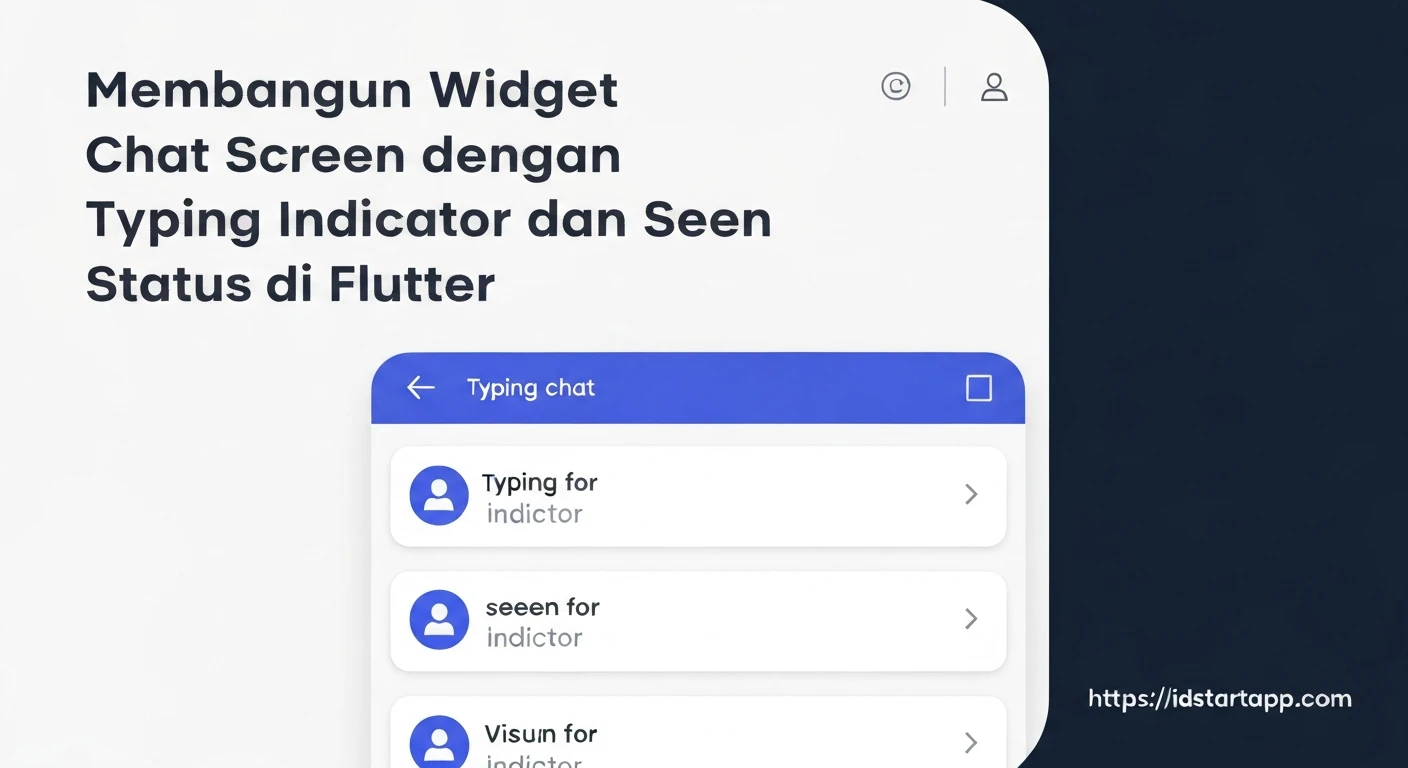
Creating a robust and intuitive chat interface is fundamental for many modern applications. Beyond merely displaying messages, features like typing indicators and seen statuses significantly enhance the user experience by providing real-time feedback and transparency. This article will guide you through building a Flutter chat screen widget, incorporating these essential features.
1. Core Chat Screen Structure
First, let's establish the basic structure of our chat screen. This involves a list of messages and an input field for sending new messages.
1.1. Message ModelWe'll need a simple data model for our messages.
class Message {
  final String id;
  final String senderId;
  final String text;
  final DateTime timestamp;
  bool isSeen;
  final bool isMe; // To differentiate between current user's messages and others'

  Message({
    required this.id,
    required this.senderId,
    required this.text,
    required this.timestamp,
    this.isSeen = false,
    required this.isMe,
  });
}
Our `ChatScreen` will be a `StatefulWidget` to manage the list of messages, typing status, and other dynamic elements.
import 'package:flutter/material.dart';

class ChatScreen extends StatefulWidget {
  const ChatScreen({Key? key}) : super(key: key);

  @override
  _ChatScreenState createState() => _ChatScreenState();
}

class _ChatScreenState extends State<ChatScreen> {
  final List<Message> _messages = [];
  final TextEditingController _textController = TextEditingController();
  bool _isTyping = false; // State for typing indicator

  @override
  void initState() {
    super.initState();
    // Simulate some initial messages
    _messages.addAll([
      Message(id: '1', senderId: 'userB', text: 'Hey there!', timestamp: DateTime.now().subtract(const Duration(minutes: 5)), isMe: false),
      Message(id: '2', senderId: 'userA', text: 'Hi! How are you?', timestamp: DateTime.now().subtract(const Duration(minutes: 4)), isMe: true, isSeen: true),
      Message(id: '3', senderId: 'userB', text: 'I\'m good, thanks! And you?', timestamp: DateTime.now().subtract(const Duration(minutes: 3)), isMe: false),
      Message(id: '4', senderId: 'userA', text: 'Doing great!', timestamp: DateTime.now().subtract(const Duration(minutes: 2)), isMe: true, isSeen: false),
    ]);
  }

  void _handleSubmitted(String text) {
    _textController.clear();
    setState(() {
      _messages.insert(0, Message(
        id: DateTime.now().millisecondsSinceEpoch.toString(),
        senderId: 'userA',
        text: text,
        timestamp: DateTime.now(),
        isMe: true,
      ));
      _isTyping = false; // Stop typing after sending message
    });
    // In a real app, send message to backend and update seen status upon delivery/receipt
  }

  void _updateTypingStatus(bool typing) {
    if (_isTyping != typing) {
      setState(() {
        _isTyping = typing;
      });
      // In a real app, send typing status to backend
    }
  }

  @override
  Widget build(BuildContext context) {
    return Scaffold(
      appBar: AppBar(title: const Text('Chat Screen')),
      body: Column(
        children: <Widget>[
          Flexible(
            child: ListView.builder(
              padding: const EdgeInsets.all(8.0),
              reverse: true, // New messages at the bottom
              itemCount: _messages.length,
              itemBuilder: (_, int index) => ChatBubble(message: _messages[index]),
            ),
          ),
          if (_isTyping) const TypingIndicator(), // Typing indicator
          const Divider(height: 1.0),
          _buildTextComposer(),
        ],
      ),
    );
  }

  Widget _buildTextComposer() {
    return IconTheme(
      data: IconThemeData(color: Theme.of(context).colorScheme.secondary),
      child: Container(
        margin: const EdgeInsets.symmetric(horizontal: 8.0),
        child: Row(
          children: <Widget>[
            Flexible(
              child: TextField(
                controller: _textController,
                onChanged: (text) {
                  _updateTypingStatus(text.isNotEmpty);
                },
                onSubmitted: _handleSubmitted,
                decoration: const InputDecoration.collapsed(hintText: 'Send a message'),
              ),
            ),
            Container(
              margin: const EdgeInsets.symmetric(horizontal: 4.0),
              child: IconButton(
                icon: const Icon(Icons.send),
                onPressed: () => _handleSubmitted(_textController.text),
              ),
            ),
          ],
        ),
      ),
    );
  }
}
2. Implementing Typing Indicator
A typing indicator visually communicates when the other party is composing a message, creating a more interactive experience. This typically involves a small animation or text that appears briefly.
2.1. Logic for Typing StatusWhen the user starts typing in the `TextField`, we set `_isTyping` to `true`. When the text field becomes empty or a message is sent, `_isTyping` is set to `false`. In a real application, this `_isTyping` status would be sent to a backend and broadcast to other chat participants.
// Inside _ChatScreenState
void _updateTypingStatus(bool typing) {
  if (_isTyping != typing) {
    setState(() {
      _isTyping = typing;
    });
    // <!-- Send typing status to backend -->
    // Example: ChatService.sendTypingStatus(widget.chatId, typing);
  }
}

// In _buildTextComposer TextField
onChanged: (text) {
  _updateTypingStatus(text.isNotEmpty);
},
This is a simple widget that can be enhanced with animations for a more dynamic feel.
class TypingIndicator extends StatefulWidget {
  const TypingIndicator({Key? key}) : super(key: key);

  @override
  _TypingIndicatorState createState() => _TypingIndicatorState();
}

class _TypingIndicatorState extends State<TypingIndicator> with SingleTickerProviderStateMixin {
  late AnimationController _controller;
  late Animation<double> _animation;

  @override
  void initState() {
    super.initState();
    _controller = AnimationController(
      vsync: this,
      duration: const Duration(milliseconds: 1200),
    )..repeat(reverse: true);
    _animation = Tween(begin: 0.0, end: 1.0).animate(CurvedAnimation(
      parent: _controller,
      curve: Curves.easeInOut,
    ));
  }

  @override
  void dispose() {
    _controller.dispose();
    super.dispose();
  }

  Widget _buildDot(int index) {
    return AnimatedBuilder(
      animation: _animation,
      builder: (context, child) {
        final double opacity = (index == (_animation.value * 3).floor()) ? 1.0 : 0.4;
        return Opacity(
          opacity: opacity,
          child: Container(
            margin: const EdgeInsets.symmetric(horizontal: 2.0),
            width: 8.0,
            height: 8.0,
            decoration: const BoxDecoration(
              color: Colors.grey,
              shape: BoxShape.circle,
            ),
          ),
        );
      },
    );
  }

  @override
  Widget build(BuildContext context) {
    return Align(
      alignment: Alignment.centerLeft,
      child: Container(
        margin: const EdgeInsets.symmetric(horizontal: 16.0, vertical: 4.0),
        padding: const EdgeInsets.all(8.0),
        decoration: BoxDecoration(
          color: Colors.grey[200],
          borderRadius: BorderRadius.circular(12.0),
        ),
        child: Row(
          mainAxisSize: MainAxisSize.min,
          children: List.generate(3, (index) => _buildDot(index)),
        ),
      ),
    );
  }
}
The `TypingIndicator` is conditionally rendered in the `ChatScreen`'s `Column`:
// Inside _ChatScreenState build method
if (_isTyping) const TypingIndicator(),
3. Implementing Seen Status
Seen status provides crucial feedback to the sender about whether their message has been read. This usually appears as a small icon or text next to the message.
3.1. Seen Status LogicFor a message to be marked as seen, the receiving user's client must notify the backend when they have viewed the message. This often happens when the message enters the viewport. In our example, we'll just display the `isSeen` property from our `Message` model.
In a real-world application, when a message is displayed on screen, an event would be triggered (e.g., using `VisibilityDetector` or `ScrollablePositionedList`) to mark it as seen in the backend.
3.2. Chat Bubble Widget with Seen StatusWe'll create a `ChatBubble` widget responsible for displaying a single message, including its seen status.
class ChatBubble extends StatelessWidget {
  final Message message;

  const ChatBubble({Key? key, required this.message}) : super(key: key);

  @override
  Widget build(BuildContext context) {
    final bool isMe = message.isMe;
    return Align(
      alignment: isMe ? Alignment.centerRight : Alignment.centerLeft,
      child: Container(
        margin: const EdgeInsets.symmetric(vertical: 4.0, horizontal: 8.0),
        padding: const EdgeInsets.all(12.0),
        decoration: BoxDecoration(
          color: isMe ? Colors.blueAccent : Colors.grey[300],
          borderRadius: BorderRadius.only(
            topLeft: const Radius.circular(12.0),
            topRight: const Radius.circular(12.0),
            bottomLeft: isMe ? const Radius.circular(12.0) : Radius.zero,
            bottomRight: isMe ? Radius.zero : const Radius.circular(12.0),
          ),
        ),
        child: Column(
          crossAxisAlignment: isMe ? CrossAxisAlignment.end : CrossAxisAlignment.start,
          children: <Widget>[
            Text(
              message.text,
              style: TextStyle(
                color: isMe ? Colors.white : Colors.black87,
              ),
            ),
            const SizedBox(height: 4.0),
            Row(
              mainAxisSize: MainAxisSize.min,
              children: <Widget>[
                Text(
                  '${message.timestamp.hour}:${message.timestamp.minute.toString().padLeft(2, '0')}',
                  style: TextStyle(
                    color: isMe ? Colors.white70 : Colors.black54,
                    fontSize: 10.0,
                  ),
                ),
                if (isMe) ...[
                  const SizedBox(width: 4.0),
                  Icon(
                    message.isSeen ? Icons.done_all : Icons.done,
                    size: 14.0,
                    color: message.isSeen ? Colors.lightBlueAccent : Colors.white70,
                  ),
                ],
              ],
            ),
          ],
        ),
      ),
    );
  }
}
The `ChatBubble` is used within the `ListView.builder` in our `_ChatScreenState`:
// Inside _ChatScreenState build method
ListView.builder(
  // ...
  itemBuilder: (_, int index) => ChatBubble(message: _messages[index]),
),
4. Backend Integration (Conceptual)
While the UI components are built in Flutter, the real-time functionality of typing indicators and seen statuses heavily relies on a backend. Technologies like WebSockets, Firebase Cloud Firestore, or Pusher are commonly used for this:
- Typing Indicator: When a user starts typing, the client sends a "typing" event to the backend. The backend broadcasts this event to other participants in the chat. When typing stops, a "stopped typing" event is sent.
- Seen Status: When a user opens a chat or scrolls to view new messages, their client sends a "messages seen" event for the specific message IDs to the backend. The backend then updates the message status in the database and notifies the sender's client.
Conclusion
By combining a well-structured message model, a flexible `ChatBubble` widget, and a visually engaging `TypingIndicator`, we can create a highly interactive and user-friendly chat experience in Flutter. Remember that a robust backend infrastructure is crucial to support the real-time exchange of typing and seen status events, bringing these UI features to life.