
Building a Chat Bubble Widget with Tail and Status Indicator in Flutter
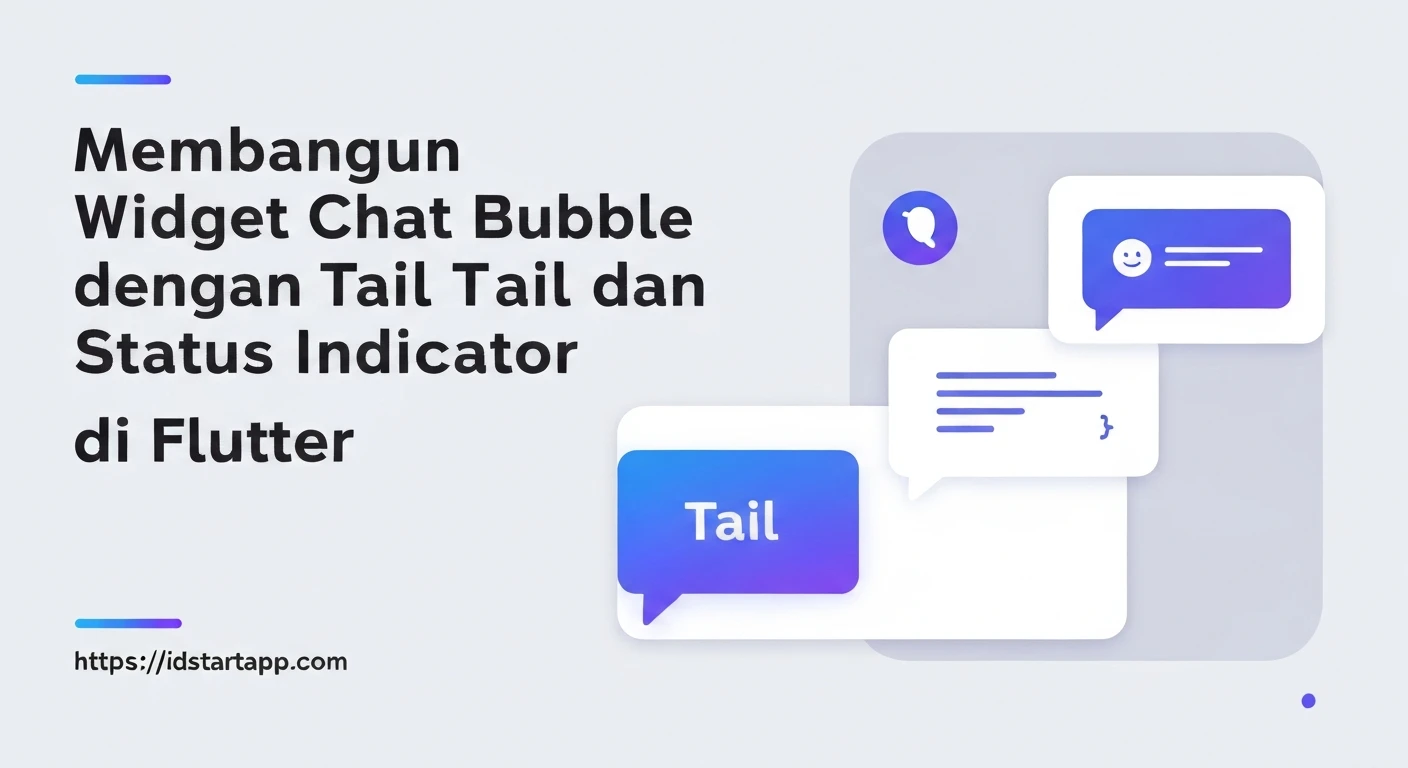
Chat applications have become ubiquitous, and a core component of their user experience is the chat bubble. A well-designed chat bubble not only presents messages clearly but also conveys important information like message status and sender/receiver context. In Flutter, we can create highly customizable chat bubbles that mimic modern designs, including a distinctive tail and a visual status indicator, with a "Tailwind-like" approach to styling for reusability and clarity.
Understanding the Core Components
A typical chat bubble consists of several key elements:
- The Message Content: The actual text, image, or other media being sent.
- The Bubble Shape: A rounded rectangular container, often with a "tail" or "speech bubble pointer" that points towards the sender or receiver.
- Contextual Styling: Differentiation between messages sent by the current user (sender) and messages received from others (receiver), usually by background color and bubble alignment.
- Status Indicator: Small icons or text indicating the message's delivery status (e.g., sending, sent, delivered, read).
- Timestamp: The time the message was sent or received.
A Tailwind-like Approach to Styling in Flutter
While Flutter doesn't natively use Tailwind CSS, we can adopt a similar philosophy by creating small, reusable utility widgets or defining clear theme extensions and constants for colors, paddings, and text styles. This promotes consistency and makes styling decisions explicit and easy to manage, preventing "magic numbers" and duplicated styles.
For this widget, we'll define a clear set of parameters that allow customization without delving into the internal styling logic, encapsulating the styling within the widget itself.
Structuring Our Chat Bubble Widget
We'll create a single `ChatBubble` widget that takes parameters to determine its appearance and content. The main challenge lies in creating the dynamic bubble shape with the tail. We can achieve this elegantly using Flutter's `CustomClipper` with a `ClipPath` widget.
Defining Chat Status
First, let's define an enum for our message statuses:
enum ChatStatus {
  sending,
  sent,
  delivered,
  read,
}
The CustomClipper for the Bubble Shape
This `CustomClipper` will draw the rounded rectangle and the small triangle (tail) dynamically based on whether the message is from the sender or receiver.
import 'package:flutter/material.dart';

class ChatBubbleClipper extends CustomClipper {
  final bool isSender;
  final double tailWidth; // Width of the tail base
  final double tailHeight; // Height of the tail
  final double borderRadius; // Radius for the bubble corners

  ChatBubbleClipper({
    required this.isSender,
    this.tailWidth = 10.0,
    this.tailHeight = 10.0,
    this.borderRadius = 12.0,
  });

  @override
  Path getClip(Size size) {
    final Path path = Path();
    final r = borderRadius;

    if (isSender) {
      // Sender's bubble (tail on the right)
      path.moveTo(r, 0);
      path.lineTo(size.width - r - tailWidth, 0);
      path.arcToPoint(Offset(size.width - tailWidth, r),
          radius: Radius.circular(r));
      path.lineTo(size.width - tailWidth, size.height - tailHeight);
      path.lineTo(size.width, size.height); // Tip of the tail
      path.lineTo(size.width - tailWidth, size.height - tailHeight + 5); // Base of tail inside bubble
      path.lineTo(size.width - tailWidth, size.height - r);
      path.arcToPoint(Offset(size.width - r - tailWidth, size.height),
          radius: Radius.circular(r), clockwise: false);
      path.lineTo(r, size.height);
      path.arcToPoint(Offset(0, size.height - r), radius: Radius.circular(r));
      path.lineTo(0, r);
      path.arcToPoint(Offset(r, 0), radius: Radius.circular(r));
    } else {
      // Receiver's bubble (tail on the left)
      path.moveTo(tailWidth + r, 0);
      path.lineTo(size.width - r, 0);
      path.arcToPoint(Offset(size.width, r), radius: Radius.circular(r));
      path.lineTo(size.width, size.height - r);
      path.arcToPoint(Offset(size.width - r, size.height), radius: Radius.circular(r));
      path.lineTo(tailWidth + r, size.height);
      path.arcToPoint(Offset(tailWidth, size.height - r),
          radius: Radius.circular(r), clockwise: false);
      path.lineTo(tailWidth, size.height - tailHeight + 5); // Base of tail inside bubble
      path.lineTo(0, size.height); // Tip of the tail
      path.lineTo(tailWidth, size.height - tailHeight);
      path.lineTo(tailWidth, r);
      path.arcToPoint(Offset(tailWidth + r, 0), radius: Radius.circular(r));
    }

    path.close();
    return path;
  }

  @override
  bool shouldReclip(CustomClipper oldClipper) {
    if (oldClipper is ChatBubbleClipper) {
      return oldClipper.isSender != isSender ||
             oldClipper.tailWidth != tailWidth ||
             oldClipper.tailHeight != tailHeight ||
             oldClipper.borderRadius != borderRadius;
    }
    return true;
  }
}
The ChatBubble Widget
Now, let's build the main `ChatBubble` widget using the clipper and incorporating the status indicator and timestamp.
import 'package:flutter/material.dart';
// Import the ChatBubbleClipper defined above
// import 'chat_bubble_clipper.dart'; // Adjust import path if needed

enum ChatStatus {
  sending,
  sent,
  delivered,
  read,
}

class ChatBubble extends StatelessWidget {
  final String message;
  final String timestamp;
  final bool isSender;
  final ChatStatus status;
  final Color senderColor;
  final Color receiverColor;
  final Color textColor;
  final Color statusIndicatorColor;
  final double borderRadius;
  final double tailWidth;
  final double tailHeight;

  const ChatBubble({
    Key? key,
    required this.message,
    required this.timestamp,
    required this.isSender,
    this.status = ChatStatus.sent,
    this.senderColor = const Color(0xFFDCF8C6), // Light green for sender
    this.receiverColor = const Color(0xFFFFFFFF), // White for receiver
    this.textColor = Colors.black87,
    this.statusIndicatorColor = Colors.grey,
    this.borderRadius = 12.0,
    this.tailWidth = 10.0,
    this.tailHeight = 10.0,
  }) : super(key: key);

  IconData _getStatusIcon(ChatStatus status) {
    switch (status) {
      case ChatStatus.sending:
        return Icons.access_time;
      case ChatStatus.sent:
        return Icons.done;
      case ChatStatus.delivered:
        return Icons.done_all;
      case ChatStatus.read:
        return Icons.done_all; // Or a custom double check icon if available
    }
  }

  Color _getStatusIconColor(ChatStatus status) {
    if (status == ChatStatus.read) {
      return Colors.blue; // Read messages often have a distinct color
    }
    return statusIndicatorColor;
  }

  @override
  Widget build(BuildContext context) {
    final bubbleBackgroundColor = isSender ? senderColor : receiverColor;
    final horizontalPadding = isSender ? 10.0 : 10.0;
    final verticalPadding = 8.0;

    return Align(
      alignment: isSender ? Alignment.centerRight : Alignment.centerLeft,
      child: Padding(
        padding: EdgeInsets.symmetric(
            horizontal: horizontalPadding, vertical: verticalPadding),
        child: ClipPath(
          clipper: ChatBubbleClipper(
            isSender: isSender,
            borderRadius: borderRadius,
            tailWidth: tailWidth,
            tailHeight: tailHeight,
          ),
          child: Container(
            constraints: BoxConstraints(
              maxWidth: MediaQuery.of(context).size.width * 0.75, // Max width for bubble
            ),
            decoration: BoxDecoration(
              color: bubbleBackgroundColor,
            ),
            padding: EdgeInsets.fromLTRB(
              isSender ? 12 : 12 + tailWidth, // Adjust for tail on left for receiver
              8,
              isSender ? 12 + tailWidth : 12, // Adjust for tail on right for sender
              8,
            ),
            child: Column(
              crossAxisAlignment: CrossAxisAlignment.start,
              children: [
                Text(
                  message,
                  style: TextStyle(
                    color: textColor,
                    fontSize: 16.0,
                  ),
                ),
                const SizedBox(height: 4),
                Row(
                  mainAxisSize: MainAxisSize.min,
                  children: [
                    Text(
                      timestamp,
                      style: TextStyle(
                        color: textColor.withOpacity(0.6),
                        fontSize: 12.0,
                      ),
                    ),
                    if (isSender) ...[
                      const SizedBox(width: 6),
                      Icon(
                        _getStatusIcon(status),
                        size: 14.0,
                        color: _getStatusIconColor(status),
                      ),
                    ],
                  ],
                ),
              ],
            ),
          ),
        ),
      ),
    );
  }
}
Explanation of the `ChatBubble` Widget:
- `isSender` parameter: Determines the bubble's alignment (`Alignment.centerRight` or `Alignment.centerLeft`), background color, and whether to show the status indicator.
- `ClipPath` and `ChatBubbleClipper`: This is the magic for the tail. The `ClipPath` uses our custom clipper to define the exact shape of the bubble, including the tail.
- `Container` for Bubble Content: Inside the `ClipPath`, a `Container` holds the actual message and metadata. Its background color is determined by `isSender`.
- `padding` adjustment: The padding inside the `Container` is slightly adjusted to account for the tail's intrusion on the side it appears, preventing the text from overlapping the tail area.
- `Column` and `Row` for content layout:
- The message text is placed at the top.
- A `Row` contains the timestamp and, conditionally for the sender, the status indicator.
- `_getStatusIcon` and `_getStatusIconColor`: Helper methods to return the appropriate icon and color based on the `ChatStatus` enum.
Example Usage
To see the `ChatBubble` in action, you can integrate it into a `ListView` within a `Scaffold`.
import 'package:flutter/material.dart';
// Import your ChatBubble and ChatStatus enum
// import 'chat_bubble.dart';

void main() {
  runApp(const MyApp());
}

class MyApp extends StatelessWidget {
  const MyApp({Key? key}) : super(key: key);

  @override
  Widget build(BuildContext context) {
    return MaterialApp(
      title: 'Chat Bubble Demo',
      theme: ThemeData(
        primarySwatch: Colors.teal,
        visualDensity: VisualDensity.adaptivePlatformDensity,
      ),
      home: const ChatScreen(),
    );
  }
}

class ChatScreen extends StatelessWidget {
  const ChatScreen({Key? key}) : super(key: key);

  @override
  Widget build(BuildContext context) {
    return Scaffold(
      appBar: AppBar(
        title: const Text('Chat Widget Demo'),
      ),
      backgroundColor: Colors.blueGrey[50],
      body: ListView(
        padding: const EdgeInsets.all(8.0),
        children: const [
          ChatBubble(
            message: 'Hello there! How are you doing today?',
            timestamp: '10:00 AM',
            isSender: false,
            status: ChatStatus.sent,
            receiverColor: Colors.white,
          ),
          ChatBubble(
            message: 'I\'m doing great, thanks for asking! Just finished a project.',
            timestamp: '10:01 AM',
            isSender: true,
            status: ChatStatus.delivered,
            senderColor: Color(0xFFDCF8C6),
          ),
          ChatBubble(
            message: 'That sounds productive! What project was it?',
            timestamp: '10:05 AM',
            isSender: false,
            status: ChatStatus.read,
            receiverColor: Colors.white,
          ),
          ChatBubble(
            message: 'It was a Flutter app for managing tasks. Pretty challenging but rewarding!',
            timestamp: '10:07 AM',
            isSender: true,
            status: ChatStatus.read,
            senderColor: Color(0xFFDCF8C6),
          ),
          ChatBubble(
            message: 'Cool! I need to learn Flutter soon.',
            timestamp: '10:08 AM',
            isSender: false,
            status: ChatStatus.sent,
            receiverColor: Colors.white,
          ),
          ChatBubble(
            message: 'You definitely should! Let me know if you need any tips.',
            timestamp: '10:09 AM',
            isSender: true,
            status: ChatStatus.sending,
            senderColor: Color(0xFFDCF8C6),
          ),
        ],
      ),
    );
  }
}
Conclusion
By leveraging Flutter's powerful `CustomClipper` and `ClipPath` widgets, we can construct highly customizable and visually appealing chat bubbles with dynamic tails and status indicators. This approach allows for a clean separation of concerns, where the `ChatBubbleClipper` handles the complex shape drawing, and the `ChatBubble` widget focuses on content layout and styling based on parameters. This modular design makes the widget reusable across different chat interfaces and easy to maintain and extend for future features.