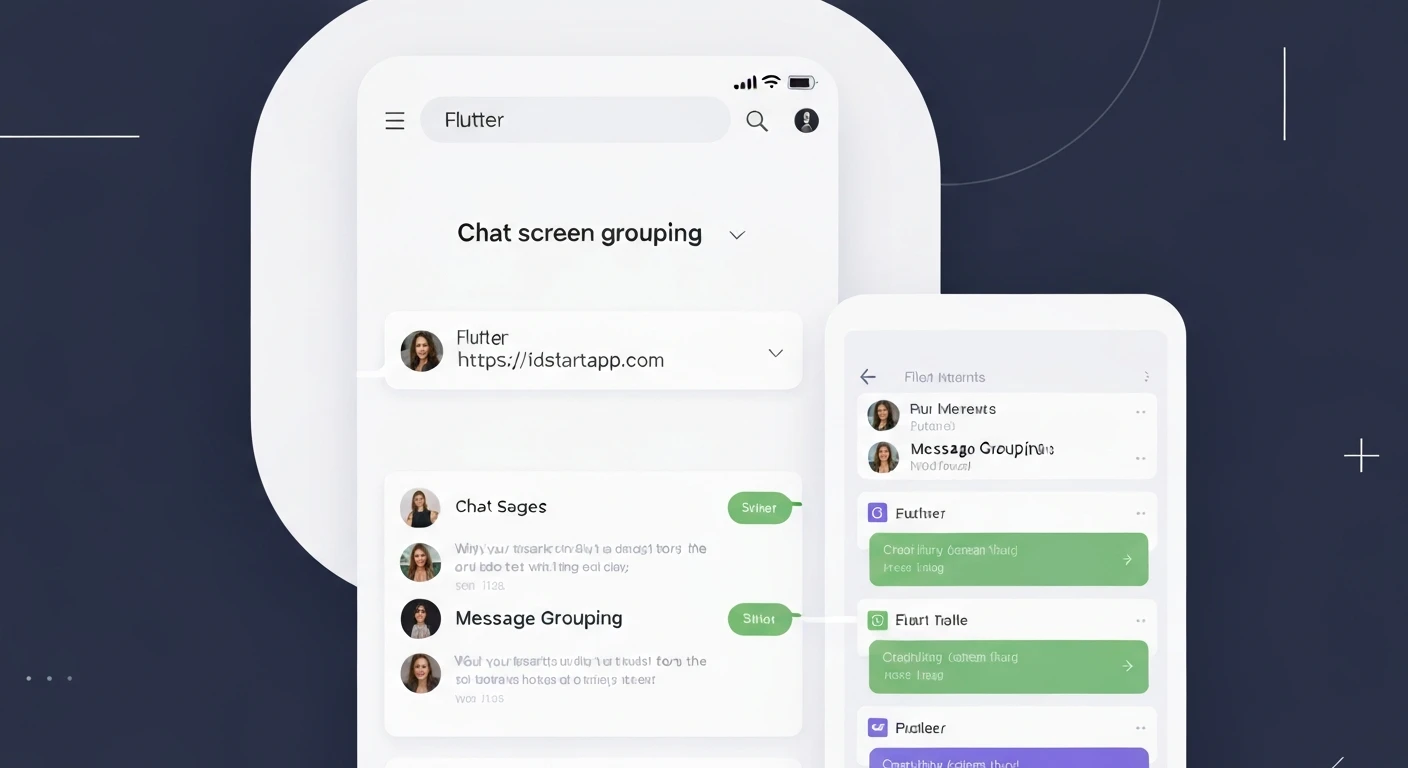

Building a Chat Screen Widget with Message Grouping in Flutter
A chat screen is a fundamental component in many modern applications, enabling real-time communication between users. While seemingly straightforward, designing a user-friendly and visually appealing chat interface involves several nuances. One critical aspect is message grouping, which enhances readability by visually associating consecutive messages from the same sender, thereby reducing visual clutter and improving the overall chat experience.
This article will guide you through the process of building a Flutter chat screen widget that incorporates intelligent message grouping. We will cover the essential data model, the logic for grouping messages, and how to render them effectively.
1. Defining the Message Data Model
First, let's establish a clear data structure for our chat messages. This model will hold all the necessary information for each message.
import 'package:flutter/foundation.dart';

class Message {
  final String id;
  final String senderId;
  final String senderName;
  final String text;
  final DateTime timestamp;
  final bool isMe; // True if the message was sent by the current user

  Message({
    required this.id,
    required this.senderId,
    required this.senderName,
    required this.text,
    required this.timestamp,
    required this.isMe,
  });

  @override
  bool operator ==(Object other) {
    if (identical(this, other)) return true;
    return other is Message &&
        other.id == id &&
        other.senderId == senderId &&
        other.senderName == senderName &&
        other.text == text &&
        other.timestamp == timestamp &&
        other.isMe == isMe;
  }

  @override
  int get hashCode =>
      id.hashCode ^
      senderId.hashCode ^
      senderName.hashCode ^
      text.hashCode ^
      timestamp.hashCode ^
      isMe.hashCode;
}
2. Designing the Message Bubble Widget
The MessageBubble is a crucial part of our chat UI. It's responsible for displaying individual messages, adapting its appearance based on the sender and its position within a group.
import 'package:flutter/material.dart';
import 'package:intl/intl.dart';
import 'message_model.dart'; // Assuming message_model.dart is in the same directory

class MessageBubble extends StatelessWidget {
  final Message message;
  final bool isFirstInGroup; // True if this is the first message from a sender in a consecutive block
  final bool isLastInGroup;  // True if this is the last message from a sender in a consecutive block

  const MessageBubble({
    Key? key,
    required this.message,
    this.isFirstInGroup = true,
    this.isLastInGroup = true,
  }) : super(key: key);

  @override
  Widget build(BuildContext context) {
    final theme = Theme.of(context);
    final isMe = message.isMe;
    final alignment = isMe ? Alignment.centerRight : Alignment.centerLeft;
    final color = isMe ? theme.primaryColor : theme.colorScheme.secondaryContainer;
    final textColor = isMe ? theme.colorScheme.onPrimary : theme.colorScheme.onSecondaryContainer;
    final borderRadius = BorderRadius.only(
      topLeft: Radius.circular(isMe || isFirstInGroup ? 16 : 4),
      topRight: Radius.circular(isMe && !isFirstInGroup ? 4 : 16),
      bottomLeft: Radius.circular(isMe ? 16 : 4),
      bottomRight: Radius.circular(isMe ? 4 : 16),
    );

    return Align(
      alignment: alignment,
      child: Container(
        margin: EdgeInsets.only(
          top: isFirstInGroup ? 8.0 : 4.0,
          bottom: isLastInGroup ? 8.0 : 4.0,
          left: isMe ? 60.0 : 8.0,
          right: isMe ? 8.0 : 60.0,
        ),
        padding: const EdgeInsets.symmetric(horizontal: 12.0, vertical: 8.0),
        decoration: BoxDecoration(
          color: color,
          borderRadius: borderRadius.copyWith(
            bottomLeft: Radius.circular(isMe ? (isLastInGroup ? 16 : 4) : 16),
            bottomRight: Radius.circular(isMe ? 16 : (isLastInGroup ? 16 : 4)),
          ),
        ),
        child: Column(
          crossAxisAlignment: isMe ? CrossAxisAlignment.end : CrossAxisAlignment.start,
          children: [
            if (isFirstInGroup && !isMe)
              Padding(
                padding: const EdgeInsets.only(bottom: 4.0),
                child: Text(
                  message.senderName,
                  style: theme.textTheme.labelSmall?.copyWith(
                    color: theme.colorScheme.primary,
                    fontWeight: FontWeight.bold,
                  ),
                ),
              ),
            Text(
              message.text,
              style: TextStyle(color: textColor, fontSize: 16.0),
            ),
            if (isLastInGroup)
              Padding(
                padding: const EdgeInsets.only(top: 4.0),
                child: Text(
                  DateFormat('HH:mm').format(message.timestamp),
                  style: theme.textTheme.labelSmall?.copyWith(
                    color: textColor.withOpacity(0.7),
                  ),
                ),
              ),
          ],
        ),
      ),
    );
  }
}
In the MessageBubble, we conditionally show the sender's name and timestamp. The borderRadius is also adjusted to create a "grouped" look, where corners facing other messages in the same group are less rounded. This creates a visually continuous bubble effect.
3. Implementing the Chat Screen with Grouping Logic
Now, let's create the main ChatScreen widget. This widget will manage the list of messages and apply the grouping logic before rendering each MessageBubble.
import 'package:flutter/material.dart';
import 'package:uuid/uuid.dart'; // Add uuid: ^4.0.0 to your pubspec.yaml
import 'message_model.dart';
import 'message_bubble.dart';

class ChatScreen extends StatefulWidget {
  const ChatScreen({Key? key}) : super(key: key);

  @override
  State<ChatScreen> createState() => _ChatScreenState();
}

class _ChatScreenState extends State<ChatScreen> {
  final List<Message> _messages = [];
  final TextEditingController _textController = TextEditingController();
  final ScrollController _scrollController = ScrollController();
  final _uuid = const Uuid();

  @override
  void initState() {
    super.initState();
    // Add some dummy messages for demonstration
    _messages.addAll([
      Message(
        id: _uuid.v4(),
        senderId: 'user1',
        senderName: 'Alice',
        text: 'Hi there!',
        timestamp: DateTime.now().subtract(const Duration(minutes: 10, seconds: 30)),
        isMe: false,
      ),
      Message(
        id: _uuid.v4(),
        senderId: 'user2',
        senderName: 'You',
        text: 'Hello Alice! How are you?',
        timestamp: DateTime.now().subtract(const Duration(minutes: 9, seconds: 0)),
        isMe: true,
      ),
      Message(
        id: _uuid.v4(),
        senderId: 'user1',
        senderName: 'Alice',
        text: 'I\'m doing great, thanks for asking!',
        timestamp: DateTime.now().subtract(const Duration(minutes: 7, seconds: 45)),
        isMe: false,
      ),
      Message(
        id: _uuid.v4(),
        senderId: 'user1',
        senderName: 'Alice',
        text: 'Just finished my project.',
        timestamp: DateTime.now().subtract(const Duration(minutes: 7, seconds: 30)),
        isMe: false,
      ),
      Message(
        id: _uuid.v4(),
        senderId: 'user2',
        senderName: 'You',
        text: 'That\'s awesome! What was it about?',
        timestamp: DateTime.now().subtract(const Duration(minutes: 5, seconds: 15)),
        isMe: true,
      ),
      Message(
        id: _uuid.v4(),
        senderId: 'user2',
        senderName: 'You',
        text: 'I\'m curious.',
        timestamp: DateTime.now().subtract(const Duration(minutes: 5, seconds: 5)),
        isMe: true,
      ),
      Message(
        id: _uuid.v4(),
        senderId: 'user1',
        senderName: 'Alice',
        text: 'It was a Flutter app for tracking expenses.',
        timestamp: DateTime.now().subtract(const Duration(minutes: 2, seconds: 0)),
        isMe: false,
      ),
      Message(
        id: _uuid.v4(),
        senderId: 'user1',
        senderName: 'Alice',
        text: 'Pretty cool, huh?',
        timestamp: DateTime.now().subtract(const Duration(minutes: 1, seconds: 45)),
        isMe: false,
      ),
      Message(
        id: _uuid.v4(),
        senderId: 'user1',
        senderName: 'Alice',
        text: 'Still debugging a few things though.',
        timestamp: DateTime.now().subtract(const Duration(minutes: 1, seconds: 15)),
        isMe: false,
      ),
      Message(
        id: _uuid.v4(),
        senderId: 'user2',
        senderName: 'You',
        text: 'Sounds like a great idea! Good luck with the debugging.',
        timestamp: DateTime.now().subtract(const Duration(seconds: 30)),
        isMe: true,
      ),
    ]);
  }

  @override
  void dispose() {
    _textController.dispose();
    _scrollController.dispose();
    super.dispose();
  }

  void _sendMessage() {
    if (_textController.text.trim().isEmpty) return;

    final newMessage = Message(
      id: _uuid.v4(),
      senderId: 'user2', // Current user's ID
      senderName: 'You', // Current user's name
      text: _textController.text.trim(),
      timestamp: DateTime.now(),
      isMe: true,
    );

    setState(() {
      _messages.add(newMessage);
      _textController.clear();
    });

    // Scroll to the bottom after sending a message
    _scrollController.animateTo(
      _scrollController.position.maxScrollExtent,
      duration: const Duration(milliseconds: 300),
      curve: Curves.easeOut,
    );
  }

  bool _isSameSender(int index, int prevIndex) {
    if (prevIndex < 0 || prevIndex >= _messages.length) return false;
    return _messages[index].senderId == _messages[prevIndex].senderId;
  }

  bool _isCloseInTime(int index, int prevIndex, {int minutesThreshold = 5}) {
    if (prevIndex < 0 || prevIndex >= _messages.length) return false;
    final timeDifference = _messages[index].timestamp.difference(_messages[prevIndex].timestamp).inMinutes;
    return timeDifference < minutesThreshold;
  }

  @override
  Widget build(BuildContext context) {
    return Scaffold(
      appBar: AppBar(
        title: const Text('Grouped Chat'),
        backgroundColor: Theme.of(context).primaryColor,
        foregroundColor: Theme.of(context).colorScheme.onPrimary,
      ),
      body: Column(
        children: [
          Expanded(
            child: ListView.builder(
              controller: _scrollController,
              padding: const EdgeInsets.symmetric(horizontal: 8.0),
              itemCount: _messages.length,
              itemBuilder: (context, index) {
                final message = _messages[index];

                // Determine grouping flags
                final bool isFirstInGroup;
                final bool isLastInGroup;

                // Check previous message
                if (index == 0) {
                  isFirstInGroup = true;
                } else {
                  isFirstInGroup =
                      !_isSameSender(index, index - 1) || !_isCloseInTime(index, index - 1);
                }

                // Check next message
                if (index == _messages.length - 1) {
                  isLastInGroup = true;
                } else {
                  isLastInGroup =
                      !_isSameSender(index, index + 1) || !_isCloseInTime(index + 1, index);
                }

                return MessageBubble(
                  key: ValueKey(message.id), // Important for performance and state
                  message: message,
                  isFirstInGroup: isFirstInGroup,
                  isLastInGroup: isLastInGroup,
                );
              },
            ),
          ),
          _buildMessageInput(),
        ],
      ),
    );
  }

  Widget _buildMessageInput() {
    return Container(
      padding: const EdgeInsets.symmetric(horizontal: 8.0, vertical: 4.0),
      color: Theme.of(context).cardColor,
      child: Row(
        children: [
          Expanded(
            child: TextField(
              controller: _textController,
              decoration: InputDecoration(
                hintText: 'Type a message...',
                border: OutlineInputBorder(
                  borderRadius: BorderRadius.circular(25.0),
                  borderSide: BorderSide.none,
                ),
                filled: true,
                fillColor: Theme.of(context).colorScheme.surfaceVariant,
                contentPadding: const EdgeInsets.symmetric(horizontal: 16.0, vertical: 8.0),
              ),
              onSubmitted: (_) => _sendMessage(),
            ),
          ),
          Padding(
            padding: const EdgeInsets.only(left: 8.0),
            child: FloatingActionButton(
              onPressed: _sendMessage,
              mini: true,
              backgroundColor: Theme.of(context).primaryColor,
              foregroundColor: Theme.of(context).colorScheme.onPrimary,
              elevation: 0,
              child: const Icon(Icons.send),
            ),
          ),
        ],
      ),
    );
  }
}
Explanation of Grouping Logic:
In the ListView.builder, for each message at index:
-
isFirstInGroup:- It's
trueif it's the very first message in the list (index == 0). - Otherwise, it's
trueif the current message's sender is different from the previous message's sender, OR if there's a significant time gap (e.g., more than 5 minutes) between the current message and the previous one. This implies a new "group" is starting.
- It's
-
isLastInGroup:- It's
trueif it's the very last message in the list (index == _messages.length - 1). - Otherwise, it's
trueif the current message's sender is different from the next message's sender, OR if there's a significant time gap between the current message and the next one. This implies the current message is the end of a "group".
- It's
These flags are then passed to the MessageBubble, which uses them to adjust its appearance (e.g., border radius, showing/hiding sender name or timestamp) to visually represent the grouping.
4. Running the Application
To run this example, create a new Flutter project and replace main.dart with the following:
import 'package:flutter/material.dart';
import 'chat_screen.dart'; // Assuming your chat_screen.dart is in the same directory

void main() {
  runApp(const MyApp());
}

class MyApp extends StatelessWidget {
  const MyApp({Key? key}) : super(key: key);

  @override
  Widget build(BuildContext context) {
    return MaterialApp(
      title: 'Grouped Chat Demo',
      debugShowCheckedModeBanner: false,
      theme: ThemeData(
        primarySwatch: Colors.blue,
        colorScheme: ColorScheme.fromSeed(
          seedColor: Colors.blue,
          secondaryContainer: Colors.grey[200], // For incoming messages
          onSecondaryContainer: Colors.black87,
        ),
        useMaterial3: true,
      ),
      home: const ChatScreen(),
    );
  }
}
Make sure you have uuid and intl added to your pubspec.yaml:
dependencies:
  flutter:
    sdk: flutter
  uuid: ^4.0.0
  intl: ^0.19.0 # For DateFormat
Then run flutter pub get and launch your application.
Conclusion
By carefully structuring our data, implementing robust grouping logic, and designing a flexible MessageBubble widget, we have successfully created a Flutter chat screen with intuitive message grouping. This approach significantly enhances the user experience by making chat conversations easier to follow and more visually appealing. You can further expand upon this foundation by adding features like real-time updates, different message types (images, videos), read receipts, and more complex state management.