
Flutter & Dio: Custom Error Handling with Snackbar and Dialog
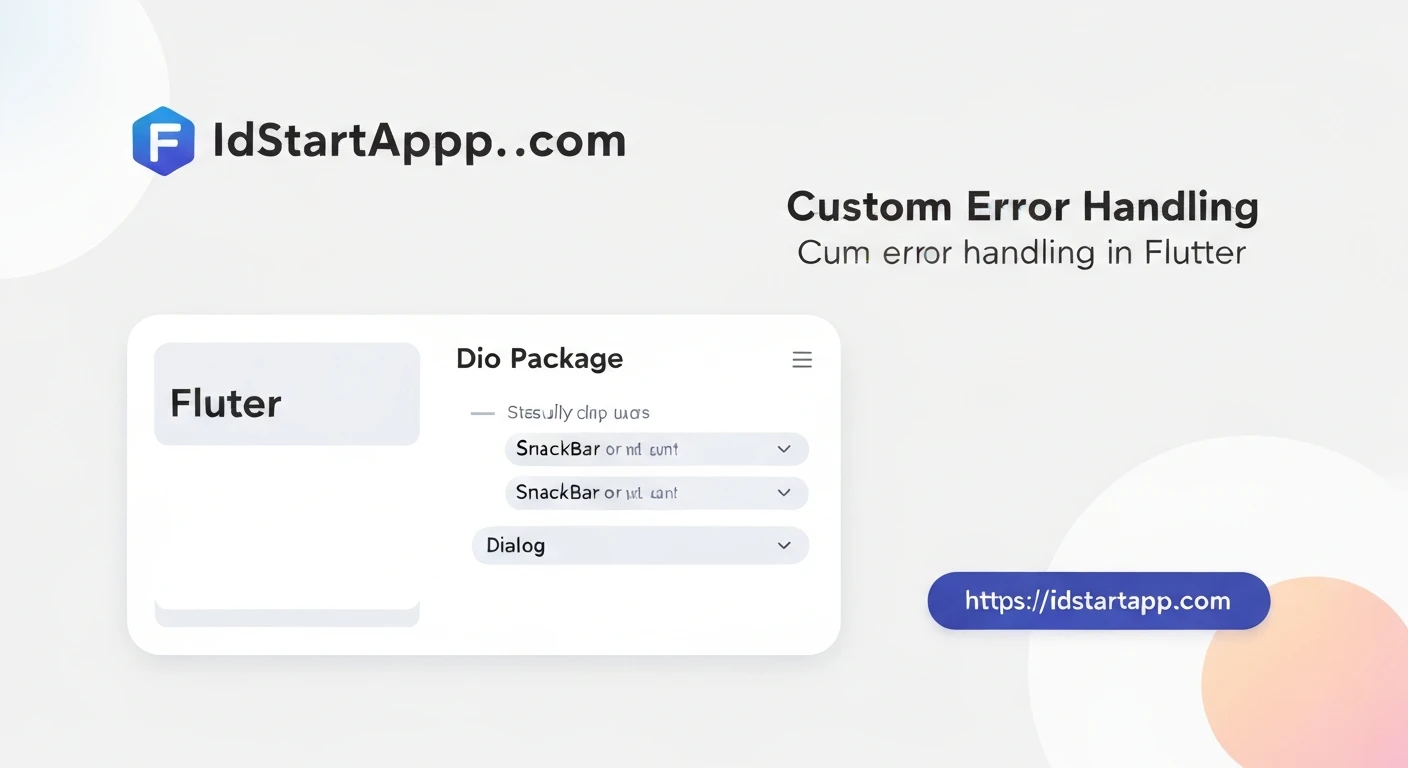
In modern mobile application development, robust error handling is paramount for delivering a smooth and reliable user experience. Flutter, combined with the powerful HTTP client Dio, forms a common and effective stack for building network-intensive applications. While Dio provides comprehensive error reporting through DioException, presenting these errors gracefully to the user often requires custom solutions. This article will guide you through implementing custom error handling in Flutter with Dio, utilizing both SnackBar for transient notifications and Dialog for critical, actionable errors.
Why Custom Error Handling?
By default, an unhandled network error might just crash the app or show a cryptic message. Custom error handling allows you to:
- Provide clear, user-friendly messages.
- Guide users on how to resolve issues (e.g., "Check your internet connection," "Please log in again").
- Maintain application stability and prevent crashes.
- Ensure a consistent look and feel for error displays across the app.
- Differentiate between critical errors (requiring user action) and non-critical ones (informational).
Understanding Dio's Error Handling
Dio wraps network errors in a DioException object, which is caught within a try-catch block. This object contains crucial information about the error:
error.type: Indicates the type of error (e.g.,DioExceptionType.connectionError,DioExceptionType.badResponse,DioExceptionType.cancel,DioExceptionType.unknown).error.response: If the error is a server response (e.g., 401, 404, 500), this property holds theResponseobject, includingstatusCodeand potentially error details indata.error.message: A general message describing the error.
Basic Dio Request with Error Catching
Here's how a typical Dio request might look:
import 'package:dio/dio.dart';
import 'package:flutter/material.dart';

class MyApiClient {
  final Dio _dio = Dio();

  Future fetchData() async {
    try {
      final response = await _dio.get('https://api.example.com/data');
      // Process successful response
      debugPrint('Data fetched: ${response.data}');
    } on DioException catch (e) {
      // Handle Dio-specific errors
      debugPrint('Dio error: ${e.message}');
      if (e.response != null) {
        debugPrint('Status Code: ${e.response?.statusCode}');
        debugPrint('Response Data: ${e.response?.data}');
      }
    } catch (e) {
      // Handle other non-Dio errors
      debugPrint('Generic error: $e');
    }
  }
}
Snackbar for Non-Critical Errors
A SnackBar is a lightweight message that appears briefly at the bottom of the screen. It's ideal for non-critical, transient errors that don't block user interaction and provide immediate feedback without requiring an explicit action to dismiss.
Use cases for SnackBar:
- "No internet connection."
- "Failed to load data."
- "Item deleted successfully." (Though not an error, it's a similar pattern)
- "Search request timed out."
Implementing a SnackBar Helper
import 'package:flutter/material.dart';

void showAppSnackbar(BuildContext context, String message, {Color backgroundColor = Colors.redAccent}) {
  ScaffoldMessenger.of(context).showSnackBar(
    SnackBar(
      content: Text(message),
      backgroundColor: backgroundColor,
      duration: const Duration(seconds: 3),
      action: SnackBarAction(
        label: 'DISMISS',
        onPressed: () {
          ScaffoldMessenger.of(context).hideCurrentSnackBar();
        },
        textColor: Colors.white,
      ),
    ),
  );
}
Dialog for Critical and Actionable Errors
A Dialog is a modal popup that requires user interaction to dismiss it. It's suitable for critical errors that demand the user's attention, require a decision, or block further interaction until addressed.
Use cases for Dialog:
- "Session expired. Please log in again." (with a button to navigate to login).
- "Unauthorized access. You do not have permission."
- "Server maintenance. Please try again later."
- "Please update your app to continue."
Implementing a Dialog Helper
import 'package:flutter/material.dart';

void showAppErrorDialog(BuildContext context, String title, String message, {VoidCallback? onConfirm}) {
  showDialog(
    context: context,
    builder: (BuildContext dialogContext) {
      return AlertDialog(
        title: Text(title),
        content: Text(message),
        actions: [
          TextButton(
            child: const Text("OK"),
            onPressed: () {
              Navigator.of(dialogContext).pop(); // Close dialog
              onConfirm?.call(); // Execute optional callback
            },
          ),
        ],
      );
    },
  );
}
Creating a Centralized Error Handler
To maintain consistency and avoid repetitive code, it's best to create a centralized utility class that handles DioException and decides whether to show a SnackBar or a Dialog based on the error type or status code.
error_handler.dart
import 'package:dio/dio.dart';
import 'package:flutter/material.dart';

// Assuming you have showAppSnackbar and showAppErrorDialog defined in a utils.dart or similar
// For this example, we'll embed them directly in the class for simplicity.

class ErrorHandler {

  static void handleDioError(DioException error, BuildContext context) {
    String errorMessage = "An unexpected error occurred.";
    String errorTitle = "Error";

    if (error.type == DioExceptionType.connectionError ||
        error.type == DioExceptionType.connectionTimeout) {
      errorMessage = "No internet connection or server is unreachable. Please check your network and try again.";
      _showSnackbar(context, errorMessage);
    } else if (error.type == DioExceptionType.badResponse) {
      // Handle HTTP errors (4xx, 5xx)
      final statusCode = error.response?.statusCode;
      final responseData = error.response?.data; // Often contains { "message": "..." }

      if (statusCode == 400) {
        errorTitle = "Bad Request";
        errorMessage = responseData?['message'] ?? "The request was invalid.";
        _showSnackbar(context, errorMessage);
      } else if (statusCode == 401) {
        errorTitle = "Authentication Required";
        errorMessage = responseData?['message'] ?? "Your session has expired or you are not authorized. Please log in again.";
        _showErrorDialog(context, errorTitle, errorMessage, () {
          // Optional: Navigate to login screen
          // Navigator.of(context).pushReplacementNamed('/login');
        });
      } else if (statusCode == 403) {
        errorTitle = "Forbidden";
        errorMessage = responseData?['message'] ?? "You don't have permission to access this resource.";
        _showSnackbar(context, errorMessage);
      } else if (statusCode == 404) {
        errorTitle = "Not Found";
        errorMessage = responseData?['message'] ?? "The requested resource could not be found.";
        _showSnackbar(context, errorMessage);
      } else if (statusCode == 500) {
        errorTitle = "Server Error";
        errorMessage = responseData?['message'] ?? "Our server encountered an issue. Please try again later.";
        _showSnackbar(context, errorMessage);
      } else {
        errorMessage = responseData?['message'] ?? "Failed with status code: $statusCode";
        _showSnackbar(context, errorMessage);
      }
    } else if (error.type == DioExceptionType.cancel) {
      errorMessage = "Request was cancelled.";
      _showSnackbar(context, errorMessage, backgroundColor: Colors.grey);
    } else {
      errorMessage = "An unknown error occurred: ${error.message}";
      _showSnackbar(context, errorMessage);
    }
    debugPrint("Error handled: $errorMessage");
  }

  static void _showSnackbar(BuildContext context, String message, {Color backgroundColor = Colors.redAccent}) {
    // Ensure context is still valid
    if (context.mounted) {
      ScaffoldMessenger.of(context).showSnackBar(
        SnackBar(
          content: Text(message),
          backgroundColor: backgroundColor,
          duration: const Duration(seconds: 3),
        ),
      );
    }
  }

  static void _showErrorDialog(BuildContext context, String title, String message, VoidCallback? onConfirm) {
    // Ensure context is still valid
    if (context.mounted) {
      showDialog(
        context: context,
        builder: (BuildContext dialogContext) {
          return AlertDialog(
            title: Text(title),
            content: Text(message),
            actions: [
              TextButton(
                child: const Text("OK"),
                onPressed: () {
                  Navigator.of(dialogContext).pop(); // Close dialog
                  onConfirm?.call(); // Execute optional callback
                },
              ),
            ],
          );
        },
      );
    }
  }
}
Using the Centralized Error Handler
Now, in your API services or directly in your widgets, you can simply call the ErrorHandler.handleDioError method.
import 'package:flutter/material.dart';
import 'package:dio/dio.dart';
import 'error_handler.dart'; // Import your custom error handler

class MyApiService {
  final Dio _dio = Dio();

  // You can set base options for Dio, e.g., base URL, timeouts
  MyApiService() {
    _dio.options.baseUrl = 'https://api.example.com';
    _dio.options.connectTimeout = const Duration(seconds: 5);
    _dio.options.receiveTimeout = const Duration(seconds: 3);
  }

  Future performOperation(BuildContext context, String endpoint, {Map? data}) async {
    try {
      final response = await _dio.post(endpoint, data: data);
      debugPrint('Operation successful for $endpoint: ${response.data}');
      // Optional: show a success snackbar
      ErrorHandler._showSnackbar(context, 'Operation successful!', backgroundColor: Colors.green);
    } on DioException catch (e) {
      // Pass the DioException and BuildContext to your handler
      ErrorHandler.handleDioError(e, context);
    } catch (e) {
      // Handle any other non-Dio errors
      ErrorHandler._showSnackbar(context, 'An unexpected error occurred: $e');
      debugPrint('Generic error: $e');
    }
  }
}

// Example of integrating with a Flutter Widget
class MyDataScreen extends StatelessWidget {
  final MyApiService _apiService = MyApiService();

  @override
  Widget build(BuildContext context) {
    return Scaffold(
      appBar: AppBar(
        title: const Text('Error Handling Demo'),
      ),
      body: Center(
        child: Column(
          mainAxisAlignment: MainAxisAlignment.center,
          children: [
            ElevatedButton(
              onPressed: () => _apiService.performOperation(context, '/fetch-data'),
              child: const Text('Fetch Data (Success/Fail)'),
            ),
            const SizedBox(height: 16),
            ElevatedButton(
              onPressed: () => _apiService.performOperation(context, '/login', data: {'username': 'user', 'password': 'wrong_password'}),
              child: const Text('Login (Trigger 401/403)'),
            ),
            const SizedBox(height: 16),
            ElevatedButton(
              onPressed: () => _apiService.performOperation(context, '/non-existent-endpoint'),
              child: const Text('Request 404'),
            ),
            const SizedBox(height: 16),
            ElevatedButton(
              onPressed: () => _apiService.performOperation(context, '/simulate-500'),
              child: const Text('Simulate 500 Server Error'),
            ),
            const SizedBox(height: 16),
            ElevatedButton(
              onPressed: () => _apiService.performOperation(context, '/slow-endpoint').timeout(const Duration(milliseconds: 100)), // Force timeout
              child: const Text('Simulate Connection Timeout'),
            ),
          ],
        ),
      ),
    );
  }
}
Conclusion
Implementing custom error handling with SnackBar and Dialog in your Flutter applications using Dio significantly enhances the user experience and application robustness. By centralizing your error handling logic, you ensure consistency, simplify maintenance, and provide clear, actionable feedback to your users. Remember to tailor the error messages and the choice between SnackBar and Dialog to the specific needs and context of your application, always prioritizing the user's understanding and ability to resolve or report issues.