
Flutter & Camera: Capturing Photos with Real-Time Filters
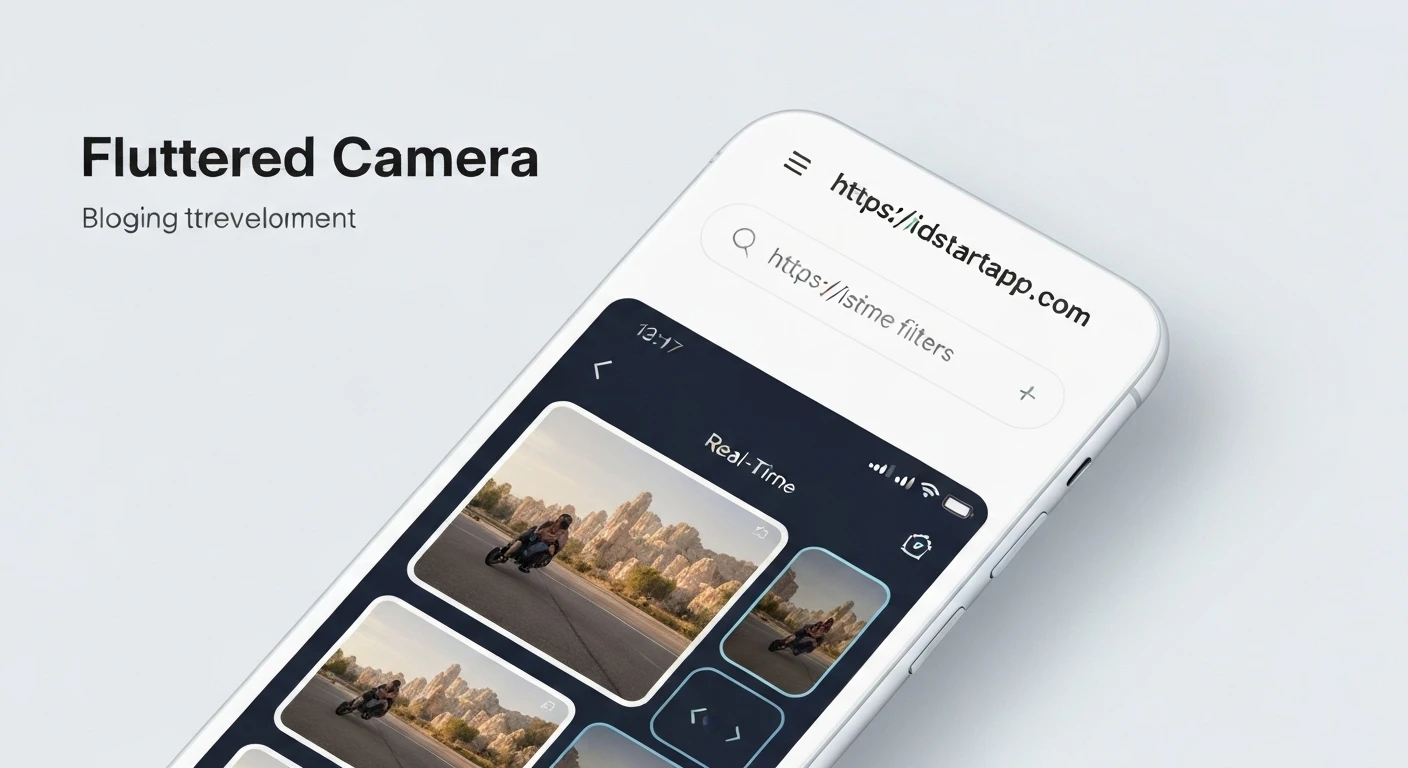
The ability to integrate device cameras and apply real-time visual effects has become a cornerstone of modern mobile applications. From social media apps to utility tools, capturing photos with immediate filters enhances user engagement and creativity. Flutter, Google's UI toolkit for building natively compiled applications for mobile, web, and desktop from a single codebase, provides robust solutions for accessing camera functionalities. This article will guide you through building a Flutter application that allows users to capture photos while applying real-time filters to the camera preview and processing the captured image.
Prerequisites
Before diving into the implementation, ensure you have the following:
- Flutter SDK installed and configured.
- Basic understanding of Dart programming language and Flutter widgets.
- An IDE like VS Code or Android Studio with Flutter and Dart plugins.
Setting Up Your Project
1. Create a New Flutter Project
If you don't have an existing project, create one:
flutter create flutter_camera_filters
cd flutter_camera_filters
2. Add Dependencies
We'll need two main packages: camera for camera access and image for image processing (to apply filters to the captured photo). Open your pubspec.yaml file and add the following dependencies:
dependencies:
  flutter:
    sdk: flutter
  camera: ^0.10.5+9 # Use the latest stable version
  image: ^4.1.3 # Use the latest stable version

dev_dependencies:
  flutter_test:
    sdk: flutter
  flutter_lints: ^2.0.0
Run flutter pub get to fetch the packages.
3. Platform-Specific Configuration
AndroidOpen android/app/src/main/AndroidManifest.xml and add the following permissions inside the <manifest> tag, above the <application> tag:
<uses-permission android:name="android.permission.CAMERA" />
<uses-permission android:name="android.permission.WRITE_EXTERNAL_STORAGE" />
<uses-permission android:name="android.permission.RECORD_AUDIO" /> <!-- Optional, if you plan to record video with audio -->
Also, ensure your minSdkVersion in android/app/build.gradle is at least 21 (Flutter defaults to 21 or higher for new projects).
Open ios/Runner/Info.plist and add the following keys:
<key>NSCameraUsageDescription</key>
<string>This app needs camera access to take photos.</string>
<key>NSMicrophoneUsageDescription</key>
<string>This app needs microphone access to record audio with video.</string> <!-- Optional -->
<key>NSPhotoLibraryUsageDescription</key>
<string>This app needs photo library access to save photos.</string>
Understanding Camera Integration
The core of camera integration in Flutter revolves around the camera package. Here's a quick overview of the essential steps:
- Discover available cameras: Use
availableCameras()to get a list of cameras. - Initialize
CameraController: Create an instance ofCameraController, specifying the camera to use, and the resolution preset. - Initialize the controller: Call
initialize()on the controller to prepare the camera. - Display camera preview: Use the
CameraPreviewwidget with the initialized controller. - Take a picture: Call
takePicture()on the controller.
Implementing Real-Time Filters for Preview
To apply real-time filters to the camera preview, we can leverage Flutter's powerful widget tree. Instead of processing every frame from the camera (which can be computationally intensive and affect performance), we can wrap the CameraPreview widget with visual effect widgets like ColorFiltered. This applies a filter directly to the pixels rendered by the preview, giving a "real-time" visual effect.
For this example, we'll define a simple FilterType enum and a map to store ColorFilter matrices for different effects like grayscale and sepia.
import 'package:flutter/material.dart';
import 'package:camera/camera.dart';
import 'package:image/image.dart' as img;
import 'dart:io';
import 'package:path_provider/path_provider.dart';

enum FilterType {
  none,
  grayscale,
  sepia,
}

Map<FilterType, ColorFilter> filterColorMatrices = {
  FilterType.none: const ColorFilter.matrix(<double>[
    1, 0, 0, 0, 0,
    0, 1, 0, 0, 0,
    0, 0, 1, 0, 0,
    0, 0, 0, 1, 0,
  ]),
  FilterType.grayscale: const ColorFilter.matrix(<double>[
    0.2126, 0.7152, 0.0722, 0, 0,
    0.2126, 0.7152, 0.0722, 0, 0,
    0.2126, 0.7152, 0.0722, 0, 0,
    0,      0,      0,      1, 0,
  ]),
  FilterType.sepia: const ColorFilter.matrix(<double>[
    0.393, 0.769, 0.189, 0, 0,
    0.349, 0.686, 0.168, 0, 0,
    0.272, 0.534, 0.131, 0, 0,
    0,     0,     0,     1, 0,
  ]),
};
Capturing and Processing Filtered Photos
When a photo is captured using takePicture(), it provides the raw image data. To apply the chosen filter to this captured image, we'll use the image package. This involves:
- Taking the picture and getting its file path.
- Loading the image file into an
img.Imageobject. - Applying the corresponding filter function (e.g.,
img.grayscale(),img.sepia()). - Encoding the filtered image back to a file (e.g., JPEG).
- Saving or displaying the processed image.
Putting It All Together (Full Example)
Let's create a CameraScreen widget that encapsulates all the functionalities: camera initialization, preview, filter selection, and photo capture with processing.
class CameraScreen extends StatefulWidget {
  final List<CameraDescription> cameras;

  const CameraScreen({Key? key, required this.cameras}) : super(key: key);

  @override
  _CameraScreenState createState() => _CameraScreenState();
}

class _CameraScreenState extends State<CameraScreen> {
  CameraController? _controller;
  Future<void>? _initializeControllerFuture;
  FilterType _currentFilter = FilterType.none;
  String? _capturedImagePath;

  @override
  void initState() {
    super.initState();
    if (widget.cameras.isEmpty) {
      print('No cameras found.');
      return;
    }
    _controller = CameraController(
      widget.cameras[0],
      ResolutionPreset.medium,
    );
    _initializeControllerFuture = _controller?.initialize();
  }

  @override
  void dispose() {
    _controller?.dispose();
    super.dispose();
  }

  Future<void> _takePicture() async {
    try {
      await _initializeControllerFuture;

      final XFile rawImage = await _controller!.takePicture();
      File imageFile = File(rawImage.path);

      final appDir = await getTemporaryDirectory();
      final String fileExtension = rawImage.path.split('.').last;
      final String filePath = '${appDir.path}/${DateTime.now().millisecondsSinceEpoch}.$fileExtension';

      // Load image from file
      img.Image? originalImage = img.decodeImage(await imageFile.readAsBytes());

      if (originalImage != null) {
        img.Image filteredImage = originalImage;

        // Apply selected filter to the captured image
        switch (_currentFilter) {
          case FilterType.grayscale:
            filteredImage = img.grayscale(originalImage);
            break;
          case FilterType.sepia:
            filteredImage = img.sepia(originalImage);
            break;
          case FilterType.none:
            // No processing needed for 'none'
            break;
        }

        // Save the filtered image
        File(filePath).writeAsBytesSync(img.encodeJpg(filteredImage, quality: 95));

        setState(() {
          _capturedImagePath = filePath;
        });
      } else {
        print('Failed to decode image.');
      }
    } catch (e) {
      print(e);
    }
  }

  void _selectFilter(FilterType filter) {
    setState(() {
      _currentFilter = filter;
    });
  }

  @override
  Widget build(BuildContext context) {
    if (_controller == null || !_controller!.value.isInitialized) {
      return const Center(child: CircularProgressIndicator());
    }

    return Scaffold(
      appBar: AppBar(
        title: const Text('Filtered Camera'),
        actions: <Widget>[
          PopupMenuButton<FilterType>(
            onSelected: _selectFilter,
            itemBuilder: (BuildContext context) {
              return <PopupMenuEntry<FilterType>>[
                const PopupMenuItem<FilterType>(
                  value: FilterType.none,
                  child: Text('Normal'),
                ),
                const PopupMenuItem<FilterType>(
                  value: FilterType.grayscale,
                  child: Text('Grayscale'),
                ),
                const PopupMenuItem<FilterType>(
                  value: FilterType.sepia,
                  child: Text('Sepia'),
                ),
              ];
            },
            icon: const Icon(Icons.filter_hdr),
          ),
        ],
      ),
      body: FutureBuilder<void>(
        future: _initializeControllerFuture,
        builder: (context, snapshot) {
          if (snapshot.connectionState == ConnectionState.done) {
            final size = MediaQuery.of(context).size;
            final scale = size.aspectRatio * _controller!.value.aspectRatio;

            return Stack(
              alignment: Alignment.bottomCenter,
              children: [
                Transform.scale(
                  scale: scale < 1 ? 1 / scale : scale, // To fill the screen
                  child: Center(
                    child: ColorFiltered(
                      colorFilter: filterColorMatrices[_currentFilter]!,
                      child: CameraPreview(_controller!),
                    ),
                  ),
                ),
                Padding(
                  padding: const EdgeInsets.all(16.0),
                  child: FloatingActionButton(
                    onPressed: _takePicture,
                    child: const Icon(Icons.camera_alt),
                  ),
                ),
                if (_capturedImagePath != null)
                  Positioned.fill(
                    child: Container(
                      color: Colors.black54,
                      child: Center(
                        child: Column(
                          mainAxisAlignment: MainAxisAlignment.center,
                          children: [
                            Image.file(File(_capturedImagePath!)),
                            ElevatedButton(
                              onPressed: () {
                                setState(() {
                                  _capturedImagePath = null; // Clear image to return to camera
                                });
                              },
                              child: const Text('Back to Camera'),
                            ),
                          ],
                        ),
                      ),
                    ),
                  ),
              ],
            );
          } else {
            return const Center(child: CircularProgressIndicator());
          }
        },
      ),
    );
  }
}

// Main application setup
Future<void> main() async {
  WidgetsFlutterBinding.ensureInitialized();
  final cameras = await availableCameras();
  runApp(
    MaterialApp(
      home: CameraScreen(cameras: cameras),
    ),
  );
}
In the main() function, we first ensure Flutter bindings are initialized and then fetch the available cameras before running the app with our CameraScreen.
Conclusion
You've successfully built a Flutter application that leverages the device camera, displays a real-time filtered preview, and captures photos with the selected filter applied. This demonstrates a powerful combination of Flutter's UI capabilities and external packages for advanced functionalities. From here, you can explore more complex image processing techniques, implement GPU-accelerated filters using custom shaders, or integrate machine learning models for even more sophisticated real-time effects.