
Building a Music Player Widget with Seek Bar and Volume Control in Flutter
Flutter, with its rich set of UI components and excellent third-party library ecosystem, provides a robust platform for developing feature-rich mobile applications. Among common functionalities, integrating media playback, such as a music player, is a frequent requirement. This article will guide you through building a music player widget in Flutter, complete with essential features like a seek bar for scrubbing through audio and a volume control slider.
Prerequisites
Before we begin, ensure you have Flutter installed and set up. We will be using the audioplayers package for audio playback.
Dependencies
Add the audioplayers package to your pubspec.yaml file:
dependencies:
  flutter:
    sdk: flutter
  audioplayers: ^5.0.0 # Use the latest stable version
Then run flutter pub get to fetch the new dependency.
Core Components and Logic
Our music player widget will consist of the following key components and logic:
AudioPlayerInstance: Manages audio playback (play, pause, stop, seek, volume).- State Variables: To track playback status (playing/paused), current audio position, total duration, and volume level.
- UI Elements:
- Play/Pause Buttons: To control playback.
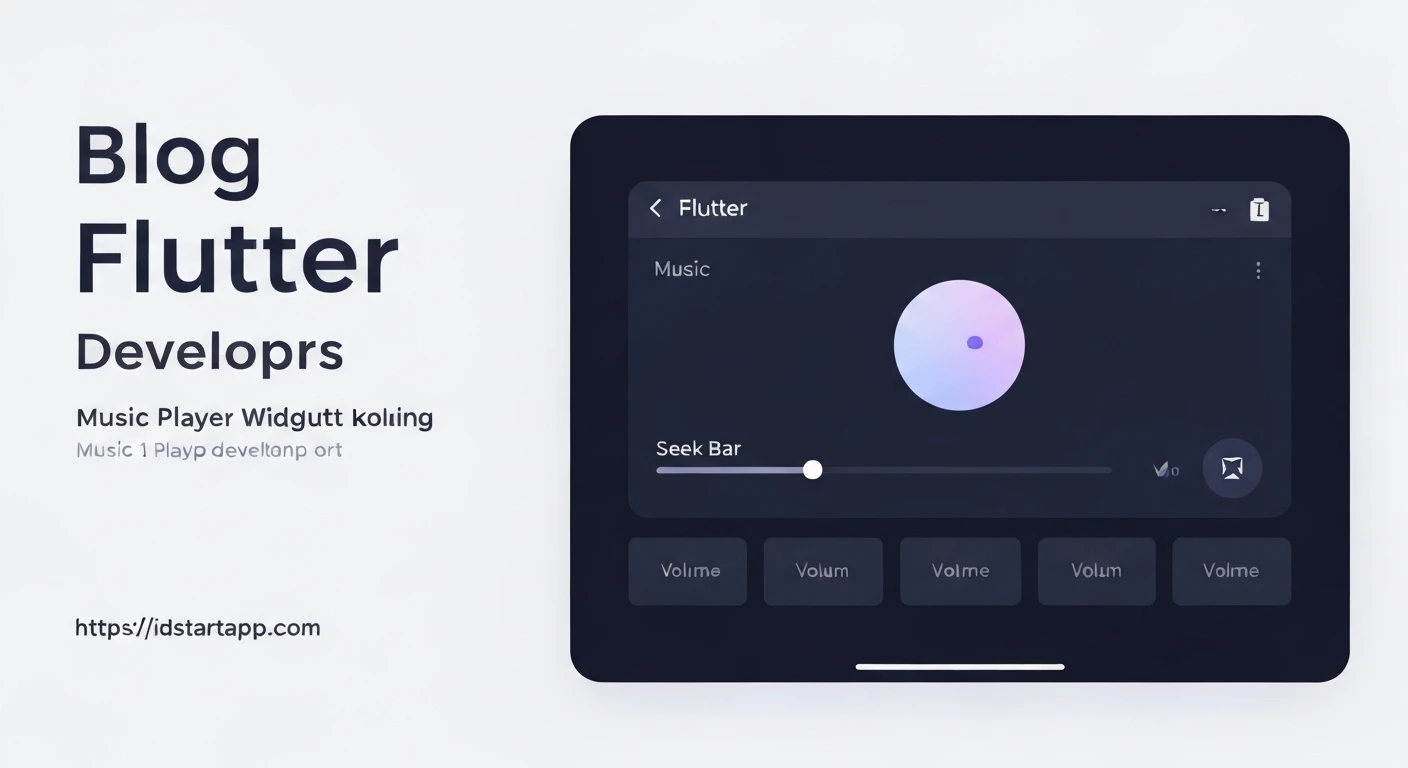
- Seek Bar (Slider): To visualize current progress and allow users to scrub through the audio.
- Volume Control (Slider): To adjust the playback volume.
- Time Display: To show current position and total duration in a human-readable format.
- Listeners: To update the UI in real-time based on audio player events (e.g., position changes, duration availability, player state changes).
Step-by-Step Implementation
1. Create the Music Player Widget
We'll create a StatefulWidget to manage the dynamic state of our music player.
import 'package:flutter/material.dart';
import 'package:audioplayers/audioplayers.dart';

class MusicPlayerWidget extends StatefulWidget {
  final String audioUrl; // URL or local path to the audio file

  const MusicPlayerWidget({Key? key, required this.audioUrl}) : super(key: key);

  @override
  State createState() => _MusicPlayerWidgetState();
}

class _MusicPlayerWidgetState extends State {
  final AudioPlayer _audioPlayer = AudioPlayer();
  bool _isPlaying = false;
  Duration _duration = Duration.zero;
  Duration _position = Duration.zero;
  double _volume = 1.0; // Initial volume (1.0 = 100%)

  @override
  void initState() {
    super.initState();
    _initAudioPlayer();
  }

  void _initAudioPlayer() {
    // Set audio source
    _audioPlayer.setSourceUrl(widget.audioUrl);

    // Listen for player state changes
    _audioPlayer.onPlayerStateChanged.listen((state) {
      setState(() {
        _isPlaying = state == PlayerState.playing;
      });
    });

    // Listen for duration changes
    _audioPlayer.onDurationChanged.listen((newDuration) {
      setState(() {
        _duration = newDuration;
      });
    });

    // Listen for position changes
    _audioPlayer.onPositionChanged.listen((newPosition) {
      setState(() {
        _position = newPosition;
      });
    });

    // Listen for audio completion
    _audioPlayer.onPlayerComplete.listen((event) {
      setState(() {
        _isPlaying = false;
        _position = Duration.zero; // Reset position on completion
      });
    });

    // Set initial volume
    _audioPlayer.setVolume(_volume);
  }

  @override
  void dispose() {
    _audioPlayer.dispose(); // Release audio player resources
    super.dispose();
  }

  String _formatDuration(Duration duration) {
    String twoDigits(int n) => n.toString().padLeft(2, '0');
    final hours = twoDigits(duration.inHours);
    final minutes = twoDigits(duration.inMinutes.remainder(60));
    final seconds = twoDigits(duration.inSeconds.remainder(60));
    return [
      if (duration.inHours > 0) hours,
      minutes,
      seconds,
    ].join(':');
  }

  Future _play() async {
    await _audioPlayer.resume();
  }

  Future _pause() async {
    await _audioPlayer.pause();
  }

  Future _seek(Duration position) async {
    await _audioPlayer.seek(position);
  }

  Future _setVolume(double newVolume) async {
    setState(() {
      _volume = newVolume;
    });
    await _audioPlayer.setVolume(newVolume);
  }

  @override
  Widget build(BuildContext context) {
    return Column(
      mainAxisSize: MainAxisSize.min,
      children: [
        // Play/Pause Button
        IconButton(
          icon: Icon(
            _isPlaying ? Icons.pause : Icons.play_arrow,
            size: 64.0,
          ),
          onPressed: _isPlaying ? _pause : _play,
        ),

        // Seek Bar
        Slider(
          min: 0.0,
          max: _duration.inSeconds.toDouble(),
          value: _position.inSeconds.toDouble(),
          onChanged: (value) {
            final position = Duration(seconds: value.toInt());
            _seek(position);
          },
        ),

        // Time Display
        Padding(
          padding: const EdgeInsets.symmetric(horizontal: 16.0),
          child: Row(
            mainAxisAlignment: MainAxisAlignment.spaceBetween,
            children: [
              Text(_formatDuration(_position)),
              Text(_formatDuration(_duration)),
            ],
          ),
        ),

        // Volume Control
        Row(
          mainAxisAlignment: MainAxisAlignment.center,
          children: [
            const Icon(Icons.volume_down),
            Expanded(
              child: Slider(
                min: 0.0,
                max: 1.0,
                value: _volume,
                onChanged: (value) {
                  _setVolume(value);
                },
              ),
            ),
            const Icon(Icons.volume_up),
          ],
        ),
      ],
    );
  }
}
2. Integrate into Your Application
To use the MusicPlayerWidget, simply add it to your widget tree, providing an audio URL.
import 'package:flutter/material.dart';
import 'package:your_app_name/music_player_widget.dart'; // Adjust import path based on your project structure

void main() {
  runApp(const MyApp());
}

class MyApp extends StatelessWidget {
  const MyApp({Key? key}) : super(key: key);

  @override
  Widget build(BuildContext context) {
    return MaterialApp(
      title: 'Flutter Music Player',
      theme: ThemeData(
        primarySwatch: Colors.blue,
      ),
      home: Scaffold(
        appBar: AppBar(
          title: const Text('Music Player'),
        ),
        body: Center(
          child: MusicPlayerWidget(
            audioUrl: 'https://www.soundhelix.com/examples/mp3/SoundHelix-Song-1.mp3', // Example audio URL
          ),
        ),
      ),
    );
  }
}
Explanation of Key Parts
AudioPlayer Initialization and Listeners
In _initAudioPlayer(), we initialize the AudioPlayer instance. Crucially, we attach several listeners to monitor the audio playback state:
onPlayerStateChanged: Updates the_isPlayingboolean when the player's state changes (e.g., from playing to paused or stopped).onDurationChanged: Fired once the audio duration is known, updating the_durationfor the seek bar's maximum value.onPositionChanged: Continuously provides the current playback position, essential for updating the seek bar's current value in real-time.onPlayerComplete: Resets the playback status and position when the audio finishes playing.
Seek Bar Implementation
The seek bar is implemented using a Flutter Slider widget:
minis set to0.0, representing the beginning of the audio.maxis dynamically set to_duration.inSeconds.toDouble()to reflect the total length of the audio track.valueis bound to_position.inSeconds.toDouble(), which is constantly updated by theonPositionChangedlistener, ensuring the slider visually represents the current playback progress.- The
onChangedcallback allows users to drag the slider. When a user interacts, we calculate the new desiredDurationfrom the slider's value and call_audioPlayer.seek(position)to jump to that specific point in the audio.
Volume Control Implementation
Similar to the seek bar, the volume control uses another Slider:
minis0.0, representing mute.maxis1.0, representing full volume.valueis bound to the_volumestate variable, which holds the current volume level.- The
onChangedcallback updates the_volumestate and calls_audioPlayer.setVolume(newVolume)to change the actual audio output level of the player. Visual icons for volume up and down are added for better UX.
Time Display
The _formatDuration helper function takes a Duration object and formats it into a user-friendly string (e.g., "00:00" for 0 minutes 0 seconds, or "01:23" for 1 minute 23 seconds). This function is used to display both the current playback position and the total duration of the audio next to the seek bar, providing clear information to the user.
Conclusion
You have successfully built a foundational music player widget in Flutter, incorporating essential features such as a dynamic seek bar and volume control. The audioplayers package simplifies audio management, while Flutter's reactive UI framework ensures that the user interface stays perfectly synchronized with the audio playback state. This widget serves as a strong base, and you can further enhance it with features like playlists, repeat modes, background playback, and more sophisticated UI designs to create a comprehensive media player experience.