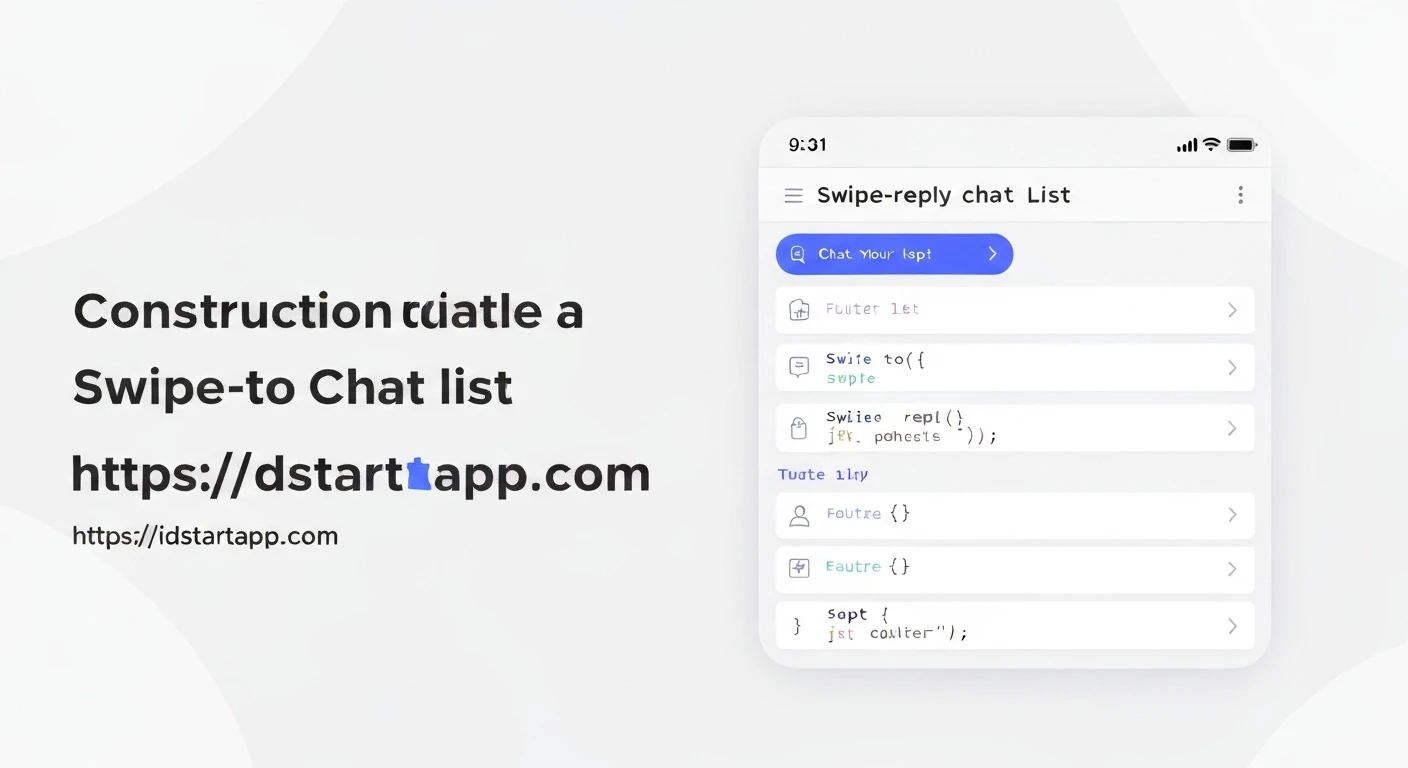

Building a Chat List Widget with Swipe Reply in Flutter
Modern chat applications frequently feature interactive elements that enhance user experience. One such popular feature is the ability to swipe on a message to initiate a reply, similar to popular messaging apps like WhatsApp or Telegram. This article provides a comprehensive guide on how to build a dynamic chat list widget with a swipe-to-reply mechanism using Flutter.
We will cover the essential components: defining a chat message model, creating individual chat bubbles, implementing the swipe gesture using Flutter's Dismissible widget, managing the reply state, and integrating an intelligent input field that adapts to the reply context.
1. Project Setup and Dependencies
First, create a new Flutter project:
flutter create chat_swipe_reply
cd chat_swipe_reply
No special dependencies are required beyond the default Flutter SDK.
2. Defining the Chat Message Model
To manage chat data effectively, we'll create a simple data model for our messages. This model will hold the sender's name, the message content, and a flag to determine if the message was sent by the current user.
// lib/models/chat_message.dart
class ChatMessage {
  final String sender;
  final String message;
  final bool isMe; // True if the message is from the current user

  ChatMessage({required this.sender, required this.message, required this.isMe});
}
3. Designing a Single Chat Bubble Widget
Next, let's create a widget to display a single chat message. This widget will handle the basic UI for a message, including alignment (left for others, right for the current user) and styling.
// lib/widgets/chat_message_widget.dart
import 'package:flutter/material.dart';

class ChatMessageWidget extends StatelessWidget {
  final String message;
  final bool isMe;

  const ChatMessageWidget({
    Key? key,
    required this.message,
    required this.isMe,
  }) : super(key: key);

  @override
  Widget build(BuildContext context) {
    return Align(
      alignment: isMe ? Alignment.centerRight : Alignment.centerLeft,
      child: Container(
        margin: const EdgeInsets.symmetric(vertical: 4.0, horizontal: 8.0),
        padding: const EdgeInsets.all(12.0),
        decoration: BoxDecoration(
          color: isMe ? Colors.blueAccent : Colors.grey[300],
          borderRadius: BorderRadius.circular(16.0),
        ),
        child: Text(
          message,
          style: TextStyle(
            color: isMe ? Colors.white : Colors.black,
          ),
        ),
      ),
    );
  }
}
4. Implementing Swipe-to-Reply with Dismissible
The core of the swipe-to-reply functionality lies in Flutter's Dismissible widget. We will wrap our ChatMessageWidget with Dismissible to detect swipe gestures and trigger a callback.
Create a new widget SwipeableChatMessage that encapsulates the Dismissible logic.
// lib/widgets/swipeable_chat_message.dart
import 'package:flutter/material.dart';
import 'package:chat_swipe_reply/models/chat_message.dart'; // Adjust import path
import 'package:chat_swipe_reply/widgets/chat_message_widget.dart'; // Adjust import path

class SwipeableChatMessage extends StatelessWidget {
  final ChatMessage message;
  final Function(ChatMessage) onSwipeRight;

  const SwipeableChatMessage({
    Key? key,
    required this.message,
    required this.onSwipeRight,
  }) : super(key: key);

  @override
  Widget build(BuildContext context) {
    return Dismissible(
      key: ValueKey(message.message + message.sender), // Unique key for Dismissible
      direction: DismissDirection.startToEnd, // Only allow swipe from left to right
      background: Container(
        color: Colors.green[100],
        alignment: Alignment.centerLeft,
        padding: const EdgeInsets.only(left: 20.0),
        child: const Icon(Icons.reply, color: Colors.green),
      ),
      onDismissed: (direction) {
        // This callback fires when the widget is fully dismissed.
        // For a swipe-to-reply, we typically just need the gesture to start/complete,
        // and not actually remove the item. We'll use this callback for simplicity
        // but in a real app, you might use an onTap callback on the background.
        if (direction == DismissDirection.startToEnd) {
          onSwipeRight(message);
        }
      },
      // You can also use onUpdate to get granular control during the swipe
      // onUpdate: (details) {
      //   if (details.reachedBoundary && details.direction == DismissDirection.startToEnd) {
      //     onSwipeRight(message);
      //     // Potentially "reset" the dismissible state here if you don't want it to actually dismiss
      //   }
      // },
      child: ChatMessageWidget(
        message: message.message,
        isMe: message.isMe,
      ),
    );
  }
}
5. Building the Main Chat List Screen
Now, let's assemble everything into a StatefulWidget that will manage the list of messages and the state of the reply context (i.e., which message is being replied to).
// lib/screens/chat_list_screen.dart
import 'package:flutter/material.dart';
import 'package:chat_swipe_reply/models/chat_message.dart'; // Adjust import path
import 'package:chat_swipe_reply/widgets/swipeable_chat_message.dart'; // Adjust import path

class ChatListScreen extends StatefulWidget {
  const ChatListScreen({Key? key}) : super(key: key);

  @override
  State createState() => _ChatListScreenState();
}

class _ChatListScreenState extends State {
  final List _messages = [
    ChatMessage(sender: 'Alice', message: 'Hey there!', isMe: false),
    ChatMessage(sender: 'Me', message: 'Hello Alice!', isMe: true),
    ChatMessage(sender: 'Alice', message: 'How are you doing?', isMe: false),
    ChatMessage(sender: 'Me', message: 'I\'m great, thanks!', isMe: true),
    ChatMessage(sender: 'Alice', message: 'Good to hear!', isMe: false),
    ChatMessage(sender: 'Me', message: 'What about you?', isMe: true),
    ChatMessage(sender: 'Alice', message: 'I\'m doing fantastic! Just finished a big project.', isMe: false),
    ChatMessage(sender: 'Me', message: 'Oh, that\'s awesome! Congratulations!', isMe: true),
  ];

  ChatMessage? _replyToMessage;
  final TextEditingController _textController = TextEditingController();
  final ScrollController _scrollController = ScrollController();

  void _handleMessageSend() {
    if (_textController.text.isNotEmpty) {
      setState(() {
        _messages.add(
          ChatMessage(
            sender: 'Me',
            message: (_replyToMessage != null ? 'Replying to "${_replyToMessage!.message}": ' : '') + _textController.text,
            isMe: true,
          ),
        );
        _textController.clear();
        _replyToMessage = null; // Clear reply context after sending
      });
      _scrollToBottom();
    }
  }

  void _scrollToBottom() {
    WidgetsBinding.instance.addPostFrameCallback((_) {
      if (_scrollController.hasClients) {
        _scrollController.animateTo(
          _scrollController.position.maxScrollExtent,
          duration: const Duration(milliseconds: 300),
          curve: Curves.easeOut,
        );
      }
    });
  }

  void _clearReplyContext() {
    setState(() {
      _replyToMessage = null;
    });
  }

  @override
  Widget build(BuildContext context) {
    return Scaffold(
      appBar: AppBar(
        title: const Text('Chat List with Swipe Reply'),
      ),
      body: Column(
        children: [
          Expanded(
            child: ListView.builder(
              controller: _scrollController,
              itemCount: _messages.length,
              itemBuilder: (context, index) {
                final message = _messages[index];
                return SwipeableChatMessage(
                  message: message,
                  onSwipeRight: (swipedMessage) {
                    setState(() {
                      _replyToMessage = swipedMessage;
                    });
                    // Immediately request focus on the text field after swipe
                    FocusScope.of(context).requestFocus(FocusNode());
                  },
                );
              },
            ),
          ),
          // Reply preview widget
          if (_replyToMessage != null)
            Container(
              padding: const EdgeInsets.symmetric(horizontal: 12.0, vertical: 8.0),
              color: Colors.blue.shade50,
              child: Row(
                children: [
                  const Icon(Icons.reply, size: 20.0, color: Colors.blue),
                  const SizedBox(width: 8.0),
                  Expanded(
                    child: Text(
                      'Replying to: "${_replyToMessage!.message}"',
                      style: const TextStyle(fontStyle: FontStyle.italic, color: Colors.blueGrey),
                      maxLines: 1,
                      overflow: TextOverflow.ellipsis,
                    ),
                  ),
                  IconButton(
                    icon: const Icon(Icons.close, size: 18.0, color: Colors.blueGrey),
                    onPressed: _clearReplyContext,
                  ),
                ],
              ),
            ),
          // Message input field
          Padding(
            padding: const EdgeInsets.all(8.0),
            child: Row(
              children: [
                Expanded(
                  child: TextField(
                    controller: _textController,
                    decoration: InputDecoration(
                      hintText: 'Type a message...',
                      border: OutlineInputBorder(
                        borderRadius: BorderRadius.circular(25.0),
                        borderSide: BorderSide.none,
                      ),
                      filled: true,
                      fillColor: Colors.grey[200],
                      contentPadding: const EdgeInsets.symmetric(horizontal: 16.0, vertical: 10.0),
                    ),
                    onSubmitted: (_) => _handleMessageSend(),
                    keyboardType: TextInputType.multiline,
                    maxLines: null,
                    textCapitalization: TextCapitalization.sentences,
                  ),
                ),
                const SizedBox(width: 8.0),
                FloatingActionButton(
                  mini: true,
                  onPressed: _handleMessageSend,
                  backgroundColor: Colors.blueAccent,
                  child: const Icon(Icons.send, color: Colors.white),
                ),
              ],
            ),
          ),
        ],
      ),
    );
  }
}
6. Running the Application
Finally, update your main.dart file to run the ChatListScreen.
// lib/main.dart
import 'package:flutter/material.dart';
import 'package:chat_swipe_reply/screens/chat_list_screen.dart'; // Adjust import path

void main() {
  runApp(const MyApp());
}

class MyApp extends StatelessWidget {
  const MyApp({Key? key}) : super(key: key);

  @override
  Widget build(BuildContext context) {
    return MaterialApp(
      title: 'Chat App',
      theme: ThemeData(
        primarySwatch: Colors.blue,
        visualDensity: VisualDensity.adaptivePlatformDensity,
      ),
      home: const ChatListScreen(),
    );
  }
}
Conclusion
By following these steps, you have successfully built a Flutter chat list widget with a modern swipe-to-reply feature. The use of Dismissible for gesture detection, combined with a clear state management approach for the reply context, provides a fluid and intuitive user experience. This foundation can be further extended with features like message timestamps, user avatars, real-time message updates, and more sophisticated UI animations to create a fully-fledged chat application.