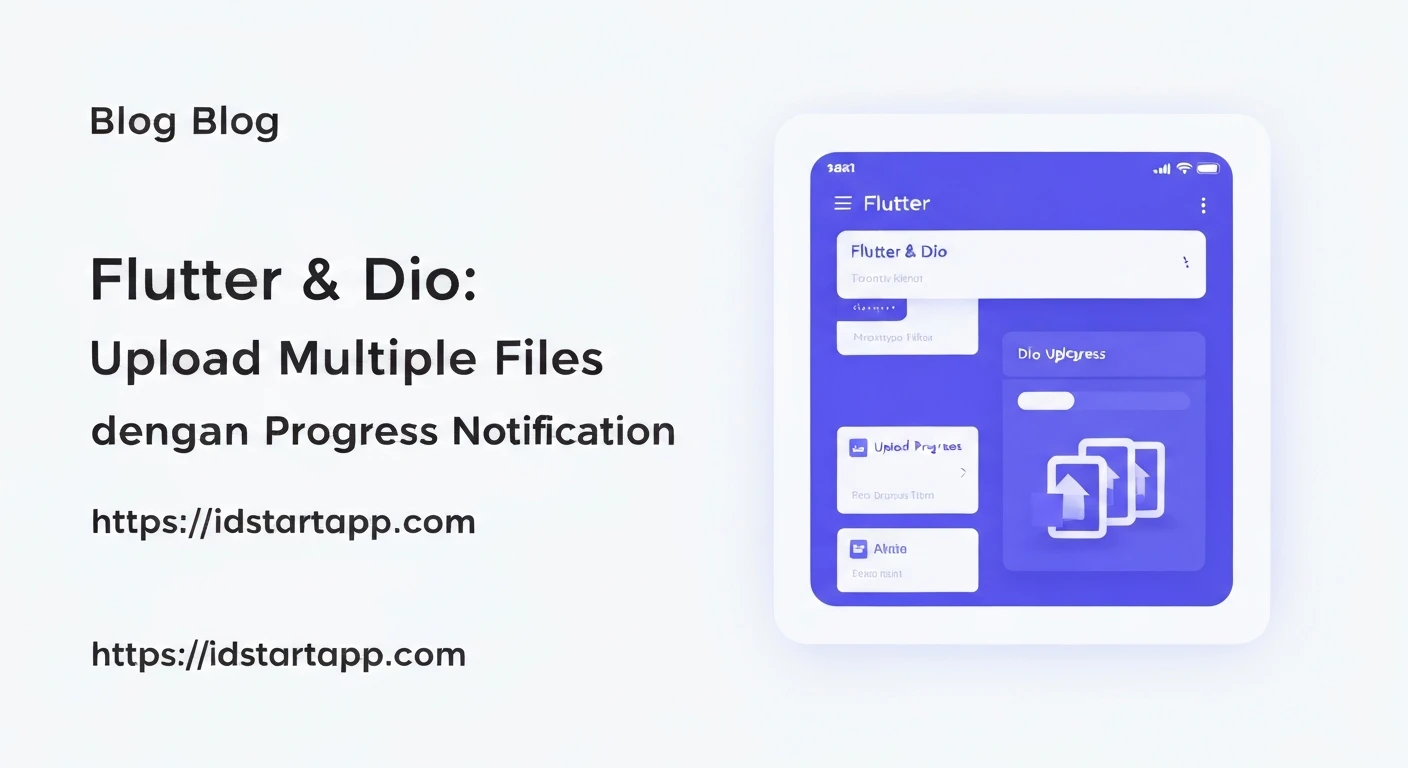

Flutter & Dio: Uploading Multiple Files with Progress Notification
In modern mobile applications, handling file uploads is a common requirement. Whether it's uploading images, documents, or videos, users expect a smooth and informative experience. When dealing with multiple files, especially large ones, providing real-time progress updates becomes crucial for a good user experience. This article will guide you through implementing multiple file uploads in Flutter using the powerful Dio HTTP client, complete with progress notification.
Why Flutter, Dio, and Progress Notification?
- Flutter: A versatile UI toolkit for building natively compiled applications for mobile, web, and desktop from a single codebase.
- Dio: A robust HTTP client for Dart that supports interceptors,
FormData, request cancellation, and most importantly for this topic,onSendProgressandonReceiveProgresscallbacks. - Progress Notification: Essential for user experience. It informs users that the upload is in progress, preventing frustration and unnecessary retries, especially for large files or slow network conditions.
Prerequisites
Before diving into the code, ensure you have:
- Flutter SDK installed and configured.
- A basic understanding of Flutter widgets and state management.
- A backend endpoint capable of receiving multiple file uploads (e.g., using Node.js with Multer, Python with Flask, or PHP). For simplicity, we'll focus on the Flutter client-side implementation.
Adding Dependencies
First, add the necessary packages to your pubspec.yaml file:
dependencies:
  flutter:
    sdk: flutter
  dio: ^5.0.0 # Use the latest stable version
  file_picker: ^6.1.1 # For selecting files
  path: ^1.8.3 # Often useful for path manipulation
  http_parser: ^4.0.2 # Used internally by Dio for multipart handling
Run flutter pub get to fetch the packages.
Backend Considerations (Briefly)
Your backend should be configured to accept multipart/form-data requests with multiple files. For instance, if you're using Node.js with Express and Multer, your setup might look like this:
// Example Node.js (Express with Multer) server snippet
const express = require('express');
const multer = require('multer');
const app = express();
const upload = multer({ dest: 'uploads/' }); // Files will be stored in 'uploads/'

app.post('/upload-multiple', upload.array('files', 10), (req, res) => {
  // 'files' is the field name used in FormData
  // 10 is the maximum number of files allowed
  console.log(req.files); // Array of file objects
  res.status(200).json({ message: 'Files uploaded successfully!', files: req.files.map(f => f.filename) });
});

app.listen(3000, () => console.log('Server running on port 3000'));
Note the field name 'files' – this is what we'll use in our Flutter app when constructing the FormData.
Flutter Implementation
1. File Selection
We'll use the file_picker package to allow users to select multiple files from their device.
import 'package:file_picker/file_picker.dart';
import 'dart:io';

List<File> _selectedFiles = [];

Future<void> _pickFiles() async {
  FilePickerResult? result = await FilePicker.platform.pickFiles(
    allowMultiple: true,
    type: FileType.custom,
    allowedExtensions: ['jpg', 'png', 'pdf', 'doc', 'mp4'], // Customize as needed
  );

  if (result != null) {
    setState(() {
      _selectedFiles = result.files.map((file) => File(file.path!)).toList();
    });
  } else {
    // User canceled the picker
  }
}
2. Building FormData for Multiple Files
The core of sending multiple files with Dio is constructing a FormData object. Each file needs to be wrapped in a MultipartFile, and then added to the FormData with the appropriate field name (matching your backend's expectation, e.g., 'files').
import 'package:dio/dio.dart';
import 'dart:io';
import 'package:path/path.dart' as path; // for path.basename

Future<FormData> _buildFormData(List<File> files) async {
  FormData formData = FormData();
  for (File file in files) {
    formData.files.add(
      MapEntry(
        "files", // This must match the backend's expected field name (e.g., 'files' in multer.array('files', ...))
        await MultipartFile.fromFile(
          file.path,
          filename: path.basename(file.path),
        ),
      ),
    );
  }
  // You can also add other fields if needed, e.g.:
  // formData.fields.add(MapEntry("description", "Upload from Flutter app"));
  return formData;
}
3. Uploading Files with Progress Notification
Dio provides an onSendProgress callback that gives you the number of bytes sent and the total number of bytes. We can use this to calculate and display the upload progress.
import 'package:dio/dio.dart';
import 'dart:async'; // For StreamController

class FileUploader {
  final Dio _dio = Dio();
  final String _baseUrl = 'http://10.0.2.2:3000'; // Replace with your backend URL
                                                // Use 10.0.2.2 for Android emulator to access localhost

  // StreamController to broadcast progress updates
  final _progressController = StreamController<double>.broadcast();
  Stream<double> get uploadProgress => _progressController.stream;

  Future<void> uploadFiles(List<File> files) async {
    if (files.isEmpty) {
      _progressController.add(0.0); // Reset progress if no files
      return;
    }

    try {
      FormData formData = FormData();
      for (File file in files) {
        formData.files.add(
          MapEntry(
            "files", // Field name matching backend
            await MultipartFile.fromFile(
              file.path,
              filename: path.basename(file.path),
            ),
          ),
        );
      }

      Response response = await _dio.post(
        '$_baseUrl/upload-multiple', // Your upload endpoint
        data: formData,
        onSendProgress: (int sent, int total) {
          double progress = sent / total;
          _progressController.add(progress); // Emit progress
          print('Upload progress: ${ (progress * 100).toStringAsFixed(0) }%');
        },
      );

      if (response.statusCode == 200) {
        print('Files uploaded successfully: ${response.data}');
        _progressController.add(1.0); // Indicate completion
      } else {
        print('Upload failed with status: ${response.statusCode}');
        _progressController.addError('Upload failed: ${response.statusMessage}');
      }
    } catch (e) {
      print('Error during upload: $e');
      _progressController.addError('Error during upload: $e');
    }
  }

  void dispose() {
    _progressController.close();
  }
}
4. Integrating into a Flutter Widget (UI)
Now, let's put it all together in a StatefulWidget to display the selected files and the upload progress.
import 'package:flutter/material.dart';
import 'dart:io';
import 'package:file_picker/file_picker.dart';
import 'package:path/path.dart' as path; // Ensure this is imported for basename
// Assuming FileUploader class is in 'file_uploader.dart'
import 'file_uploader.dart';

class MultiFileUploadScreen extends StatefulWidget {
  const MultiFileUploadScreen({super.key});

  @override
  State<MultiFileUploadScreen> createState() => _MultiFileUploadScreenState();
}

class _MultiFileUploadScreenState extends State<MultiFileUploadScreen> {
  List<File> _selectedFiles = [];
  final FileUploader _uploader = FileUploader();
  double _uploadProgress = 0.0;
  String _uploadStatus = "Idle";
  bool _isUploading = false;

  @override
  void initState() {
    super.initState();
    _uploader.uploadProgress.listen((progress) {
      setState(() {
        _uploadProgress = progress;
        _uploadStatus = "Uploading: ${ (progress * 100).toStringAsFixed(0) }%";
        if (progress >= 1.0) {
          _uploadStatus = "Upload Complete!";
          _isUploading = false;
        }
      });
    }, onError: (error) {
      setState(() {
        _uploadStatus = "Upload Error: $error";
        _isUploading = false;
      });
    });
  }

  @override
  void dispose() {
    _uploader.dispose();
    super.dispose();
  }

  Future<void> _pickFiles() async {
    FilePickerResult? result = await FilePicker.platform.pickFiles(
      allowMultiple: true,
      type: FileType.any, // Or customize with allowedExtensions
    );

    if (result != null) {
      setState(() {
        _selectedFiles = result.files.map((file) => File(file.path!)).toList();
        _uploadProgress = 0.0; // Reset progress on new selection
        _uploadStatus = "${_selectedFiles.length} file(s) selected.";
      });
    } else {
      // User canceled the picker
      setState(() {
        _uploadStatus = "File selection canceled.";
      });
    }
  }

  Future<void> _uploadSelectedFiles() async {
    if (_selectedFiles.isEmpty) {
      setState(() {
        _uploadStatus = "No files to upload.";
      });
      return;
    }
    setState(() {
      _isUploading = true;
      _uploadStatus = "Starting upload...";
      _uploadProgress = 0.0;
    });
    await _uploader.uploadFiles(_selectedFiles);
  }

  @override
  Widget build(BuildContext context) {
    return Scaffold(
      appBar: AppBar(
        title: const Text('Multi File Upload'),
      ),
      body: Padding(
        padding: const EdgeInsets.all(16.0),
        child: Column(
          crossAxisAlignment: CrossAxisAlignment.stretch,
          children: [
            ElevatedButton(
              onPressed: _pickFiles,
              child: const Text('Select Files'),
            ),
            const SizedBox(height: 20),
            Text(
              _uploadStatus,
              style: const TextStyle(fontSize: 16),
            ),
            if (_selectedFiles.isNotEmpty && _uploadProgress < 1.0)
              const SizedBox(height: 10),
            if (_isUploading || _uploadProgress > 0)
              LinearProgressIndicator(
                value: _uploadProgress,
                backgroundColor: Colors.grey[300],
                valueColor: const AlwaysStoppedAnimation<Color>(Colors.blue),
              ),
            const SizedBox(height: 20),
            Expanded(
              child: _selectedFiles.isEmpty
                  ? const Center(child: Text('No files selected.'))
                  : ListView.builder(
                      itemCount: _selectedFiles.length,
                      itemBuilder: (context, index) {
                        return ListTile(
                          title: Text(path.basename(_selectedFiles[index].path)),
                          leading: const Icon(Icons.insert_drive_file),
                        );
                      },
                    ),
            ),
            ElevatedButton(
              onPressed: _isUploading ? null : _uploadSelectedFiles,
              style: ElevatedButton.styleFrom(
                padding: const EdgeInsets.symmetric(vertical: 15),
              ),
              child: _isUploading
                  ? const CircularProgressIndicator(color: Colors.white)
                  : const Text('Upload Selected Files'),
            ),
          ],
        ),
      ),
    );
  }
}
Security Considerations
- Server-side Validation: Always validate file types, sizes, and content on the server. Never trust client-side validation alone.
- Authentication & Authorization: Ensure only authorized users can upload files.
- File Naming: Sanitize filenames to prevent path traversal or other injection attacks. Consider storing files with unique, generated names.
- CORS: If your Flutter app is on a different domain/port than your backend, you'll need to configure Cross-Origin Resource Sharing (CORS) on your server.
Conclusion
Uploading multiple files with progress notification in Flutter using Dio is a straightforward process once you understand how to construct FormData and utilize the onSendProgress callback. By providing real-time feedback, you significantly enhance the user experience, making your applications more robust and user-friendly. Remember to always prioritize server-side validation for security.