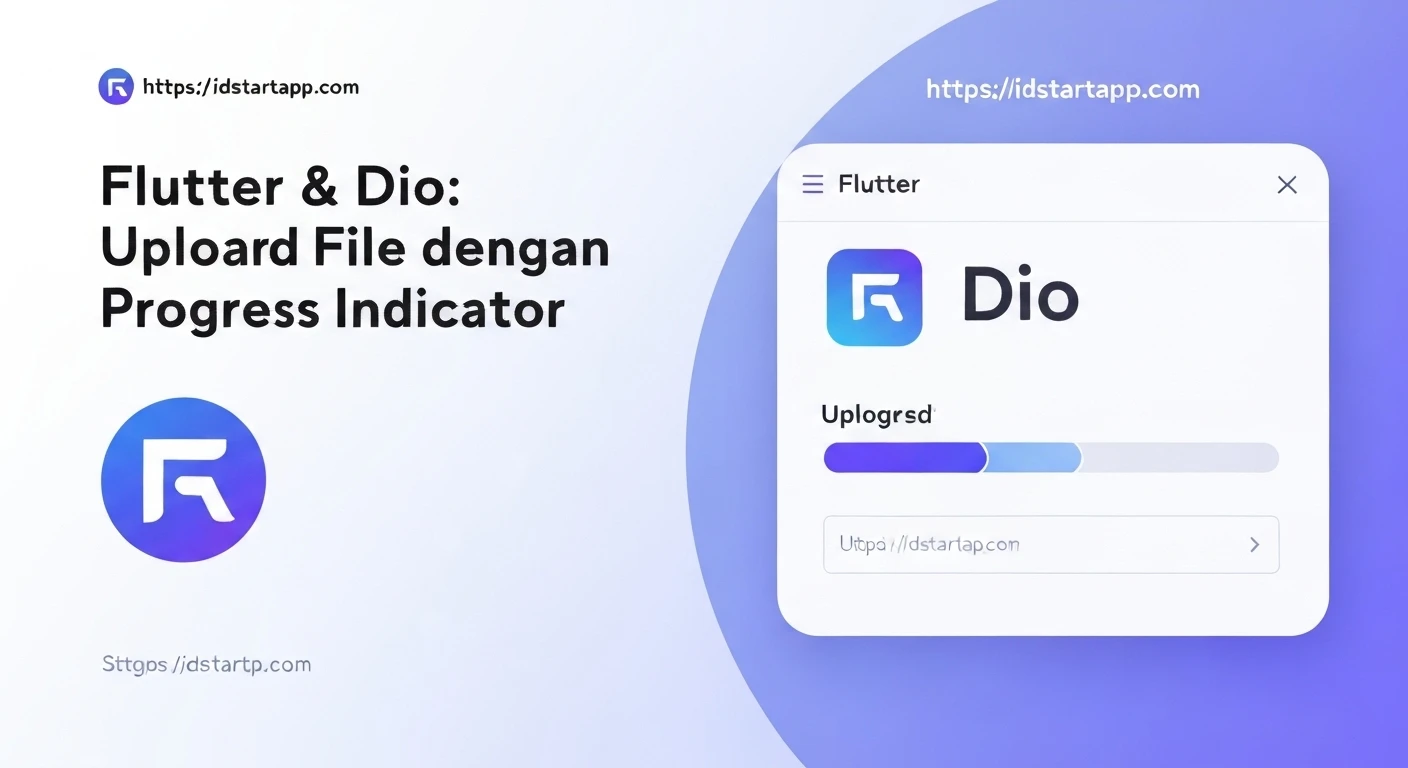

Flutter & Dio: Uploading Files with Progress Indicators
File uploading is a common requirement in many mobile applications, from profile picture updates to document sharing. A crucial aspect of a good user experience during file uploads is providing real-time feedback through a progress indicator. This article will guide you through implementing file uploads in Flutter using the powerful Dio HTTP client, complete with a progress indicator.
Dio is a popular and robust HTTP client for Dart and Flutter. It supports interceptors, global configuration, FormData, request cancellation, file uploading, and downloading with progress, making it an excellent choice for network operations.
Prerequisites
- Basic understanding of Flutter and Dart.
- Flutter SDK installed and configured.
- A running backend server that can handle multipart/form-data file uploads.
1. Setting Up Dio and File Picker
First, add the dio and file_picker (or image_picker if you only need images) packages to your pubspec.yaml file:
dependencies:
  flutter:
    sdk: flutter
  dio: ^5.0.0 # Use the latest version
  file_picker: ^6.0.0 # Use the latest version
Run flutter pub get to install the packages.
2. Understanding File Uploads with Dio
Dio handles file uploads using FormData and MultipartFile.
-
MultipartFile.fromFile(): This creates a multipart file from a file path. It automatically infers the content type and filename. -
FormData.fromMap(): This constructs the request body for multipart/form-data. You can add regular fields (like strings) andMultipartFileobjects to it. -
onSendProgressCallback: Dio's request methods (likepost,put) provide anonSendProgresscallback. This callback takes two integer arguments:sent(bytes sent so far) andtotal(total bytes to send). This is what we'll use to update our progress indicator.
3. Implementing the File Upload Service
Let's create a simple Flutter screen that allows users to pick a file and upload it, showing the progress.
Initialize Dio, for example, globally or within your stateful widget:
final Dio _dio = Dio();
4. Building the UI and Upload Logic
Below is a complete example of a Flutter StatefulWidget that handles file selection, displays upload progress, and triggers the upload.
import 'dart:io';
import 'package:flutter/material.dart';
import 'package:dio/dio.dart';
import 'package:file_picker/file_picker.dart';

class FileUploadScreen extends StatefulWidget {
  @override
  _FileUploadScreenState createState() => _FileUploadScreenState();
}

class _FileUploadScreenState extends State<FileUploadScreen> {
  File? _selectedFile;
  double _progress = 0.0;
  final Dio _dio = Dio(); // Initialize Dio instance

  // Replace with your actual server upload URL
  final String _uploadUrl = "YOUR_SERVER_UPLOAD_URL";

  Future<void> _pickFile() async {
    FilePickerResult? result = await FilePicker.platform.pickFiles();

    if (result != null) {
      setState(() {
        _selectedFile = File(result.files.single.path!);
        _progress = 0.0; // Reset progress when a new file is picked
      });
    } else {
      // User canceled the picker
      print("User canceled the file picker");
    }
  }

  Future<void> _uploadFile() async {
    if (_selectedFile == null) {
      _showMessage("Please select a file first.");
      return;
    }

    String fileName = _selectedFile!.path.split('/').last;
    FormData formData = FormData.fromMap({
      "file": await MultipartFile.fromFile(
        _selectedFile!.path,
        filename: fileName,
      ),
      "folder": "flutter_uploads", // Example of an additional field
    });

    try {
      Response response = await _dio.post(
        _uploadUrl,
        data: formData,
        onSendProgress: (int sent, int total) {
          setState(() {
            _progress = sent / total;
          });
          print("Upload progress: ${(_progress * 100).toStringAsFixed(0)}%");
        },
      );

      _showMessage("File uploaded successfully: ${response.data}");
      print("Server response: ${response.data}");

      // Reset after successful upload
      setState(() {
        _selectedFile = null;
        _progress = 0.0;
      });

    } on DioException catch (e) {
      String errorMessage = "Error uploading file: ${e.message}";
      if (e.response != null) {
        errorMessage += "\nServer response: ${e.response!.data}";
      }
      _showMessage(errorMessage);
      print(errorMessage);
    } catch (e) {
      _showMessage("An unexpected error occurred: $e");
      print("An unexpected error occurred: $e");
    }
  }

  void _showMessage(String message) {
    ScaffoldMessenger.of(context).showSnackBar(
      SnackBar(content: Text(message)),
    );
  }

  @override
  Widget build(BuildContext context) {
    return Scaffold(
      appBar: AppBar(
        title: Text("File Upload with Progress"),
      ),
      body: Padding(
        padding: const EdgeInsets.all(16.0),
        child: Column(
          mainAxisAlignment: MainAxisAlignment.center,
          children: [
            _selectedFile == null
                ? Text("No file selected", style: TextStyle(fontSize: 16))
                : Text(
                    "Selected file: ${_selectedFile!.path.split('/').last}",
                    style: TextStyle(fontSize: 16),
                    textAlign: TextAlign.center,
                  ),
            SizedBox(height: 30),
            ElevatedButton.icon(
              onPressed: _pickFile,
              icon: Icon(Icons.folder_open),
              label: Text("Pick File"),
            ),
            SizedBox(height: 30),
            LinearProgressIndicator(
              value: _progress,
              backgroundColor: Colors.grey[300],
              valueColor: AlwaysStoppedAnimation<Color>(Colors.blue),
            ),
            SizedBox(height: 10),
            Text(
              "Upload Progress: ${(_progress * 100).toStringAsFixed(0)}%",
              style: TextStyle(fontSize: 16),
            ),
            SizedBox(height: 30),
            ElevatedButton.icon(
              onPressed: _selectedFile != null && _progress == 0.0
                  ? _uploadFile
                  : null, // Disable button while uploading or if no file
              icon: Icon(Icons.cloud_upload),
              label: Text("Upload File"),
              style: ElevatedButton.styleFrom(
                padding: EdgeInsets.symmetric(horizontal: 40, vertical: 15),
              ),
            ),
          ],
        ),
      ),
    );
  }
}
Explanation of the Code:
-
_selectedFile: AFileobject to store the file picked by the user. -
_progress: Adoublevalue (from 0.0 to 1.0) to represent the upload progress. -
_dio: An instance of the Dio client. -
_pickFile(): UsesFilePicker.platform.pickFiles()to let the user select a file. Once a file is selected,_selectedFileis updated, and_progressis reset. -
_uploadFile():- Checks if a file has been selected.
- Creates a
FormDataobject. It usesMultipartFile.fromFile()to add the selected file and can include other form fields (e.g.,"folder": "flutter_uploads"). - Calls
_dio.post()with the_uploadUrlandformData. - The
onSendProgresscallback is crucial. It updates the_progressvariable usingsetState(), which rebuilds the UI and updates theLinearProgressIndicatorand the progress text. - Error handling for
DioException(Dio's specific error type) and general exceptions is included for robustness. - After a successful upload, the selected file and progress are reset.
-
UI Elements:
Textwidgets show whether a file is selected and the current progress percentage.ElevatedButtonfor "Pick File" and "Upload File" actions. The "Upload File" button is disabled if no file is selected or if an upload is already in progress.LinearProgressIndicatorvisually displays the upload progress based on the_progressvalue.
5. Server-Side Considerations
The backend server must be configured to accept multipart/form-data requests. For example:
-
Node.js (Express with Multer):
const express = require('express'); const multer = require('multer'); const app = express(); const upload = multer({ dest: 'uploads/' }); app.post('/upload', upload.single('file'), (req, res) => { if (!req.file) { return res.status(400).send('No file uploaded.'); } console.log('File uploaded:', req.file); console.log('Folder field:', req.body.folder); // Access other fields res.send('File uploaded successfully!'); }); app.listen(3000, () => console.log('Server started on port 3000')); -
Python (Flask with Werkzeug):
from flask import Flask, request
from werkzeug.utils import secure_filename
import os

app = Flask(__name__)
UPLOAD_FOLDER = 'uploads'
app.config['UPLOAD_FOLDER'] = UPLOAD_FOLDER

if not os.path.exists(UPLOAD_FOLDER):
    os.makedirs(UPLOAD_FOLDER)

@app.route('/upload', methods=['POST'])
def upload_file():
    if 'file' not in request.files:
        return 'No file part', 400
    file = request.files['file']
    if file.filename == '':
        return 'No selected file', 400
    if file:
        filename = secure_filename(file.filename)
        file.save(os.path.join(app.config['UPLOAD_FOLDER'], filename))
        folder_field = request.form.get('folder') # Access other fields
        print(f"File uploaded: {filename}")
        print(f"Folder field: {folder_field}")
        return 'File uploaded successfully', 200
    return 'Something went wrong', 500

if __name__ == '__main__':
    app.run(debug=True, port=3000)
Remember to replace "YOUR_SERVER_UPLOAD_URL" in the Flutter code with the actual URL of your backend's upload endpoint (e.g., http://localhost:3000/upload if running locally).
Conclusion
By leveraging Dio's FormData and the onSendProgress callback, implementing robust file uploads with clear progress indicators in Flutter is straightforward. This approach greatly enhances the user experience by providing immediate visual feedback, making your applications feel more responsive and professional. Always ensure proper error handling and communicate relevant messages to the user for a smooth interaction.