
Creating Dynamic Notification Toast Widgets in Flutter
Introduction
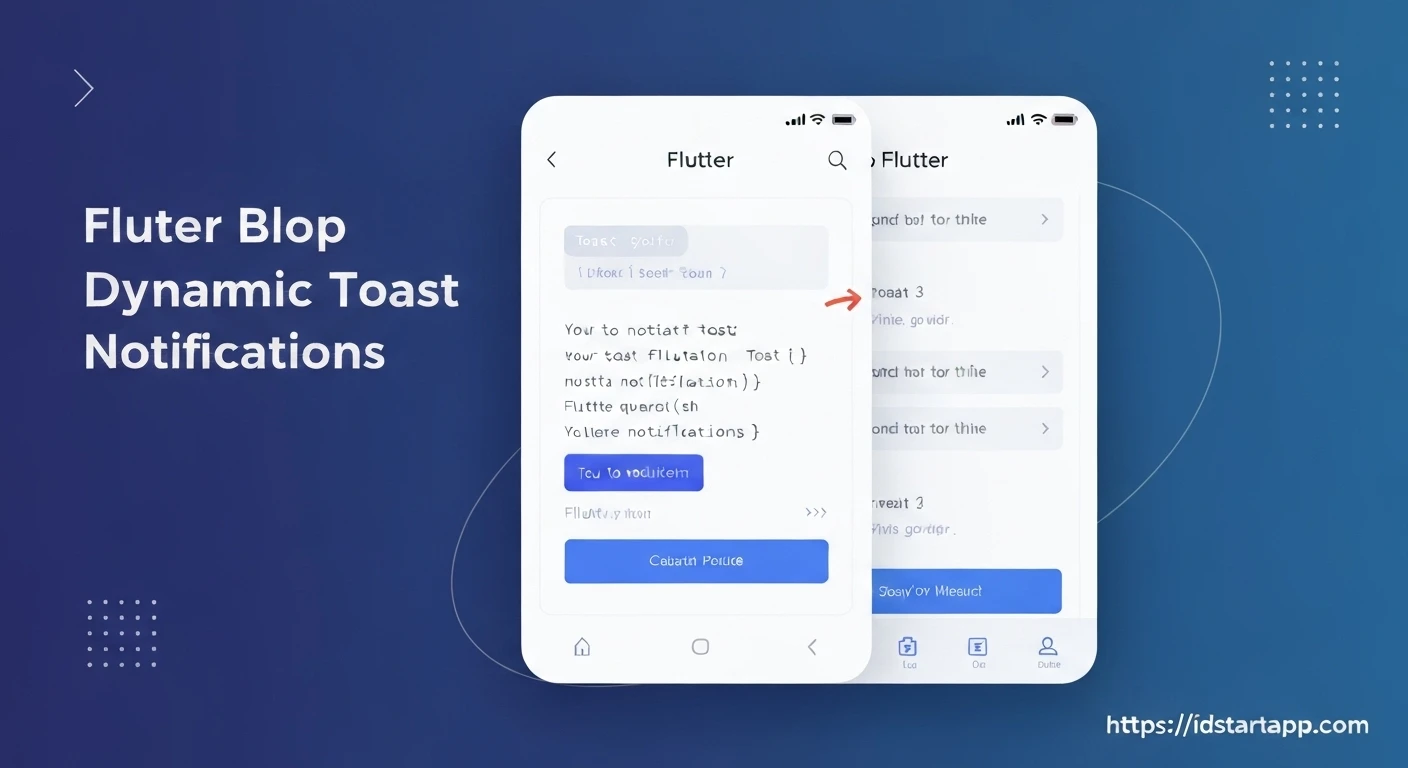
In modern mobile applications, providing immediate feedback to users is crucial for a smooth and intuitive experience. Notification toast widgets are a popular UI pattern used to display brief, non-intrusive messages, such as "Item added to cart," "Login successful," or "Network error." While Flutter offers robust ways to build UIs, creating a truly dynamic and reusable notification toast system requires a good understanding of its overlay capabilities and state management.
This article will guide you through the process of building a dynamic notification toast widget in Flutter. We'll cover everything from the basic widget structure and utilizing Flutter's overlay system to adding animations and implementing a service to manage multiple toasts effectively from anywhere in your application.
Understanding Flutter's Overlay System
Flutter's
OverlayOverlayEntryOverlayOverlayEntryOverlayEntryThis system allows our toast notifications to appear on top of any other widgets in the application without interfering with the existing widget layout or requiring us to pass contexts deep down the widget tree.
Designing the Notification Toast Widget
First, let's define the visual appearance and dynamic properties of our toast notification. We'll want to display different types of messages (e.g., success, error, info) and customize their appearance accordingly.
We'll start by defining an enum for notification types and a simple
StatelessWidget
import 'package:flutter/material.dart';

enum NotificationType {
  success,
  error,
  info,
}

class NotificationToast extends StatelessWidget {
  final String message;
  final NotificationType type;

  const NotificationToast({
    Key? key,
    required this.message,
    this.type = NotificationType.info,
  }) : super(key: key);

  Color _getBackgroundColor() {
    switch (type) {
      case NotificationType.success:
        return Colors.green;
      case NotificationType.error:
        return Colors.red;
      case NotificationType.info:
        return Colors.blue;
    }
  }

  IconData _getIconData() {
    switch (type) {
      case NotificationType.success:
        return Icons.check_circle_outline;
      case NotificationType.error:
        return Icons.error_outline;
      case NotificationType.info:
        return Icons.info_outline;
    }
  }

  @override
  Widget build(BuildContext context) {
    return Material(
      color: Colors.transparent, // Important for showing the curved corners
      child: Container(
        margin: const EdgeInsets.symmetric(horizontal: 20, vertical: 10),
        padding: const EdgeInsets.all(12),
        decoration: BoxDecoration(
          color: _getBackgroundColor(),
          borderRadius: BorderRadius.circular(10),
          boxShadow: [
            BoxShadow(
              color: Colors.black.withOpacity(0.2),
              spreadRadius: 2,
              blurRadius: 5,
              offset: const Offset(0, 3),
            ),
          ],
        ),
        child: Row(
          mainAxisSize: MainAxisSize.min,
          children: [
            Icon(
              _getIconData(),
              color: Colors.white,
            ),
            const SizedBox(width: 10),
            Flexible(
              child: Text(
                message,
                style: const TextStyle(
                  color: Colors.white,
                  fontSize: 16,
                ),
                overflow: TextOverflow.ellipsis,
                maxLines: 2,
              ),
            ),
          ],
        ),
      ),
    );
  }
}
Implementing the Toast Service
To make our toasts truly dynamic and easily accessible throughout the app, we'll create a
ToastServiceOverlayEntryWe'll use a singleton pattern for the service, allowing us to call its methods from any part of the widget tree without needing to pass a
BuildContext
import 'dart:async';
import 'package:flutter/material.dart';

class ToastService {
  static final ToastService _instance = ToastService._internal();

  factory ToastService() {
    return _instance;
  }

  ToastService._internal();

  OverlayEntry? _overlayEntry;
  Timer? _hideTimer;
  BuildContext? _currentContext; // Store context to access OverlayState

  /// Initializes the ToastService with the app's root context.
  /// This should be called once, typically in MyApp's build method or a SplashScreen.
  void init(BuildContext context) {
    _currentContext = context;
  }

  void showToast({
    required String message,
    NotificationType type = NotificationType.info,
    Duration duration = const Duration(seconds: 3),
  }) {
    if (_currentContext == null) {
      debugPrint("ToastService not initialized. Call init() first.");
      return;
    }

    // Dismiss any existing toast before showing a new one
    hideToast();

    _overlayEntry = OverlayEntry(
      builder: (context) => Positioned(
        top: MediaQuery.of(context).padding.top + 10, // Position below status bar
        left: 0,
        right: 0,
        child: Align(
          alignment: Alignment.topCenter,
          child: NotificationToast(
            message: message,
            type: type,
          ),
        ),
      ),
    );

    Overlay.of(_currentContext!).insert(_overlayEntry!);

    _hideTimer = Timer(duration, () {
      hideToast();
    });
  }

  void hideToast() {
    _hideTimer?.cancel();
    if (_overlayEntry != null) {
      _overlayEntry!.remove();
      _overlayEntry = null;
    }
  }
}
To use the
ToastServiceBuildContextOverlayMyAppbuild
// In your main.dart or app entry point
import 'package:flutter/material.dart';
import 'package:your_app_name/toast_service.dart'; // Assuming your service file path

void main() {
  runApp(const MyApp());
}

class MyApp extends StatefulWidget {
  const MyApp({Key? key}) : super(key: key);

  @override
  State createState() => _MyAppState();
}

class _MyAppState extends State {
  @override
  void initState() {
    super.initState();
    WidgetsBinding.instance.addPostFrameCallback((_) {
      // Initialize the ToastService after the first frame is built
      ToastService().init(context);
    });
  }

  @override
  Widget build(BuildContext context) {
    return MaterialApp(
      title: 'Dynamic Toast Demo',
      theme: ThemeData(
        primarySwatch: Colors.blue,
      ),
      home: const HomePage(),
    );
  }
}

class HomePage extends StatelessWidget {
  const HomePage({Key? key}) : super(key: key);

  @override
  Widget build(BuildContext context) {
    return Scaffold(
      appBar: AppBar(
        title: const Text('Dynamic Toast Demo'),
      ),
      body: Center(
        child: Column(
          mainAxisAlignment: MainAxisAlignment.center,
          children: [
            ElevatedButton(
              onPressed: () {
                ToastService().showToast(
                  message: 'Login successful!',
                  type: NotificationType.success,
                );
              },
              child: const Text('Show Success Toast'),
            ),
            const SizedBox(height: 20),
            ElevatedButton(
              onPressed: () {
                ToastService().showToast(
                  message: 'Please check your internet connection.',
                  type: NotificationType.error,
                  duration: const Duration(seconds: 5),
                );
              },
              child: const Text('Show Error Toast'),
            ),
            const SizedBox(height: 20),
            ElevatedButton(
              onPressed: () {
                ToastService().showToast(
                  message: 'A new update is available.',
                  type: NotificationType.info,
                );
              },
              child: const Text('Show Info Toast'),
            ),
          ],
        ),
      ),
    );
  }
}
Adding Animation to Toasts
A static toast appearing instantly can feel jarring. Let's add some smooth slide-in and fade-out animations to our toast notifications. We'll wrap our
NotificationToastAnimatedBuilderAnimationControllerWe'll need to modify the
ToastService
// Modify ToastService
class ToastService {
  // ... existing fields ...

  AnimationController? _animationController;

  void showToast({
    required String message,
    NotificationType type = NotificationType.info,
    Duration duration = const Duration(seconds: 3),
    Curve enterCurve = Curves.easeOutBack,
    Curve exitCurve = Curves.easeInQuad,
  }) {
    if (_currentContext == null) {
      debugPrint("ToastService not initialized. Call init() first.");
      return;
    }

    hideToast(); // Dismiss any existing toast

    _animationController = AnimationController(
      vsync: Navigator.of(_currentContext!).overlay!, // Use the OverlayState as TickerProvider
      duration: const Duration(milliseconds: 300),
      reverseDuration: const Duration(milliseconds: 200),
    );

    final Animation offsetAnimation = Tween(
      begin: const Offset(0, -1), // Start from above
      end: Offset.zero,
    ).animate(CurvedAnimation(parent: _animationController!, curve: enterCurve));

    final Animation fadeAnimation = Tween(
      begin: 0.0,
      end: 1.0,
    ).animate(CurvedAnimation(parent: _animationController!, curve: Curves.easeIn));

    _overlayEntry = OverlayEntry(
      builder: (context) => Positioned(
        top: MediaQuery.of(context).padding.top + 10,
        left: 0,
        right: 0,
        child: SlideTransition(
          position: offsetAnimation,
          child: FadeTransition(
            opacity: fadeAnimation,
            child: Align(
              alignment: Alignment.topCenter,
              child: NotificationToast(
                message: message,
                type: type,
              ),
            ),
          ),
        ),
      ),
    );

    Overlay.of(_currentContext!).insert(_overlayEntry!);
    _animationController!.forward(); // Start animation to show

    _hideTimer = Timer(duration, () {
      _animationController!.reverse().then((_) { // Animate out, then remove
        hideToast();
      });
    });
  }

  void hideToast() {
    _hideTimer?.cancel();
    if (_overlayEntry != null && _animationController != null) {
      if (_animationController!.isAnimating) {
        // If an animation is ongoing, let it complete reverse
        _animationController!.reverse().then((_) {
          _overlayEntry!.remove();
          _overlayEntry = null;
          _animationController?.dispose();
          _animationController = null;
        });
      } else {
        // If not animating, just remove
        _overlayEntry!.remove();
        _overlayEntry = null;
        _animationController?.dispose();
        _animationController = null;
      }
    } else if (_overlayEntry != null) {
      _overlayEntry!.remove();
      _overlayEntry = null;
    }
  }
}
Note: For
AnimationControllerTickerProviderToastServiceStatefulWidgetSingleTickerProviderStateMixinOverlayStatevsyncTickerProviderManaging Multiple Toasts (Optional Advanced)
The current implementation immediately dismisses any active toast when a new one is requested. For some applications, you might want to:
- Queue Toasts: Show toasts one after another.
- Stack Toasts: Display multiple toasts simultaneously, usually by positioning them relative to each other.
Implementing a queue would involve using a
QueuePositionedOverlayEntryOverlayEntryBest Practices and Considerations
- Accessibility: For users with visual impairments, a purely visual toast might not be sufficient. Consider integrating with accessibility services (e.g., using
or announcing messages via screen readers).Semantics - Context Management: While our
uses a storedToastService
, be mindful of how you initialize it. The context must be one that contains anBuildContext
widget (like the one provided byOverlay
orMaterialApp
).WidgetsApp - Disposing Resources: Always ensure that
s andAnimationController
s are properly disposed of to prevent memory leaks, especially when the toast is dismissed. OurOverlayEntry
method handles this.hideToast - Theming: Extend your
widget to useNotificationToast
for colors, fonts, and other stylistic properties to ensure consistency with your app's overall theme.Theme.of(context) - User Interaction: Depending on your needs, you might want to add dismiss gestures (like swiping) or tap functionality to the toast.
Conclusion
By leveraging Flutter's powerful overlay system and implementing a dedicated service, we've successfully created a dynamic, animated, and easily manageable notification toast widget. This pattern allows for consistent user feedback across your application without tightly coupling your UI components to toast display logic. With this foundation, you can further customize the appearance, behavior, and complexity of your toast notifications to perfectly fit your application's needs.