
Building a Notification Center Widget with Grouping, Swipe, Action Buttons, and Custom Icons in Flutter
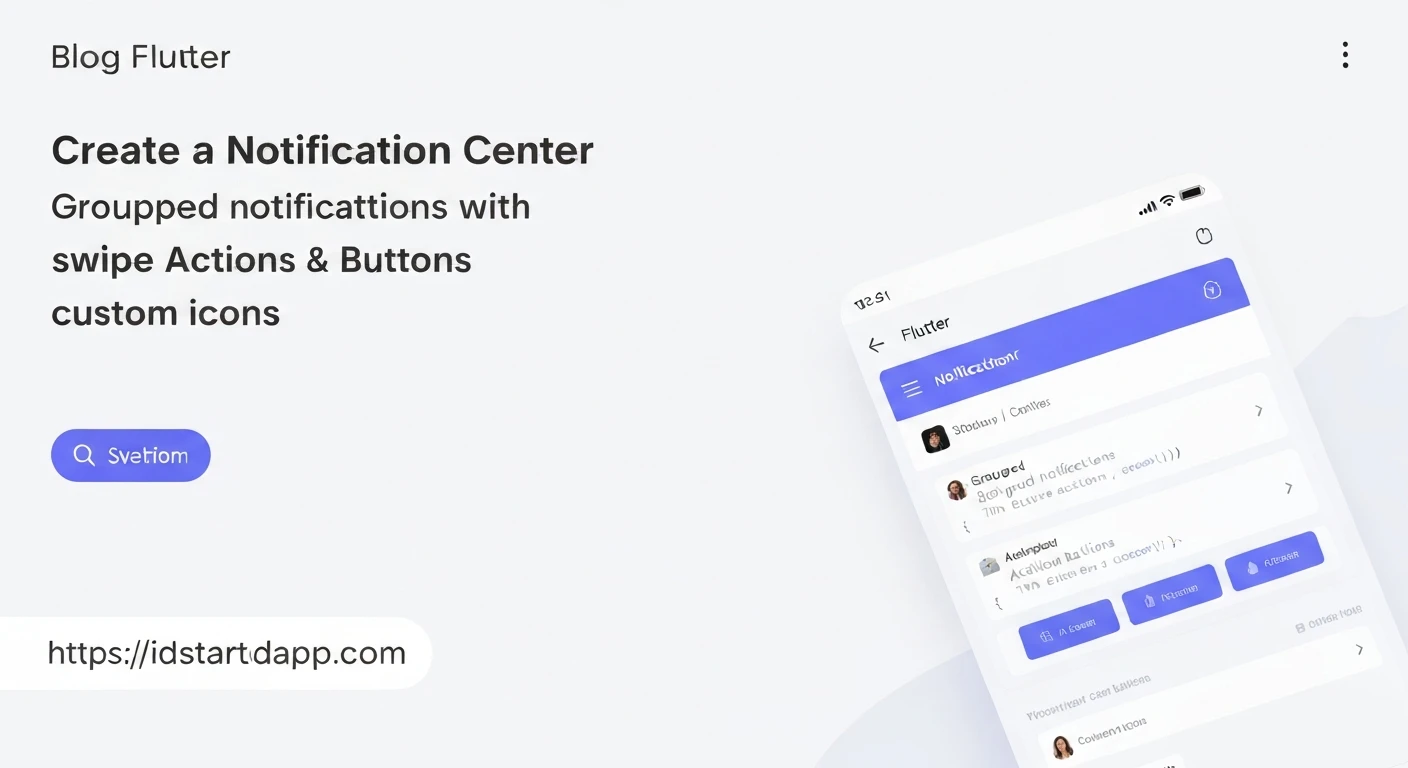
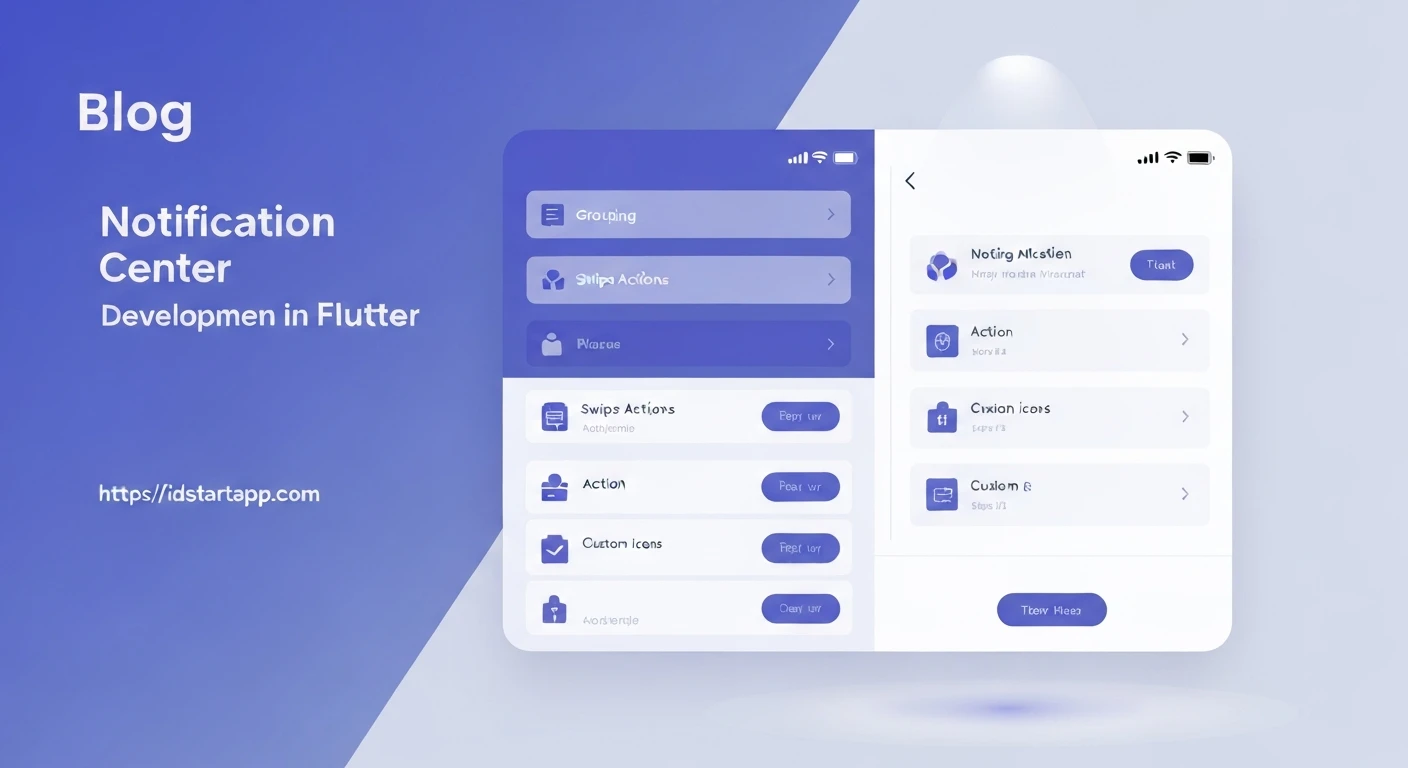
A well-designed notification center is crucial for user engagement and experience in modern applications. It provides a centralized, organized, and interactive hub for users to manage their alerts. This article explores how to build a sophisticated notification center widget in Flutter, incorporating features like notification grouping, swipe-to-dismiss functionality, interactive action buttons, and custom icons for enhanced visual branding and context.
1. Understanding the Core RequirementsBefore diving into implementation, let's define the key features we aim to integrate:
- Grouping: Notifications from the same source (e.g., app, topic) should be grouped together to reduce clutter and improve readability.
- Swipe Actions: Users should be able to interact with notifications via swipe gestures, typically to dismiss or archive them.
- Action Buttons: Notifications should offer quick interactive buttons (e.g., "Reply," "Archive," "Mark as Read") directly within the notification tile.
- Custom Icons: Displaying custom icons (e.g., app logos, specific alert types) helps users quickly identify the source or nature of a notification.
A robust data model is the foundation for our notification system. We'll define a class to represent individual notifications and another for their associated actions.
// lib/models/notification_model.dart

import 'package:flutter/foundation.dart'; // For VoidCallback

class NotificationAction {
  final String label;
  final VoidCallback onPressed;

  NotificationAction({required this.label, required this.onPressed});
}

class AppNotification {
  final String id;
  final String groupId; // Used for grouping notifications
  final String appName;
  final String title;
  final String body;
  final DateTime timestamp;
  final String? iconUrl; // URL for a custom icon (e.g., app logo)
  final List<NotificationAction>? actions; // List of actionable buttons

  AppNotification({
    required this.id,
    required this.groupId,
    required this.appName,
    required this.title,
    required this.body,
    required this.timestamp,
    this.iconUrl,
    this.actions,
  });
}
Each notification will be represented by a NotificationTile widget. This widget will encapsulate the UI for a single notification, including its content, custom icon, swipe actions, and action buttons.
// lib/widgets/notification_tile.dart

import 'package:flutter/material.dart';
import '../models/notification_model.dart';

class NotificationTile extends StatelessWidget {
  final AppNotification notification;
  final VoidCallback onDismissed;

  NotificationTile({required this.notification, required this.onDismissed});

  @override
  Widget build(BuildContext context) {
    return Dismissible(
      key: Key(notification.id), // Unique key for Dismissible
      direction: DismissDirection.endToStart, // Swipe from right to left
      onDismissed: (direction) {
        onDismissed();
      },
      // Background shown during swipe for dismiss action
      background: Container(
        color: Colors.red,
        alignment: Alignment.centerRight,
        padding: EdgeInsets.only(right: 20),
        child: Icon(Icons.delete, color: Colors.white),
      ),
      child: Card(
        margin: EdgeInsets.symmetric(horizontal: 8, vertical: 4),
        child: Padding(
          padding: const EdgeInsets.all(12.0),
          child: Column(
            crossAxisAlignment: CrossAxisAlignment.start,
            children: [
              Row(
                children: [
                  // Custom Icon
                  CircleAvatar(
                    backgroundImage: notification.iconUrl != null
                        ? NetworkImage(notification.iconUrl!)
                        : null,
                    // Fallback icon if no custom URL is provided
                    child: notification.iconUrl == null ? Icon(Icons.notifications_active) : null,
                    radius: 18,
                  ),
                  SizedBox(width: 12),
                  Expanded(
                    child: Column(
                      crossAxisAlignment: CrossAxisAlignment.start,
                      children: [
                        Text(
                          notification.appName,
                          style: TextStyle(fontWeight: FontWeight.bold, fontSize: 14),
                        ),
                        Text(
                          notification.title,
                          style: TextStyle(fontSize: 16, fontWeight: FontWeight.w600),
                        ),
                      ],
                    ),
                  ),
                  Text(
                    '${notification.timestamp.hour.toString().padLeft(2, '0')}:${notification.timestamp.minute.toString().padLeft(2, '0')}',
                    style: TextStyle(fontSize: 12, color: Colors.grey[600]),
                  ),
                ],
              ),
              SizedBox(height: 8),
              // Notification Body
              Padding(
                padding: const EdgeInsets.only(left: 50.0), // Align with app name/icon
                child: Text(notification.body),
              ),
              // Action Buttons
              if (notification.actions != null && notification.actions!.isNotEmpty)
                Padding(
                  padding: const EdgeInsets.only(top: 8.0, left: 50.0),
                  child: Row(
                    children: notification.actions!
                        .map((action) => Padding(
                              padding: const EdgeInsets.only(right: 8.0),
                              child: TextButton(
                                onPressed: action.onPressed,
                                child: Text(action.label),
                              ),
                            ))
                        .toList(),
                  ),
                ),
            ],
          ),
        ),
      ),
    );
  }
}
The main screen will manage the list of notifications, group them, and render them using the NotificationTile widget.
// lib/screens/notification_center_screen.dart

import 'package:flutter/material.dart';
import '../models/notification_model.dart';
import '../widgets/notification_tile.dart';

class NotificationCenterScreen extends StatefulWidget {
  @override
  _NotificationCenterScreenState createState() => _NotificationCenterScreenState();
}

class _NotificationCenterScreenState extends State<NotificationCenterScreen> {
  List<AppNotification> _notifications = [
    // Sample Notifications
    AppNotification(
      id: '1',
      groupId: 'WhatsApp',
      appName: 'WhatsApp',
      title: 'New Message',
      body: 'John Doe: Hello there! How are you doing today?',
      timestamp: DateTime.now().subtract(Duration(minutes: 5)),
      iconUrl: 'https://cdn-icons-png.flaticon.com/512/124/124034.png',
      actions: [
        NotificationAction(label: 'Reply', onPressed: () => _handleAction('Reply to WhatsApp 1')),
        NotificationAction(label: 'Mark Read', onPressed: () => _handleAction('Mark WhatsApp 1 Read')),
      ],
    ),
    AppNotification(
      id: '2',
      groupId: 'WhatsApp',
      appName: 'WhatsApp',
      title: 'New Message',
      body: 'Jane Smith: Are you free this evening for a quick call?',
      timestamp: DateTime.now().subtract(Duration(minutes: 10)),
      iconUrl: 'https://cdn-icons-png.flaticon.com/512/124/124034.png',
    ),
    AppNotification(
      id: '3',
      groupId: 'Gmail',
      appName: 'Gmail',
      title: 'Project Update',
      body: 'Subject: Q3 Report Finalization - Please review the attached document.',
      timestamp: DateTime.now().subtract(Duration(hours: 1)),
      iconUrl: 'https://cdn-icons-png.flaticon.com/512/281/281769.png',
      actions: [
        NotificationAction(label: 'Archive', onPressed: () => _handleAction('Archive Gmail 1')),
        NotificationAction(label: 'Reply All', onPressed: () => _handleAction('Reply All Gmail 1')),
      ],
    ),
    AppNotification(
      id: '4',
      groupId: 'System',
      appName: 'System Update',
      title: 'Software Update Available',
      body: 'A new version of the OS is available for download. Tap to install.',
      timestamp: DateTime.now().subtract(Duration(days: 1)),
      iconUrl: 'https://cdn-icons-png.flaticon.com/512/189/189679.png',
      actions: [
        NotificationAction(label: 'Install Now', onPressed: () => _handleAction('Install System Update')),
      ],
    ),
     AppNotification(
      id: '5',
      groupId: 'WhatsApp',
      appName: 'WhatsApp',
      title: 'Missed Call',
      body: 'You missed a call from David Lee.',
      timestamp: DateTime.now().subtract(Duration(minutes: 30)),
      iconUrl: 'https://cdn-icons-png.flaticon.com/512/124/124034.png',
      actions: [
        NotificationAction(label: 'Call Back', onPressed: () => _handleAction('Call back David')),
      ],
    ),
  ];

  // Helper to group notifications by groupId
  Map<String, List<AppNotification>> _groupNotifications(List<AppNotification> notifications) {
    Map<String, List<AppNotification>> grouped = {};
    for (var notif in notifications) {
      if (!grouped.containsKey(notif.groupId)) {
        grouped[notif.groupId] = [];
      }
      grouped[notif.groupId]!.add(notif);
    }
    // Sort notifications within each group by timestamp (newest first)
    grouped.forEach((key, value) {
      value.sort((a, b) => b.timestamp.compareTo(a.timestamp));
    });
    return grouped;
  }

  // Handle notification dismissal
  void _dismissNotification(String notificationId) {
    setState(() {
      _notifications.removeWhere((notif) => notif.id == notificationId);
    });
    ScaffoldMessenger.of(context).showSnackBar(
      SnackBar(content: Text('Notification dismissed!')),
    );
  }

  // Handle action button presses
  void _handleAction(String actionLabel) {
    ScaffoldMessenger.of(context).showSnackBar(
      SnackBar(content: Text('Action: "$actionLabel" triggered!')),
    );
    // In a real app, this would trigger specific business logic
  }

  @override
  Widget build(BuildContext context) {
    final groupedNotifications = _groupNotifications(_notifications);
    final sortedGroupIds = groupedNotifications.keys.toList()
      ..sort((a, b) {
        // Sort groups by the timestamp of their newest notification
        final newestA = groupedNotifications[a]!.first.timestamp;
        final newestB = groupedNotifications[b]!.first.timestamp;
        return newestB.compareTo(newestA);
      });

    return Scaffold(
      appBar: AppBar(
        title: Text('Notification Center'),
        centerTitle: true,
      ),
      body: groupedNotifications.isEmpty
          ? Center(child: Text('No notifications to display!'))
          : ListView.builder(
              itemCount: sortedGroupIds.length,
              itemBuilder: (context, index) {
                String groupId = sortedGroupIds[index];
                List<AppNotification> group = groupedNotifications[groupId]!;

                return Column(
                  crossAxisAlignment: CrossAxisAlignment.start,
                  children: [
                    Padding(
                      padding: const EdgeInsets.all(12.0),
                      child: Text(
                        groupId, // Display the group identifier as a header
                        style: TextStyle(
                          fontSize: 18,
                          fontWeight: FontWeight.bold,
                          color: Theme.of(context).primaryColor,
                        ),
                      ),
                    ),
                    // Render each notification within the group
                    ...group.map((notification) => NotificationTile(
                      notification: notification,
                      onDismissed: () => _dismissNotification(notification.id),
                    )).toList(),
                    Divider(height: 1, thickness: 1, indent: 10, endIndent: 10), // Separator between groups
                  ],
                );
              },
            ),
    );
  }
}
To see the notification center in action, you can set it as the home screen of your Flutter app.
// main.dart

import 'package:flutter/material.dart';
import 'package:notification_center_demo/screens/notification_center_screen.dart'; // Adjust path as needed

void main() {
  runApp(MyApp());
}

class MyApp extends StatelessWidget {
  @override
  Widget build(BuildContext context) {
    return MaterialApp(
      title: 'Flutter Notification Center Demo',
      theme: ThemeData(
        primarySwatch: Colors.blue,
        visualDensity: VisualDensity.adaptivePlatformDensity,
      ),
      home: NotificationCenterScreen(),
    );
  }
}
By following these steps, you can build a highly functional and aesthetically pleasing notification center in Flutter. The modular design, leveraging Dismissible for swipe actions, flexible data models for action buttons and custom icons, and intelligent grouping logic, allows for a robust and user-friendly experience. This foundation can be further extended with features like read/unread states, persistent storage, real-time updates via websockets, and more advanced customization options.