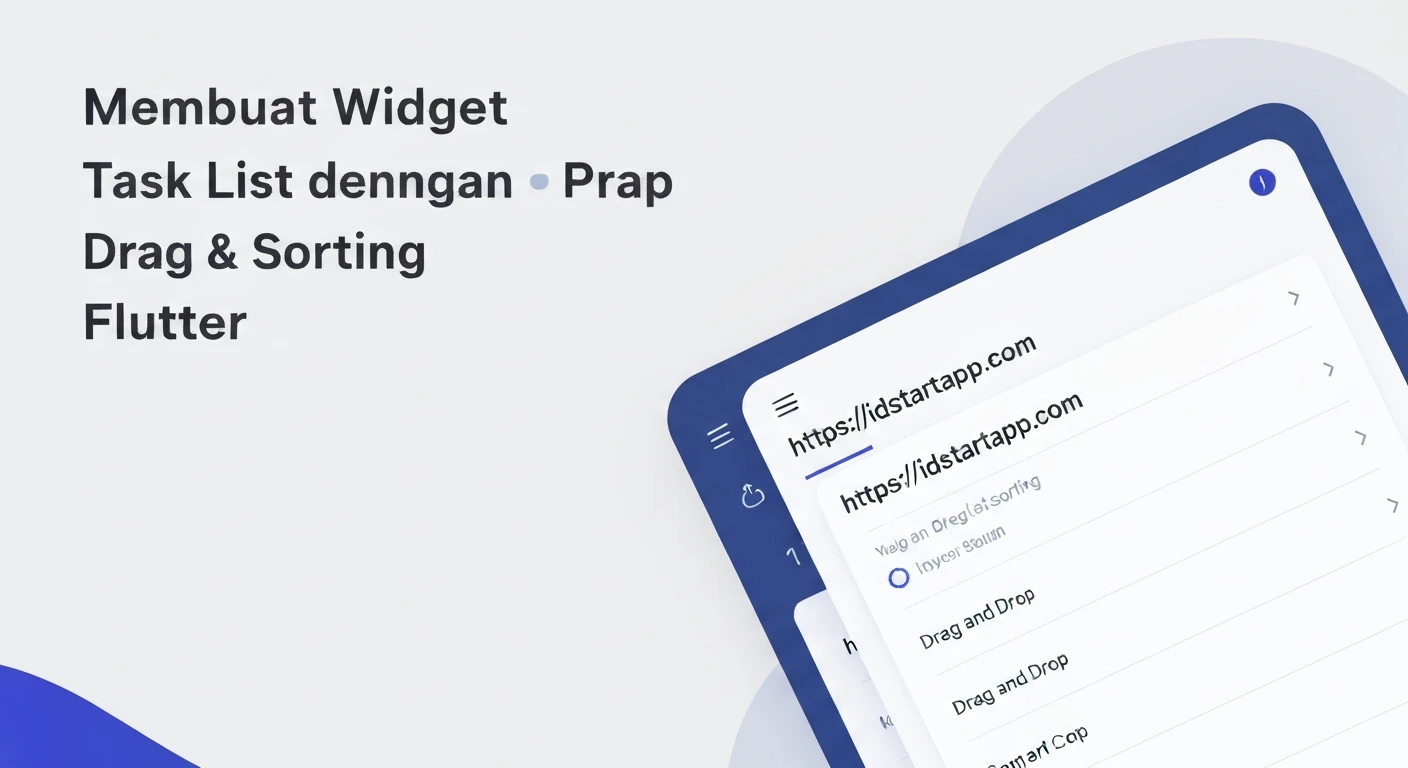

Creating a Task List Widget with Drag & Drop Sorting in Flutter
Building interactive and user-friendly applications is at the heart of modern mobile development. A common requirement for many apps is a task list or any ordered list of items that users can reorder or manage. Flutter provides powerful widgets that make implementing such features, including drag-and-drop sorting, surprisingly straightforward. This article will guide you through creating a dynamic task list widget with drag-and-drop reordering and an optional swipe-to-dismiss functionality using Flutter's built-in capabilities.
Prerequisites
Before diving into the code, ensure you have Flutter installed and set up. You should also be familiar with basic Flutter concepts, including widgets, state management (StatefulWidget), and lists.
1. Project Setup and Data Model
First, create a new Flutter project if you haven't already:
flutter create task_list_app
cd task_list_app
Next, let's define a simple data model for our tasks. We'll include a unique ID, a description, and a boolean for completion status.
class Task {
  final String id;
  String description;
  bool isCompleted;

  Task({
    required this.id,
    required this.description,
    this.isCompleted = false,
  });
}
2. Building the Main Widget Structure
We'll use a StatefulWidget to manage our list of tasks, as the order and properties of tasks will change.
import 'package:flutter/material.dart';
import 'package:uuid/uuid.dart'; // Add uuid package to pubspec.yaml for unique IDs

// Data Model (as defined above)
class Task {
  final String id;
  String description;
  bool isCompleted;

  Task({
    required this.id,
    required this.description,
    this.isCompleted = false,
  });
}

void main() {
  runApp(const MyApp());
}

class MyApp extends StatelessWidget {
  const MyApp({super.key});

  @override
  Widget build(BuildContext context) {
    return MaterialApp(
      title: 'Task List',
      theme: ThemeData(
        primarySwatch: Colors.blue,
      ),
      home: const TaskListScreen(),
    );
  }
}

class TaskListScreen extends StatefulWidget {
  const TaskListScreen({super.key});

  @override
  State createState() => _TaskListScreenState();
}

class _TaskListScreenState extends State {
  final List _tasks = [
    Task(id: '1', description: 'Buy groceries'),
    Task(id: '2', description: 'Finish Flutter article'),
    Task(id: '3', description: 'Call Mom', isCompleted: true),
    Task(id: '4', description: 'Schedule meeting'),
  ];

  final Uuid _uuid = const Uuid(); // For generating unique IDs

  // ... (methods for reordering, adding, deleting tasks will go here)

  @override
  Widget build(BuildContext context) {
    return Scaffold(
      appBar: AppBar(
        title: const Text('My Task List'),
      ),
      body: Container(), // We'll replace this with ReorderableListView
      floatingActionButton: FloatingActionButton(
        onPressed: () {}, // For adding new tasks
        child: const Icon(Icons.add),
      ),
    );
  }
}
Remember to add the uuid package to your pubspec.yaml file:
dependencies:
  flutter:
    sdk: flutter
  uuid: ^4.2.1 # Latest version may vary
Then run flutter pub get.
3. Implementing Drag & Drop with ReorderableListView
Flutter's ReorderableListView is specifically designed for lists whose items can be reordered by the user. It requires a `Key` for each child widget to correctly identify and animate items during reordering.
// Inside _TaskListScreenState class

// Method to handle task reordering
void _onReorder(int oldIndex, int newIndex) {
  setState(() {
    if (newIndex > oldIndex) {
      newIndex -= 1;
    }
    final Task task = _tasks.removeAt(oldIndex);
    _tasks.insert(newIndex, task);
  });
}

@override
Widget build(BuildContext context) {
  return Scaffold(
    appBar: AppBar(
      title: const Text('My Task List'),
    ),
    body: ReorderableListView.builder(
      itemCount: _tasks.length,
      onReorder: _onReorder,
      itemBuilder: (BuildContext context, int index) {
        final task = _tasks[index];
        return Card(
          key: ValueKey(task.id), // Crucial: Each item needs a unique key
          margin: const EdgeInsets.symmetric(vertical: 4.0, horizontal: 8.0),
          child: ListTile(
            title: Text(
              task.description,
              style: TextStyle(
                decoration: task.isCompleted ? TextDecoration.lineThrough : TextDecoration.none,
                color: task.isCompleted ? Colors.grey : Colors.black,
              ),
            ),
            trailing: Checkbox(
              value: task.isCompleted,
              onChanged: (bool? value) {
                setState(() {
                  task.isCompleted = value!;
                });
              },
            ),
            onTap: () {
              // Optionally edit task description
            },
          ),
        );
      },
    ),
    floatingActionButton: FloatingActionButton(
      onPressed: () {
        _addTask();
      },
      child: const Icon(Icons.add),
    ),
  );
}
Key Points for ReorderableListView:
-
itemCount: The total number of items in the list. -
onReorder: A callback function that is invoked when a drag operation completes. It provides theoldIndexandnewIndexof the item. You must update your underlying data model within asetStatecall to reflect this change. The common pattern is to remove the item fromoldIndexand insert it atnewIndex. -
itemBuilder: Similar toListView.builder, it builds each item. Crucially, each item returned byitemBuildermust have a uniqueKey. We useValueKey(task.id)here, assumingtask.idis unique.
4. Adding Swipe-to-Dismiss Functionality with Dismissible
To enhance the user experience, we can add a swipe-to-dismiss feature, allowing users to remove tasks by swiping them off the screen. This is achieved by wrapping each list item with a Dismissible widget.
// Inside _TaskListScreenState class

// Method to handle deleting a task
void _deleteTask(String id) {
  setState(() {
    _tasks.removeWhere((task) => task.id == id);
  });
  // Optionally show a SnackBar for undo action
  ScaffoldMessenger.of(context).showSnackBar(
    SnackBar(
      content: const Text('Task dismissed'),
      action: SnackBarAction(
        label: 'UNDO',
        onPressed: () {
          // Implement undo logic if needed
        },
      ),
    ),
  );
}

// ... (inside the build method, replace Card with Dismissible)

body: ReorderableListView.builder(
  itemCount: _tasks.length,
  onReorder: _onReorder,
  itemBuilder: (BuildContext context, int index) {
    final task = _tasks[index];
    return Dismissible(
      key: ValueKey(task.id), // Dismissible also needs a unique key
      direction: DismissDirection.endToStart, // Only swipe from right to left
      background: Container(
        color: Colors.red,
        alignment: Alignment.centerRight,
        padding: const EdgeInsets.symmetric(horizontal: 20.0),
        child: const Icon(Icons.delete, color: Colors.white),
      ),
      onDismissed: (direction) {
        _deleteTask(task.id);
      },
      child: Card( // Wrap your existing Card/ListTile with Dismissible
        margin: const EdgeInsets.symmetric(vertical: 4.0, horizontal: 8.0),
        child: ListTile(
          title: Text(
            task.description,
            style: TextStyle(
              decoration: task.isCompleted ? TextDecoration.lineThrough : TextDecoration.none,
              color: task.isCompleted ? Colors.grey : Colors.black,
            ),
          ),
          trailing: Checkbox(
            value: task.isCompleted,
            onChanged: (bool? value) {
              setState(() {
                task.isCompleted = value!;
              });
            },
          ),
          onTap: () {
            // Optionally edit task description
          },
        ),
      ),
    );
  },
),
Key Points for Dismissible:
-
key: LikeReorderableListViewitems,Dismissiblealso requires a uniqueKey. Using the task ID is ideal here too. -
background: This widget is shown behind the item as it's being swiped. It's common to show a delete icon or a red background. -
direction: Specifies the allowed swipe directions (e.g.,DismissDirection.endToStartfor right-to-left swipe). -
onDismissed: This callback is invoked when the item has been completely swiped off the screen. Here, you should remove the item from your data model.
5. Adding New Tasks
Finally, let's implement the _addTask method to allow users to add new tasks using a simple dialog.
// Inside _TaskListScreenState class

void _addTask() {
  String newTaskDescription = '';
  showDialog(
    context: context,
    builder: (BuildContext context) {
      return AlertDialog(
        title: const Text('Add New Task'),
        content: TextField(
          autofocus: true,
          onChanged: (value) {
            newTaskDescription = value;
          },
          decoration: const InputDecoration(hintText: 'Enter task description'),
        ),
        actions: [
          TextButton(
            onPressed: () {
              Navigator.of(context).pop();
            },
            child: const Text('Cancel'),
          ),
          TextButton(
            onPressed: () {
              if (newTaskDescription.isNotEmpty) {
                setState(() {
                  _tasks.add(Task(id: _uuid.v4(), description: newTaskDescription));
                });
                Navigator.of(context).pop();
              }
            },
            child: const Text('Add'),
          ),
        ],
      );
    },
  );
}

// ... (ensure floatingActionButton calls _addTask)

floatingActionButton: FloatingActionButton(
  onPressed: () {
    _addTask(); // Calls the add task method
  },
  child: const Icon(Icons.add),
),
Complete main.dart File
Here's the full code for your main.dart file, combining all the pieces:
import 'package:flutter/material.dart';
import 'package:uuid/uuid.dart';

// Data Model
class Task {
  final String id;
  String description;
  bool isCompleted;

  Task({
    required this.id,
    required this.description,
    this.isCompleted = false,
  });
}

void main() {
  runApp(const MyApp());
}

class MyApp extends StatelessWidget {
  const MyApp({super.key});

  @override
  Widget build(BuildContext context) {
    return MaterialApp(
      title: 'Task List',
      theme: ThemeData(
        primarySwatch: Colors.blue,
      ),
      home: const TaskListScreen(),
    );
  }
}

class TaskListScreen extends StatefulWidget {
  const TaskListScreen({super.key});

  @override
  State createState() => _TaskListScreenState();
}

class _TaskListScreenState extends State {
  final List _tasks = [
    Task(id: '1', description: 'Buy groceries'),
    Task(id: '2', description: 'Finish Flutter article'),
    Task(id: '3', description: 'Call Mom', isCompleted: true),
    Task(id: '4', description: 'Schedule meeting'),
  ];

  final Uuid _uuid = const Uuid(); // For generating unique IDs

  void _onReorder(int oldIndex, int newIndex) {
    setState(() {
      if (newIndex > oldIndex) {
        newIndex -= 1;
      }
      final Task task = _tasks.removeAt(oldIndex);
      _tasks.insert(newIndex, task);
    });
  }

  void _deleteTask(String id) {
    setState(() {
      _tasks.removeWhere((task) => task.id == id);
    });
    ScaffoldMessenger.of(context).showSnackBar(
      SnackBar(
        content: const Text('Task dismissed'),
        action: SnackBarAction(
          label: 'UNDO',
          onPressed: () {
            // Implement undo logic if needed
          },
        ),
      ),
    );
  }

  void _addTask() {
    String newTaskDescription = '';
    showDialog(
      context: context,
      builder: (BuildContext context) {
        return AlertDialog(
          title: const Text('Add New Task'),
          content: TextField(
            autofocus: true,
            onChanged: (value) {
              newTaskDescription = value;
            },
            decoration: const InputDecoration(hintText: 'Enter task description'),
          ),
          actions: [
            TextButton(
              onPressed: () {
                Navigator.of(context).pop();
              },
              child: const Text('Cancel'),
            ),
            TextButton(
              onPressed: () {
                if (newTaskDescription.isNotEmpty) {
                  setState(() {
                    _tasks.add(Task(id: _uuid.v4(), description: newTaskDescription));
                  });
                  Navigator.of(context).pop();
                }
              },
              child: const Text('Add'),
            ),
          ],
        );
      },
    );
  }

  @override
  Widget build(BuildContext context) {
    return Scaffold(
      appBar: AppBar(
        title: const Text('My Task List'),
      ),
      body: ReorderableListView.builder(
        itemCount: _tasks.length,
        onReorder: _onReorder,
        itemBuilder: (BuildContext context, int index) {
          final task = _tasks[index];
          return Dismissible(
            key: ValueKey(task.id),
            direction: DismissDirection.endToStart,
            background: Container(
              color: Colors.red,
              alignment: Alignment.centerRight,
              padding: const EdgeInsets.symmetric(horizontal: 20.0),
              child: const Icon(Icons.delete, color: Colors.white),
            ),
            onDismissed: (direction) {
              _deleteTask(task.id);
            },
            child: Card(
              margin: const EdgeInsets.symmetric(vertical: 4.0, horizontal: 8.0),
              child: ListTile(
                title: Text(
                  task.description,
                  style: TextStyle(
                    decoration: task.isCompleted ? TextDecoration.lineThrough : TextDecoration.none,
                    color: task.isCompleted ? Colors.grey : Colors.black,
                  ),
                ),
                trailing: Checkbox(
                  value: task.isCompleted,
                  onChanged: (bool? value) {
                    setState(() {
                      task.isCompleted = value!;
                    });
                  },
                ),
                onTap: () {
                  // Optionally add logic for editing a task when tapped
                },
              ),
            ),
          );
        },
      ),
      floatingActionButton: FloatingActionButton(
        onPressed: () {
          _addTask();
        },
        child: const Icon(Icons.add),
      ),
    );
  }
}
Conclusion
You have successfully created a dynamic task list widget in Flutter with drag-and-drop reordering and swipe-to-dismiss functionality. This example demonstrates the power and flexibility of Flutter's built-in widgets like ReorderableListView and Dismissible, enabling rich user interactions with minimal code.
From here, you can expand this application by adding features like:
- Persisting tasks to local storage (e.g., using
shared_preferencesorsqflite) or a backend. - Implementing more sophisticated state management (e.g., Provider, Riverpod, Bloc) for larger applications.
- Adding more task details (due dates, categories, etc.).
- Enhancing UI/UX with custom animations and transitions.
This foundation gives you a solid starting point for building highly interactive list-based applications in Flutter.