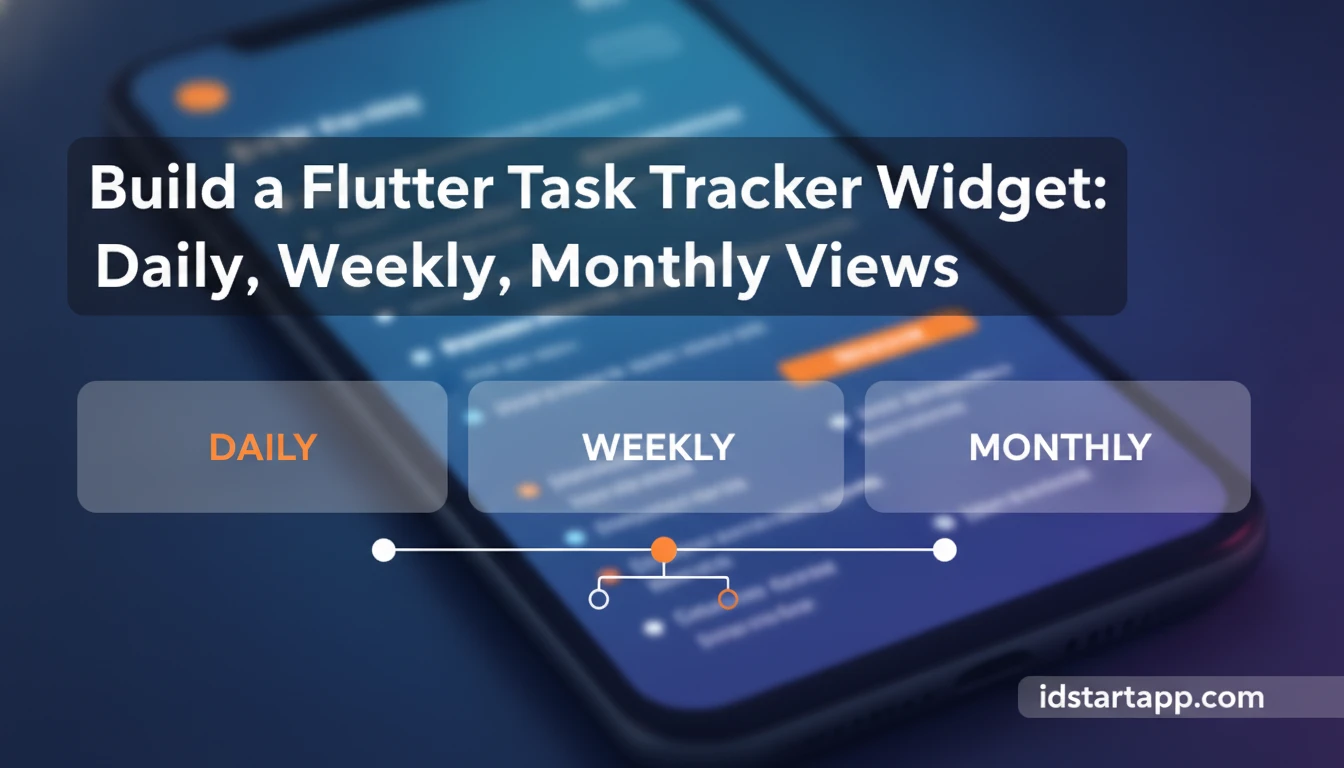

Build a Flutter Task Tracker Widget: Daily, Weekly, Monthly Views
Creating an effective task management application often hinges on how users can visualize and interact with their tasks. A key feature for many such apps is a task tracker widget that offers different temporal perspectives, such as daily, weekly, and monthly views. This flexibility allows users to focus on immediate priorities, plan their week, or review their broader schedule at a glance.
In this article, you'll learn how to construct a robust and user-friendly task tracker widget in Flutter. We'll cover the essential data models, UI components for switching between views, and the logic required to filter and display tasks according to the selected timeframe. By the end, you'll have a solid foundation for integrating powerful task visualization into your Flutter applications.
Understanding the Core Components of a Task Tracker
Before diving into the code, it's crucial to understand the fundamental building blocks of our task tracker. A well-designed system relies on a clear data structure and an efficient way to manage the UI state.
Data Model for Tasks
Every task tracker needs a way to represent individual tasks. This typically involves properties like a title, description, due date, and completion status. A robust data model makes it easier to manage, filter, and display tasks consistently across different views.
View State Management
The ability to switch between daily, weekly, and monthly views requires managing the current view state. This involves not only tracking which view is active but also potentially the specific day, week, or month currently being displayed. For Flutter, various state management solutions can handle this, from simple setState to more advanced packages like Provider or Bloc.
Setting Up Your Flutter Project
Let's start by setting up a new Flutter project and adding any necessary dependencies. For this example, we'll keep dependencies minimal to focus on the core logic.
Initial Project Structure
Create a new Flutter project using the command line:
flutter create task_tracker_appcd task_tracker_appThen, open the lib/main.dart file. We'll build our task tracker widget within this structure.
Required Dependencies
For basic date manipulation, Flutter's built-in DateTime class is sufficient. If you need more advanced date functionalities (like finding the start/end of a week considering locale, or complex recurring rules), consider a package like intl or jiffy. For this guide, we'll stick to standard Dart DateTime operations.
Designing the Task Data Model
Our task model will be a simple Dart class. It should contain essential information for each task.
Implementing the Task Class
Create a new file, say lib/models/task.dart, and add the following code:
// lib/models/task.dartimport 'package:flutter/material.dart';class Task { final String id; final String title; final String description; final DateTime dueDate; bool isCompleted; Task({ required this.id, required this.title, this.description = '', required this.dueDate, this.isCompleted = false, }); // Helper to create a copy with updated properties Task copyWith({ String? id, String? title, String? description, DateTime? dueDate, bool? isCompleted, }) { return Task( id: id ?? this.id, title: title ?? this.title, description: description ?? this.description, dueDate: dueDate ?? this.dueDate, isCompleted: isCompleted ?? this.isCompleted, ); }}This Task class provides a simple structure and a copyWith method for easy immutability when updating task properties.
Building the Multi-View Selector
We need a way for users to switch between daily, weekly, and monthly views. A segmented control or a row of buttons is a common and effective UI pattern for this.
Creating a Toggle for Daily, Weekly, Monthly
Let's define an enum for our view types and create a simple widget to toggle between them. We'll manage the selected view using setState for simplicity.
// lib/main.dart (inside a StatefulWidget for example)enum TaskViewType { daily, weekly, monthly }class _TaskTrackerWidgetState extends State<TaskTrackerWidget> { TaskViewType _currentView = TaskViewType.daily; DateTime _selectedDate = DateTime.now(); // For daily/weekly/monthly context List<Task> _allTasks = [ // Sample data Task(id: '1', title: 'Finish Flutter article', dueDate: DateTime.now().add(Duration(days: -1)), isCompleted: true), Task(id: '2', title: 'Plan next week', dueDate: DateTime.now().add(Duration(days: 2))), Task(id: '3', title: 'Review monthly budget', dueDate: DateTime.now().add(Duration(days: 15))), Task(id: '4', title: 'Buy groceries', dueDate: DateTime.now()), Task(id: '5', title: 'Call client', dueDate: DateTime.now().add(Duration(days: 7))), Task(id: '6', title: 'Workout', dueDate: DateTime.now()), ]; @override Widget build(BuildContext context) { return Column( children: [ _buildViewSelector(), _buildDateNavigator(), Expanded( child: _buildTaskListView(), ), ], ); } Widget _buildViewSelector() { return Row( mainAxisAlignment: MainAxisAlignment.spaceAround, children: TaskViewType.values.map((type) { return ElevatedButton( onPressed: () { setState(() { _currentView = type; }); }, style: ElevatedButton.styleFrom( backgroundColor: _currentView == type ? Colors.blue : Colors.grey, ), child: Text(type.toString().split('.').last.toUpperCase()), ); }).toList(), ); } // ... rest of the widget state methodsThis snippet shows how to create a row of buttons that update the _currentView state variable when pressed. The text for each button is derived from the enum name.
Implementing the Daily Task View
The daily view should display tasks scheduled for a specific day. We'll need a way to filter tasks and potentially navigate between days.
Displaying Tasks for a Specific Day
We'll create a helper method to filter tasks based on the selected date and the current view type. For the daily view, we check if the task's due date matches the _selectedDate.
// lib/main.dart (inside _TaskTrackerWidgetState) Widget _buildDateNavigator() { return Row( mainAxisAlignment: MainAxisAlignment.spaceBetween, children: [ IconButton( icon: Icon(Icons.arrow_back), onPressed: () { setState(() { _selectedDate = _selectedDate.subtract(Duration(days: _currentView == TaskViewType.daily ? 1 : 7)); }); }, ), Text( _currentView == TaskViewType.daily ? '${_selectedDate.day}/${_selectedDate.month}/${_selectedDate.year}' : _currentView == TaskViewType.weekly ? 'Week of ${_selectedDate.day}/${_selectedDate.month}' : 'Month of ${_selectedDate.month}/${_selectedDate.year}', style: TextStyle(fontSize: 18, fontWeight: FontWeight.bold), ), IconButton( icon: Icon(Icons.arrow_forward), onPressed: () { setState(() { _selectedDate = _selectedDate.add(Duration(days: _currentView == TaskViewType.daily ? 1 : 7)); }); }, ), ], ); } List<Task> _getFilteredTasks() { return _allTasks.where((task) { final dueDate = task.dueDate; switch (_currentView) { case TaskViewType.daily: return dueDate.year == _selectedDate.year && dueDate.month == _selectedDate.month && dueDate.day == _selectedDate.day; case TaskViewType.weekly: final startOfWeek = _selectedDate.subtract(Duration(days: _selectedDate.weekday - 1)); final endOfWeek = startOfWeek.add(Duration(days: 6)); return (dueDate.isAfter(startOfWeek.subtract(Duration(days: 1))) && dueDate.isBefore(endOfWeek.add(Duration(days: 1)))); case TaskViewType.monthly: return dueDate.year == _selectedDate.year && dueDate.month == _selectedDate.month; } }).toList(); } Widget _buildTaskListView() { final filteredTasks = _getFilteredTasks(); if (filteredTasks.isEmpty) { return Center(child: Text('No tasks for this view.')); } return ListView.builder( itemCount: filteredTasks.length, itemBuilder: (context, index) { final task = filteredTasks[index]; return Card( margin: EdgeInsets.symmetric(vertical: 4, horizontal: 8), child: ListTile( title: Text(task.title), subtitle: Text( 'Due: ${task.dueDate.day}/${task.dueDate.month}/${task.dueDate.year}' + (task.description.isNotEmpty ? ' - ${task.description}' : ''), ), trailing: Checkbox( value: task.isCompleted, onChanged: (bool? newValue) { setState(() { task.isCompleted = newValue!; // In a real app, update the task in _allTasks list // For simplicity, we directly modify the object in the list. // A better approach would be to replace the task in _allTasks with a copy. }); }, ), ), ); }, ); }The _buildDateNavigator widget allows users to move forward and backward in time. The _getFilteredTasks method contains the core logic for filtering tasks based on the _currentView and _selectedDate. The _buildTaskListView then renders these filtered tasks.
Constructing the Weekly Task View
For the weekly view, we need to identify the start and end of the week relative to our _selectedDate and filter tasks within that range.
Grouping Tasks by Week
The _getFilteredTasks method already includes the logic for the weekly view. It calculates the start and end of the week based on _selectedDate. Note that DateTime.weekday returns 1 for Monday, 7 for Sunday. Adjustments might be needed if your week starts on Sunday.
Navigating Weeks
The _buildDateNavigator updates _selectedDate by 7 days when the current view is not daily, effectively navigating week by week or month by month.
Developing the Monthly Task View
The monthly view displays tasks for the entire selected month. This is also handled within our existing _getFilteredTasks method.
Calendar-like Display
While our current implementation simply lists tasks, a more advanced monthly view might involve a calendar grid where days with tasks are highlighted. This would require a custom calendar widget, which is beyond the scope of this basic example but a natural next step.
Highlighting Days with Tasks
To highlight days with tasks in a calendar grid, you would typically pre-process your monthly tasks to create a set of days that have tasks, then pass this information to your calendar builder.
Integrating State Management
In our example, we've used setState within a StatefulWidget. This is suitable for simpler widgets or when the state is localized. For larger applications, consider these alternatives:
- Provider: A popular and flexible solution for managing application state. You would wrap your
TaskTrackerWidgetwith aChangeNotifierProviderthat holds your task list and_currentView, then useConsumerorcontext.watchto react to changes. - Bloc/Cubit: For more complex state logic and separation of concerns, Bloc offers a robust pattern.
- Riverpod: A compile-time safe alternative to Provider.
The choice depends on the complexity and scale of your application. For a widget like this, setState is a good starting point to understand the core logic before abstracting it with a state management package.
Best Practices for Task Tracker Widgets
- Performance Considerations: When dealing with a large number of tasks, optimize filtering and rendering. Consider using
ListView.builder(which we did) and memoization if task lists are frequently re-filtered without changes. - User Experience Tips: Provide clear visual feedback for the active view. Ensure date navigation is intuitive. Consider adding animations for view transitions.
- Scalability and Future Enhancements: Design your
Taskmodel to be extensible. Think about how you'd add features like task categories, priorities, recurring tasks, or task persistence (e.g., using local storage like Hive or Sqflite, or a backend service).
Common Pitfalls to Avoid
- Over-complicating State: Start simple. Only introduce complex state management solutions when
setStatebecomes unwieldy. - Inefficient Data Filtering: Ensure your filtering logic is efficient, especially for large datasets. Avoid re-filtering the entire list on every minor UI update if possible.
- Ignoring Timezones: When dealing with due dates, especially for users in different time zones, be mindful of how
DateTimeobjects are handled. Always store dates in UTC and convert to local time for display. - Lack of Error Handling: In a real application, consider how to handle empty task lists, loading states, or errors during data fetching.
Conclusion
You've successfully built the foundation for a dynamic task tracker widget in Flutter, capable of displaying tasks across daily, weekly, and monthly views. By understanding the data model, implementing view selection, and applying effective filtering logic, you can provide users with powerful tools for managing their schedules.
The next steps could involve adding full CRUD (Create, Read, Update, Delete) operations for tasks, persisting data to local storage or a backend, and enhancing the UI with more sophisticated calendar components or animations. This robust foundation prepares you to build even more feature-rich productivity applications.
FAQ
Q1: How can I persist task data so it's not lost when the app closes?
You can use local storage solutions like
shared_preferencessqfliteHiveQ2: What is the best state management solution for a task tracker with multiple views?
For a small to medium-sized app,
ProviderBlocRiverpodQ3: How do I handle recurring tasks in this setup?
Handling recurring tasks requires extending your
TaskdueDateQ4: Can I customize the appearance of the daily, weekly, or monthly views to look more like a traditional calendar?
Yes, you can. For a calendar-like monthly view, you would typically use a package like
table_calendar