
Building a Task Tracker Widget with Category Filter in Flutter
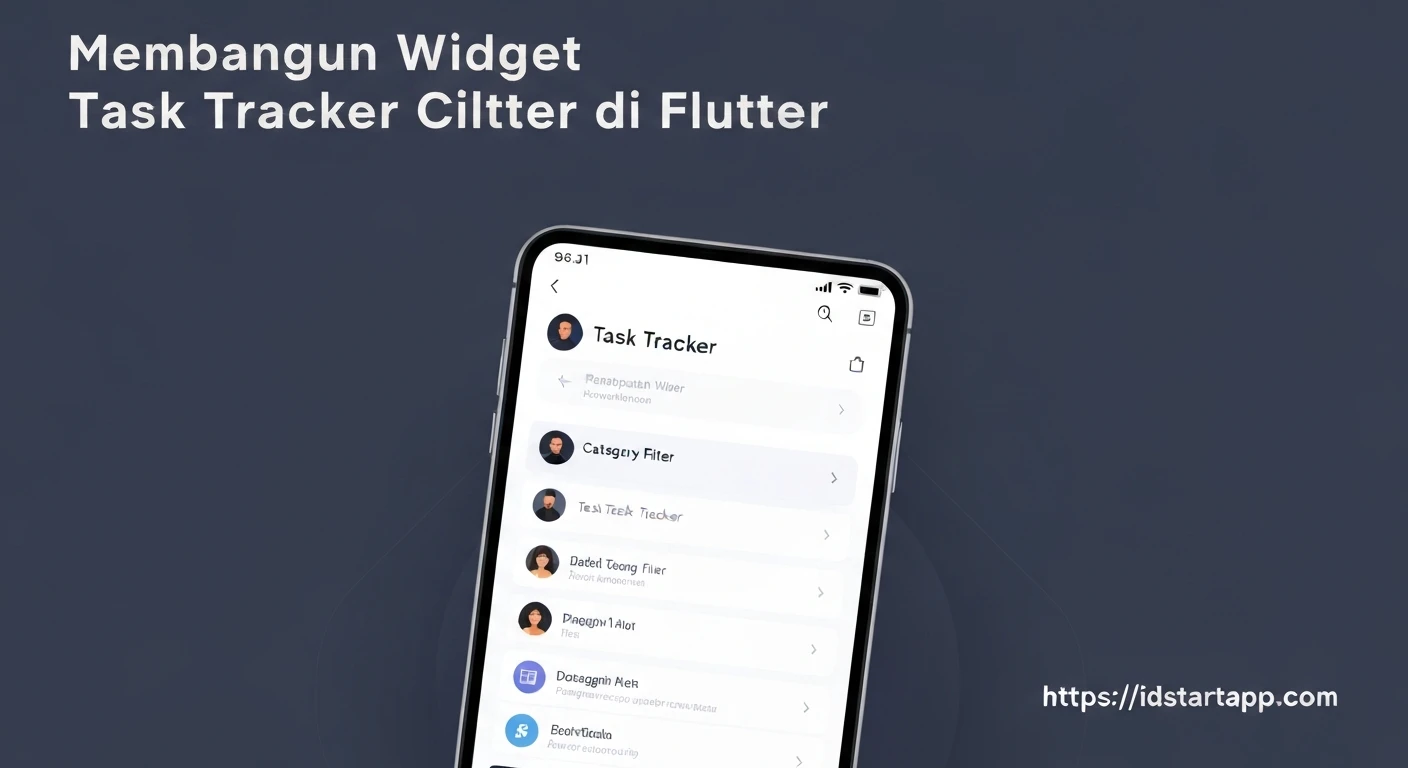
Task management is a crucial aspect of productivity, whether for personal projects or professional workflows. A common requirement for task trackers is the ability to organize tasks into categories and filter them efficiently. This article will guide you through building a dynamic Task Tracker widget in Flutter, complete with a category filtering system. By the end, you'll have a robust foundation for more complex task management applications.
Why Categories and Filters?Categorization helps in grouping related tasks, making large lists more manageable and understandable. Filters provide a way to quickly narrow down the visible tasks to only those relevant at a specific moment, significantly enhancing the user experience and productivity. We will implement a system where users can select a category, and only tasks belonging to that category will be displayed.
1. Setting Up the Project
First, ensure you have Flutter installed. You can create a new Flutter project using the command line:
flutter create task_tracker_app
cd task_tracker_app
Open the lib/main.dart file. We'll be working mostly within this file for simplicity, though in a larger application, you might split models and widgets into separate files.
2. Defining the Task Model
Our tasks need a structure to hold their data. We'll create a simple Task class with properties for its ID, title, category, and completion status.
class Task {
  final String id;
  String title;
  String category;
  bool isCompleted;

  Task({
    required this.id,
    required this.title,
    required this.category,
    this.isCompleted = false,
  });
}
3. Creating the Main Task Tracker Widget
The core of our application will be a StatefulWidget called TaskTrackerWidget. This widget will manage the list of tasks, the currently selected category, and update its UI based on user interactions.
Initialize the basic structure in main.dart:
import 'package:flutter/material.dart';
import 'package:uuid/uuid.dart'; // Add uuid package to pubspec.yaml

// Task Model (defined above, placed here for a complete example)
class Task {
  final String id;
  String title;
  String category;
  bool isCompleted;

  Task({
    required this.id,
    required this.title,
    required this.category,
    this.isCompleted = false,
  });
}

void main() {
  runApp(const MyApp());
}

class MyApp extends StatelessWidget {
  const MyApp({super.key});

  @override
  Widget build(BuildContext context) {
    return MaterialApp(
      title: 'Task Tracker',
      theme: ThemeData(
        primarySwatch: Colors.blueGrey,
        visualDensity: VisualDensity.adaptivePlatformDensity,
      ),
      home: const TaskTrackerWidget(),
    );
  }
}

class TaskTrackerWidget extends StatefulWidget {
  const TaskTrackerWidget({super.key});

  @override
  State<TaskTrackerWidget> createState() => _TaskTrackerWidgetState();
}

class _TaskTrackerWidgetState extends State<TaskTrackerWidget> {
  final Uuid _uuid = const Uuid(); // For unique task IDs

  List<Task> _tasks = [];
  String? _selectedCategory; // Null means "All" categories

  // Dynamically extract categories from tasks
  Set<String> get _categories {
    return _tasks.map((task) => task.category).toSet();
  }

  @override
  void initState() {
    super.initState();
    // Initialize with some dummy tasks
    _tasks = [
      Task(id: _uuid.v4(), title: 'Buy groceries', category: 'Shopping', isCompleted: false),
      Task(id: _uuid.v4(), title: 'Finish Flutter article', category: 'Work', isCompleted: false),
      Task(id: _uuid.v4(), title: 'Pay bills', category: 'Finance', isCompleted: true),
      Task(id: _uuid.v4(), title: 'Call mom', category: 'Personal', isCompleted: false),
      Task(id: _uuid.v4(), title: 'Plan weekend trip', category: 'Personal', isCompleted: false),
      Task(id: _uuid.v4(), title: 'Review PR', category: 'Work', isCompleted: false),
      Task(id: _uuid.v4(), title: 'Go for a run', category: 'Health', isCompleted: false),
      Task(id: _uuid.v4(), title: 'Book flight tickets', category: 'Travel', isCompleted: false),
    ];
  }

  // --- Task Management Methods ---
  void _toggleTaskCompletion(String taskId) {
    setState(() {
      final index = _tasks.indexWhere((task) => task.id == taskId);
      if (index != -1) {
        _tasks[index].isCompleted = !_tasks[index].isCompleted;
      }
    });
  }

  // --- Category Filtering Logic ---
  List<Task> get _filteredTasks {
    if (_selectedCategory == null || _selectedCategory == 'All') {
      return _tasks;
    }
    return _tasks.where((task) => task.category == _selectedCategory).toList();
  }

  void _selectCategory(String? category) {
    setState(() {
      _selectedCategory = category;
    });
  }

  // --- UI Building Methods ---
  Widget _buildCategoryFilter() {
    return SingleChildScrollView(
      scrollDirection: Axis.horizontal,
      padding: const EdgeInsets.symmetric(vertical: 8.0, horizontal: 4.0),
      child: Row(
        children: [
          _buildFilterChip('All', _selectedCategory == null),
          ..._categories.map((category) =>
              _buildFilterChip(category, _selectedCategory == category)
          ).toList(),
        ],
      ),
    );
  }

  Widget _buildFilterChip(String category, bool isSelected) {
    return Padding(
      padding: const EdgeInsets.symmetric(horizontal: 4.0),
      child: ChoiceChip(
        label: Text(category),
        selected: isSelected,
        onSelected: (selected) {
          _selectCategory(selected && category != 'All' ? category : null);
        },
        selectedColor: Theme.of(context).primaryColor.withOpacity(0.2),
        backgroundColor: Colors.grey[200],
        labelStyle: TextStyle(
          color: isSelected ? Theme.of(context).primaryColor : Colors.black87,
          fontWeight: isSelected ? FontWeight.bold : FontWeight.normal,
        ),
      ),
    );
  }

  Widget _buildTaskList() {
    if (_filteredTasks.isEmpty) {
      return const Center(
        child: Text(
          'No tasks in this category!',
          style: TextStyle(fontSize: 18, color: Colors.grey),
        ),
      );
    }
    return ListView.builder(
      itemCount: _filteredTasks.length,
      itemBuilder: (context, index) {
        final task = _filteredTasks[index];
        return Card(
          margin: const EdgeInsets.symmetric(horizontal: 16.0, vertical: 4.0),
          elevation: 2,
          child: ListTile(
            title: Text(
              task.title,
              style: TextStyle(
                decoration: task.isCompleted ? TextDecoration.lineThrough : null,
                color: task.isCompleted ? Colors.grey : Colors.black,
              ),
            ),
            subtitle: Text(
              task.category,
              style: TextStyle(
                fontStyle: FontStyle.italic,
                color: Colors.grey[600],
              ),
            ),
            trailing: Checkbox(
              value: task.isCompleted,
              onChanged: (bool? newValue) {
                _toggleTaskCompletion(task.id);
              },
              activeColor: Theme.of(context).primaryColor,
            ),
          ),
        );
      },
    );
  }

  @override
  Widget build(BuildContext context) {
    return Scaffold(
      appBar: AppBar(
        title: const Text('Task Tracker'),
        centerTitle: true,
      ),
      body: Column(
        children: [
          _buildCategoryFilter(),
          Expanded(
            child: _buildTaskList(),
          ),
        ],
      ),
    );
  }
}
Before running the code, ensure you've added the uuid package to your pubspec.yaml file:
dependencies:
  flutter:
    sdk: flutter
  uuid: ^4.0.0 # Add this line
Then run flutter pub get.
Explanation of Components:
State Management-
_tasks: AList<Task>that holds all the tasks. -
_selectedCategory: AString?that stores the currently chosen category for filtering. Whennull, it means "All" tasks are displayed. -
_categories: A getter that dynamically extracts all unique category names from the_taskslist using aSetto avoid duplicates. -
_filteredTasks: A getter that returns a filtered list of tasks based on_selectedCategory. If_selectedCategoryis null or "All", it returns all tasks; otherwise, it filters by the selected category. -
_toggleTaskCompletion(String taskId): Updates theisCompletedstatus of a task and triggers a UI rebuild usingsetState. -
_selectCategory(String? category): Updates_selectedCategoryand triggers a UI rebuild to show the newly filtered tasks.
-
_buildCategoryFilter(): This method creates a horizontal scrollable row ofChoiceChipwidgets. Each chip represents a category (including an "All" option). -
_buildFilterChip(String category, bool isSelected): A helper method to create an individualChoiceChip. It handles the visual feedback for selected chips and calls_selectCategorywhen a chip is tapped. -
_buildTaskList(): This method generates the list of tasks usingListView.builder. It iterates over the_filteredTaskslist and displays each task in aCardwith aListTile. The title's style changes when a task is completed (line-through). ACheckboxallows toggling task completion. -
build(BuildContext context): The main build method forTaskTrackerWidget. It arranges the category filter at the top and the task list below it within aColumn.Expandedensures the task list takes up the remaining vertical space.
Conclusion
You have now successfully built a functional Task Tracker widget in Flutter with dynamic category filtering. This application demonstrates key Flutter concepts such as state management with StatefulWidget, dynamic UI generation with ListView.builder, and user interaction handling with `ChoiceChip`s.
From here, you can expand this widget by adding features like:
- Adding new tasks.
- Editing or deleting existing tasks.
- Persistence (saving tasks to local storage or a backend).
- More sophisticated sorting options (by date, priority, etc.).
- Different category display types (dropdown, bottom sheet).
This foundation provides a great starting point for developing more complex and feature-rich productivity applications in Flutter.