
Creating a Notification Center Widget with Swipe to Dismiss in Flutter
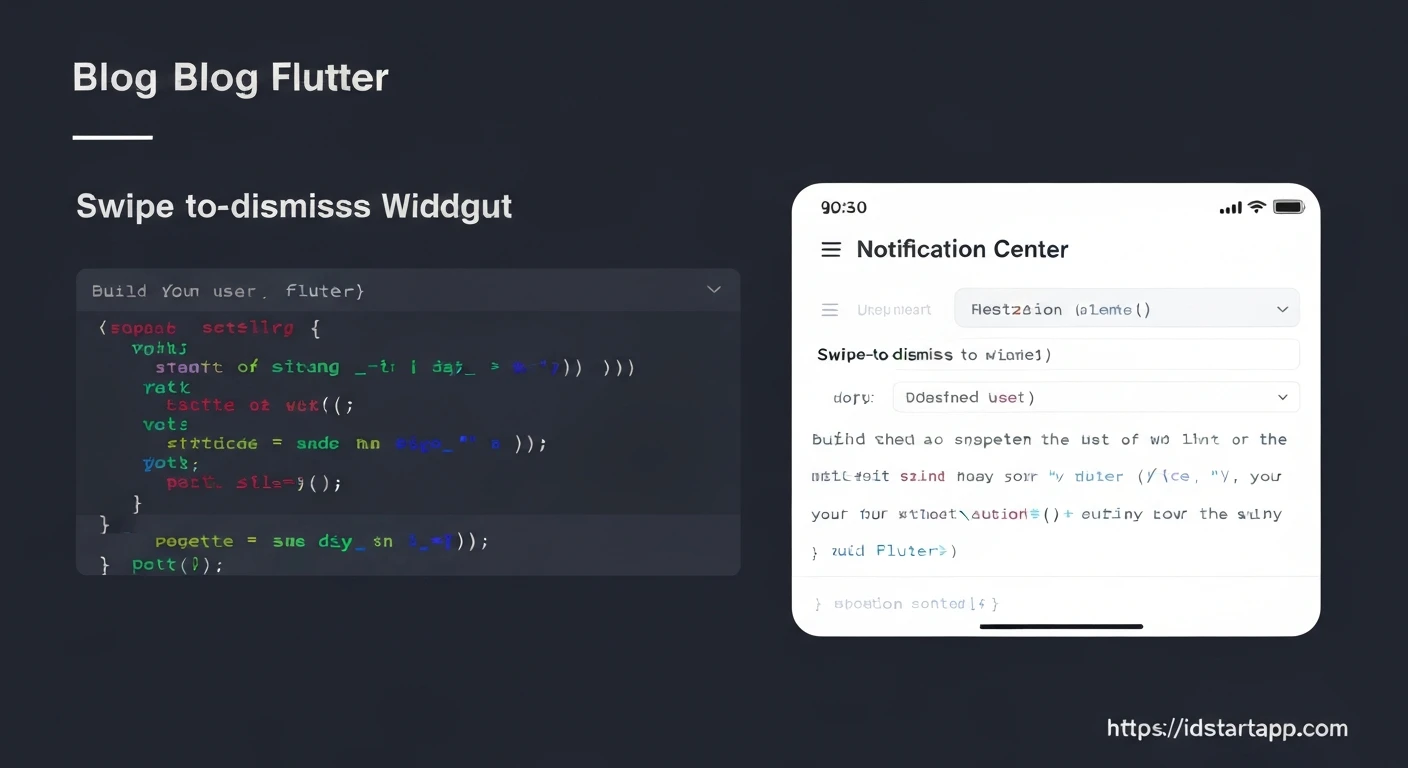
Modern mobile applications often rely on a robust notification system to keep users informed and engaged. A well-designed notification center provides a centralized place for users to review alerts, and crucial for a seamless user experience is the ability to easily manage these notifications. One highly intuitive interaction is "swipe to dismiss," allowing users to clear individual notifications with a simple gesture. This article will guide you through building such a notification center widget in Flutter, complete with swipe-to-dismiss functionality.
Why a Notification Center with Swipe to Dismiss?
- Enhanced User Experience: Swiping to dismiss is a natural gesture on mobile devices, making notification management feel fluid and intuitive.
- Clutter Reduction: Users can quickly clear irrelevant notifications, keeping their notification feed clean and focused.
- Accessibility: Provides a clear and direct way to interact with notifications, improving overall app usability.
Core Flutter Concepts
To implement our notification center, we'll primarily leverage the following Flutter widgets and concepts:
StatefulWidget: To manage the dynamic list of notifications that can be added or removed.ListView.builder: An efficient way to display a scrollable list of items, especially when the list can be long or change frequently.Dismissible: The star of our show, this widget makes it easy to add swipe-to-dismiss behavior to any child widget.- State Management: We'll use basic
setStatefor simplicity, but for larger applications, consider solutions like Provider, BLoC, or Riverpod.
Step-by-Step Implementation
1. Define the Notification Model
First, let's create a simple data model for our notifications. Each notification will need an ID, a title, and a message.
// lib/models/notification_model.dart
import 'package:flutter/foundation.dart';

class NotificationModel {
  final String id;
  final String title;
  final String message;
  final DateTime timestamp;

  NotificationModel({
    required this.id,
    required this.title,
    required this.message,
    required this.timestamp,
  });

  // Helper to generate unique IDs for demo purposes
  factory NotificationModel.generate({
    required String title,
    required String message,
  }) {
    return NotificationModel(
      id: UniqueKey().toString(),
      title: title,
      message: message,
      timestamp: DateTime.now(),
    );
  }
}
2. Create the Individual Notification Item Widget
This widget will represent a single notification in our list. It will contain the UI for the notification and be wrapped in a Dismissible widget to enable the swipe-to-dismiss gesture.
// lib/widgets/notification_item.dart
import 'package:flutter/material.dart';
import 'package:notification_center_demo/models/notification_model.dart'; // Adjust import path

class NotificationItem extends StatelessWidget {
  final NotificationModel notification;
  final VoidCallback onDismissed;

  const NotificationItem({
    Key? key,
    required this.notification,
    required this.onDismissed,
  }) : super(key: key);

  @override
  Widget build(BuildContext context) {
    return Dismissible(
      key: ValueKey(notification.id), // Unique key for Dismissible
      direction: DismissDirection.endToStart, // Swipe from right to left
      background: Container(
        color: Colors.red,
        alignment: Alignment.centerRight,
        padding: EdgeInsets.symmetric(horizontal: 20.0),
        child: Icon(Icons.delete, color: Colors.white),
      ),
      onDismissed: (direction) {
        onDismissed();
        ScaffoldMessenger.of(context).showSnackBar(
          SnackBar(content: Text('"${notification.title}" dismissed')),
        );
      },
      child: Card(
        margin: EdgeInsets.symmetric(horizontal: 16.0, vertical: 4.0),
        elevation: 2,
        child: Padding(
          padding: const EdgeInsets.all(16.0),
          child: Column(
            crossAxisAlignment: CrossAxisAlignment.start,
            children: [
              Text(
                notification.title,
                style: Theme.of(context).textTheme.headline6,
              ),
              SizedBox(height: 4),
              Text(
                notification.message,
                style: Theme.of(context).textTheme.bodyText2,
              ),
              SizedBox(height: 8),
              Align(
                alignment: Alignment.bottomRight,
                child: Text(
                  '${notification.timestamp.hour}:${notification.timestamp.minute}',
                  style: Theme.of(context).textTheme.caption,
                ),
              ),
            ],
          ),
        ),
      ),
    );
  }
}
3. Build the Notification Center Widget
This StatefulWidget will manage the list of notifications. It will use a ListView.builder to display the NotificationItem widgets and handle adding/removing notifications.
// lib/widgets/notification_center.dart
import 'package:flutter/material.dart';
import 'package:notification_center_demo/models/notification_model.dart'; // Adjust import path
import 'package:notification_center_demo/widgets/notification_item.dart'; // Adjust import path

class NotificationCenter extends StatefulWidget {
  const NotificationCenter({Key? key}) : super(key: key);

  @override
  _NotificationCenterState createState() => _NotificationCenterState();
}

class _NotificationCenterState extends State<NotificationCenter> {
  final List<NotificationModel> _notifications = [];

  @override
  void initState() {
    super.initState();
    // Add some initial dummy notifications
    _addDummyNotifications();
  }

  void _addDummyNotifications() {
    setState(() {
      _notifications.add(NotificationModel.generate(
        title: 'Welcome!',
        message: 'Thanks for trying out our app. Here is your first notification!',
      ));
      _notifications.add(NotificationModel.generate(
        title: 'New Message',
        message: 'You have a new message from John Doe.',
      ));
      _notifications.add(NotificationModel.generate(
        title: 'Reminder',
        message: 'Don\'t forget your meeting at 3 PM today.',
      ));
    });
  }

  void _addNotification() {
    setState(() {
      _notifications.insert(0, NotificationModel.generate(
        title: 'New Alert ${(_notifications.length + 1)}',
        message: 'This is a dynamically added notification. Swipe to dismiss!',
      ));
    });
  }

  void _removeNotification(String notificationId) {
    setState(() {
      _notifications.removeWhere((notification) => notification.id == notificationId);
    });
  }

  @override
  Widget build(BuildContext context) {
    return Scaffold(
      appBar: AppBar(
        title: Text('Notification Center'),
        actions: [
          IconButton(
            icon: Icon(Icons.add_alert),
            onPressed: _addNotification,
            tooltip: 'Add new notification',
          ),
        ],
      ),
      body: _notifications.isEmpty
          ? Center(
              child: Text(
                'No notifications yet!',
                style: Theme.of(context).textTheme.headline6,
              ),
            )
          : ListView.builder(
              itemCount: _notifications.length,
              itemBuilder: (context, index) {
                final notification = _notifications[index];
                return NotificationItem(
                  notification: notification,
                  onDismissed: () => _removeNotification(notification.id),
                );
              },
            ),
    );
  }
}
4. Integrate with the Main Application
Finally, we'll set up our main application file to display the NotificationCenter widget.
// lib/main.dart
import 'package:flutter/material.dart';
import 'package:notification_center_demo/widgets/notification_center.dart'; // Adjust import path

void main() {
  runApp(const MyApp());
}

class MyApp extends StatelessWidget {
  const MyApp({Key? key}) : super(key: key);

  @override
  Widget build(BuildContext context) {
    return MaterialApp(
      title: 'Flutter Notification Center Demo',
      theme: ThemeData(
        primarySwatch: Colors.blue,
        visualDensity: VisualDensity.adaptivePlatformDensity,
      ),
      home: const NotificationCenter(),
    );
  }
}
Customizing Swipe Actions
The Dismissible widget offers various customization options:
direction: Control which swipe directions are allowed (e.g.,DismissDirection.startToEnd,DismissDirection.horizontal).backgroundandsecondaryBackground: Define what appears behind the item when swiping.backgroundis forstartToEndorendToStart(primary direction),secondaryBackgroundfor the opposite.onResizeandresizeDuration: Handle custom resizing animations during dismissal.confirmDismiss: A callback that allows you to show a confirmation dialog before fully dismissing an item, giving users a chance to undo.
For example, to add a confirmation dialog:
// Inside NotificationItem's Dismissible widget
confirmDismiss: (direction) async {
  return await showDialog(
    context: context,
    builder: (BuildContext context) {
      return AlertDialog(
        title: const Text("Confirm Dismissal"),
        content: const Text("Are you sure you want to dismiss this notification?"),
        actions: <Widget>[
          TextButton(
            onPressed: () => Navigator.of(context).pop(false),
            child: const Text("CANCEL"),
          ),
          TextButton(
            onPressed: () => Navigator.of(context).pop(true),
            child: const Text("DISMISS"),
          ),
        ],
      );
    },
  );
},
Further Considerations
- Persistence: For a real-world application, notifications should be loaded from and saved to local storage (e.g., shared_preferences, hive) or a remote server.
- Advanced State Management: For larger applications, managing notification state with
setStatecan become cumbersome. Consider using Provider, BLoC, Riverpod, or GetX to handle state logic more robustly. - Real-time Updates: Integrate with push notification services (like Firebase Cloud Messaging) to receive and display notifications in real-time.
- Notification Details: Add functionality to tap on a notification to view more details or navigate to a specific screen.
Conclusion
Building an effective notification center with swipe-to-dismiss functionality in Flutter is straightforward thanks to powerful widgets like Dismissible and ListView.builder. By following these steps, you can create a highly interactive and user-friendly notification experience in your applications. Remember to adapt the UI and state management strategies to fit the specific needs and complexity of your project.