
Building a Task List Widget with Category Filter in Flutter
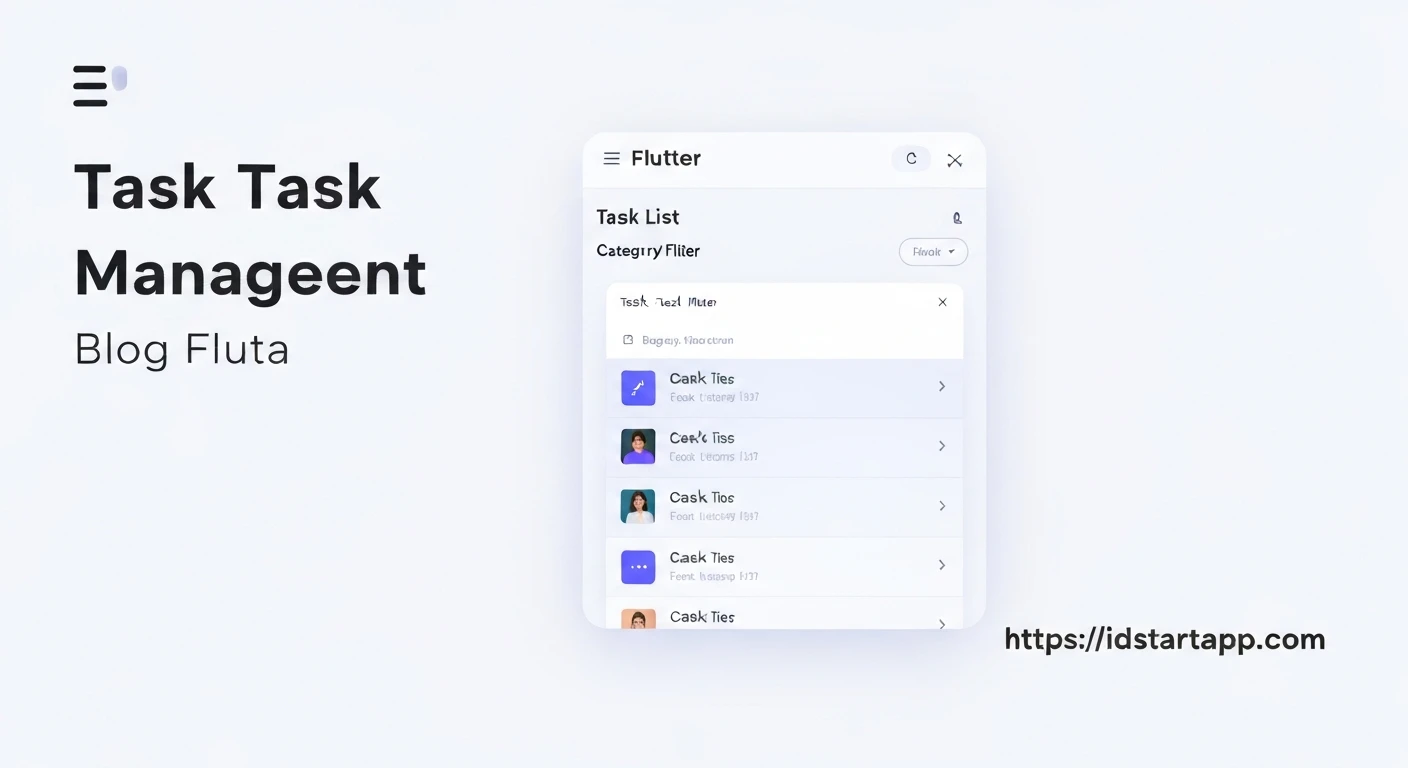
Task management applications are a staple in productivity tools. A common and highly useful feature in such applications is the ability to organize tasks into categories and filter them accordingly. This article will guide you through building a dynamic task list widget in Flutter that includes a category filtering mechanism, enhancing user experience and task organization.
1. Defining the Task Model
First, let's define a simple data model for our tasks. This model will hold information such as the task title, description, category, and its completion status.
import 'package:flutter/foundation.dart';

class Task {
  final String id;
  String title;
  String description;
  String category;
  bool isCompleted;

  Task({
    required this.id,
    required this.title,
    this.description = '',
    required this.category,
    this.isCompleted = false,
  });

  // A simple method to toggle completion status
  void toggleCompletion() {
    isCompleted = !isCompleted;
  }
}
2. Setting Up the Main Screen Structure
We'll create a StatefulWidget for our task list screen. This widget will manage the list of tasks and the currently selected filter category.
import 'package:flutter/material.dart';

// Assuming Task model is in 'models/task.dart'
// import 'package:your_app_name/models/task.dart';

class TaskListScreen extends StatefulWidget {
  const TaskListScreen({super.key});

  @override
  State<TaskListScreen> createState() => _TaskListScreenState();
}

class _TaskListScreenState extends State<TaskListScreen> {
  List<Task> _tasks = [
    Task(id: '1', title: 'Buy groceries', category: 'Personal', description: 'Milk, Eggs, Bread'),
    Task(id: '2', title: 'Finish project report', category: 'Work', description: 'Due by Friday'),
    Task(id: '3', title: 'Call client X', category: 'Work', isCompleted: true),
    Task(id: '4', title: 'Workout', category: 'Health', description: 'Gym session'),
    Task(id: '5', title: 'Plan weekend trip', category: 'Personal'),
  ];

  String _selectedCategory = 'All'; // Default filter category
  List<String> _categories = ['All', 'Personal', 'Work', 'Health'];

  @override
  Widget build(BuildContext context) {
    // Filter tasks based on _selectedCategory
    final List<Task> filteredTasks = _tasks.where((task) {
      return _selectedCategory == 'All' || task.category == _selectedCategory;
    }).toList();

    return Scaffold(
      appBar: AppBar(
        title: const Text('My Task List'),
      ),
      body: Column(
        children: [
          // Category Filter Chips will go here
          _buildCategoryFilter(),
          // Task List will go here
          Expanded(
            child: _buildTaskList(filteredTasks),
          ),
        ],
      ),
      floatingActionButton: FloatingActionButton(
        onPressed: () {
          // Implement add new task functionality
          _addNewTask(context);
        },
        child: const Icon(Icons.add),
      ),
    );
  }

  // Placeholder for filter and task list methods
  Widget _buildCategoryFilter() {
    return Container(); // Will be implemented in next step
  }

  Widget _buildTaskList(List<Task> tasks) {
    return Container(); // Will be implemented in next step
  }

  void _addNewTask(BuildContext context) {
    // Implement adding new tasks here
  }
}
3. Implementing Category Filters
We'll use a horizontal list of ChoiceChip widgets for category filtering. When a chip is selected, it updates the _selectedCategory state variable, triggering a rebuild and re-filtering of the tasks.
  // ... inside _TaskListScreenState class ...

  Widget _buildCategoryFilter() {
    return SingleChildScrollView(
      scrollDirection: Axis.horizontal,
      padding: const EdgeInsets.symmetric(horizontal: 16.0, vertical: 8.0),
      child: Row(
        children: _categories.map((category) {
          return Padding(
            padding: const EdgeInsets.symmetric(horizontal: 4.0),
            child: ChoiceChip(
              label: Text(category),
              selected: _selectedCategory == category,
              onSelected: (selected) {
                if (selected) {
                  setState(() {
                    _selectedCategory = category;
                  });
                }
              },
              selectedColor: Theme.of(context).primaryColor.withOpacity(0.2),
              labelStyle: TextStyle(
                color: _selectedCategory == category
                    ? Theme.of(context).primaryColor
                    : Theme.of(context).colorScheme.onSurface,
                fontWeight: _selectedCategory == category ? FontWeight.bold : FontWeight.normal,
              ),
            ),
          );
        }).toList(),
      ),
    );
  }
4. Displaying Filtered Tasks
The filtered tasks will be displayed using a ListView.builder. Each task will be represented by a ListTile, showing its title, category, and a checkbox for completion status.
  // ... inside _TaskListScreenState class ...

  Widget _buildTaskList(List<Task> tasks) {
    if (tasks.isEmpty) {
      return Center(
        child: Text(
          _selectedCategory == 'All'
              ? 'No tasks added yet!'
              : 'No tasks in "$_selectedCategory" category.',
          style: const TextStyle(fontSize: 16, color: Colors.grey),
        ),
      );
    }
    return ListView.builder(
      itemCount: tasks.length,
      itemBuilder: (context, index) {
        final task = tasks[index];
        return Card(
          margin: const EdgeInsets.symmetric(horizontal: 16.0, vertical: 4.0),
          elevation: 1.0,
          child: ListTile(
            leading: Checkbox(
              value: task.isCompleted,
              onChanged: (bool? newValue) {
                setState(() {
                  task.toggleCompletion();
                });
              },
            ),
            title: Text(
              task.title,
              style: TextStyle(
                decoration: task.isCompleted ? TextDecoration.lineThrough : TextDecoration.none,
                color: task.isCompleted ? Colors.grey : Colors.black,
              ),
            ),
            subtitle: Column(
              crossAxisAlignment: CrossAxisAlignment.start,
              children: [
                Text(task.description, maxLines: 1, overflow: TextOverflow.ellipsis),
                Text('Category: ${task.category}', style: const TextStyle(fontSize: 12, color: Colors.blueGrey)),
              ],
            ),
            trailing: IconButton(
              icon: const Icon(Icons.delete, color: Colors.redAccent),
              onPressed: () {
                _deleteTask(task.id);
              },
            ),
            onTap: () {
              // Optionally navigate to a detail screen or edit task
              _editTask(context, task);
            },
          ),
        );
      },
    );
  }

  void _deleteTask(String id) {
    setState(() {
      _tasks.removeWhere((task) => task.id == id);
    });
  }

  void _editTask(BuildContext context, Task task) {
    // For simplicity, let's just show a snackbar for now
    ScaffoldMessenger.of(context).showSnackBar(
      SnackBar(content: Text('Tapped on: ${task.title}')),
    );
    // In a real app, you would open a dialog or navigate to an edit screen
  }
5. Adding a New Task
To make our task list more interactive, let's add functionality to add new tasks using a simple dialog.
  // ... inside _TaskListScreenState class ...

  void _addNewTask(BuildContext context) {
    String newTitle = '';
    String newDescription = '';
    String newCategory = _categories.firstWhere((cat) => cat != 'All', orElse: () => 'Personal'); // Default to a non-'All' category

    showDialog(
      context: context,
      builder: (BuildContext context) {
        return StatefulBuilder( // Use StatefulBuilder to update dialog state
          builder: (context, setStateDialog) {
            return AlertDialog(
              title: const Text('Add New Task'),
              content: SingleChildScrollView(
                child: Column(
                  mainAxisSize: MainAxisSize.min,
                  children: [
                    TextField(
                      autofocus: true,
                      decoration: const InputDecoration(labelText: 'Title'),
                      onChanged: (value) => newTitle = value,
                    ),
                    TextField(
                      decoration: const InputDecoration(labelText: 'Description (Optional)'),
                      onChanged: (value) => newDescription = value,
                    ),
                    DropdownButton<String>(
                      value: newCategory,
                      onChanged: (String? newValue) {
                        if (newValue != null) {
                          setStateDialog(() { // Update dialog's state
                            newCategory = newValue;
                          });
                        }
                      },
                      items: _categories.where((cat) => cat != 'All').map<DropdownMenuItem<String>>((String value) {
                        return DropdownMenuItem<String>(
                          value: value,
                          child: Text(value),
                        );
                      }).toList(),
                      isExpanded: true,
                    ),
                  ],
                ),
              ),
              actions: <Widget>[
                TextButton(
                  child: const Text('Cancel'),
                  onPressed: () {
                    Navigator.of(context).pop();
                  },
                ),
                ElevatedButton(
                  child: const Text('Add'),
                  onPressed: () {
                    if (newTitle.isNotEmpty) {
                      setState(() {
                        _tasks.add(Task(
                          id: DateTime.now().millisecondsSinceEpoch.toString(),
                          title: newTitle,
                          description: newDescription,
                          category: newCategory,
                        ));
                      });
                      Navigator.of(context).pop();
                    }
                  },
                ),
              ],
            );
          },
        );
      },
    );
  }
6. Full Example (main.dart)
Here's how you can integrate the TaskListScreen into a basic Flutter application.
import 'package:flutter/material.dart';

// models/task.dart
// (Place the Task class definition here or in a separate file)
class Task {
  final String id;
  String title;
  String description;
  String category;
  bool isCompleted;

  Task({
    required this.id,
    required this.title,
    this.description = '',
    required this.category,
    this.isCompleted = false,
  });

  void toggleCompletion() {
    isCompleted = !isCompleted;
  }
}

// task_list_screen.dart
// (Place the TaskListScreen and its State class definition here)
class TaskListScreen extends StatefulWidget {
  const TaskListScreen({super.key});

  @override
  State<TaskListScreen> createState() => _TaskListScreenState();
}

class _TaskListScreenState extends State<TaskListScreen> {
  List<Task> _tasks = [
    Task(id: '1', title: 'Buy groceries', category: 'Personal', description: 'Milk, Eggs, Bread'),
    Task(id: '2', title: 'Finish project report', category: 'Work', description: 'Due by Friday'),
    Task(id: '3', title: 'Call client X', category: 'Work', isCompleted: true),
    Task(id: '4', title: 'Workout', category: 'Health', description: 'Gym session'),
    Task(id: '5', title: 'Plan weekend trip', category: 'Personal'),
  ];

  String _selectedCategory = 'All';
  final List<String> _categories = ['All', 'Personal', 'Work', 'Health', 'Study']; // Added 'Study' for more options

  @override
  Widget build(BuildContext context) {
    final List<Task> filteredTasks = _tasks.where((task) {
      return _selectedCategory == 'All' || task.category == _selectedCategory;
    }).toList();

    return Scaffold(
      appBar: AppBar(
        title: const Text('My Task List'),
        backgroundColor: Theme.of(context).colorScheme.primary,
        foregroundColor: Theme.of(context).colorScheme.onPrimary,
      ),
      body: Column(
        children: [
          _buildCategoryFilter(),
          Expanded(
            child: _buildTaskList(filteredTasks),
          ),
        ],
      ),
      floatingActionButton: FloatingActionButton(
        onPressed: () => _addNewTask(context),
        child: const Icon(Icons.add),
      ),
    );
  }

  Widget _buildCategoryFilter() {
    return SingleChildScrollView(
      scrollDirection: Axis.horizontal,
      padding: const EdgeInsets.symmetric(horizontal: 16.0, vertical: 8.0),
      child: Row(
        children: _categories.map((category) {
          return Padding(
            padding: const EdgeInsets.symmetric(horizontal: 4.0),
            child: ChoiceChip(
              label: Text(category),
              selected: _selectedCategory == category,
              onSelected: (selected) {
                if (selected) {
                  setState(() {
                    _selectedCategory = category;
                  });
                }
              },
              selectedColor: Theme.of(context).primaryColor.withOpacity(0.2),
              labelStyle: TextStyle(
                color: _selectedCategory == category
                    ? Theme.of(context).primaryColor
                    : Theme.of(context).colorScheme.onSurface,
                fontWeight: _selectedCategory == category ? FontWeight.bold : FontWeight.normal,
              ),
            ),
          );
        }).toList(),
      ),
    );
  }

  Widget _buildTaskList(List<Task> tasks) {
    if (tasks.isEmpty) {
      return Center(
        child: Text(
          _selectedCategory == 'All'
              ? 'No tasks added yet!'
              : 'No tasks in "$_selectedCategory" category.',
          style: const TextStyle(fontSize: 16, color: Colors.grey),
        ),
      );
    }
    return ListView.builder(
      itemCount: tasks.length,
      itemBuilder: (context, index) {
        final task = tasks[index];
        return Card(
          margin: const EdgeInsets.symmetric(horizontal: 16.0, vertical: 4.0),
          elevation: 1.0,
          child: ListTile(
            leading: Checkbox(
              value: task.isCompleted,
              onChanged: (bool? newValue) {
                setState(() {
                  task.toggleCompletion();
                });
              },
            ),
            title: Text(
              task.title,
              style: TextStyle(
                decoration: task.isCompleted ? TextDecoration.lineThrough : TextDecoration.none,
                color: task.isCompleted ? Colors.grey : Colors.black,
              ),
            ),
            subtitle: Column(
              crossAxisAlignment: CrossAxisAlignment.start,
              children: [
                if (task.description.isNotEmpty)
                  Text(task.description, maxLines: 1, overflow: TextOverflow.ellipsis),
                Text('Category: ${task.category}', style: const TextStyle(fontSize: 12, color: Colors.blueGrey)),
              ],
            ),
            trailing: IconButton(
              icon: const Icon(Icons.delete, color: Colors.redAccent),
              onPressed: () {
                _deleteTask(task.id);
              },
            ),
            onTap: () {
              // Optionally navigate to a detail screen or edit task
              _editTask(context, task);
            },
          ),
        );
      },
    );
  }

  void _deleteTask(String id) {
    setState(() {
      _tasks.removeWhere((task) => task.id == id);
    });
  }

  void _editTask(BuildContext context, Task task) {
    // For simplicity, just show a snackbar.
    // In a real app, you would open an edit dialog or navigate.
    ScaffoldMessenger.of(context).showSnackBar(
      SnackBar(content: Text('Edit/View details of: ${task.title}')),
    );
  }

  void _addNewTask(BuildContext context) {
    String newTitle = '';
    String newDescription = '';
    String newCategory = _categories.firstWhere((cat) => cat != 'All', orElse: () => 'Personal');

    showDialog(
      context: context,
      builder: (BuildContext context) {
        return StatefulBuilder(
          builder: (context, setStateDialog) {
            return AlertDialog(
              title: const Text('Add New Task'),
              content: SingleChildScrollView(
                child: Column(
                  mainAxisSize: MainAxisSize.min,
                  children: [
                    TextField(
                      autofocus: true,
                      decoration: const InputDecoration(labelText: 'Title'),
                      onChanged: (value) => newTitle = value,
                    ),
                    TextField(
                      decoration: const InputDecoration(labelText: 'Description (Optional)'),
                      onChanged: (value) => newDescription = value,
                    ),
                    DropdownButton<String>(
                      value: newCategory,
                      onChanged: (String? newValue) {
                        if (newValue != null) {
                          setStateDialog(() {
                            newCategory = newValue;
                          });
                        }
                      },
                      items: _categories.where((cat) => cat != 'All').map<DropdownMenuItem<String>>((String value) {
                        return DropdownMenuItem<String>(
                          value: value,
                          child: Text(value),
                        );
                      }).toList(),
                      isExpanded: true,
                    ),
                  ],
                ),
              ),
              actions: <Widget>[
                TextButton(
                  child: const Text('Cancel'),
                  onPressed: () {
                    Navigator.of(context).pop();
                  },
                ),
                ElevatedButton(
                  child: const Text('Add'),
                  onPressed: () {
                    if (newTitle.isNotEmpty) {
                      setState(() {
                        _tasks.add(Task(
                          id: DateTime.now().millisecondsSinceEpoch.toString(),
                          title: newTitle,
                          description: newDescription,
                          category: newCategory,
                        ));
                      });
                      Navigator.of(context).pop();
                    }
                  },
                ),
              ],
            );
          },
        );
      },
    );
  }
}

void main() {
  runApp(const MyApp());
}

class MyApp extends StatelessWidget {
  const MyApp({super.key});

  @override
  Widget build(BuildContext context) {
    return MaterialApp(
      title: 'Flutter Task List',
      theme: ThemeData(
        primarySwatch: Colors.deepPurple,
        colorScheme: ColorScheme.fromSwatch(
          primarySwatch: Colors.deepPurple,
          accentColor: Colors.deepPurpleAccent,
        ).copyWith(
          secondary: Colors.deepPurpleAccent,
        ),
        useMaterial3: false, // Set to true for Material 3 design
      ),
      home: const TaskListScreen(),
    );
  }
}
Conclusion
By following these steps, you've built a functional task list widget in Flutter with robust category filtering capabilities. This approach leverages Flutter's stateful widgets and basic UI components to create an intuitive user experience. You can further enhance this widget by adding features like task editing, persistence (saving tasks to local storage or a database), drag-and-drop reordering, or more sophisticated state management solutions (e.g., Provider, Riverpod, BLoC) for larger applications.