
Building a Notification Bell Widget with Unread Count in Flutter
A notification bell widget with an unread count is a fundamental UI component in modern applications, providing users with instant visual feedback on new activity or alerts. This article will guide you through building such a widget in Flutter, covering its structure, state management, and practical implementation.
Understanding the Core Components
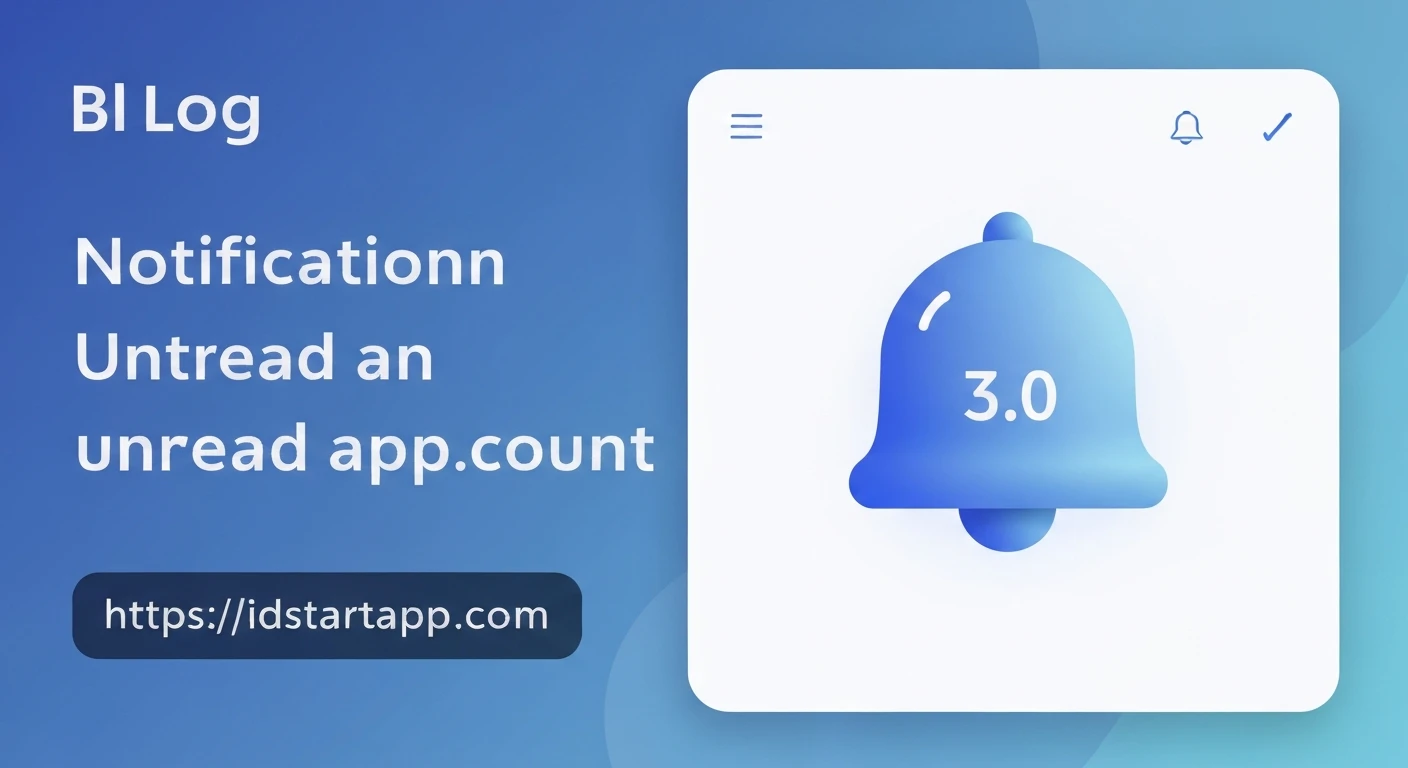
The notification bell widget typically consists of two main parts:
- The Bell Icon: A standard notification icon (e.g.,
Icons.notifications) that serves as the visual trigger. - The Unread Count Badge: A small, often circular, overlay positioned on top of the bell icon, displaying the number of unread notifications. This badge usually has a distinct background color (e.g., red) to draw attention.
Step-by-Step Implementation
We will create a reusable NotificationBell widget that can be easily integrated into any part of your Flutter application.
1. Creating the NotificationBell Widget Structure
We'll use a Stack widget to layer the unread count badge on top of the bell icon. The Positioned widget will help us accurately place the badge.
import 'package:flutter/material.dart';

class NotificationBell extends StatelessWidget {
  final int unreadCount;
  final VoidCallback onTap;
  final Color bellColor;
  final double bellSize;
  final Color badgeColor;
  final Color badgeTextColor;

  const NotificationBell({
    Key? key,
    required this.unreadCount,
    required this.onTap,
    this.bellColor = Colors.grey,
    this.bellSize = 30.0,
    this.badgeColor = Colors.red,
    this.badgeTextColor = Colors.white,
  }) : super(key: key);

  @override
  Widget build(BuildContext context) {
    return GestureDetector(
      onTap: onTap,
      child: Stack(
        clipBehavior: Clip.none, // Allows the badge to overflow naturally
        children: [
          Icon(
            Icons.notifications,
            color: bellColor,
            size: bellSize,
          ),
          if (unreadCount > 0)
            Positioned(
              right: -5, // Adjust this value to position the badge correctly
              top: -5,   // Adjust this value to position the badge correctly
              child: Container(
                padding: EdgeInsets.all(2),
                decoration: BoxDecoration(
                  color: badgeColor,
                  borderRadius: BorderRadius.circular(10), // Makes it circular
                  border: Border.all(color: Colors.white, width: 1.5), // Optional: white border for contrast
                ),
                constraints: BoxConstraints(
                  minWidth: 18,
                  minHeight: 18,
                ),
                child: Text(
                  '${unreadCount > 99 ? '99+' : unreadCount}', // Display '99+' for counts over 99
                  style: TextStyle(
                    color: badgeTextColor,
                    fontSize: 12,
                    fontWeight: FontWeight.bold,
                  ),
                  textAlign: TextAlign.center,
                ),
              ),
            ),
        ],
      ),
    );
  }
}
Explanation:
GestureDetector: Wraps the entire stack to make the bell tappable.Stack: Allows layering widgets.clipBehavior: Clip.noneis important to ensure the badge isn't cut off if it slightly overflows the icon's bounds.Icon: The standard notification icon.if (unreadCount > 0): The badge is only displayed if there are unread notifications.Positioned: Places the badge relative to theStack. Adjustrightandtopvalues for optimal positioning.Container: Styles the badge (background color, border radius).BoxConstraints: Ensures the badge has a minimum size, even for single-digit counts.Text: Displays theunreadCount. A check is added to display "99+" for very large counts to prevent overflow.
2. Integrating the Widget and Managing State
To use the NotificationBell, you simply need to provide the unreadCount and an onTap callback. The unread count will typically come from your application's state management. For demonstration purposes, we'll use a simple StatefulWidget to manage the count.
import 'package:flutter/material.dart';
// Don't forget to import your NotificationBell widget file
// import 'path_to_your_widget/notification_bell.dart';

void main() {
  runApp(MyApp());
}

class MyApp extends StatelessWidget {
  @override
  Widget build(BuildContext context) {
    return MaterialApp(
      title: 'Notification Bell Demo',
      theme: ThemeData(
        primarySwatch: Colors.blue,
      ),
      home: HomePage(),
    );
  }
}

class HomePage extends StatefulWidget {
  const HomePage({Key? key}) : super(key: key);

  @override
  _HomePageState createState() => _HomePageState();
}

class _HomePageState extends State {
  int _unreadNotifications = 3; // Initial unread count

  void _handleBellTap() {
    print('Notification bell tapped! Navigating to notification screen...');
    // In a real app, you would typically navigate to a notification list screen
    // or mark all notifications as read.
    setState(() {
      _unreadNotifications = 0; // For demo, mark all as read on tap
    });
    ScaffoldMessenger.of(context).showSnackBar(
      SnackBar(content: Text('Notifications marked as read!')),
    );
  }

  void _simulateNewNotification() {
    setState(() {
      _unreadNotifications++;
      ScaffoldMessenger.of(context).showSnackBar(
        SnackBar(content: Text('New notification received!')),
      );
    });
  }

  @override
  Widget build(BuildContext context) {
    return Scaffold(
      appBar: AppBar(
        title: Text('Flutter App with Notifications'),
        actions: [
          Padding(
            padding: const EdgeInsets.only(right: 16.0),
            child: NotificationBell(
              unreadCount: _unreadNotifications,
              onTap: _handleBellTap,
              bellColor: Colors.white, // Custom bell color for AppBar
            ),
          ),
        ],
      ),
      body: Center(
        child: Column(
          mainAxisAlignment: MainAxisAlignment.center,
          children: [
            Text('Welcome to the app!', style: TextStyle(fontSize: 20)),
            SizedBox(height: 30),
            ElevatedButton(
              onPressed: _simulateNewNotification,
              child: Text('Simulate New Notification'),
            ),
            SizedBox(height: 10),
            ElevatedButton(
              onPressed: () {
                setState(() {
                  _unreadNotifications = 0;
                });
                ScaffoldMessenger.of(context).showSnackBar(
                  SnackBar(content: Text('All notifications cleared manually.')),
                );
              },
              child: Text('Clear All Notifications'),
            ),
          ],
        ),
      ),
    );
  }
}
In the HomePage example:
- The
_unreadNotificationsinteger holds the current count. _handleBellTap()is called when the bell is pressed. It clears the count and can trigger navigation or other actions._simulateNewNotification()demonstrates how the count can be incremented when a new notification arrives.
3. Real-time Updates (Considerations)
For real-world applications, your unread count will likely come from a backend service. You would integrate this widget with:
- WebSockets/MQTT: For real-time push notifications, where the server immediately notifies the client of new events.
- Polling: Periodically fetch the unread count from your API (less efficient but simpler for some cases).
- Firebase Cloud Messaging (FCM): A common solution for sending push notifications to mobile apps. Your app would listen for these messages and update the count locally.
- State Management Solutions: Use providers like
Provider,Bloc,Riverpod, orGetXto manage the notification state across your app and trigger UI rebuilds when the count changes.
Refinements and Best Practices
- Accessibility: Ensure the widget has appropriate semantic labels if it's not immediately clear what it represents, especially for screen readers.
- Theming: As shown in the widget, expose styling properties (
bellColor,badgeColor, etc.) to allow for easy customization across your app's theme. - Animation: For a more engaging user experience, you could add a subtle animation (e.g., a bounce or fade) when the unread count changes.
- Large Counts: The "99+" logic prevents the badge from growing excessively wide for very large numbers. Consider what makes sense for your application's context.
- Performance: For apps with a very high frequency of notifications, ensure your state updates are efficient and only rebuild necessary parts of the widget tree.
Conclusion
Building a notification bell widget with an unread count in Flutter is straightforward using Stack and Positioned widgets. By integrating it with your application's state management, you can provide users with a dynamic and informative visual cue for new activity, significantly enhancing the user experience.