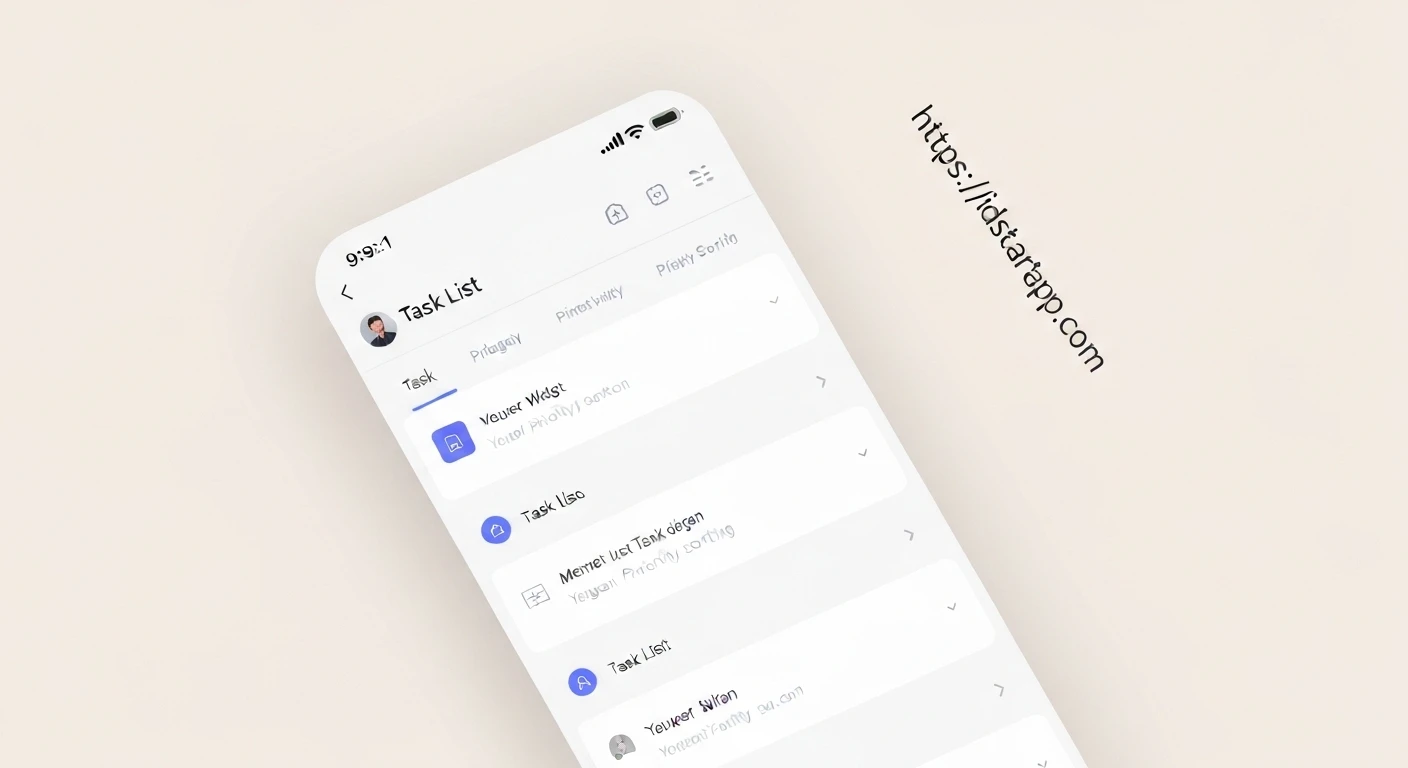

Building a Flutter Task List Widget with Priority Sorting
Task management applications are a fundamental part of productivity tools, and incorporating features like priority sorting can significantly enhance user experience. Flutter, with its expressive UI and robust framework, makes it straightforward to build such applications. This article will guide you through creating a task list widget in Flutter that allows users to add tasks and automatically sorts them based on a defined priority level.
1. Defining the Task Model
First, we need to establish how a task will be represented in our application. This involves creating a Task class and an enumeration for different priority levels. We'll use the uuid package to generate unique IDs for each task, which is good practice for managing lists.
Add the uuid dependency to your pubspec.yaml:
dependencies:
  flutter:
    sdk: flutter
  uuid: ^4.2.1 # Use the latest version
Create a file named task.dart (or combine with the widget file) and define the Priority enum and Task class:
enum Priority {
  low,
  medium,
  high,
}

class Task {
  final String id;
  String title;
  String description;
  Priority priority;
  bool isCompleted;

  Task({
    required this.id,
    required this.title,
    this.description = '',
    this.priority = Priority.low,
    this.isCompleted = false,
  });

  // Optional: copyWith method for immutable updates
  Task copyWith({
    String? id,
    String? title,
    String? description,
    Priority? priority,
    bool? isCompleted,
  }) {
    return Task(
      id: id ?? this.id,
      title: title ?? this.title,
      description: description ?? this.description,
      priority: priority ?? this.priority,
      isCompleted: isCompleted ?? this.isCompleted,
    );
  }
}
2. Implementing the Task List Widget
Next, we'll create a StatefulWidget to manage our list of tasks. This widget will be responsible for displaying tasks, handling user interactions (like marking a task as complete or deleting it), and triggering the sorting logic. We'll use ListView.builder for efficient list rendering and ListTile for each task item.
Create a file named task_list_screen.dart:
import 'package:flutter/material.dart';
import 'package:uuid/uuid.dart';
import 'task.dart'; // Import our Task and Priority definitions

class TaskListScreen extends StatefulWidget {
  const TaskListScreen({super.key});

  @override
  State<TaskListScreen> createState() => _TaskListScreenState();
}

class _TaskListScreenState extends State<TaskListScreen> {
  final List<Task> _tasks = [];
  final Uuid _uuid = const Uuid();

  @override
  void initState() {
    super.initState();
    // Add some initial tasks for demonstration
    _tasks.add(Task(id: _uuid.v4(), title: 'Learn Flutter Widgets', priority: Priority.high));
    _tasks.add(Task(id: _uuid.v4(), title: 'Buy Groceries', priority: Priority.medium, isCompleted: true));
    _tasks.add(Task(id: _uuid.v4(), title: 'Walk the dog', priority: Priority.low));
    _tasks.add(Task(id: _uuid.v4(), title: 'Write an article', priority: Priority.high));
    _tasks.add(Task(id: _uuid.v4(), title: 'Call Mom', priority: Priority.medium));
    _sortTasks(); // Sort initial tasks upon creation
  }

  void _addTask(String title, Priority priority) {
    setState(() {
      _tasks.add(Task(id: _uuid.v4(), title: title, priority: priority));
      _sortTasks(); // Re-sort after adding a new task
    });
  }

  void _toggleTaskCompletion(String id) {
    setState(() {
      final taskIndex = _tasks.indexWhere((task) => task.id == id);
      if (taskIndex != -1) {
        _tasks[taskIndex].isCompleted = !_tasks[taskIndex].isCompleted;
      }
      _sortTasks(); // Re-sort, as completion status might affect the desired order
    });
  }

  void _deleteTask(String id) {
    setState(() {
      _tasks.removeWhere((task) => task.id == id);
    });
  }

  // Helper to get a color based on priority
  Color _getPriorityColor(Priority priority) {
    switch (priority) {
      case Priority.high:
        return Colors.red;
      case Priority.medium:
        return Colors.orange;
      case Priority.low:
        return Colors.green;
    }
  }

  // Dialog to add a new task
  void _showAddTaskDialog(BuildContext context) {
    final TextEditingController titleController = TextEditingController();
    Priority selectedPriority = Priority.medium; // Default priority

    showDialog(
      context: context,
      builder: (BuildContext context) {
        return AlertDialog(
          title: const Text('Add New Task'),
          content: Column(
            mainAxisSize: MainAxisSize.min,
            children: [
              TextField(
                controller: titleController,
                decoration: const InputDecoration(labelText: 'Task Title'),
              ),
              const SizedBox(height: 10),
              DropdownButtonFormField<Priority>(
                value: selectedPriority,
                onChanged: (Priority? newValue) {
                  if (newValue != null) {
                    selectedPriority = newValue;
                  }
                },
                items: Priority.values.map((Priority priority) {
                  return DropdownMenuItem<Priority>(
                    value: priority,
                    child: Text(priority.name.toUpperCase()),
                  );
                }).toList(),
                decoration: const InputDecoration(labelText: 'Priority'),
              ),
            ],
          ),
          actions: <Widget>[
            TextButton(
              child: const Text('Cancel'),
              onPressed: () {
                Navigator.of(context).pop();
              },
            ),
            ElevatedButton(
              child: const Text('Add'),
              onPressed: () {
                if (titleController.text.isNotEmpty) {
                  _addTask(titleController.text, selectedPriority);
                  Navigator.of(context).pop();
                }
              },
            ),
          ],
        );
      },
    );
  }

  @override
  Widget build(BuildContext context) {
    return Scaffold(
      appBar: AppBar(
        title: const Text('Priority Task List'),
      ),
      body: ListView.builder(
        itemCount: _tasks.length,
        itemBuilder: (context, index) {
          final task = _tasks[index];
          return Card(
            margin: const EdgeInsets.symmetric(horizontal: 8, vertical: 4),
            child: ListTile(
              leading: Checkbox(
                value: task.isCompleted,
                onChanged: (bool? value) {
                  _toggleTaskCompletion(task.id);
                },
              ),
              title: Text(
                task.title,
                style: TextStyle(
                  decoration: task.isCompleted ? TextDecoration.lineThrough : TextDecoration.none,
                  color: task.isCompleted ? Colors.grey : Colors.black,
                ),
              ),
              subtitle: Text(
                'Priority: ${task.priority.name.toUpperCase()}',
                style: TextStyle(color: _getPriorityColor(task.priority), fontSize: 12),
              ),
              trailing: IconButton(
                icon: const Icon(Icons.delete),
                onPressed: () {
                  _deleteTask(task.id);
                },
              ),
              onTap: () {
                // TODO: Implement task editing functionality
              },
            ),
          );
        },
      ),
      floatingActionButton: FloatingActionButton(
        onPressed: () {
          _showAddTaskDialog(context);
        },
        child: const Icon(Icons.add),
      ),
    );
  }
}
3. Implementing Priority Sorting
The core logic for sorting tasks by priority will reside in the _sortTasks() method within our _TaskListScreenState. We want tasks with higher priority to appear first. Additionally, it's often desirable for completed tasks to appear at the bottom of the list, regardless of their priority.
The Priority enum defined as enum Priority { low, medium, high } assigns numerical indices: low.index is 0, medium.index is 1, and high.index is 2. To sort from High to Low, we want tasks with a higher index to come first. The compareTo method on integers can be used: b.priority.index.compareTo(a.priority.index) will achieve a descending sort based on the index.
Add the following method to the _TaskListScreenState class:
// Inside _TaskListScreenState
void _sortTasks() {
  _tasks.sort((a, b) {
    // First, push completed tasks to the bottom
    if (a.isCompleted && !b.isCompleted) {
      return 1; // a comes after b
    }
    if (!a.isCompleted && b.isCompleted) {
      return -1; // a comes before b
    }

    // If both are completed or both are not completed, sort by priority (High to Low)
    // We want higher index (high priority) to come first.
    // b.priority.index - a.priority.index will result in a negative value if b's priority index is smaller (lower priority),
    // meaning a (higher priority) comes before b.
    return b.priority.index.compareTo(a.priority.index);
  });
}
Remember to call _sortTasks() whenever the list of tasks changes (e.g., after adding a new task, toggling completion, or editing a task's priority) to ensure the list remains sorted.
4. Putting It All Together (main.dart)
Finally, set up your main application file to launch the TaskListScreen.
import 'package:flutter/material.dart';
import 'task_list_screen.dart'; // Import our TaskListScreen

void main() {
  runApp(const MyApp());
}

class MyApp extends StatelessWidget {
  const MyApp({super.key});

  @override
  Widget build(BuildContext context) {
    return MaterialApp(
      title: 'Priority Task App',
      theme: ThemeData(
        primarySwatch: Colors.blue,
        visualDensity: VisualDensity.adaptivePlatformDensity,
      ),
      home: const TaskListScreen(),
    );
  }
}
Conclusion
You have successfully built a Flutter task list widget with priority sorting capabilities. We covered defining a robust Task model with priority enumeration, creating a dynamic UI using StatefulWidget and ListView.builder, and implementing a custom sorting logic that handles both task completion status and priority levels. This foundational project can be extended with features like task editing, data persistence (using local storage or a backend), filtering options, and more sophisticated UI/UX enhancements.