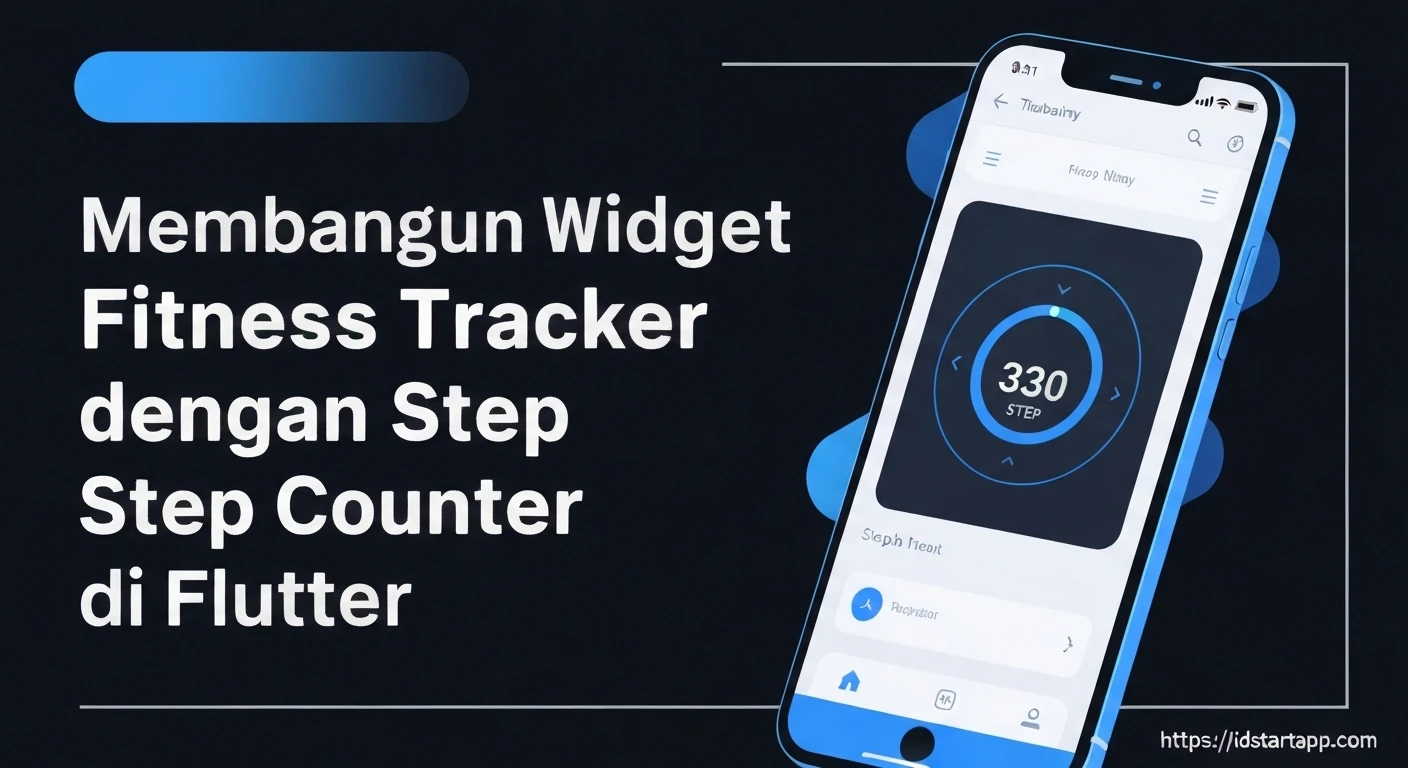

Building a Fitness Tracker Widget with Step Counter in Flutter
Fitness tracking applications have become indispensable tools for monitoring physical activity and promoting a healthy lifestyle. One of their core features is the step counter, providing users with real-time feedback on their daily movement. This article will guide you through the process of building a robust and customizable fitness tracker widget with a step counter in Flutter, leveraging device sensors to deliver accurate data.
Prerequisites
- Basic knowledge of Flutter and Dart.
- Flutter SDK installed and configured.
- A physical device (iOS or Android) for testing, as emulators may not accurately simulate pedometer data.
Setting Up the Project and Dependencies
First, create a new Flutter project or open an existing one. We will need the pedometer package to access step sensor data. Add it to your pubspec.yaml file under dependencies:
dependencies:
  flutter:
    sdk: flutter
  pedometer: ^3.0.0 # Use the latest stable version
After adding the dependency, run flutter pub get in your terminal to fetch the package.
Platform-Specific Setup
Android
For Android 10 (API 29) and above, apps require the ACTIVITY_RECOGNITION permission to access step count data. The pedometer package typically handles this internally for basic foreground usage, but for explicit control or specific scenarios, you might consider adding it to your AndroidManifest.xml.
<manifest xmlns:android="http://schemas.android.com/apk/res/android"
    package="com.example.your_app_name">

    <uses-permission android:name="android.permission.ACTIVITY_RECOGNITION"/>
    <!-- Other permissions -->
    <application
        android:label="your_app_name"
        android:name="${applicationName}"
        android:icon="@mipmap/ic_launcher">
        ...
    </application>
</manifest>
For iOS, you need to add a privacy description for motion activity in your Info.plist file. This explains to the user why your app needs access to their motion data.
<key>NSMotionUsageDescription</key>
<string>This app uses your motion data to track your steps for health and fitness purposes.</string>
Implementing the Step Counter Logic
We'll create a StatefulWidget to manage the step count and its lifecycle, subscribing to the pedometer streams.
1. Initialize State and Pedometer Streams
In your widget's state class, define variables to hold the current step count, sensor status, and StreamSubscription objects to manage the sensor data streams.
import 'package:flutter/material.dart';
import 'package:pedometer/pedometer.dart';
import 'dart:async'; // Required for StreamSubscription

class StepCounterWidget extends StatefulWidget {
  const StepCounterWidget({Key? key}) : super(key: key);

  @override
  State<StepCounterWidget> createState() => _StepCounterWidgetState();
}

class _StepCounterWidgetState extends State<StepCounterWidget> {
  late Stream<StepCount> _stepCountStream;
  late Stream<PedestrianStatus> _pedestrianStatusStream;
  String _steps = '0';
  String _status = 'Not Running';
  StreamSubscription? _stepCountSubscription;
  StreamSubscription? _pedestrianStatusSubscription;

  @override
  void initState() {
    super.initState();
    initPedometer();
  }

  @override
  void dispose() {
    _stepCountSubscription?.cancel();
    _pedestrianStatusSubscription?.cancel();
    super.dispose();
  }

  void initPedometer() {
    // Subscribe to pedestrian status stream
    _pedestrianStatusStream = Pedometer.pedestrianStatusStream;
    _pedestrianStatusSubscription = _pedestrianStatusStream
        .listen(onPedestrianStatusChanged)
        .onError(onPedestrianStatusError);

    // Subscribe to step count stream
    _stepCountStream = Pedometer.stepCountStream;
    _stepCountSubscription = _stepCountStream
        .listen(onStepCount)
        .onError(onStepCountError);

    if (!mounted) return;
    setState(() {
      _status = 'Sensor Running';
    });
  }

  void onStepCount(StepCount event) {
    if (!mounted) return;
    print('Step Count: ${event.steps}');
    setState(() {
      _steps = event.steps.toString();
    });
  }

  void onPedestrianStatusChanged(PedestrianStatus event) {
    if (!mounted) return;
    print('Pedestrian Status: ${event.status}');
    setState(() {
      _status = event.status;
    });
  }

  void onPedestrianStatusError(error) {
    print('onPedestrianStatusError: $error');
    if (!mounted) return;
    setState(() {
      _status = 'Pedestrian Status Error';
    });
  }

  void onStepCountError(error) {
    print('onStepCountError: $error');
    if (!mounted) return;
    setState(() {
      _steps = 'Step Count Error';
    });
  }

  // ... build method will go here
}
2. Handling Permissions Programmatically (Optional but Recommended)
While the pedometer package often handles basic permission requests, using a dedicated package like permission_handler provides more explicit control and a better user experience by guiding users to grant necessary permissions. Add permission_handler to your pubspec.yaml:
dependencies:
  flutter:
    sdk: flutter
  pedometer: ^3.0.0
  permission_handler: ^10.0.0 # Use the latest stable version
Then, integrate the permission request logic into your initPedometer() method or call it before.
// Inside _StepCounterWidgetState class
import 'package:permission_handler/permission_handler.dart';

Future<void> requestPermissions() async {
  var status = await Permission.activityRecognition.status;
  if (!status.isGranted) {
    status = await Permission.activityRecognition.request();
  }

  if (status.isGranted) {
    print('Activity Recognition permission granted.');
    // Proceed with pedometer initialization
  } else if (status.isDenied) {
    print('Activity Recognition permission denied.');
    if (!mounted) return;
    setState(() {
      _status = 'Permission Denied';
    });
    // Handle permanently denied permissions: show dialog to open settings
    if (status.isPermanentlyDenied) {
      openAppSettings();
    }
  }
}

@override
void initState() {
  super.initState();
  // Request permissions first, then initialize pedometer
  requestPermissions().then((_) {
    initPedometer();
  });
}

// ... rest of the class
Designing the UI Widget
Now, let's create the visual representation of our step counter. We'll display the current step count and the sensor status, making it visually appealing.
  @override
  Widget build(BuildContext context) {
    return Center(
      child: Column(
        mainAxisAlignment: MainAxisAlignment.center,
        children: <Widget>[
          const Text(
            'Steps Taken:',
            style: TextStyle(fontSize: 30),
          ),
          Padding(
            padding: const EdgeInsets.symmetric(vertical: 16.0),
            child: Text(
              _steps,
              style: const TextStyle(fontSize: 80, fontWeight: FontWeight.bold),
            ),
          ),
          const Divider(
            height: 40,
            thickness: 0,
            color: Colors.transparent,
          ),
          const Text(
            'Pedestrian Status:',
            style: TextStyle(fontSize: 20, color: Colors.grey),
          ),
          Padding(
            padding: const EdgeInsets.only(top: 8.0),
            child: Icon(
              _status == 'walking'
                  ? Icons.directions_walk
                  : _status == 'stopped'
                      ? Icons.accessibility_new
                      : Icons.error,
              size: 80,
              color: _status == 'walking'
                  ? Colors.green.shade600
                  : _status == 'stopped'
                      ? Colors.red.shade600
                      : Colors.amber.shade600,
            ),
          ),
          Padding(
            padding: const EdgeInsets.only(top: 8.0),
            child: Text(
              _status.toUpperCase(),
              style: TextStyle(
                  fontSize: 24,
                  fontWeight: FontWeight.bold,
                  color: _status == 'walking' || _status == 'stopped'
                      ? Colors.blue.shade800
                      : Colors.red),
            ),
          )
        ],
      ),
    );
  }
Integrating into the Main Application
To use this widget, simply place it within your Scaffold or any parent widget in your main.dart file. Ensure you replace package:your_app_name/step_counter_widget.dart with the actual path to your file.
import 'package:flutter/material.dart';
import 'package:your_app_name/step_counter_widget.dart'; // Adjust import path as needed

void main() {
  runApp(const MyApp());
}

class MyApp extends StatelessWidget {
  const MyApp({Key? key}) : super(key: key);

  @override
  Widget build(BuildContext context) {
    return MaterialApp(
      title: 'Fitness Tracker',
      theme: ThemeData(
        primarySwatch: Colors.blue,
      ),
      home: const MyHomePage(),
    );
  }
}

class MyHomePage extends StatelessWidget {
  const MyHomePage({Key? key}) : super(key: key);

  @override
  Widget build(BuildContext context) {
    return Scaffold(
      appBar: AppBar(
        title: const Text('Fitness Tracker Widget'),
        centerTitle: true,
      ),
      body: const StepCounterWidget(), // Our custom widget
    );
  }
}
Important Considerations
- Battery Usage: Continuously listening to sensor data can consume significant battery. For production apps, consider optimizing sensor usage, perhaps by stopping the listener when the app is in the background or pausing activity, and restarting when active.
-
Background Tracking: For true background tracking (e.g., counting steps when the app is closed), you would need to implement Flutter's background execution capabilities (e.g., using
workmanageror platform-specific background services). Thepedometerpackage primarily focuses on foreground sensor data. -
Initial Steps: The
pedometerpackage often provides cumulative steps since the device was last restarted or the sensor was activated. To track daily steps, you'll need to implement logic to store a "start of day" step count and subtract it from the current cumulative total. This typically involves using local storage (likeshared_preferencesor a database) to save the last recorded step count at midnight. - Accuracy: Sensor accuracy can vary between devices and operating system versions.
- Testing: Always test on a physical device by walking around to generate step data. Emulators typically do not simulate pedometer events accurately.
- Error Handling: Implement robust error handling for sensor access issues, permissions, or stream errors, and provide meaningful feedback to the user.
Conclusion
Building a fitness tracker widget with a step counter in Flutter is a straightforward process thanks to powerful packages like pedometer. By combining sensor data with an intuitive UI, you can create engaging applications that help users monitor and improve their physical activity. This article has provided a foundation; from here, you can expand with features like daily goals, historical data storage, progress visualization, and integration with other health services or APIs.