
Building a Goal Tracker Widget with Weekly, Monthly, and Streak View in Flutter
Introduction
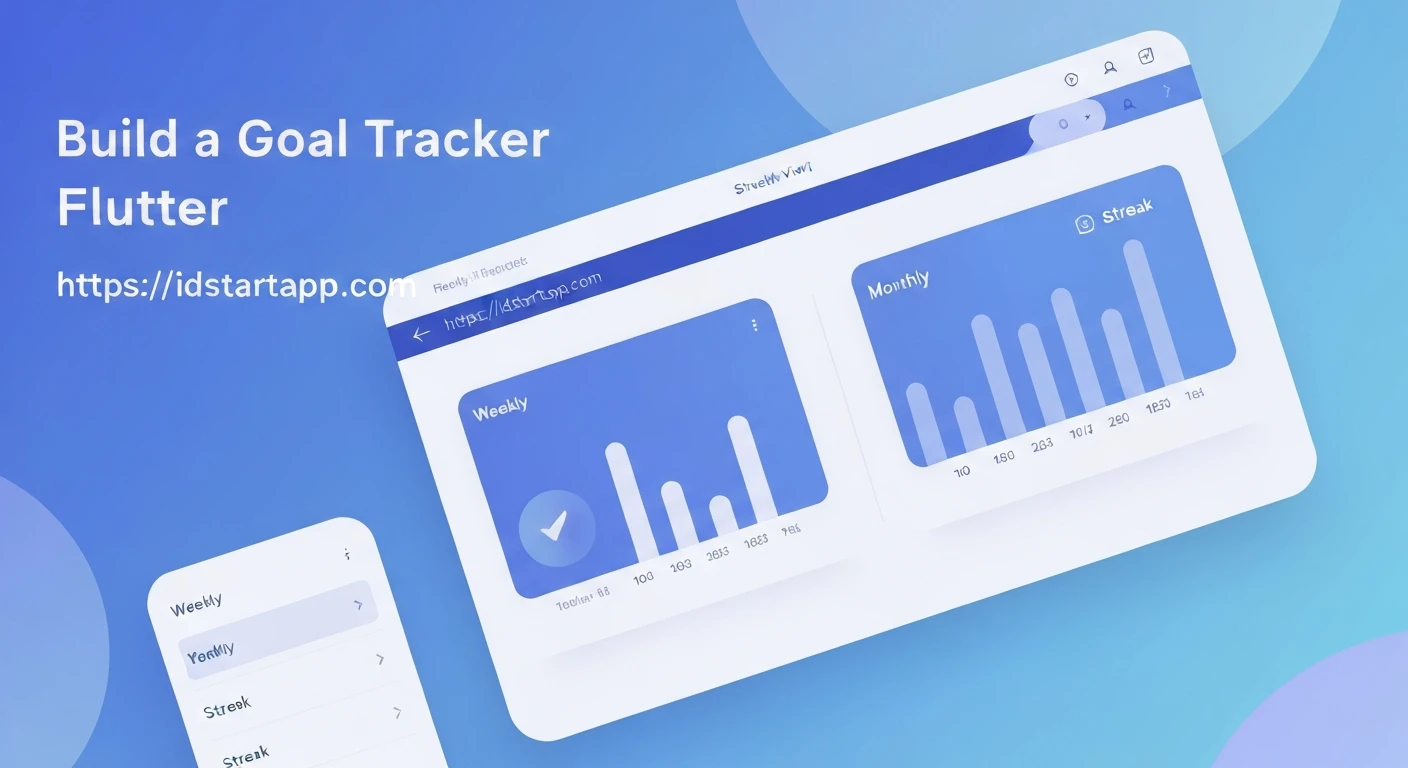
Tracking personal goals is a powerful habit for self-improvement and productivity. In application development, a well-designed goal tracker widget can significantly enhance user engagement and provide clear insights into progress. This article details the professional approach to building a comprehensive goal tracker widget in Flutter, incorporating weekly, monthly, and streak views to offer users diverse perspectives on their achievements.
Our objective is to create a modular, maintainable, and visually informative widget that allows users to mark daily progress, review their history over different timeframes, and celebrate consecutive accomplishments through a streak counter.
Core Principles and Architecture
To build a robust goal tracker, we'll adhere to several core principles:
- Data-Driven Design: The UI will reflect the underlying data model, ensuring consistency and ease of updates.
- Modularity: Breaking down the widget into smaller, focused components (e.g., `WeeklyView`, `MonthlyView`, `StreakView`) improves maintainability and reusability.
- State Management: A clear strategy for managing the state of goals and their completion status is crucial for a responsive user experience. For simplicity in this article, we'll use `StatefulWidget` with `setState`, but more advanced solutions like Provider, BLoC, or Riverpod could be integrated.
- User Experience (UX): Visual cues for completion, clear navigation, and an intuitive interface are paramount.
Defining the Data Model
The foundation of our goal tracker is a well-defined data model. We need classes to represent the goal itself and individual daily entries indicating completion.
import 'package:flutter/material.dart';

class Goal {
  String id;
  String title;
  String description;
  List<GoalEntry> entries; // Daily completion entries

  Goal({
    required this.id,
    required this.title,
    this.description = '',
    List<GoalEntry>? entries,
  }) : entries = entries ?? [];

  // Helper to check if goal was completed on a specific day
  bool isCompletedOn(DateTime date) {
    return entries.any((entry) =>
        entry.date.year == date.year &&
        entry.date.month == date.month &&
        entry.date.day == date.day);
  }

  // Toggle completion status for a given date
  void toggleCompletion(DateTime date) {
    final existingEntryIndex = entries.indexWhere((entry) =>
        entry.date.year == date.year &&
        entry.date.month == date.month &&
        entry.date.day == date.day);

    if (existingEntryIndex != -1) {
      entries.removeAt(existingEntryIndex); // Remove if already completed
    } else {
      entries.add(GoalEntry(date: date, completed: true)); // Add if not completed
    }
  }

  // For simplicity, we'll sort entries by date
  void sortEntries() {
    entries.sort((a, b) => a.date.compareTo(b.date));
  }
}

class GoalEntry {
  DateTime date;
  bool completed;

  GoalEntry({required this.date, this.completed = false});
}
Structuring the Goal Tracker Widget
The main `GoalTrackerWidget` will be a `StatefulWidget` to manage the goal data and trigger UI updates. It will hold the `Goal` object and delegate rendering to its sub-views.
import 'package:flutter/material.dart';
// Import Goal and GoalEntry from your data model file

class GoalTrackerWidget extends StatefulWidget {
  final Goal goal;

  const GoalTrackerWidget({Key? key, required this.goal}) : super(key: key);

  @override
  _GoalTrackerWidgetState createState() => _GoalTrackerWidgetState();
}

class _GoalTrackerWidgetState extends State<GoalTrackerWidget> {
  late Goal _currentGoal;
  DateTime _selectedDate = DateTime.now(); // For view context

  @override
  void initState() {
    super.initState();
    _currentGoal = widget.goal;
    _currentGoal.sortEntries(); // Ensure entries are sorted
  }

  void _toggleGoalCompletion(DateTime date) {
    setState(() {
      _currentGoal.toggleCompletion(date);
      _currentGoal.sortEntries(); // Re-sort after modification
    });
  }

  @override
  Widget build(BuildContext context) {
    return Card(
      margin: const EdgeInsets.all(16.0),
      child: Padding(
        padding: const EdgeInsets.all(16.0),
        child: Column(
          crossAxisAlignment: CrossAxisAlignment.start,
          children: [
            Text(
              _currentGoal.title,
              style: Theme.of(context).textTheme.headline6,
            ),
            const SizedBox(height: 8),
            Text(_currentGoal.description),
            const SizedBox(height: 16),
            // Streak View
            StreakView(goal: _currentGoal),
            const SizedBox(height: 16),
            // Weekly View
            WeeklyView(
              goal: _currentGoal,
              selectedDate: _selectedDate,
              onDateTapped: _toggleGoalCompletion,
            ),
            const SizedBox(height: 16),
            // Monthly View
            MonthlyView(
              goal: _currentGoal,
              selectedDate: _selectedDate,
              onDateTapped: _toggleGoalCompletion,
            ),
          ],
        ),
      ),
    );
  }
}
Implementing the Weekly View
The `WeeklyView` will display the days of the current week, allowing users to quickly see and update their progress for each day. Tapping a day will toggle its completion status.
import 'package:flutter/material.dart';
// Import Goal from your data model file

class WeeklyView extends StatelessWidget {
  final Goal goal;
  final DateTime selectedDate;
  final Function(DateTime) onDateTapped;

  const WeeklyView({
    Key? key,
    required this.goal,
    required this.selectedDate,
    required this.onDateTapped,
  }) : super(key: key);

  List<DateTime> _getCurrentWeekDates(DateTime date) {
    List<DateTime> weekDates = [];
    DateTime firstDayOfWeek = date.subtract(Duration(days: date.weekday - 1)); // Monday
    for (int i = 0; i < 7; i++) {
      weekDates.add(firstDayOfWeek.add(Duration(days: i)));
    }
    return weekDates;
  }

  @override
  Widget build(BuildContext context) {
    final List<DateTime> weekDates = _getCurrentWeekDates(selectedDate);

    return Column(
      crossAxisAlignment: CrossAxisAlignment.start,
      children: [
        Text('Weekly Progress', style: Theme.of(context).textTheme.subtitle1),
        const SizedBox(height: 8),
        Row(
          mainAxisAlignment: MainAxisAlignment.spaceAround,
          children: weekDates.map((date) {
            final bool isCompleted = goal.isCompletedOn(date);
            final bool isToday = date.year == DateTime.now().year &&
                date.month == DateTime.now().month &&
                date.day == DateTime.now().day;

            return GestureDetector(
              onTap: () => onDateTapped(date),
              child: Container(
                padding: const EdgeInsets.all(8),
                decoration: BoxDecoration(
                  color: isCompleted
                      ? Colors.green.shade300
                      : (isToday ? Colors.blue.shade100 : Colors.grey.shade200),
                  borderRadius: BorderRadius.circular(8),
                  border: isToday ? Border.all(color: Colors.blueAccent, width: 2) : null,
                ),
                child: Column(
                  children: [
                    Text(
                      _getWeekdayShortName(date.weekday),
                      style: TextStyle(
                        color: isCompleted ? Colors.white : Colors.black87,
                        fontWeight: FontWeight.bold,
                      ),
                    ),
                    Text(
                      date.day.toString(),
                      style: TextStyle(
                        color: isCompleted ? Colors.white : Colors.black87,
                      ),
                    ),
                  ],
                ),
              ),
            );
          }).toList(),
        ),
      ],
    );
  }

  String _getWeekdayShortName(int weekday) {
    switch (weekday) {
      case 1: return 'Mon';
      case 2: return 'Tue';
      case 3: return 'Wed';
      case 4: return 'Thu';
      case 5: return 'Fri';
      case 6: return 'Sat';
      case 7: return 'Sun';
      default: return '';
    }
  }
}
Implementing the Monthly View
The `MonthlyView` provides a calendar-like grid for the selected month, allowing users to see their progress over a longer period. It highlights completed days and provides interaction for toggling completion.
import 'package:flutter/material.dart';
// Import Goal from your data model file

class MonthlyView extends StatelessWidget {
  final Goal goal;
  final DateTime selectedDate;
  final Function(DateTime) onDateTapped;

  const MonthlyView({
    Key? key,
    required this.goal,
    required this.selectedDate,
    required this.onDateTapped,
  }) : super(key: key);

  List<DateTime> _getDaysInMonth(DateTime date) {
    final List<DateTime> days = [];
    final DateTime firstDayOfMonth = DateTime(date.year, date.month, 1);
    final DateTime lastDayOfMonth = DateTime(date.year, date.month + 1, 0);

    // Add leading empty days for alignment (e.g., if month starts on Wednesday)
    int firstWeekday = firstDayOfMonth.weekday; // Monday is 1, Sunday is 7
    for (int i = 1; i < firstWeekday; i++) {
      days.add(DateTime(0,0,0)); // Placeholder for empty cells
    }

    for (int i = 1; i <= lastDayOfMonth.day; i++) {
      days.add(DateTime(date.year, date.month, i));
    }
    return days;
  }

  @override
  Widget build(BuildContext context) {
    final List<DateTime> daysInMonth = _getDaysInMonth(selectedDate);
    final List<String> weekdayNames = ['Mon', 'Tue', 'Wed', 'Thu', 'Fri', 'Sat', 'Sun'];

    return Column(
      crossAxisAlignment: CrossAxisAlignment.start,
      children: [
        Text('Monthly Progress (${selectedDate.year}/${selectedDate.month})',
            style: Theme.of(context).textTheme.subtitle1),
        const SizedBox(height: 8),
        Table(
          children: [
            TableRow(
              children: weekdayNames.map((name) => Center(child: Text(name, style: TextStyle(fontWeight: FontWeight.bold)))).toList(),
            ),
            ...List.generate((daysInMonth.length / 7).ceil(), (weekIndex) {
              return TableRow(
                children: List.generate(7, (dayIndex) {
                  final int dateIndex = weekIndex * 7 + dayIndex;
                  if (dateIndex < daysInMonth.length && daysInMonth[dateIndex].year != 0) { // Check for valid date (not placeholder)
                    final DateTime day = daysInMonth[dateIndex];
                    final bool isCompleted = goal.isCompletedOn(day);
                    final bool isToday = day.year == DateTime.now().year &&
                        day.month == DateTime.now().month &&
                        day.day == DateTime.now().day;

                    return GestureDetector(
                      onTap: () => onDateTapped(day),
                      child: Container(
                        margin: const EdgeInsets.all(2),
                        alignment: Alignment.center,
                        height: 36,
                        decoration: BoxDecoration(
                          color: isCompleted
                              ? Colors.green.shade300
                              : (isToday ? Colors.blue.shade100 : Colors.grey.shade100),
                          borderRadius: BorderRadius.circular(4),
                          border: isToday ? Border.all(color: Colors.blueAccent, width: 1.5) : null,
                        ),
                        child: Text(
                          day.day.toString(),
                          style: TextStyle(
                            color: isCompleted ? Colors.white : Colors.black87,
                          ),
                        ),
                      ),
                    );
                  } else {
                    return Container(); // Empty cell for alignment
                  }
                }),
              );
            }),
          ],
        ),
      ],
    );
  }
}
Implementing the Streak View
The `StreakView` calculates and displays the current consecutive streak of goal completions. This motivates users by highlighting their consistent effort.
import 'package:flutter/material.dart';
// Import Goal from your data model file

class StreakView extends StatelessWidget {
  final Goal goal;

  const StreakView({Key? key, required this.goal}) : super(key: key);

  int _calculateCurrentStreak(Goal goal) {
    if (goal.entries.isEmpty) {
      return 0;
    }

    int currentStreak = 0;
    DateTime today = DateTime.now();
    DateTime yesterday = today.subtract(const Duration(days: 1));

    // Check if goal was completed today or yesterday
    bool completedToday = goal.isCompletedOn(today);
    bool completedYesterday = goal.isCompletedOn(yesterday);

    if (!completedToday && !completedYesterday) {
      return 0; // Streak broken or not started recently
    }

    // Start checking from today backwards
    DateTime checkDate = today;
    if (!completedToday) {
      // If not completed today, but was completed yesterday, streak ends yesterday
      checkDate = yesterday;
    }

    // Iterate backwards as long as goal was completed
    while (goal.isCompletedOn(checkDate)) {
      currentStreak++;
      checkDate = checkDate.subtract(const Duration(days: 1));
    }

    return currentStreak;
  }

  @override
  Widget build(BuildContext context) {
    final int streak = _calculateCurrentStreak(goal);

    return Row(
      children: [
        Icon(Icons.local_fire_department, color: Colors.orange, size: 28),
        const SizedBox(width: 8),
        Text(
          'Current Streak: $streak days!',
          style: Theme.of(context).textTheme.headline6?.copyWith(color: Colors.orange),
        ),
      ],
    );
  }
}
Integrating Views and Displaying Goals
The `_GoalTrackerWidgetState`'s `build` method orchestrates the display of these views. Each view receives the `Goal` object and the `_toggleGoalCompletion` callback, ensuring that user interactions are propagated back to the state management layer.
To use this widget, you would instantiate it with a `Goal` object, potentially loaded from a database or initial dummy data:
import 'package:flutter/material.dart';
// Import Goal and GoalTrackerWidget from your files

void main() {
  runApp(MyApp());
}

class MyApp extends StatelessWidget {
  @override
  Widget build(BuildContext context) {
    // Example Goal data
    final Goal myDailyGoal = Goal(
      id: 'goal_001',
      title: 'Drink 8 Glasses of Water',
      description: 'Stay hydrated throughout the day.',
      entries: [
        GoalEntry(date: DateTime.now().subtract(const Duration(days: 3)), completed: true),
        GoalEntry(date: DateTime.now().subtract(const Duration(days: 2)), completed: true),
        GoalEntry(date: DateTime.now().subtract(const Duration(days: 1)), completed: true),
        GoalEntry(date: DateTime.now().subtract(const Duration(days: 7)), completed: true),
        // Add more entries as needed
      ],
    );

    return MaterialApp(
      title: 'Goal Tracker Demo',
      theme: ThemeData(
        primarySwatch: Colors.blue,
        visualDensity: VisualDensity.adaptivePlatformDensity,
      ),
      home: Scaffold(
        appBar: AppBar(
          title: const Text('My Goals'),
        ),
        body: SingleChildScrollView(
          child: Column(
            children: [
              GoalTrackerWidget(goal: myDailyGoal),
              // You can add more GoalTrackerWidgets for other goals here
              // GoalTrackerWidget(goal: anotherGoal),
            ],
          ),
        ),
      ),
    );
  }
}
Conclusion
Building a goal tracker widget in Flutter with weekly, monthly, and streak views involves careful data modeling, modular UI development, and effective state management. By breaking down the problem into smaller, manageable components—the `Goal` data model, `GoalTrackerWidget` as the orchestrator, and dedicated `WeeklyView`, `MonthlyView`, and `StreakView` widgets—we achieve a flexible and scalable solution.
This architecture provides a clear path for further enhancements, such as persistent storage (using SQLite, Firebase, or shared preferences), goal editing, notifications, or more advanced analytics. The professional approach outlined here ensures a robust foundation for an engaging and motivating goal-tracking experience.