
Implementing Pull-to-Refresh in Flutter
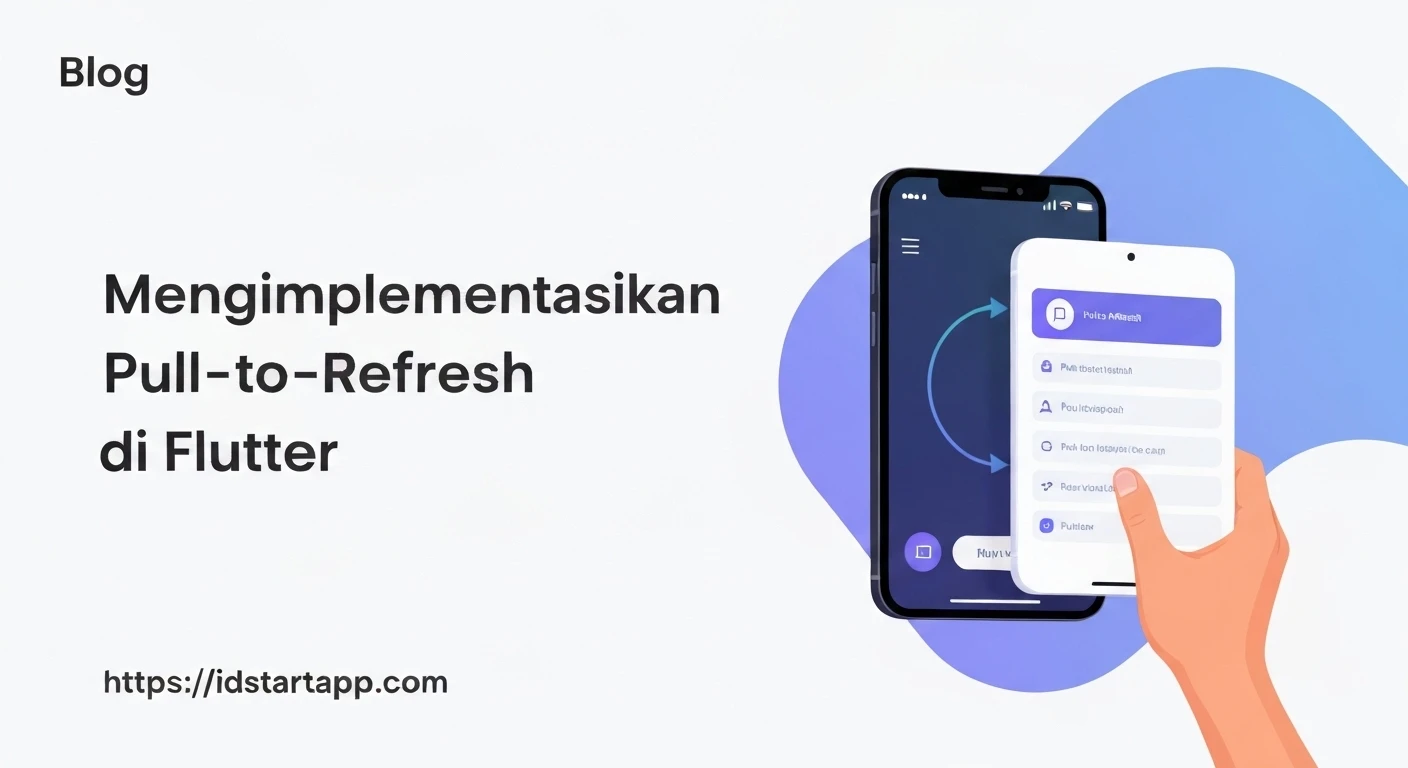
Pull-to-Refresh is a widely adopted user interface pattern that allows users to manually trigger a refresh of content by pulling down on a scrollable area. This mechanism is crucial for displaying up-to-date information, such as social media feeds, email inboxes, or data lists, enhancing the user experience by providing a clear way to retrieve the latest data. Flutter provides an intuitive and built-in widget, RefreshIndicator, to seamlessly integrate this functionality into your applications.
The RefreshIndicator Widget
The primary widget for implementing pull-to-refresh in Flutter is RefreshIndicator. It works by wrapping a scrollable widget (like ListView, GridView, or CustomScrollView) and listens for a vertical drag gesture that exceeds a certain threshold. When this threshold is met, it triggers a callback function, typically an asynchronous operation to fetch new data.
Basic Implementation
Let's begin with a simple example demonstrating how to wrap a ListView with RefreshIndicator.
import 'package:flutter/material.dart';

void main() {
  runApp(const MyApp());
}

class MyApp extends StatelessWidget {
  const MyApp({super.key});

  @override
  Widget build(BuildContext context) {
    return MaterialApp(
      title: 'Pull-to-Refresh Demo',
      theme: ThemeData(
        primarySwatch: Colors.blue,
      ),
      home: const MyHomePage(),
    );
  }
}

class MyHomePage extends StatefulWidget {
  const MyHomePage({super.key});

  @override
  State createState() => _MyHomePageState();
}

class _MyHomePageState extends State {
  List _items = List.generate(15, (index) => 'Initial Item ${index + 1}');

  Future _refreshData() async {
    // Simulate a network call or data fetching operation
    await Future.delayed(const Duration(seconds: 2));
    setState(() {
      _items = List.generate(
          15, (index) => 'New Item ${DateTime.now().second}.${index + 1}');
    });
    print('Data refreshed!');
  }

  @override
  Widget build(BuildContext context) {
    return Scaffold(
      appBar: AppBar(
        title: const Text('Pull-to-Refresh Example'),
      ),
      body: RefreshIndicator(
        onRefresh: _refreshData,
        child: ListView.builder(
          itemCount: _items.length,
          itemBuilder: (context, index) {
            return Card(
              margin: const EdgeInsets.symmetric(horizontal: 16.0, vertical: 8.0),
              child: Padding(
                padding: const EdgeInsets.all(16.0),
                child: Text(
                  _items[index],
                  style: const TextStyle(fontSize: 18),
                ),
              ),
            );
          },
        ),
      ),
    );
  }
}
In this example:
- The
RefreshIndicatorwidget wraps theListView.builder. - The
onRefreshproperty is crucial. It takes an asynchronous callback function (Future<void> Function()) that is executed when the user performs the pull-to-refresh gesture. - Inside
_refreshData(), we simulate a delay usingFuture.delayedto mimic an actual data fetching process (e.g., from an API or database). After the delay, we update the_itemslist usingsetStateto reflect the new data. - It's important that the
_refreshDatafunction returns aFuture<void>. TheRefreshIndicatorwill automatically dismiss its loading indicator once this Future completes.
Customizing the Indicator
RefreshIndicator offers several properties for customization to match your application's design language:
color: The color of the refresh indicator's progress circle.backgroundColor: The background color of the refresh indicator.strokeWidth: The thickness of the refresh indicator's progress circle.displacement: The vertical distance from the top of the scrollable area where the indicator will appear.edgeOffset: The offset from the top edge of the scrollable area.
Example of customization:
        RefreshIndicator(
          onRefresh: _refreshData,
          color: Colors.white,
          backgroundColor: Colors.blueAccent,
          strokeWidth: 3.0,
          displacement: 40.0,
          edgeOffset: 10.0,
          child: ListView.builder(
            // ... your list builder
          ),
        ),
Programmatically Triggering Refresh
Sometimes, you might need to trigger the refresh programmatically, for instance, when the screen loads for the first time or after a specific user action. This can be achieved using a GlobalKey<RefreshIndicatorState>.
import 'package:flutter/material.dart';

void main() {
  runApp(const MyApp());
}

class MyApp extends StatelessWidget {
  const MyApp({super.key});

  @override
  Widget build(BuildContext context) {
    return MaterialApp(
      title: 'Programmatic Refresh',
      theme: ThemeData(
        primarySwatch: Colors.green,
      ),
      home: const ProgrammaticRefreshPage(),
    );
  }
}

class ProgrammaticRefreshPage extends StatefulWidget {
  const ProgrammaticRefreshPage({super.key});

  @override
  State createState() => _ProgrammaticRefreshPageState();
}

class _ProgrammaticRefreshPageState extends State {
  final GlobalKey _refreshIndicatorKey =
      GlobalKey();
  List _items = [];
  bool _isLoading = false;

  @override
  void initState() {
    super.initState();
    // Trigger refresh when the widget is initialized
    WidgetsBinding.instance.addPostFrameCallback((_) {
      _refreshIndicatorKey.currentState?.show();
    });
  }

  Future _refreshData() async {
    if (_isLoading) return; // Prevent multiple simultaneous refreshes
    setState(() {
      _isLoading = true;
    });
    print('Starting programmatic refresh...');
    await Future.delayed(const Duration(seconds: 2)); // Simulate network call
    setState(() {
      _items = List.generate(
          10, (index) => 'Refreshed Item ${DateTime.now().second}.${index + 1}');
      _isLoading = false;
    });
    print('Programmatic refresh completed!');
  }

  @override
  Widget build(BuildContext context) {
    return Scaffold(
      appBar: AppBar(
        title: const Text('Programmatic Pull-to-Refresh'),
        actions: [
          IconButton(
            icon: const Icon(Icons.refresh),
            onPressed: () {
              _refreshIndicatorKey.currentState?.show();
            },
          ),
        ],
      ),
      body: RefreshIndicator(
        key: _refreshIndicatorKey,
        onRefresh: _refreshData,
        child: _items.isEmpty && !_isLoading
            ? const Center(
                child: Text('Pull down or tap refresh to load data.'),
              )
            : ListView.builder(
                itemCount: _items.length,
                itemBuilder: (context, index) {
                  return Card(
                    margin: const EdgeInsets.symmetric(horizontal: 16.0, vertical: 8.0),
                    child: Padding(
                      padding: const EdgeInsets.all(16.0),
                      child: Text(
                        _items[index],
                        style: const TextStyle(fontSize: 18),
                      ),
                    ),
                  );
                },
              ),
      ),
    );
  }
}
In this advanced example:
- We associate a
GlobalKey<RefreshIndicatorState>with ourRefreshIndicator. - The
initStatemethod usesWidgetsBinding.instance.addPostFrameCallbackto call_refreshIndicatorKey.currentState?.show()after the widget has been rendered. This triggers the refresh animation andonRefreshcallback automatically on initial load. - An
IconButtonin theAppBaralso allows manual programmatic triggering of the refresh. - A
_isLoadingflag is added to prevent_refreshDatafrom being called multiple times if the user pulls down while a programmatic refresh is already in progress.
Considerations
- Error Handling: Implement robust error handling within your
onRefreshcallback. If a network request fails, you should provide clear feedback to the user, perhaps by showing an error message or offering a retry option. - Data State Management: For more complex applications, consider integrating pull-to-refresh with your chosen state management solution (e.g., Provider, BLoC, Riverpod) to manage the data fetching lifecycle more effectively and ensure consistent UI updates.
- User Feedback: Ensure that the refresh indicator is always visible and provides clear, immediate feedback to the user that data is being fetched, preventing confusion or perceived application unresponsiveness.
- Performance: Optimize your data fetching operations to be as efficient as possible. Long refresh times can degrade the user experience.
Conclusion
Implementing pull-to-refresh in Flutter is a straightforward process thanks to the RefreshIndicator widget. It elegantly handles the UI gestures and state, allowing developers to focus primarily on the data fetching and updating logic. By leveraging its properties for customization and understanding how to trigger refreshes programmatically, you can significantly enhance the interactivity and user experience of your Flutter applications, providing a familiar and efficient way for users to keep their content up-to-date.