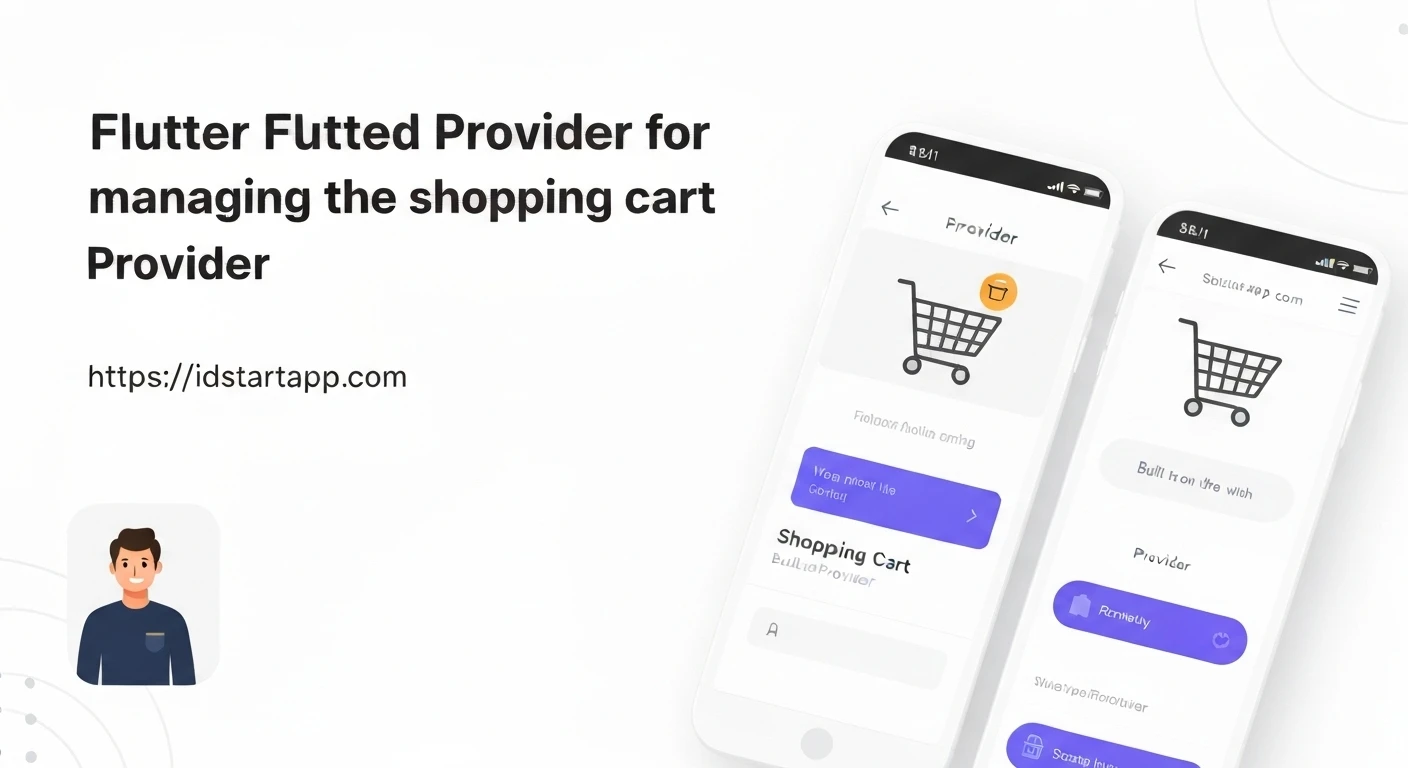

Flutter & Provider: Streamlining State Management for a Shopping Cart
Building a robust shopping cart feature is a common requirement for e-commerce applications. It involves managing product lists, quantities, prices, and the overall cart state efficiently. In Flutter, choosing the right state management solution is crucial for creating maintainable and scalable applications. This article explores how to implement a shopping cart using Flutter in conjunction with Provider, a popular and flexible state management package.
Why State Management for a Shopping Cart?
A shopping cart's state can change frequently: items are added, quantities are adjusted, items are removed, and totals need to be recalculated. Without a clear state management strategy, these changes can lead to UI inconsistencies, bugs, and difficult-to-maintain code. Provider simplifies this by allowing widgets to reactively update when the underlying data changes, without rebuilding the entire widget tree.
Introducing Provider
Provider is a wrapper around InheritedWidget, Flutter's fundamental mechanism for passing data down the widget tree. It makes InheritedWidget easier to use by abstracting away much of the boilerplate. Key concepts of Provider include:
ChangeNotifier: A simple class that can notify its listeners when it changes. Our shopping cart logic will extend this.ChangeNotifierProvider: A widget that provides an instance of aChangeNotifierto its descendants.Consumer: A widget that listens for changes in a provided value and rebuilds its part of the UI accordingly.Provider.of(context, listen: false): Used to access a provided value without listening for changes (e.g., calling methods).
Setting Up the Project
First, add the provider package to your pubspec.yaml file:
dependencies:
  flutter:
    sdk: flutter
  provider: ^6.0.5 # Use the latest stable version
Run flutter pub get to fetch the package.
Core Components of the Shopping Cart
We'll define models for our products and the items in the cart, and then create a ChangeNotifier to manage the cart's state.
1. Product Model
A simple model for the products available in our store.
// lib/models/product.dart
class Product {
  final String id;
  final String name;
  final double price;

  Product({
    required this.id,
    required this.name,
    required this.price,
  });
}
2. Cart Item Model
Represents an item currently in the shopping cart, including the product and its quantity.
// lib/models/cart_item.dart
import 'package:flutter_app/models/product.dart';

class CartItem {
  final Product product;
  int quantity;

  CartItem({
    required this.product,
    this.quantity = 1,
  });

  // Getter for total price of this item (quantity * product price)
  double get totalPrice => product.price * quantity;
}
3. ShoppingCart Provider (ChangeNotifier)
This is the heart of our state management. It extends ChangeNotifier and holds the logic for manipulating the cart.
// lib/providers/shopping_cart_provider.dart
import 'package:flutter/foundation.dart';
import 'package:flutter_app/models/product.dart';
import 'package:flutter_app/models/cart_item.dart';

class ShoppingCartProvider extends ChangeNotifier {
  final Map<String, CartItem> _items = {}; // Using Map for efficient access by product ID

  List<CartItem> get items {
    return _items.values.toList();
  }

  int get itemCount {
    return _items.length;
  }

  double get totalAmount {
    double total = 0.0;
    _items.forEach((key, cartItem) {
      total += cartItem.totalPrice;
    });
    return total;
  }

  void addItem(Product product) {
    if (_items.containsKey(product.id)) {
      // If item already exists, increase quantity
      _items.update(
        product.id,
        (existingItem) => CartItem(
          product: existingItem.product,
          quantity: existingItem.quantity + 1,
        ),
      );
    } else {
      // If item is new, add it to the cart
      _items.putIfAbsent(
        product.id,
        () => CartItem(
          product: product,
          quantity: 1,
        ),
      );
    }
    notifyListeners(); // Notify widgets that depend on this provider
  }

  void removeItem(String productId) {
    _items.remove(productId);
    notifyListeners();
  }

  void removeSingleItem(String productId) {
    if (!_items.containsKey(productId)) {
      return;
    }

    if (_items[productId]!.quantity > 1) {
      _items.update(
        productId,
        (existingItem) => CartItem(
          product: existingItem.product,
          quantity: existingItem.quantity - 1,
        ),
      );
    } else {
      _items.remove(productId); // Remove completely if quantity is 1
    }
    notifyListeners();
  }

  void clearCart() {
    _items.clear();
    notifyListeners();
  }
}
Integrating with Flutter UI
Now, let's connect our ShoppingCartProvider to the Flutter UI.
1. Main Application Setup
Wrap your MaterialApp with a ChangeNotifierProvider (or MultiProvider if you have multiple providers) to make the cart accessible throughout your app.
// lib/main.dart
import 'package:flutter/material.dart';
import 'package:provider/provider.dart';
import 'package:flutter_app/providers/shopping_cart_provider.dart';
import 'package:flutter_app/screens/product_list_screen.dart';

void main() {
  runApp(const MyApp());
}

class MyApp extends StatelessWidget {
  const MyApp({super.key});

  @override
  Widget build(BuildContext context) {
    return ChangeNotifierProvider(
      create: (context) => ShoppingCartProvider(), // Provide our ShoppingCart
      child: MaterialApp(
        title: 'Flutter Shopping Cart',
        theme: ThemeData(
          primarySwatch: Colors.blue,
        ),
        home: ProductListScreen(),
      ),
    );
  }
}
2. Product Listing Screen
This screen displays products and allows users to add them to the cart.
// lib/screens/product_list_screen.dart
import 'package:flutter/material.dart';
import 'package:provider/provider.dart';
import 'package:flutter_app/models/product.dart';
import 'package:flutter_app/providers/shopping_cart_provider.dart';
import 'package:flutter_app/screens/cart_screen.dart';

class ProductListScreen extends StatelessWidget {
  // Dummy product data
  final List<Product> products = [
    Product(id: 'p1', name: 'Laptop', price: 1200.0),
    Product(id: 'p2', name: 'Smartphone', price: 799.0),
    Product(id: 'p3', name: 'Headphones', price: 150.0),
    Product(id: 'p4', name: 'Keyboard', price: 75.0),
  ];

  @override
  Widget build(BuildContext context) {
    // Access the ShoppingCartProvider instance.
    // listen: false here because we only want to call methods, not rebuild on changes.
    final cart = Provider.of<ShoppingCartProvider>(context, listen: false);

    return Scaffold(
      appBar: AppBar(
        title: const Text('Products'),
        actions: [
          // Use Consumer to listen to changes in itemCount and update the badge
          Consumer<ShoppingCartProvider>(
            builder: (ctx, cartProvider, child) {
              return Badge( // Consider using a custom badge widget if 'badge' is not available
                label: Text(cartProvider.itemCount.toString()),
                child: IconButton(
                  icon: const Icon(Icons.shopping_cart),
                  onPressed: () {
                    Navigator.of(context).push(
                      MaterialPageRoute(builder: (context) => CartScreen()),
                    );
                  },
                ),
              );
            },
          ),
        ],
      ),
      body: ListView.builder(
        itemCount: products.length,
        itemBuilder: (ctx, i) {
          final product = products[i];
          return Card(
            margin: const EdgeInsets.all(8.0),
            child: ListTile(
              title: Text(product.name),
              subtitle: Text('\$${product.price.toStringAsFixed(2)}'),
              trailing: IconButton(
                icon: const Icon(Icons.add_shopping_cart),
                onPressed: () {
                  cart.addItem(product);
                  ScaffoldMessenger.of(context).showSnackBar(
                    SnackBar(content: Text('${product.name} added to cart!')),
                  );
                },
              ),
            ),
          );
        },
      ),
    );
  }
}
3. Cart Screen
This screen displays the items in the cart, allows quantity adjustments, and shows the total amount.
// lib/screens/cart_screen.dart
import 'package:flutter/material.dart';
import 'package:provider/provider.dart';
import 'package:flutter_app/providers/shopping_cart_provider.dart';

class CartScreen extends StatelessWidget {
  @override
  Widget build(BuildContext context) {
    // We use Consumer here because we want the entire CartScreen to rebuild
    // when the cart items or total amount changes.
    return Consumer<ShoppingCartProvider>(
      builder: (ctx, cartProvider, child) {
        return Scaffold(
          appBar: AppBar(
            title: const Text('Your Cart'),
          ),
          body: Column(
            children: <Widget>[
              Card(
                margin: const EdgeInsets.all(15),
                child: Padding(
                  padding: const EdgeInsets.all(8),
                  child: Row(
                    mainAxisAlignment: MainAxisAlignment.spaceBetween,
                    children: <Widget>[
                      const Text(
                        'Total',
                        style: TextStyle(fontSize: 20),
                      ),
                      const Spacer(),
                      Chip(
                        label: Text(
                          '\$${cartProvider.totalAmount.toStringAsFixed(2)}',
                          style: const TextStyle(
                            color: Colors.white,
                          ),
                        ),
                        backgroundColor: Theme.of(context).primaryColor,
                      ),
                      TextButton(
                        onPressed: () {
                          // Implement checkout logic here
                          cartProvider.clearCart();
                          ScaffoldMessenger.of(context).showSnackBar(
                            const SnackBar(content: Text('Order Placed! Cart cleared.')),
                          );
                        },
                        child: const Text('ORDER NOW'),
                      ),
                    ],
                  ),
                ),
              ),
              const SizedBox(height: 10),
              Expanded(
                child: ListView.builder(
                  itemCount: cartProvider.itemCount,
                  itemBuilder: (ctx, i) {
                    final cartItem = cartProvider.items[i];
                    return Dismissible(
                      key: ValueKey(cartItem.product.id),
                      direction: DismissDirection.endToStart,
                      onDismissed: (direction) {
                        cartProvider.removeItem(cartItem.product.id);
                        ScaffoldMessenger.of(context).showSnackBar(
                          SnackBar(content: Text('${cartItem.product.name} removed from cart.')),
                        );
                      },
                      background: Container(
                        color: Colors.red,
                        alignment: Alignment.centerRight,
                        padding: const EdgeInsets.only(right: 20),
                        margin: const EdgeInsets.symmetric(horizontal: 15, vertical: 4),
                        child: const Icon(Icons.delete, color: Colors.white, size: 40),
                      ),
                      child: Card(
                        margin: const EdgeInsets.symmetric(horizontal: 15, vertical: 4),
                        child: Padding(
                          padding: const EdgeInsets.all(8),
                          child: ListTile(
                            leading: CircleAvatar(
                              child: Padding(
                                padding: const EdgeInsets.all(5),
                                child: FittedBox(
                                  child: Text('\$${cartItem.product.price}'),
                                ),
                              ),
                            ),
                            title: Text(cartItem.product.name),
                            subtitle: Text('Total: \$${cartItem.totalPrice.toStringAsFixed(2)}'),
                            trailing: Row(
                              mainAxisSize: MainAxisSize.min,
                              children: [
                                IconButton(
                                  icon: const Icon(Icons.remove),
                                  onPressed: () {
                                    cartProvider.removeSingleItem(cartItem.product.id);
                                  },
                                ),
                                Text('${cartItem.quantity} x'),
                                IconButton(
                                  icon: const Icon(Icons.add),
                                  onPressed: () {
                                    cartProvider.addItem(cartItem.product);
                                  },
                                ),
                              ],
                            ),
                          ),
                        ),
                      ),
                    );
                  },
                ),
              ),
            ],
          ),
        );
      },
    );
  }
}
Benefits of this Approach
- Separation of Concerns: The UI widgets are clean and focus on presentation, while the cart logic resides entirely within
ShoppingCartProvider. - Efficiency: Only widgets that actively
listento theShoppingCartProvider(e.g., usingConsumer) will rebuild whennotifyListeners()is called, leading to optimal performance. - Testability: The
ShoppingCartProvidercan be easily tested independently of the UI. - Readability: Provider's API is intuitive, making it easy to understand where data comes from and how it's being updated.
- Scalability: As your application grows, you can introduce more providers for different parts of your state without complex dependencies.
Conclusion
Implementing a shopping cart with Flutter and Provider offers a robust, efficient, and maintainable solution for managing complex UI states. By leveraging ChangeNotifier and ChangeNotifierProvider, we can create reactive UIs that automatically update when the underlying data changes, providing a smooth user experience and simplifying development.