

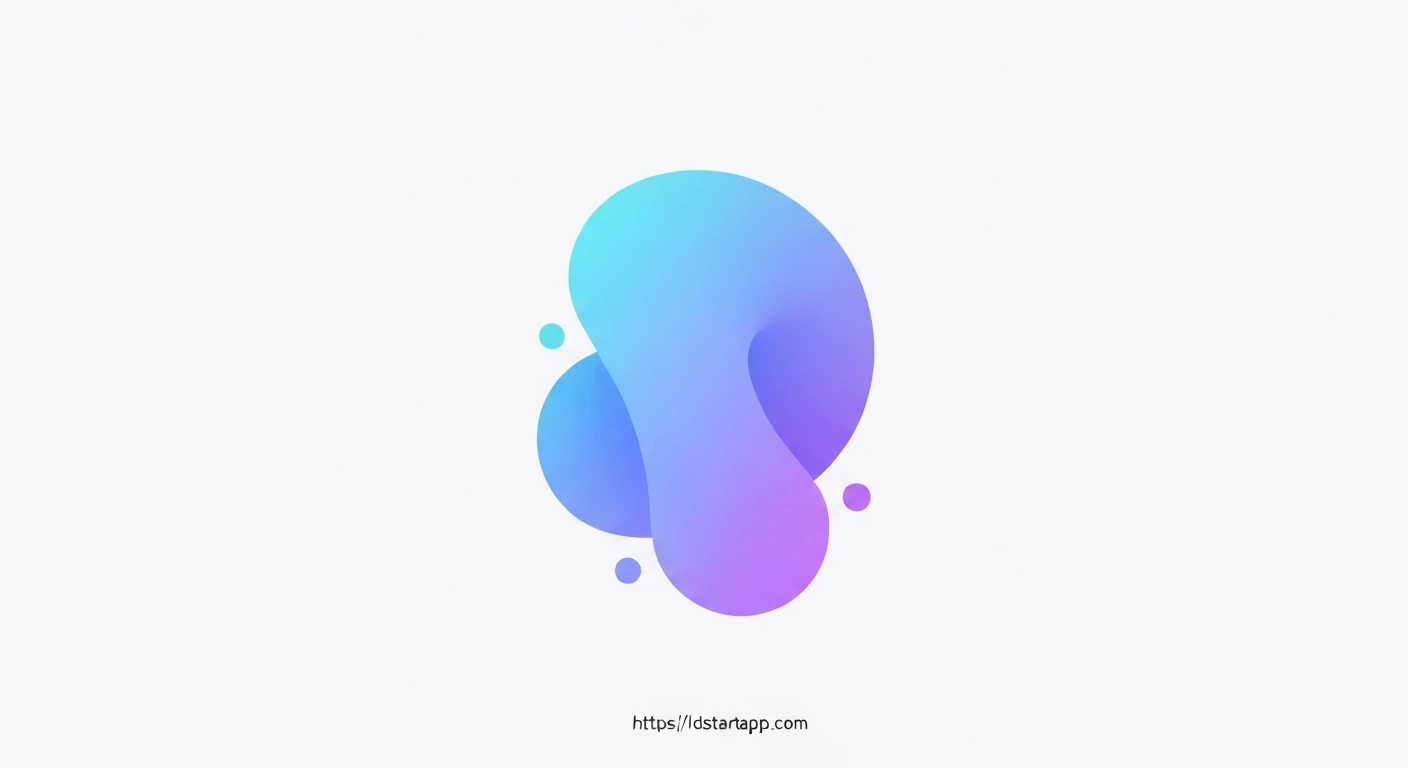

Flutter Morphing Loader with Gradient and Bounce Effect
Creating engaging user interfaces often involves subtle yet impactful animations. In Flutter, achieving sophisticated animations, such as a loader that morphs its shape, displays a dynamic gradient, and exhibits a playful bounce effect, is highly achievable with its powerful animation framework. This article will guide you through building a professional and visually appealing morphing loader, enhancing the user experience during loading states.
Understanding the Core Concepts
Before diving into the implementation, let's break down the fundamental animation principles involved:
Morphing Animation
Morphing refers to the transformation of one shape into another. In Flutter, while true vector path morphing can be complex using `CustomPainter`, we can simulate a compelling morphing effect for simple shapes by animating properties like `BorderRadius`. This allows a widget to smoothly transition, for example, from a perfect circle to a rounded square and back.
Gradient Effects
Gradients add depth and visual interest by smoothly transitioning between multiple colors. Flutter's `LinearGradient` and `RadialGradient` allow developers to apply these effects. For an even more dynamic loader, we can animate the gradient's `begin` and `end` alignment points, making the colors appear to shift and flow within the shape.
Bounce Effect
A bounce effect simulates elasticity, making an object appear to "overshoot" its target and then settle back into place. Flutter provides several built-in animation curves, such as `Curves.bounceOut`, which can be applied to `CurvedAnimation` to easily achieve this natural and engaging motion.
Setting Up Your Flutter Project
First, ensure you have Flutter installed. Create a new Flutter project from your terminal:
flutter create morphing_loader_app
cd morphing_loader_app
Open the `lib/main.dart` file. We will replace its content with our loader implementation.
Implementing the Morphing Loader
Our morphing loader will be a `StatefulWidget` to manage its animation state. We'll use an `AnimationController` to drive multiple `Animation` objects simultaneously.
Initial Widget Structure
The core of our loader will be a `Container` widget, which is highly customizable for shape, background, and shadows. We'll wrap it in an `AnimatedBuilder` to rebuild only the necessary parts of the UI during the animation, optimizing performance.
Animation Controllers and Tweens
We need a `TickerProviderStateMixin` (e.g., `SingleTickerProviderStateMixin`) for our `AnimationController`. We'll define several `Tween` objects to specify the start and end values for our animations:
- `_borderRadiusAnimation`: For the morphing shape.
- `_scaleAnimation`: For the bounce effect.
- `_gradientBeginAnimation` and `_gradientEndAnimation`: For the dynamic gradient.
Animating Shape Morphing
We'll use a `BorderRadiusTween` to animate the `borderRadius` property of our `BoxDecoration`. By transitioning between a large circular radius and a smaller, squared radius, we create the morphing illusion.
_borderRadiusAnimation = BorderRadiusTween(
  begin: BorderRadius.circular(50.0), // Circle
  end: BorderRadius.circular(10.0),   // Rounded square
).animate(CurvedAnimation(parent: _controller, curve: Curves.easeInOutSine));
Adding Gradient Colors
Inside the `BoxDecoration`, we define a `LinearGradient`. To make it dynamic, we use `AlignmentGeometryTween` to animate the `begin` and `end` properties of the gradient, making the colors appear to shift across the loader's surface.
_gradientBeginAnimation = AlignmentGeometryTween(
  begin: Alignment.topLeft,
  end: Alignment.bottomRight,
).animate(CurvedAnimation(parent: _controller, curve: Curves.easeInOut));

_gradientEndAnimation = AlignmentGeometryTween(
  begin: Alignment.bottomRight,
  end: Alignment.topLeft,
).animate(CurvedAnimation(parent: _controller, curve: Curves.easeInOut));
Implementing the Bounce Effect
The bounce effect is applied to the overall scale of the loader. A `Tween` animates the scale factor, and `Curves.bounceOut` ensures the delightful elastic motion. This is wrapped in a `Transform.scale` widget.
_scaleAnimation = Tween(begin: 0.8, end: 1.2).animate(
  CurvedAnimation(parent: _controller, curve: Curves.bounceOut),
);
Putting It All Together
The `build` method will combine these animations using an `AnimatedBuilder`, which rebuilds its child whenever the animation controller's value changes. The `Transform.scale` wraps the `Container`, which then applies the animated `borderRadius` and `gradient` via its `BoxDecoration`.
Full Code Example
Here is the complete `lib/main.dart` code for the Flutter Morphing Loader:
import 'package:flutter/material.dart';

void main() {
  runApp(const MyApp());
}

class MyApp extends StatelessWidget {
  const MyApp({super.key});

  @override
  Widget build(BuildContext context) {
    return MaterialApp(
      title: 'Morphing Loader',
      theme: ThemeData(
        primarySwatch: Colors.blue,
      ),
      home: const Scaffold(
        backgroundColor: Colors.black,
        body: Center(
          child: MorphingLoader(),
        ),
      ),
    );
  }
}

class MorphingLoader extends StatefulWidget {
  const MorphingLoader({super.key});

  @override
  _MorphingLoaderState createState() => _MorphingLoaderState();
}

class _MorphingLoaderState extends State with SingleTickerProviderStateMixin {
  late AnimationController _controller;
  late Animation _borderRadiusAnimation;
  late Animation _scaleAnimation;
  late Animation _gradientBeginAnimation;
  late Animation _gradientEndAnimation;

  @override
  void initState() {
    super.initState();
    _controller = AnimationController(
      vsync: this,
      duration: const Duration(milliseconds: 2000), // 2 seconds for one cycle
    )..repeat(reverse: true); // Repeat indefinitely, reversing direction

    // Morphing Border Radius (Circle to Rounded Square)
    _borderRadiusAnimation = BorderRadiusTween(
      begin: BorderRadius.circular(50.0), // Circle
      end: BorderRadius.circular(10.0),   // Rounded square
    ).animate(CurvedAnimation(parent: _controller, curve: Curves.easeInOutSine));

    // Bounce Scale Effect
    _scaleAnimation = Tween(begin: 0.8, end: 1.2).animate(
      CurvedAnimation(parent: _controller, curve: Curves.bounceOut),
    );

    // Gradient Animation
    _gradientBeginAnimation = AlignmentGeometryTween(
      begin: Alignment.topLeft,
      end: Alignment.bottomRight,
    ).animate(CurvedAnimation(parent: _controller, curve: Curves.easeInOut));

    _gradientEndAnimation = AlignmentGeometryTween(
      begin: Alignment.bottomRight,
      end: Alignment.topLeft,
    ).animate(CurvedAnimation(parent: _controller, curve: Curves.easeInOut));
  }

  @override
  void dispose() {
    _controller.dispose();
    super.dispose();
  }

  @override
  Widget build(BuildContext context) {
    return AnimatedBuilder(
      animation: _controller,
      builder: (context, child) {
        return Transform.scale(
          scale: _scaleAnimation.value,
          child: Container(
            width: 100,
            height: 100,
            decoration: BoxDecoration(
              borderRadius: _borderRadiusAnimation.value,
              gradient: LinearGradient(
                begin: _gradientBeginAnimation.value,
                end: _gradientEndAnimation.value,
                colors: const [
                  Color(0xFFE040FB), // Deep Purple Accent
                  Color(0xFF00E5FF), // Cyan Accent
                  // Add more colors for a richer gradient if desired
                ],
              ),
              boxShadow: const [
                BoxShadow(
                  color: Colors.black26,
                  blurRadius: 10,
                  offset: Offset(0, 5),
                ),
              ],
            ),
          ),
        );
      },
    );
  }
}
Conclusion
By leveraging Flutter's powerful animation framework, we've successfully crafted a visually appealing and dynamic morphing loader. This example demonstrates how to combine shape morphing, animated gradients, and bounce effects to create a delightful user experience. You can further customize this loader by experimenting with different shapes, color palettes, animation durations, and curve types to perfectly match your application's design language.


