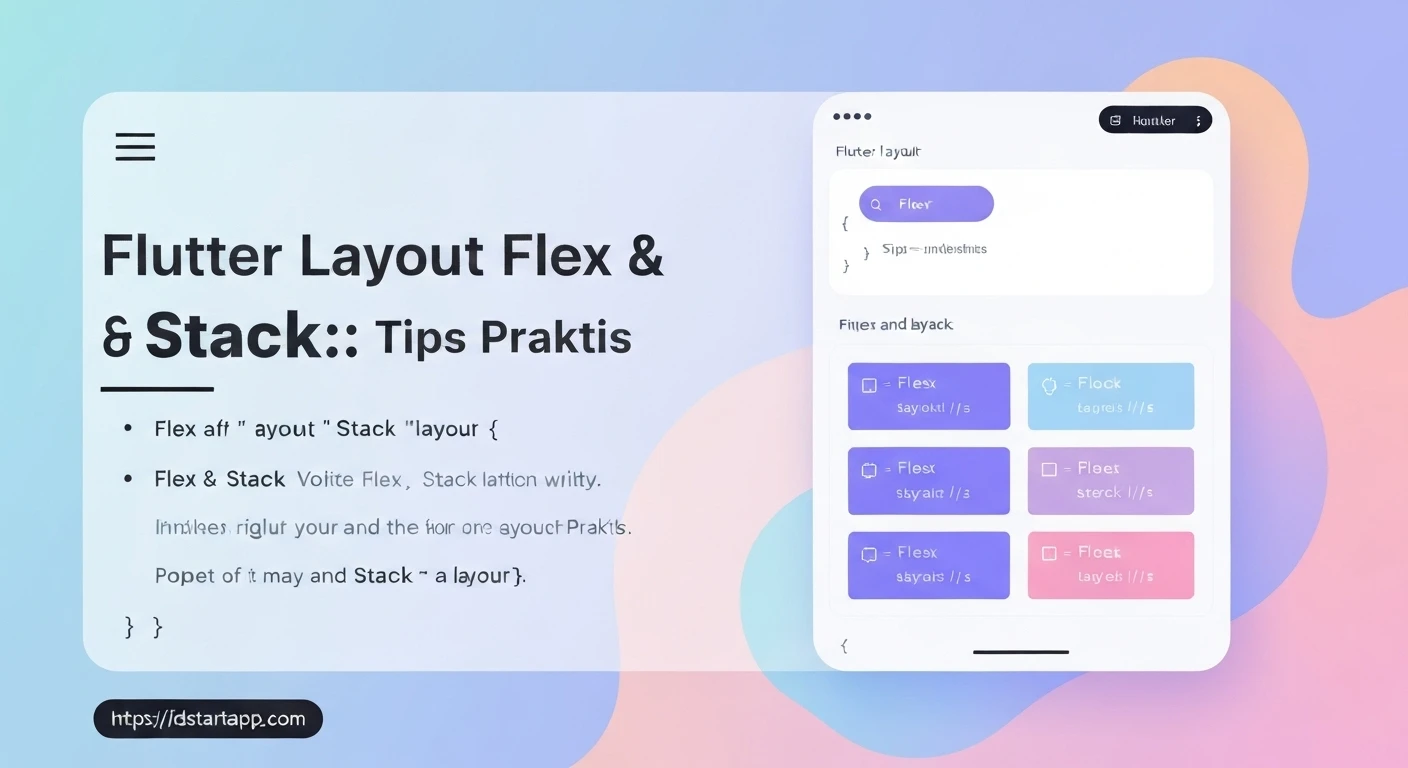

Flutter Layout Flex & Stack: Practical Tips
Flutter's declarative UI approach empowers developers to create beautiful and responsive user interfaces with ease. At the core of Flutter's layout system are widgets that define how other widgets are arranged on the screen. Among the most fundamental and versatile layout widgets are Row, Column, and Stack. Understanding how to effectively use these, along with their complementary widgets like Expanded, Flexible, and Positioned, is crucial for building robust and adaptive Flutter applications.
The Power of Flex Layouts: Row & Column
Row and Column are the go-to widgets for arranging children widgets in a single direction. A Row arranges its children horizontally, while a Column arranges them vertically. They are often referred to as "flex" widgets because they allow for flexible spacing and sizing of their children along their main and cross axes.
Key Properties:
-
mainAxisAlignment: Controls how children are aligned along the main axis (horizontal forRow, vertical forColumn). Common values includestart,end,center,spaceBetween,spaceAround, andspaceEvenly. -
crossAxisAlignment: Controls how children are aligned along the cross axis (vertical forRow, horizontal forColumn). Common values includestart,end,center, andstretch. -
mainAxisSize: Determines how much space theRoworColumnshould occupy along its main axis.MainAxisSize.max(default) takes all available space, whileMainAxisSize.mintakes only the space required by its children.
Responsive Sizing with Expanded & Flexible
To distribute available space among children within a Row or Column, Flutter provides Expanded and Flexible widgets.
-
Expanded: Forces its child to fill any available space along the main axis. It's essentially aFlexiblewidget withfit: FlexFit.tight. Use it when you want a widget to "expand" and take up the remaining space. -
Flexible: Allows its child to be resized to fill available space, but with more control. Itsfitproperty can be eitherFlexFit.tight(similar toExpanded, forcing it to fill) orFlexFit.loose(allowing the child to take only the space it needs, up to the maximum available). Theflexproperty determines the proportion of available space a child takes relative to other flexible children.
Example: Row with Expanded and Flexible
import 'package:flutter/material.dart';

void main() {
  runApp(const MyApp());
}

class MyApp extends StatelessWidget {
  const MyApp({super.key});

  @override
  Widget build(BuildContext context) {
    return MaterialApp(
      home: Scaffold(
        appBar: AppBar(title: const Text('Flex Layout Example')),
        body: Center(
          child: Container(
            color: Colors.grey[200],
            height: 100,
            child: Row(
              children: [
                Container(
                  width: 50,
                  color: Colors.red,
                  child: const Center(child: Text('Fixed')),
                ),
                Expanded(
                  flex: 2, // Takes 2/3 of remaining space
                  child: Container(
                    color: Colors.green,
                    child: const Center(child: Text('Expanded (2)')),
                  ),
                ),
                Flexible(
                  flex: 1, // Takes 1/3 of remaining space
                  fit: FlexFit.tight,
                  child: Container(
                    color: Colors.blue,
                    child: const Center(child: Text('Flexible (1)')),
                  ),
                ),
                Flexible(
                  fit: FlexFit.loose, // Takes only necessary space, up to available
                  child: Container(
                    color: Colors.cyan,
                    child: const Center(child: Text('Loose')),
                  ),
                ),
              ],
            ),
          ),
        ),
      ),
    );
  }
}
Stacking Widgets for Overlays and Layering
While Row and Column arrange widgets side-by-side or one after another, the Stack widget allows you to layer widgets on top of each other. Think of it like a stack of papers, where the last child added to the stack is rendered on top. This is invaluable for creating overlays, badges, text on images, or custom positioning of elements.
Positioning Children with Positioned
Children of a Stack can be "positioned" using the Positioned widget. This widget allows you to precisely control the location and size of its child within the Stack using properties like top, bottom, left, right, width, and height. If a child is not wrapped in a Positioned widget, it will be placed at the top-left corner of the Stack by default.
Example: Stack with Positioned Elements
import 'package:flutter/material.dart';

void main() {
  runApp(const MyApp());
}

class MyApp extends StatelessWidget {
  const MyApp({super.key});

  @override
  Widget build(BuildContext context) {
    return MaterialApp(
      home: Scaffold(
        appBar: AppBar(title: const Text('Stack Layout Example')),
        body: Center(
          child: SizedBox(
            width: 300,
            height: 200,
            child: Stack(
              clipBehavior: Clip.none, // Allows children to render outside bounds
              children: [
                // Base layer: Image
                Container(
                  width: 300,
                  height: 200,
                  color: Colors.blueGrey,
                  child: Image.network(
                    'https://picsum.photos/300/200',
                    fit: BoxFit.cover,
                  ),
                ),
                // Overlay layer: Text at bottom-left
                const Positioned(
                  bottom: 10,
                  left: 10,
                  child: Text(
                    'Beautiful Scenery',
                    style: TextStyle(
                      color: Colors.white,
                      fontSize: 18,
                      fontWeight: FontWeight.bold,
                      shadows: [
                        Shadow(offset: Offset(1, 1), blurRadius: 3, color: Colors.black54)
                      ],
                    ),
                  ),
                ),
                // Overlay layer: Badge at top-right
                Positioned(
                  top: -10,
                  right: -10,
                  child: Container(
                    padding: const EdgeInsets.all(8),
                    decoration: BoxDecoration(
                      color: Colors.red,
                      borderRadius: BorderRadius.circular(15),
                    ),
                    child: const Text(
                      'NEW!',
                      style: TextStyle(
                        color: Colors.white,
                        fontWeight: FontWeight.bold,
                      ),
                    ),
                  ),
                ),
              ],
            ),
          ),
        ),
      ),
    );
  }
}
Practical Tips for Effective Layouts
-
Understand
mainAxisAlignmentandcrossAxisAlignmentdeeply: These are the cornerstone ofRowandColumnlayouts. Experiment with all values to grasp their effects fully. -
Master
Expandedvs.Flexible:- Use
Expandedwhen you want a widget to take up all available remaining space along the main axis. - Use
Flexiblewhen you want the widget to take up available space, but potentially only what it needs (fit: FlexFit.loose) or a specific proportion (withflexproperty).
- Use
-
Combine
Row,Column, andStackstrategically: Complex layouts are almost always built by nesting these widgets. For instance, aColumnmight contain aRow, which in turn contains anExpandedwidget holding aStack. -
Use
constfor performance: Whenever possible, declare widgets asconst(e.g.,const Text('Hello')orconst SizedBox(width: 10)). This allows Flutter to optimize rendering by rebuilding only what's necessary. -
Prefer
SizedBoxfor fixed spacing: Instead of using emptyContainers for spacing, useSizedBoxwith specificwidthorheight. It's more efficient as it's a lighter widget.// Good: const SizedBox(width: 10); // Avoid (less efficient for simple spacing): Container(width: 10); - Use the Flutter DevTools for debugging layouts: The Flutter DevTools provide excellent visual debugging capabilities for layout. Use the "Layout Explorer" to see how widgets are constrained and positioned, and activate "Debug Paint" to visualize widget boundaries.
-
Consider
Wrapfor dynamic, multi-line flows: If your children need to flow onto the next line when space runs out (like words in a paragraph),Wrapis a better choice thanRoworColumn.
Conclusion
Row, Column, and Stack are the fundamental building blocks for almost any Flutter UI layout. By mastering their properties and understanding how Expanded, Flexible, and Positioned work in conjunction with them, you gain immense power to create responsive, dynamic, and visually appealing user interfaces. Practice is key; experiment with different combinations and properties to solidify your understanding and become proficient in Flutter layout.