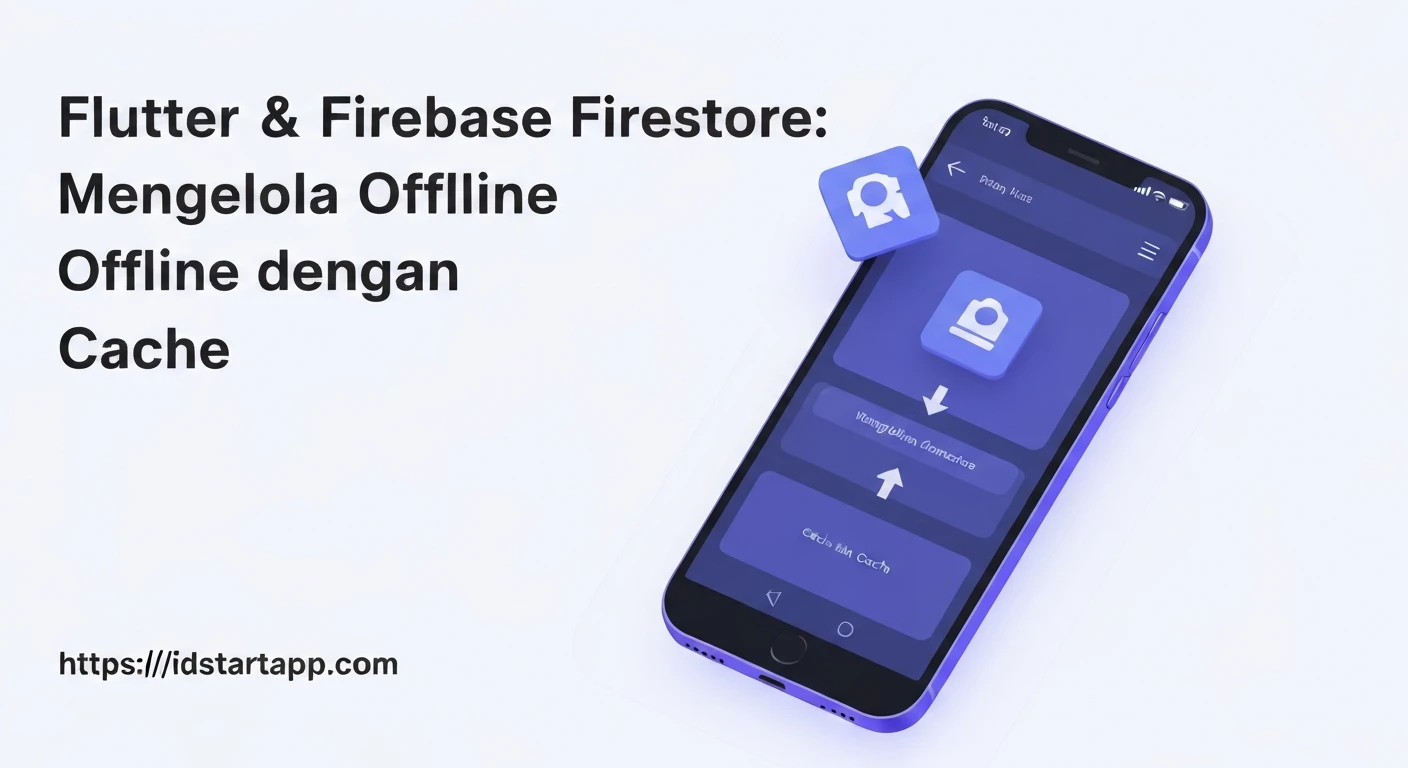

Flutter & Firebase Firestore: Managing Offline Data with Cache
In today's mobile-first world, applications are expected to be responsive and functional even without a stable internet connection. Providing a seamless user experience often means gracefully handling offline scenarios, ensuring data is accessible and modifiable locally before being synchronized with the cloud. Firebase Firestore, a NoSQL document database, offers robust built-in capabilities for offline data management, making it an excellent choice for Flutter developers aiming to build resilient applications.
Understanding Firestore's Offline Capabilities
One of Firestore's standout features is its automatic offline data persistence. For mobile and web clients, Firestore maintains a local cache of data that your application actively uses. This means:
- Immediate Responsiveness: When an application writes data offline, the write operation is immediately reflected in the local cache, making the UI update instantly. The write is then queued and sent to the Firestore backend when a network connection is restored.
- Offline Reads: If a network connection is unavailable, Firestore attempts to serve data from its local cache for any read operations. This ensures users can still view previously accessed data.
- Real-time Synchronization: Once connectivity is re-established, Firestore automatically synchronizes the local cache with the server. Any pending writes are pushed, and any changes on the server are pulled down to the local cache, ensuring data consistency.
This persistence is enabled by default for Flutter (Android and iOS) and web applications. You typically don't need to do anything extra to benefit from it.
Setting Up Firestore in Flutter
Before managing offline data, ensure your Flutter project is configured to use Firebase and Firestore. After adding firebase_core and cloud_firestore to your pubspec.yaml, initialize Firebase:
dependencies:
  flutter:
    sdk: flutter
  firebase_core: ^2.24.2
  cloud_firestore: ^4.13.4
Initialize Firebase in your main.dart:
import 'package:firebase_core/firebase_core.dart';
import 'package:flutter/material.dart';
import 'firebase_options.dart'; // Generated by FlutterFire CLI

void main() async {
  WidgetsFlutterBinding.ensureInitialized();
  await Firebase.initializeApp(
    options: DefaultFirebaseOptions.currentPlatform,
  );
  runApp(const MyApp());
}
Working with Offline Data in Flutter
Writing Data Offline
When you perform write operations (set(), update(), add(), delete()), Firestore immediately applies these changes to the local cache. If the device is offline, these operations are queued. Once the device comes online, Firestore automatically sends these pending writes to the server. The user experiences an instant update, giving the impression of continuous connectivity.
import 'package:cloud_firestore/cloud_firestore.dart';

Future addNote(String title, String content) async {
  try {
    await FirebaseFirestore.instance.collection('notes').add({
      'title': title,
      'content': content,
      'timestamp': FieldValue.serverTimestamp(), // Firestore handles server timestamp on connection
    });
    print("Note added/queued successfully!");
  } catch (e) {
    print("Error adding note: $e");
  }
}

// Example usage
// addNote('My Offline Note', 'This note was created while offline!');
The FieldValue.serverTimestamp() is particularly useful here. While offline, Firestore uses a local placeholder, and once connected, the actual server timestamp is applied, ensuring consistency.
Reading Data Offline
Firestore offers flexibility in how you retrieve data, especially when considering offline scenarios. By default, read operations attempt to fetch data from the server first and fall back to the cache if the server is unreachable or if real-time listeners are used.
Real-time Listeners (Snapshots)Using snapshots() is the most common way to get real-time updates and also implicitly handles offline data beautifully. When offline, snapshots() will emit data from the local cache. Once online, it will receive updates from the server.
import 'package:cloud_firestore/cloud_firestore.dart';
import 'package:flutter/material.dart';

class NotesList extends StatelessWidget {
  const NotesList({super.key});

  @override
  Widget build(BuildContext context) {
    return StreamBuilder(
      stream: FirebaseFirestore.instance.collection('notes').snapshots(),
      builder: (BuildContext context, AsyncSnapshot snapshot) {
        if (snapshot.hasError) {
          return Text('Error: ${snapshot.error}');
        }

        if (snapshot.connectionState == ConnectionState.waiting) {
          return const CircularProgressIndicator();
        }

        if (!snapshot.hasData || snapshot.data!.docs.isEmpty) {
          return const Text('No notes found.');
        }

        return ListView.builder(
          itemCount: snapshot.data!.docs.length,
          itemBuilder: (context, index) {
            DocumentSnapshot document = snapshot.data!.docs[index];
            Map data = document.data()! as Map;
            return ListTile(
              title: Text(data['title'] ?? 'No Title'),
              subtitle: Text(data['content'] ?? 'No Content'),
            );
          },
        );
      },
    );
  }
}
This StreamBuilder will display notes from the local cache when offline and automatically update when online as new data arrives from the server or local writes are processed.
Source)
For one-time fetches, you can explicitly control where Firestore tries to get data from using the Source parameter in the get() method:
Source.server: Forces a fetch from the Firestore backend. Fails if offline.Source.cache: Forces a fetch from the local cache. Fails if data is not in cache.Source.serverAndCache(default forget()): Tries the server first, falls back to cache if server is unreachable.
import 'package:cloud_firestore/cloud_firestore.dart';

Future getNoteFromServer(String docId) async {
  try {
    DocumentSnapshot doc = await FirebaseFirestore.instance
        .collection('notes')
        .doc(docId)
        .get(const GetOptions(source: Source.server)); // Explicitly from server

    if (doc.exists) {
      print("Note from server: ${doc.data()}");
    } else {
      print("Note not found on server.");
    }
  } catch (e) {
    print("Error fetching note from server (might be offline): $e");
  }
}

Future getNoteFromCache(String docId) async {
  try {
    DocumentSnapshot doc = await FirebaseFirestore.instance
        .collection('notes')
        .doc(docId)
        .get(const GetOptions(source: Source.cache)); // Explicitly from cache

    if (doc.exists) {
      print("Note from cache: ${doc.data()}");
    } else {
      print("Note not found in cache.");
    }
  } catch (e) {
    print("Error fetching note from cache: $e");
  }
}

Future getNoteDefault(String docId) async {
  try {
    DocumentSnapshot doc = await FirebaseFirestore.instance
        .collection('notes')
        .doc(docId)
        .get(); // Default: server then cache

    if (doc.exists) {
      print("Note (default source): ${doc.data()}");
    } else {
      print("Note not found.");
    }
  } catch (e) {
    print("Error fetching note: $e");
  }
}
While Source.serverAndCache is the default for get(), understanding Source.cache can be useful for specific scenarios where you explicitly only want to retrieve data that has been previously cached, perhaps to avoid a network call altogether if a server-freshness isn't critical.
Considerations for Offline Data Management
- Cache Size: Firestore's offline cache has a default size limit (typically 40 MB). For applications dealing with large amounts of data, you might need to manage what data is cached or consider increasing the cache size (though this must be done carefully).
- Query Limitations: Not all queries can be fully executed offline. For instance, queries involving range filters or order by clauses that rely on server-side indexes might behave differently or fail if the required indexes haven't been downloaded to the cache.
- Data Conflicts: While Firestore handles most write conflicts gracefully (last write wins), understanding how your application behaves during synchronization is important.
- Data Freshness: While the cache provides resilience, sometimes an application needs the absolute latest data from the server. Using
Source.servercan achieve this when online.
Conclusion
Firebase Firestore, combined with Flutter, provides an incredibly powerful and convenient way to manage offline data. Its built-in persistence and automatic synchronization capabilities significantly reduce the complexity developers face when building robust, offline-first mobile applications. By understanding how Firestore's cache works and leveraging its flexible read options, you can deliver a smooth and reliable user experience, regardless of network connectivity.