
Flutter & Firebase Firestore: Harnessing StreamBuilder for Real-Time Data
Modern applications thrive on responsiveness and real-time updates. Whether it's a chat application, a collaborative document editor, or a live activity feed, users expect to see changes reflected instantly without manual refreshes. In the Flutter ecosystem, combined with Firebase Firestore, achieving this real-time capability is elegantly simple, primarily through the use of the StreamBuilder widget.
The Power of Real-Time Data
Real-time data synchronization is a cornerstone of engaging user experiences. It ensures that all users see the most up-to-date information, fostering collaboration and keeping everyone on the same page. Traditional request-response models often involve polling, which can be inefficient and lead to stale data. Real-time solutions, like those offered by Firestore, push updates to clients as soon as they occur.
Firebase Firestore: A NoSQL Cloud Database
Firebase Firestore is a flexible, scalable NoSQL cloud database that supports live synchronization. It stores data in collections of documents and is optimized for speed and reliability. A key feature of Firestore is its ability to provide real-time listeners, which emit data snapshots whenever the data on the server changes.
Understanding Streams in Dart
Before diving into StreamBuilder, it's essential to grasp the concept of Streams in Dart. A Stream is a sequence of asynchronous events. It's like a pipe where data can flow through over time. When you "listen" to a Stream, you receive events as they become available. In the context of Firestore, listening to a collection or document provides a Stream of QuerySnapshot or DocumentSnapshot objects, respectively, each time the underlying data changes.
A typical Firestore stream looks like this:
// Get a stream of snapshots from the 'items' collection
Stream<QuerySnapshot> itemsStream = FirebaseFirestore.instance.collection('items').snapshots();
Introducing StreamBuilder
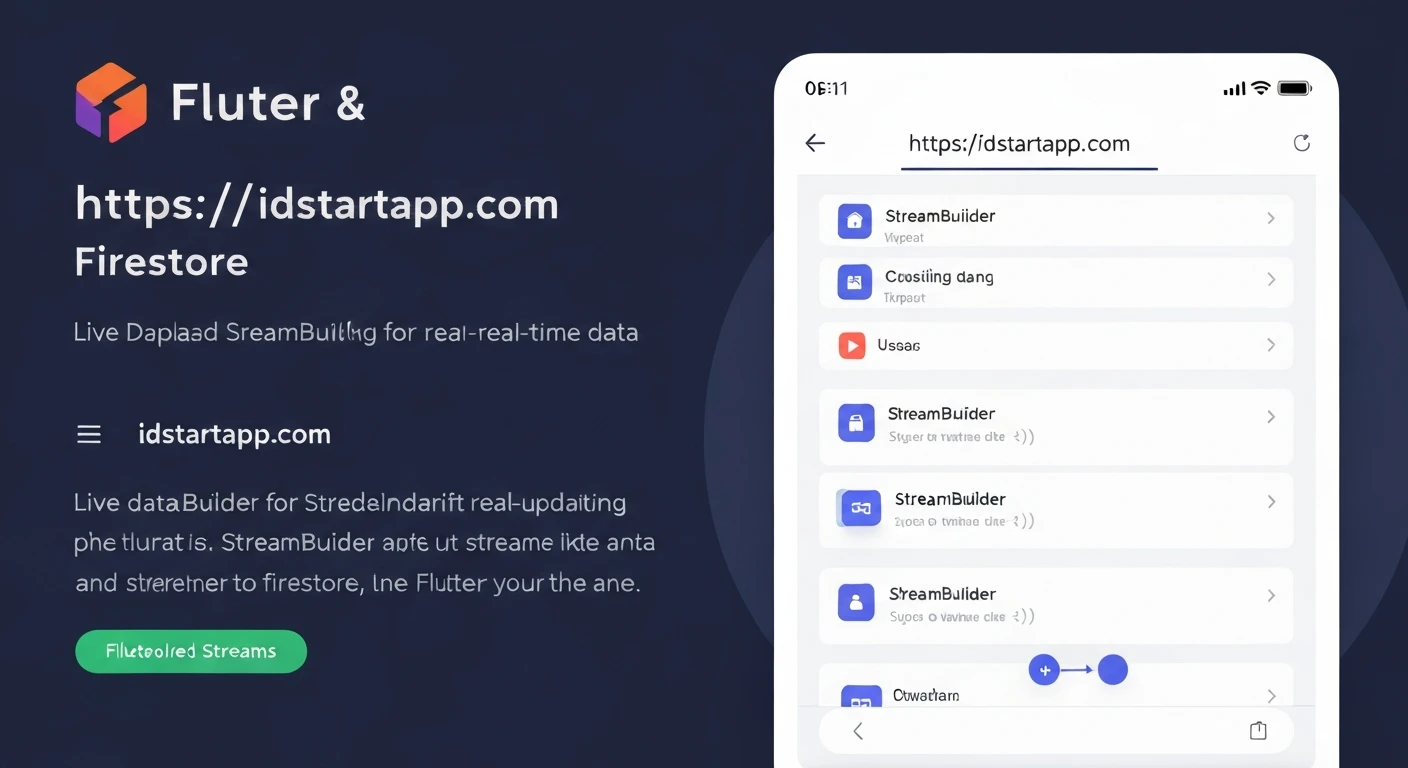
StreamBuilder is a Flutter widget designed specifically to work with Streams. It listens to a Stream and rebuilds itself whenever new data is emitted by that Stream. This makes it the perfect tool for integrating real-time data from Firestore directly into your Flutter UI.
The StreamBuilder takes two main parameters:
stream: The Stream thatStreamBuilderwill listen to.builder: A function that tellsStreamBuilderhow to build its UI based on the current state of the Stream (e.g., loading, has data, has error). This function receives anAsyncSnapshot, which contains the latest data, error, and connection state.
Implementing Real-Time Data with StreamBuilder and Firestore
Let's walk through an example of building a simple Flutter application that displays a list of items from Firestore in real-time. Any changes to the 'items' collection in Firestore will instantly reflect in the app.
1. Project Setup (Assumed)
It's assumed you have a Flutter project set up with Firebase initialized and the cloud_firestore package added to your pubspec.yaml:
dependencies:
  flutter:
    sdk: flutter
  firebase_core: ^latest_version
  cloud_firestore: ^latest_version
And initialized Firebase in your main() function:
void main() async {
  WidgetsFlutterBinding.ensureInitialized();
  await Firebase.initializeApp();
  runApp(MyApp());
}
2. Firestore Data Structure
Imagine a Firestore collection named items, where each document has a name and a description field.
// Example Document in 'items' collection:
// Document ID: item_123
// {
//   "name": "Flutter Widget",
//   "description": "A UI component in Flutter"
// }
3. Building the UI with StreamBuilder
Here’s how you can use StreamBuilder to display this data in a ListView and react to changes.
import 'package:flutter/material.dart';
import 'package:cloud_firestore/cloud_firestore.dart';
import 'package:firebase_core/firebase_core.dart'; // Make sure this is imported if using main.dart

// (Assuming Firebase is initialized in main.dart)

class RealtimeItemsScreen extends StatelessWidget {
  const RealtimeItemsScreen({super.key});

  @override
  Widget build(BuildContext context) {
    return Scaffold(
      appBar: AppBar(
        title: const Text('Real-Time Items'),
      ),
      body: StreamBuilder<QuerySnapshot>(
        stream: FirebaseFirestore.instance.collection('items').snapshots(),
        builder: (BuildContext context, AsyncSnapshot<QuerySnapshot> snapshot) {
          // Handle potential errors
          if (snapshot.hasError) {
            return Center(child: Text('Something went wrong: ${snapshot.error}'));
          }

          // Show a loading indicator while data is being fetched
          if (snapshot.connectionState == ConnectionState.waiting) {
            return const Center(child: CircularProgressIndicator());
          }

          // If data is available, build the ListView
          if (snapshot.hasData) {
            // Map the documents to a list of Widgets (e.g., ListTiles)
            return ListView(
              children: snapshot.data!.docs.map((DocumentSnapshot document) {
                // Cast the data to Map<String, dynamic>
                Map<String, dynamic> data = document.data()! as Map<String, dynamic>;
                return ListTile(
                  title: Text(data['name'] ?? 'No Name'),
                  subtitle: Text(data['description'] ?? 'No Description'),
                  leading: const Icon(Icons.info),
                  onTap: () {
                    // Optional: Handle tapping an item
                    print('Tapped: ${data['name']}');
                  },
                );
              }).toList(),
            );
          }

          // Fallback in case no data and no error (shouldn't typically happen)
          return const Center(child: Text('No items to display.'));
        },
      ),
      floatingActionButton: FloatingActionButton(
        onPressed: () {
          // Add a new item to Firestore
          FirebaseFirestore.instance.collection('items').add({
            'name': 'New Item ${DateTime.now().millisecond}',
            'description': 'Added at ${DateTime.now()}',
            'timestamp': FieldValue.serverTimestamp(), // Useful for ordering
          });
        },
        child: const Icon(Icons.add),
      ),
    );
  }
}

// Example of how you might use this in your main.dart:
// class MyApp extends StatelessWidget {
//   const MyApp({super.key});
//
//   @override
//   Widget build(BuildContext context) {
//     return MaterialApp(
//       title: 'Flutter Firestore Real-Time',
//       theme: ThemeData(
//         primarySwatch: Colors.blue,
//       ),
//       home: const RealtimeItemsScreen(),
//     );
//   }
// }
Explanation of the Code:
StreamBuilder<QuerySnapshot>: We specify the type of data the stream will emit, which is aQuerySnapshotwhen listening to a collection.stream: FirebaseFirestore.instance.collection('items').snapshots(): This is the core part. It provides the Stream ofQuerySnapshotobjects. Each time a document in the 'items' collection is added, modified, or deleted, a newQuerySnapshotwill be emitted, triggering theStreamBuilderto rebuild.builder: (BuildContext context, AsyncSnapshot<QuerySnapshot> snapshot) { ... }: This function handles how the UI is built based on thesnapshot.snapshot.hasError: Checks if there was an error with the stream (e.g., permission denied).snapshot.connectionState == ConnectionState.waiting: Indicates that the stream is still fetching its initial data. ACircularProgressIndicatoris a good UX choice here.snapshot.hasData: Confirms that data has been successfully received.snapshot.data!.docs.map(...): Accesses the list ofDocumentSnapshotobjects within theQuerySnapshot. EachDocumentSnapshotrepresents a single document from Firestore.document.data()! as Map<String, dynamic>: Extracts the data from the document. The!asserts that data is not null, and it's cast to aMap<String, dynamic>.FloatingActionButton: Demonstrates adding new data. When a new item is added, Firestore will notify the active listener, and theStreamBuilderwill automatically rebuild with the updated list.
Best Practices and Considerations
- Error Handling: Always implement robust error handling within your
StreamBuilderto inform users if something goes wrong (e.g., network issues, permission errors). - Loading States: Provide clear loading indicators to improve the user experience while data is being fetched.
- Security Rules: Firestore security rules are crucial for controlling who can read and write data to your database. Ensure your rules are properly configured to prevent unauthorized access.
- Performance: While Firestore streams are efficient, consider the amount of data you're streaming. For very large collections, implement pagination or query limits to optimize performance and reduce client-side memory usage.
- Resource Management:
StreamBuilderautomatically manages the subscription to the Stream, disposing of it when the widget is unmounted. This prevents memory leaks. - Data Models: For more complex applications, consider creating dedicated Dart data models (e.g., using
freezedorjson_serializable) to parseDocumentSnapshotdata into strongly-typed objects instead of raw maps.
Conclusion
The combination of Flutter's StreamBuilder and Firebase Firestore provides an incredibly powerful and elegant solution for building real-time applications. By leveraging Streams, you can create dynamic UIs that automatically update as data changes in your backend, leading to highly responsive and engaging user experiences with minimal effort. This paradigm simplifies complex real-time synchronization challenges, allowing developers to focus more on feature development and less on intricate state management.