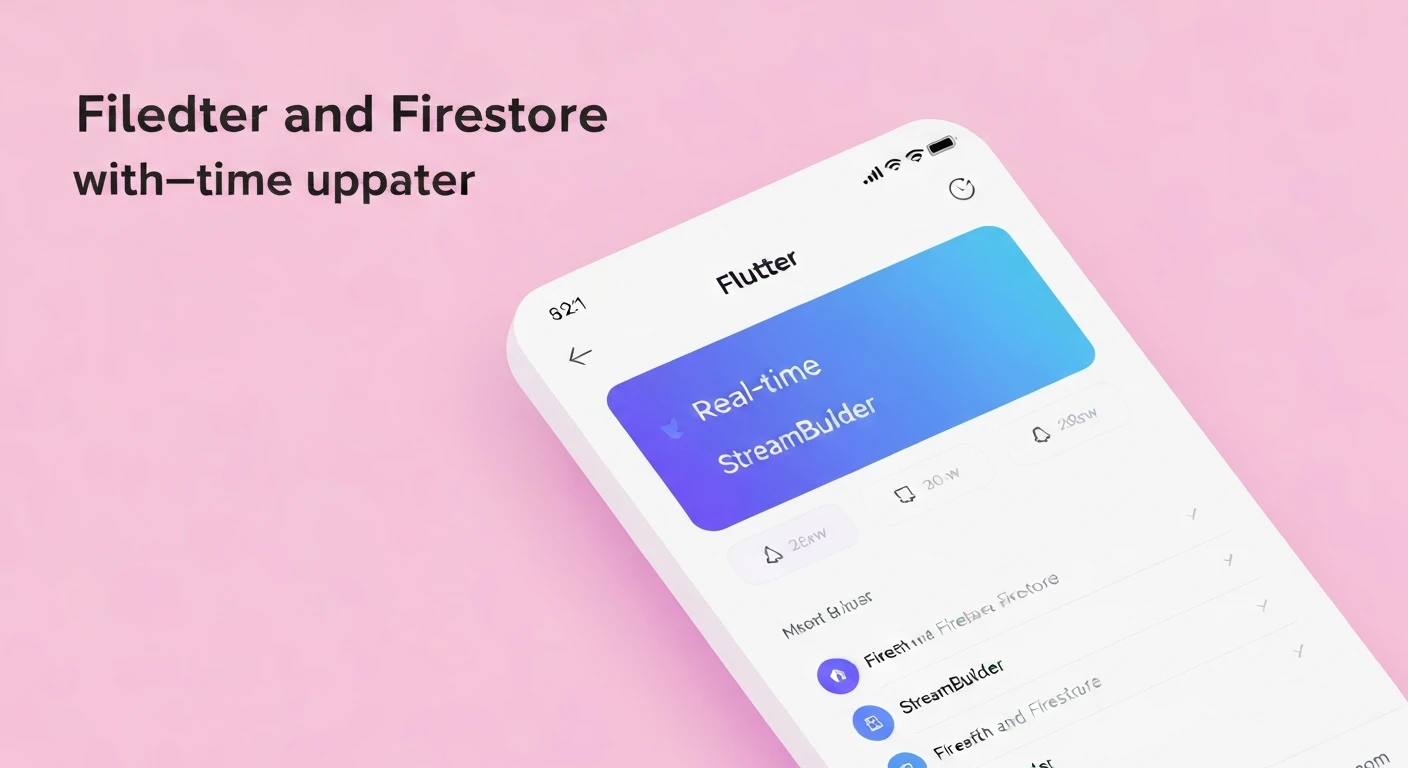

Flutter & Firebase Firestore: Leveraging StreamBuilder for Real-Time Updates
In modern application development, real-time data synchronization is no longer a luxury but an expectation. Users demand interfaces that reflect the latest information instantaneously, whether it's a chat message, a task update, or a stock price change. Flutter, Google's UI toolkit, combined with Firebase Firestore, a flexible, scalable NoSQL cloud database, offers a powerful duo for building such dynamic applications. This article explores how to achieve seamless real-time updates in your Flutter application using Firestore's data streams and Flutter's StreamBuilder widget.
The Power of Real-Time: Why It Matters
Real-time updates significantly enhance the user experience by providing immediate feedback and ensuring data consistency across multiple clients. Imagine a collaborative task management app: without real-time updates, users would need to manually refresh to see changes made by others. With real-time capabilities, every change, addition, or deletion made by one user instantly appears on the screens of all other active users, fostering a more interactive and efficient environment.
Firebase Firestore: A Real-Time Database Solution
Firebase Firestore is a cloud-hosted, NoSQL database that offers powerful querying, automatic scaling, and, crucially, real-time data synchronization. Unlike traditional request-response databases, Firestore allows clients to "listen" to a document or collection. When any changes occur to the data being listened to, Firestore automatically pushes these updates to all subscribed clients. This push-based model is the foundation for real-time applications.
Data in Firestore is structured into collections of documents. Each document is a lightweight record containing key-value pairs. For instance, a collection named "tasks" might contain multiple documents, each representing a single task with fields like title, description, and isCompleted.
Integrating Firestore with Flutter
Before utilizing Firestore's real-time capabilities in Flutter, you need to set up Firebase in your Flutter project. This involves creating a Firebase project, registering your Flutter app, and adding the necessary dependencies.
First, add the firebase_core and cloud_firestore packages to your pubspec.yaml:
dependencies:
  flutter:
    sdk: flutter
  firebase_core: ^latest_version
  cloud_firestore: ^latest_version
Next, ensure Firebase is initialized in your main function. Remember to replace ^latest_version with the actual latest stable versions of the packages.
import 'package:firebase_core/firebase_core.dart';
import 'package:flutter/material.dart';

void main() async {
  WidgetsFlutterBinding.ensureInitialized();
  await Firebase.initializeApp(); // Initialize Firebase
  runApp(MyApp());
}

class MyApp extends StatelessWidget {
  @override
  Widget build(BuildContext context) {
    return MaterialApp(
      title: 'Real-time Tasks',
      theme: ThemeData(
        primarySwatch: Colors.blue,
      ),
      home: TaskListPage(), // Your main page displaying tasks
    );
  }
}
Introducing StreamBuilder: The Heart of Real-Time UI
Flutter's StreamBuilder widget is specifically designed to work with Dart Streams, making it the perfect tool for consuming real-time data from Firestore. A Stream is a sequence of asynchronous events. In the context of Firestore, when you listen to a collection or document, Firestore provides a Stream of QuerySnapshot (for collections) or DocumentSnapshot (for documents). Each time the data changes in Firestore, a new event is emitted into the stream.
StreamBuilder takes a Stream as input and a builder function. The builder function is called every time a new event (data) is emitted by the stream, allowing the UI to rebuild itself automatically with the latest data. This eliminates the need for manual state management or calling setState() explicitly when new data arrives.
Implementing Real-Time Updates with StreamBuilder
Let's demonstrate fetching a real-time list of tasks from a Firestore collection named "tasks" and displaying them in a Flutter ListView.
1. Define Your Data Model (Optional but Recommended)
It's good practice to create a Dart class for your Firestore documents to handle serialization and deserialization.
class Task {
  final String id;
  final String title;
  final bool isCompleted;

  Task({required this.id, required this.title, this.isCompleted = false});

  factory Task.fromFirestore(Map data, String id) {
    return Task(
      id: id,
      title: data['title'] ?? '',
      isCompleted: data['isCompleted'] ?? false,
    );
  }

  Map toFirestore() {
    return {
      'title': title,
      'isCompleted': isCompleted,
    };
  }
}
2. Fetching the Stream from Firestore
To get a stream of documents from a Firestore collection, you use the snapshots() method.
final Stream _tasksStream =
    FirebaseFirestore.instance.collection('tasks').snapshots();
This stream will emit a new QuerySnapshot every time the "tasks" collection changes (documents are added, modified, or deleted).
3. Using StreamBuilder in Your UI
Now, integrate the stream with StreamBuilder within your widget tree.
import 'package:flutter/material.dart';
import 'package:cloud_firestore/cloud_firestore.dart';
// Assuming your Task model is in a separate file or defined above

class TaskListPage extends StatelessWidget {
  @override
  Widget build(BuildContext context) {
    return Scaffold(
      appBar: AppBar(
        title: Text('Real-time Tasks'),
      ),
      body: StreamBuilder(
        stream: FirebaseFirestore.instance.collection('tasks').snapshots(),
        builder: (BuildContext context, AsyncSnapshot snapshot) {
          if (snapshot.hasError) {
            return Center(child: Text('Something went wrong'));
          }

          if (snapshot.connectionState == ConnectionState.waiting) {
            return Center(child: CircularProgressIndicator());
          }

          if (!snapshot.hasData || snapshot.data!.docs.isEmpty) {
            return Center(child: Text('No tasks found. Add one!'));
          }

          // Data is available, build the list
          return ListView(
            children: snapshot.data!.docs.map((DocumentSnapshot document) {
              Map data = document.data()! as Map;
              Task task = Task.fromFirestore(data, document.id); // Convert to Task object
              return Card(
                margin: EdgeInsets.symmetric(horizontal: 10, vertical: 5),
                child: ListTile(
                  title: Text(task.title),
                  subtitle: Text('ID: ${task.id}'), // Display document ID for debugging
                  trailing: Checkbox(
                    value: task.isCompleted,
                    onChanged: (bool? newValue) {
                      // Update task completion status in Firestore
                      document.reference.update({'isCompleted': newValue});
                    },
                  ),
                  onTap: () {
                    // Example of modifying an existing task's title
                    document.reference.update({'title': '${task.title} (Updated)'});
                  },
                ),
              );
            }).toList(),
          );
        },
      ),
      floatingActionButton: FloatingActionButton(
        onPressed: () {
          // Example: Add a new task
          FirebaseFirestore.instance.collection('tasks').add({
            'title': 'New Task ${DateTime.now().second}',
            'isCompleted': false,
          });
        },
        child: Icon(Icons.add),
      ),
    );
  }
}
In the example above, whenever a user clicks the checkbox, taps a list item, or presses the FAB, the corresponding change is made in Firestore. Firestore then immediately pushes this update back to the StreamBuilder, which rebuilds the UI to reflect the change without any explicit setState() calls.
Best Practices and Considerations
-
Error Handling:
Always handle errors within your
StreamBuilder'sbuilderfunction (snapshot.hasError) to gracefully display issues to the user. -
Loading States:
Provide a loading indicator (
CircularProgressIndicator) whensnapshot.connectionState == ConnectionState.waiting. This improves user experience while the initial data is being fetched. -
No Data State:
Display a message when
snapshot.hasDatais false orsnapshot.data!.docs.isEmptyto inform the user that there's no data to show. -
Performance:
For very large datasets, consider using Firestore's query capabilities (
where(),orderBy(),limit()) to fetch only the necessary data. Also, be mindful of reads, as Firestore bills per document read. -
Security Rules:
Implement robust Firebase Security Rules to control who can read and write data to your Firestore database. This is critical for protecting your data and preventing unauthorized access.
-
Disposing Streams:
While
StreamBuilderinherently manages stream subscriptions (it automatically cancels the subscription when the widget is disposed), be aware of this for custom stream handling.
Conclusion
The combination of Flutter and Firebase Firestore, orchestrated by Flutter's StreamBuilder, provides an incredibly efficient and robust mechanism for building real-time applications. By leveraging Firestore's push-based data synchronization and StreamBuilder's automatic UI rebuilding capabilities, developers can create highly interactive and responsive user experiences with minimal boilerplate code. Embracing this pattern will enable you to deliver dynamic applications that keep users engaged and informed in real-time.