

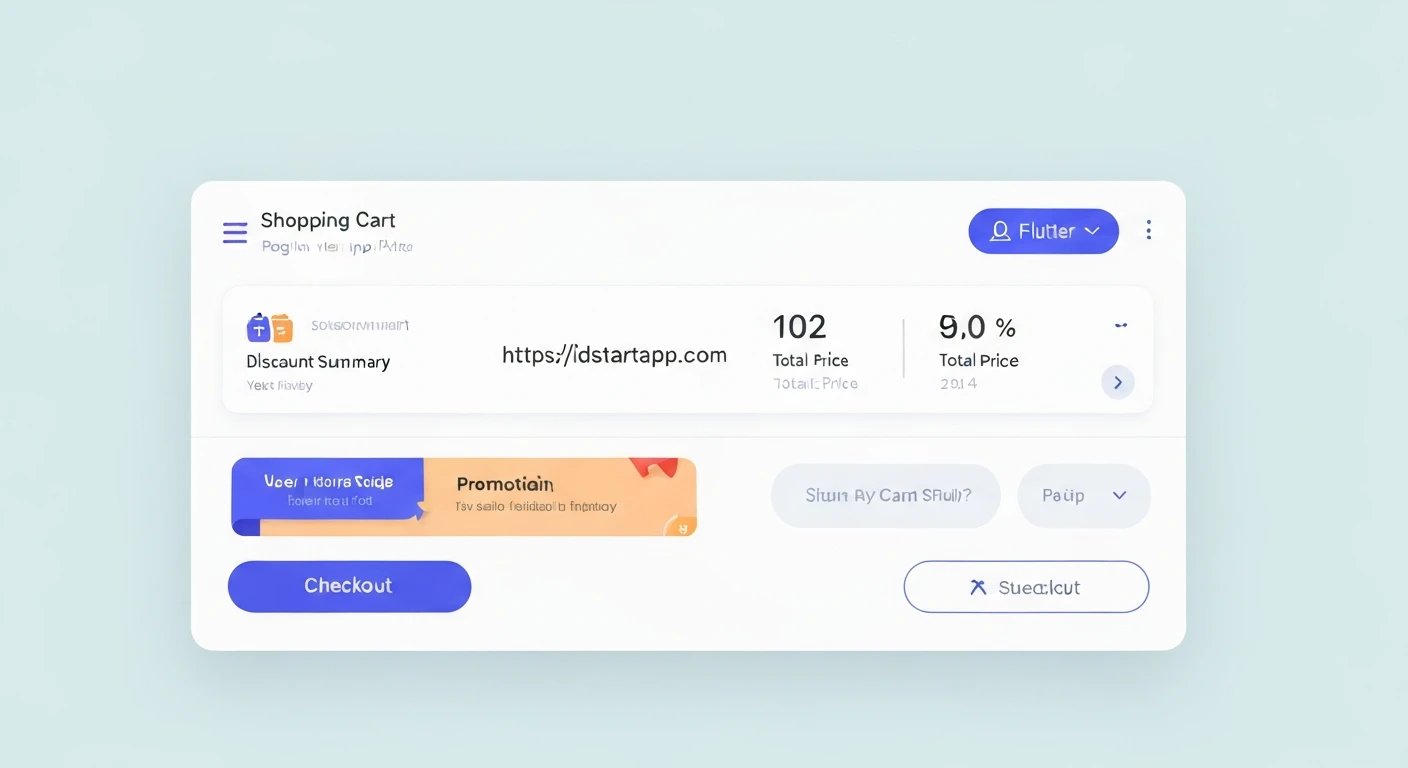

Building a Shopping Cart Widget in Flutter with Discount Summary, Total Price, Checkout, and Promo Banner
In modern e-commerce applications, a well-designed and functional shopping cart is crucial for a seamless user experience. It's the central hub where users review their selected items, apply discounts, and proceed to purchase. This article will guide you through creating a robust shopping cart widget in Flutter, incorporating essential features like a dynamic discount summary, real-time total price calculation, a checkout mechanism, and an engaging promo banner.
Core Components of Our Shopping Cart Widget
To build a comprehensive shopping cart, we'll focus on integrating the following key features:
- Item Listing: Displaying all products added to the cart, with options to adjust quantity or remove items.
- Discount Summary: Clearly showing applied discounts, either from promo codes or other promotions.
- Total Price Calculation: Dynamically updating the subtotal, discount, and final total price.
- Promo Banner/Input: A section for users to discover or apply promotional codes.
- Checkout Button: The gateway to finalizing the purchase.
Setting Up Your Flutter Project
First, ensure you have Flutter installed and set up a new project. We'll use the provider package for state management, which simplifies managing the cart's state across different widgets.
Add the provider dependency to your pubspec.yaml:
dependencies:
  flutter:
    sdk: flutter
  provider: ^6.0.5 # Use the latest version
Then, run flutter pub get.
1. Data Models for Cart Items and Promo Codes
We'll define simple data models for a CartItem and a PromoCode. These models will hold the necessary information for each item in the cart and any active promotions.
cart_item.dart
class CartItem {
  final String id;
  final String name;
  final double price;
  int quantity;
  final String imageUrl;

  CartItem({
    required this.id,
    required this.name,
    required this.price,
    this.quantity = 1,
    required this.imageUrl,
  });

  CartItem copyWith({
    String? id,
    String? name,
    double? price,
    int? quantity,
    String? imageUrl,
  }) {
    return CartItem(
      id: id ?? this.id,
      name: name ?? this.name,
      price: price ?? this.price,
      quantity: quantity ?? this.quantity,
      imageUrl: imageUrl ?? this.imageUrl,
    );
  }
}
promo_code.dart
class PromoCode {
  final String code;
  final double discountPercentage; // e.g., 0.10 for 10%
  final double minOrderAmount;

  PromoCode({
    required this.code,
    required this.discountPercentage,
    this.minOrderAmount = 0.0,
  });

  bool isValid(double currentSubtotal) {
    return currentSubtotal >= minOrderAmount;
  }
}
2. The Shopping Cart Provider (State Management)
The CartProvider will manage the state of our shopping cart, including adding/removing items, updating quantities, applying promo codes, and calculating totals. We'll extend ChangeNotifier and use notifyListeners() to update the UI.
import 'package:flutter/material.dart';
import 'package:your_app_name/models/cart_item.dart';
import 'package:your_app_name/models/promo_code.dart'; // Adjust import path

class CartProvider extends ChangeNotifier {
  final Map _items = {};
  PromoCode? _activePromoCode;

  Map get items => {..._items}; // Return a copy
  PromoCode? get activePromoCode => _activePromoCode;

  int get itemCount => _items.length;

  double get subtotal {
    double total = 0.0;
    _items.forEach((key, item) {
      total += item.price * item.quantity;
    });
    return total;
  }

  double get discountAmount {
    if (_activePromoCode != null && _activePromoCode!.isValid(subtotal)) {
      return subtotal * _activePromoCode!.discountPercentage;
    }
    return 0.0;
  }

  double get totalAmount {
    return subtotal - discountAmount;
  }

  void addItem(CartItem item) {
    if (_items.containsKey(item.id)) {
      _items.update(
        item.id,
        (existingItem) => existingItem.copyWith(quantity: existingItem.quantity + 1),
      );
    } else {
      _items.putIfAbsent(item.id, () => item);
    }
    notifyListeners();
  }

  void removeItem(String productId) {
    _items.remove(productId);
    notifyListeners();
  }

  void increaseQuantity(String productId) {
    if (_items.containsKey(productId)) {
      _items.update(
        productId,
        (existingItem) => existingItem.copyWith(quantity: existingItem.quantity + 1),
      );
      notifyListeners();
    }
  }

  void decreaseQuantity(String productId) {
    if (_items.containsKey(productId)) {
      if (_items[productId]!.quantity > 1) {
        _items.update(
          productId,
          (existingItem) => existingItem.copyWith(quantity: existingItem.quantity - 1),
        );
      } else {
        _items.remove(productId); // Remove if quantity drops to 0
      }
      notifyListeners();
    }
  }

  void applyPromoCode(PromoCode promo) {
    _activePromoCode = promo;
    notifyListeners();
  }

  void removePromoCode() {
    _activePromoCode = null;
    notifyListeners();
  }

  void clearCart() {
    _items.clear();
    _activePromoCode = null;
    notifyListeners();
  }
}
You'll need to wrap your MaterialApp or the relevant part of your widget tree with a ChangeNotifierProvider:
// In main.dart or your root widget
import 'package:provider/provider.dart';
import 'package:your_app_name/providers/cart_provider.dart'; // Adjust import path

void main() {
  runApp(
    ChangeNotifierProvider(
      create: (context) => CartProvider(),
      child: MyApp(),
    ),
  );
}
3. Implementing the Cart Item Widget
Each item in the cart will have its own widget to display details and allow quantity adjustments.
import 'package:flutter/material.dart';
import 'package:provider/provider.dart';
import 'package:your_app_name/models/cart_item.dart';
import 'package:your_app_name/providers/cart_provider.dart';

class CartItemWidget extends StatelessWidget {
  final CartItem cartItem;

  const CartItemWidget({Key? key, required this.cartItem}) : super(key: key);

  @override
  Widget build(BuildContext context) {
    final cartProvider = Provider.of(context, listen: false);

    return Card(
      margin: const EdgeInsets.symmetric(horizontal: 16, vertical: 8),
      child: Padding(
        padding: const EdgeInsets.all(8.0),
        child: Row(
          children: [
            Container(
              width: 80,
              height: 80,
              decoration: BoxDecoration(
                borderRadius: BorderRadius.circular(8),
                image: DecorationImage(
                  image: NetworkImage(cartItem.imageUrl),
                  fit: BoxFit.cover,
                ),
              ),
            ),
            const SizedBox(width: 10),
            Expanded(
              child: Column(
                crossAxisAlignment: CrossAxisAlignment.start,
                children: [
                  Text(
                    cartItem.name,
                    style: const TextStyle(fontSize: 16, fontWeight: FontWeight.bold),
                    maxLines: 2,
                    overflow: TextOverflow.ellipsis,
                  ),
                  Text('\$${cartItem.price.toStringAsFixed(2)}',
                      style: const TextStyle(fontSize: 14, color: Colors.grey)),
                  Row(
                    mainAxisAlignment: MainAxisAlignment.spaceBetween,
                    children: [
                      Row(
                        children: [
                          IconButton(
                            icon: const Icon(Icons.remove_circle_outline),
                            onPressed: () {
                              cartProvider.decreaseQuantity(cartItem.id);
                            },
                          ),
                          Text('${cartItem.quantity}', style: const TextStyle(fontSize: 16)),
                          IconButton(
                            icon: const Icon(Icons.add_circle_outline),
                            onPressed: () {
                              cartProvider.increaseQuantity(cartItem.id);
                            },
                          ),
                        ],
                      ),
                      Text(
                        '\$${(cartItem.price * cartItem.quantity).toStringAsFixed(2)}',
                        style: const TextStyle(fontSize: 16, fontWeight: FontWeight.bold),
                      ),
                    ],
                  ),
                ],
              ),
            ),
          ],
        ),
      ),
    );
  }
}
4. Building the Discount Summary and Total Price Section
This section will display the subtotal, the applied discount (if any), and the final total amount. It will react to changes in the cart or promo code application.
import 'package:flutter/material.dart';
import 'package:provider/provider.dart';
import 'package:your_app_name/providers/cart_provider.dart';

class CartSummaryWidget extends StatelessWidget {
  const CartSummaryWidget({Key? key}) : super(key: key);

  @override
  Widget build(BuildContext context) {
    return Consumer(
      builder: (context, cartProvider, child) {
        return Card(
          margin: const EdgeInsets.all(16),
          child: Padding(
            padding: const EdgeInsets.all(16.0),
            child: Column(
              crossAxisAlignment: CrossAxisAlignment.start,
              children: [
                const Text(
                  'Order Summary',
                  style: TextStyle(fontSize: 18, fontWeight: FontWeight.bold),
                ),
                const SizedBox(height: 10),
                Row(
                  mainAxisAlignment: MainAxisAlignment.spaceBetween,
                  children: [
                    const Text('Subtotal:', style: TextStyle(fontSize: 16)),
                    Text('\$${cartProvider.subtotal.toStringAsFixed(2)}',
                        style: const TextStyle(fontSize: 16)),
                  ],
                ),
                const SizedBox(height: 5),
                Row(
                  mainAxisAlignment: MainAxisAlignment.spaceBetween,
                  children: [
                    const Text('Discount:', style: TextStyle(fontSize: 16)),
                    Text('-\$${cartProvider.discountAmount.toStringAsFixed(2)}',
                        style: const TextStyle(fontSize: 16, color: Colors.green)),
                  ],
                ),
                if (cartProvider.activePromoCode != null)
                  Padding(
                    padding: const EdgeInsets.only(top: 4.0),
                    child: Row(
                      mainAxisAlignment: MainAxisAlignment.spaceBetween,
                      children: [
                        Text(
                          'Promo (${cartProvider.activePromoCode!.code}):',
                          style: const TextStyle(fontSize: 14, color: Colors.green),
                        ),
                        GestureDetector(
                          onTap: () {
                            cartProvider.removePromoCode();
                            ScaffoldMessenger.of(context).showSnackBar(
                              const SnackBar(content: Text('Promo code removed.')),
                            );
                          },
                          child: const Text(
                            'Remove',
                            style: TextStyle(fontSize: 14, color: Colors.red, decoration: TextDecoration.underline),
                          ),
                        ),
                      ],
                    ),
                  ),
                const Divider(height: 20, thickness: 1),
                Row(
                  mainAxisAlignment: MainAxisAlignment.spaceBetween,
                  children: [
                    const Text('Total:',
                        style: TextStyle(fontSize: 18, fontWeight: FontWeight.bold)),
                    Text('\$${cartProvider.totalAmount.toStringAsFixed(2)}',
                        style: const TextStyle(fontSize: 18, fontWeight: FontWeight.bold)),
                  ],
                ),
              ],
            ),
          ),
        );
      },
    );
  }
}
5. Integrating the Promo Banner
This widget will allow users to input a promo code. For demonstration, we'll have a predefined set of codes.
import 'package:flutter/material.dart';
import 'package:provider/provider.dart';
import 'package:your_app_name/models/promo_code.dart';
import 'package:your_app_name/providers/cart_provider.dart';

class PromoBannerWidget extends StatefulWidget {
  const PromoBannerWidget({Key? key}) : super(key: key);

  @override
  _PromoBannerWidgetState createState() => _PromoBannerWidgetState();
}

class _PromoBannerWidgetState extends State {
  final TextEditingController _promoCodeController = TextEditingController();
  final List availablePromoCodes = [
    PromoCode(code: 'FLUTTER20', discountPercentage: 0.20, minOrderAmount: 50.0), // 20% off
    PromoCode(code: 'SAVE10', discountPercentage: 0.10, minOrderAmount: 20.0), // 10% off
  ];

  void _applyPromo(BuildContext context) {
    final String enteredCode = _promoCodeController.text.trim().toUpperCase();
    final cartProvider = Provider.of(context, listen: false);

    if (enteredCode.isEmpty) {
      ScaffoldMessenger.of(context).showSnackBar(
        const SnackBar(content: Text('Please enter a promo code.')),
      );
      return;
    }

    final PromoCode? foundPromo = availablePromoCodes.firstWhere(
      (promo) => promo.code == enteredCode,
      orElse: () => PromoCode(code: '', discountPercentage: 0.0), // Dummy if not found
    );

    if (foundPromo != null && foundPromo.code.isNotEmpty) {
      if (foundPromo.isValid(cartProvider.subtotal)) {
        cartProvider.applyPromoCode(foundPromo);
        ScaffoldMessenger.of(context).showSnackBar(
          SnackBar(content: Text('Promo code "${foundPromo.code}" applied!')),
        );
      } else {
        ScaffoldMessenger.of(context).showSnackBar(
          SnackBar(content: Text('Order subtotal must be \$${foundPromo.minOrderAmount.toStringAsFixed(2)} to use this promo.')),
        );
      }
    } else {
      ScaffoldMessenger.of(context).showSnackBar(
        SnackBar(content: Text('Invalid promo code: "$enteredCode".')),
      );
    }
    _promoCodeController.clear();
  }

  @override
  void dispose() {
    _promoCodeController.dispose();
    super.dispose();
  }

  @override
  Widget build(BuildContext context) {
    return Consumer(
      builder: (context, cartProvider, child) {
        if (cartProvider.activePromoCode != null) {
          return Container(
            margin: const EdgeInsets.symmetric(horizontal: 16, vertical: 8),
            padding: const EdgeInsets.all(12),
            decoration: BoxDecoration(
              color: Colors.green.withOpacity(0.1),
              borderRadius: BorderRadius.circular(8),
              border: Border.all(color: Colors.green),
            ),
            child: Row(
              children: [
                const Icon(Icons.check_circle_outline, color: Colors.green),
                const SizedBox(width: 8),
                Expanded(
                  child: Text(
                    'Promo code "${cartProvider.activePromoCode!.code}" applied!',
                    style: const TextStyle(color: Colors.green, fontWeight: FontWeight.bold),
                  ),
                ),
                GestureDetector(
                  onTap: () {
                    cartProvider.removePromoCode();
                    ScaffoldMessenger.of(context).showSnackBar(
                      const SnackBar(content: Text('Promo code removed.')),
                    );
                  },
                  child: const Text(
                    'Remove',
                    style: TextStyle(color: Colors.red, decoration: TextDecoration.underline),
                  ),
                ),
              ],
            ),
          );
        }

        return Card(
          margin: const EdgeInsets.all(16),
          child: Padding(
            padding: const EdgeInsets.all(16.0),
            child: Column(
              crossAxisAlignment: CrossAxisAlignment.start,
              children: [
                const Text(
                  'Have a Promo Code?',
                  style: TextStyle(fontSize: 16, fontWeight: FontWeight.bold),
                ),
                const SizedBox(height: 10),
                TextField(
                  controller: _promoCodeController,
                  decoration: InputDecoration(
                    hintText: 'Enter code here',
                    border: const OutlineInputBorder(),
                    suffixIcon: IconButton(
                      icon: const Icon(Icons.arrow_forward),
                      onPressed: () => _applyPromo(context),
                    ),
                  ),
                  onSubmitted: (_) => _applyPromo(context),
                ),
                const SizedBox(height: 10),
                const Text(
                  'Available codes: FLUTTER20 (min \$50), SAVE10 (min \$20)',
                  style: TextStyle(fontSize: 12, color: Colors.grey),
                ),
              ],
            ),
          ),
        );
      },
    );
  }
}
6. The Checkout Button
A simple button that initiates the checkout process. For this article, we'll just show a confirmation message.
import 'package:flutter/material.dart';
import 'package:provider/provider.dart';
import 'package:your_app_name/providers/cart_provider.dart';

class CheckoutButtonWidget extends StatelessWidget {
  const CheckoutButtonWidget({Key? key}) : super(key: key);

  @override
  Widget build(BuildContext context) {
    return Consumer(
      builder: (context, cartProvider, child) {
        return Container(
          width: double.infinity,
          padding: const EdgeInsets.all(16),
          child: ElevatedButton(
            onPressed: cartProvider.itemCount > 0
                ? () {
                    // Implement your checkout logic here
                    // e.g., navigate to payment screen, submit order
                    ScaffoldMessenger.of(context).showSnackBar(
                      SnackBar(content: Text('Proceeding to checkout for \$${cartProvider.totalAmount.toStringAsFixed(2)}')),
                    );
                    cartProvider.clearCart(); // Clear cart after "checkout"
                  }
                : null, // Disable button if cart is empty
            style: ElevatedButton.styleFrom(
              padding: const EdgeInsets.symmetric(vertical: 15),
              backgroundColor: Colors.blueAccent, // Use primary color for checkout button
              foregroundColor: Colors.white,
              shape: RoundedRectangleBorder(
                borderRadius: BorderRadius.circular(10),
              ),
            ),
            child: Text(
              'Checkout (\$${cartProvider.totalAmount.toStringAsFixed(2)})',
              style: const TextStyle(fontSize: 18, fontWeight: FontWeight.bold),
            ),
          ),
        );
      },
    );
  }
}
7. Putting It All Together: The Main Cart Screen
Now, let's assemble all these widgets into a complete ShoppingCartScreen.
import 'package:flutter/material.dart';
import 'package:provider/provider.dart';
import 'package:your_app_name/models/cart_item.dart';
import 'package:your_app_name/providers/cart_provider.dart';
import 'package:your_app_name/widgets/cart_item_widget.dart';
import 'package:your_app_name/widgets/cart_summary_widget.dart';
import 'package:your_app_name/widgets/promo_banner_widget.dart';
import 'package:your_app_name/widgets/checkout_button_widget.dart';

class ShoppingCartScreen extends StatefulWidget {
  const ShoppingCartScreen({Key? key}) : super(key: key);

  @override
  State createState() => _ShoppingCartScreenState();
}

class _ShoppingCartScreenState extends State {
  @override
  void initState() {
    super.initState();
    // Add some dummy items to the cart for demonstration
    WidgetsBinding.instance.addPostFrameCallback((_) {
      final cartProvider = Provider.of(context, listen: false);
      if (cartProvider.itemCount == 0) {
        cartProvider.addItem(CartItem(
            id: 'p1',
            name: 'Stylish T-Shirt',
            price: 25.00,
            imageUrl: 'https://picsum.photos/id/1018/200/200'));
        cartProvider.addItem(CartItem(
            id: 'p2',
            name: 'Designer Jeans',
            price: 60.00,
            imageUrl: 'https://picsum.photos/id/1025/200/200'));
        cartProvider.addItem(CartItem(
            id: 'p3',
            name: 'Running Shoes',
            price: 80.00,
            imageUrl: 'https://picsum.photos/id/1084/200/200'));
      }
    });
  }

  @override
  Widget build(BuildContext context) {
    return Scaffold(
      appBar: AppBar(
        title: const Text('Your Shopping Cart'),
      ),
      body: Consumer(
        builder: (context, cartProvider, child) {
          if (cartProvider.itemCount == 0) {
            return Center(
              child: Column(
                mainAxisAlignment: MainAxisAlignment.center,
                children: [
                  const Icon(Icons.shopping_cart_outlined, size: 80, color: Colors.grey),
                  const SizedBox(height: 10),
                  const Text(
                    'Your cart is empty!',
                    style: TextStyle(fontSize: 20, color: Colors.grey),
                  ),
                  const SizedBox(height: 20),
                  ElevatedButton(
                    onPressed: () {
                      // Navigate back to shopping or add some sample items
                      Navigator.of(context).pop();
                      // For demo, re-add items:
                      Provider.of(context, listen: false).addItem(CartItem(
                          id: 'p1',
                          name: 'Stylish T-Shirt',
                          price: 25.00,
                          imageUrl: 'https://picsum.photos/id/1018/200/200'));
                      Provider.of(context, listen: false).addItem(CartItem(
                          id: 'p2',
                          name: 'Designer Jeans',
                          price: 60.00,
                          imageUrl: 'https://picsum.photos/id/1025/200/200'));
                    },
                    child: const Text('Continue Shopping (or Add Samples)'),
                  ),
                ],
              ),
            );
          }
          return Column(
            children: [
              Expanded(
                child: ListView.builder(
                  itemCount: cartProvider.items.length,
                  itemBuilder: (context, index) {
                    final cartItem = cartProvider.items.values.toList()[index];
                    return CartItemWidget(cartItem: cartItem);
                  },
                ),
              ),
              const PromoBannerWidget(),
              const CartSummaryWidget(),
              const CheckoutButtonWidget(),
            ],
          );
        },
      ),
    );
  }
}
You can then navigate to ShoppingCartScreen from your main application wherever appropriate.
// Example of navigating to the cart screen
Navigator.of(context).push(MaterialPageRoute(builder: (_) => const ShoppingCartScreen()));
Conclusion
By following this guide, you've successfully created a feature-rich shopping cart widget in Flutter. We leveraged the provider package for efficient state management, designed clear data models, and implemented modular widgets for each component: displaying cart items, applying and summarizing discounts, managing promo codes, and providing a checkout interface. This robust foundation can be further extended with animations, database integration, payment gateway implementation, and more complex discount rules to build a complete e-commerce experience.


