

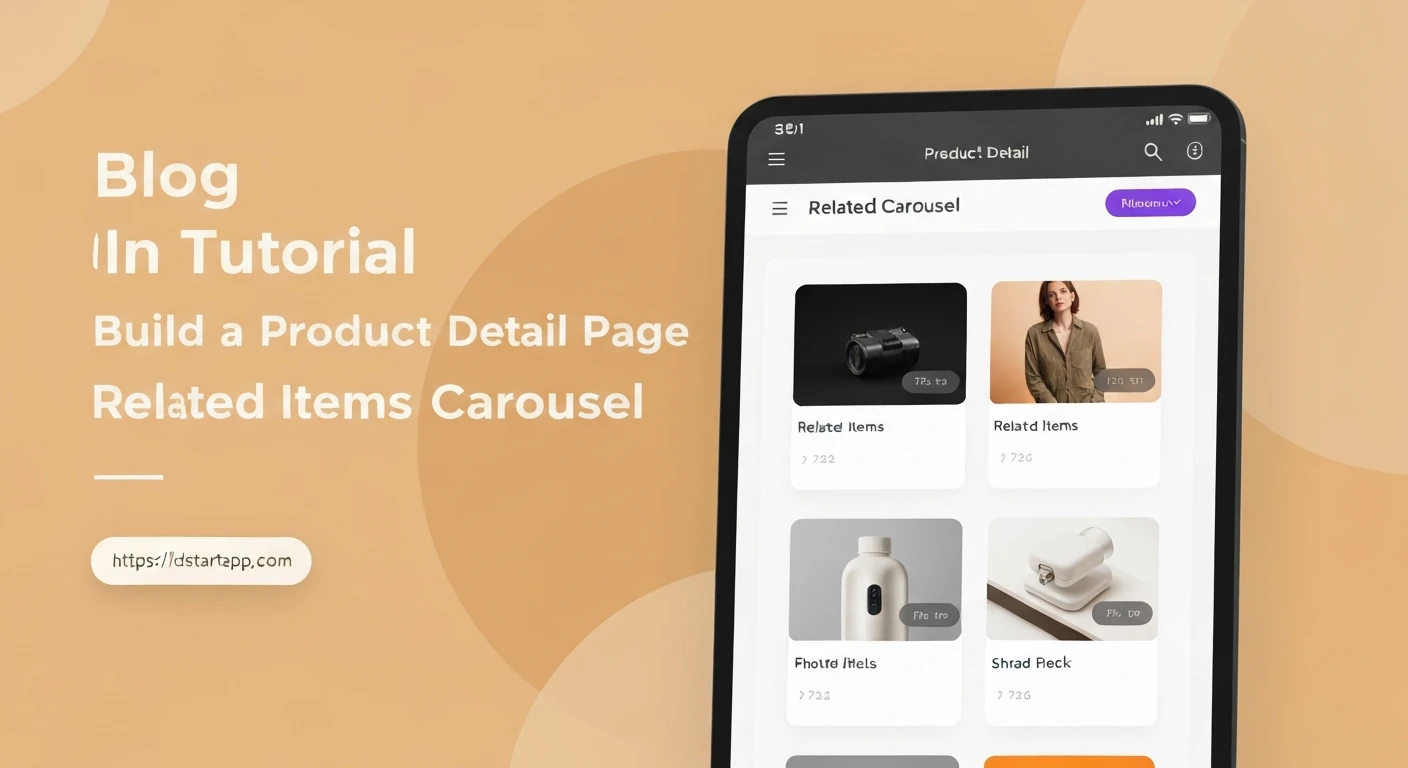

Building a Product Detail Page Widget with Related Items Carousel in Flutter
A Product Detail Page (PDP) is a critical component of any e-commerce or product-showcasing application. It serves as the primary gateway for users to learn about a specific product, view its features, pricing, and ultimately decide whether to make a purchase. A well-designed PDP not only provides essential information but also enhances user engagement and encourages further exploration.
One powerful feature that significantly boosts user experience and facilitates cross-selling is a "Related Items Carousel." This component suggests other products that might be of interest to the user, often based on similar categories, purchase history, or frequently bought together items. In this article, we'll walk through building a robust and visually appealing Product Detail Page widget in Flutter, complete with a dynamic Related Items Carousel.
Core Components of a Product Detail Page
Before diving into the implementation, let's identify the key elements typically found on a PDP:
- Product Image(s): High-quality visuals are crucial.
- Product Title: Clear and concise name of the product.
- Price: Current price, sometimes with discounts shown.
- Description: Detailed information about the product's features and benefits.
- Call to Action (CTA): Buttons like "Add to Cart" or "Buy Now."
- Related Products: A section showcasing items similar or complementary to the current product.
Setting Up Your Flutter Project and Data Models
First, ensure you have a basic Flutter project set up. We'll start by defining simple data models for our products and creating some mock data to populate our UI.
Product Model (lib/models/product.dart)
// lib/models/product.dart
class Product {
  final String id;
  final String name;
  final String description;
  final double price;
  final String imageUrl;

  Product({
    required this.id,
    required this.name,
    required this.description,
    required this.price,
    required this.imageUrl,
  });
}
Mock Data (lib/data/mock_data.dart)
We'll create a list of products and functions to retrieve a product by ID and a list of related products.
// lib/data/mock_data.dart
import '../models/product.dart';

final List<Product> mockProducts = [
  Product(
    id: '1',
    name: 'Stylish T-Shirt',
    description: 'A comfortable and stylish cotton t-shirt for everyday wear.',
    price: 19.99,
    imageUrl: 'https://via.placeholder.com/150/FF5733/FFFFFF?text=T-Shirt',
  ),
  Product(
    id: '2',
    name: 'Denim Jeans',
    description: 'Classic fit denim jeans, perfect for any casual occasion.',
    price: 49.99,
    imageUrl: 'https://via.placeholder.com/150/3366FF/FFFFFF?text=Jeans',
  ),
  Product(
    id: '3',
    name: 'Leather Boots',
    description: 'Durable and fashionable leather boots for all seasons.',
    price: 89.99,
    imageUrl: 'https://via.placeholder.com/150/33CC66/FFFFFF?text=Boots',
  ),
  Product(
    id: '4',
    name: 'Running Shoes',
    description: 'Lightweight and comfortable running shoes with excellent grip.',
    price: 75.00,
    imageUrl: 'https://via.placeholder.com/150/FFCC33/FFFFFF?text=Shoes',
  ),
  Product(
    id: '5',
    name: 'Baseball Cap',
    description: 'Adjustable baseball cap for sun protection and style.',
    price: 12.50,
    imageUrl: 'https://via.placeholder.com/150/CC33FF/FFFFFF?text=Cap',
  ),
  Product(
    id: '6',
    name: 'Sports Jacket',
    description: 'Water-resistant sports jacket for outdoor activities.',
    price: 65.00,
    imageUrl: 'https://via.placeholder.com/150/33FFFF/FFFFFF?text=Jacket',
  ),
];

Product? getProductById(String id) {
  return mockProducts.firstWhere((product) => product.id == id);
}

List<Product> getRelatedProducts(String currentProductId) {
  // For demonstration, we'll return all products except the current one.
  // In a real app, this would involve more sophisticated logic.
  return mockProducts.where((product) => product.id != currentProductId).toList();
}
Designing the Related Item Card Widget
Each item in our carousel will be a compact card displaying an image, name, and price. We'll create a dedicated widget for this.
Related Item Card (lib/widgets/related_item_card.dart)
// lib/widgets/related_item_card.dart
import 'package:flutter/material.dart';
import '../models/product.dart';

class RelatedItemCard extends StatelessWidget {
  final Product product;
  final VoidCallback onTap;

  const RelatedItemCard({Key? key, required this.product, required this.onTap}) : super(key: key);

  @override
  Widget build(BuildContext context) {
    return GestureDetector(
      onTap: onTap,
      child: Container(
        width: 120, // Fixed width for each item in the carousel
        margin: const EdgeInsets.only(right: 16),
        child: Column(
          crossAxisAlignment: CrossAxisAlignment.start,
          children: [
            ClipRRect(
              borderRadius: BorderRadius.circular(8.0),
              child: Image.network(
                product.imageUrl,
                height: 100,
                width: 120,
                fit: BoxFit.cover,
              ),
            ),
            const SizedBox(height: 8),
            Text(
              product.name,
              maxLines: 1,
              overflow: TextOverflow.ellipsis,
              style: const TextStyle(
                fontSize: 14,
                fontWeight: FontWeight.bold,
              ),
            ),
            Text(
              '\$${product.price.toStringAsFixed(2)}',
              style: TextStyle(
                fontSize: 12,
                color: Colors.grey[700],
              ),
            ),
          ],
        ),
      ),
    );
  }
}
Building the Related Items Carousel Widget
Now, let's create the horizontal carousel that will display a list of these related item cards.
Related Items Carousel (lib/widgets/related_items_carousel.dart)
// lib/widgets/related_items_carousel.dart
import 'package:flutter/material.dart';
import '../models/product.dart';
import 'related_item_card.dart';

class RelatedItemsCarousel extends StatelessWidget {
  final List<Product> relatedProducts;
  final Function(Product) onItemTap;

  const RelatedItemsCarousel({
    Key? key,
    required this.relatedProducts,
    required this.onItemTap,
  }) : super(key: key);

  @override
  Widget build(BuildContext context) {
    if (relatedProducts.isEmpty) {
      return const SizedBox.shrink(); // Hide if no related products
    }
    return Column(
      crossAxisAlignment: CrossAxisAlignment.start,
      children: [
        const Padding(
          padding: EdgeInsets.symmetric(horizontal: 16.0, vertical: 8.0),
          child: Text(
            'Related Products',
            style: TextStyle(
              fontSize: 18,
              fontWeight: FontWeight.bold,
            ),
          ),
        ),
        SizedBox(
          height: 180, // Height for the carousel to contain cards + padding
          child: ListView.builder(
            scrollDirection: Axis.horizontal,
            padding: const EdgeInsets.symmetric(horizontal: 16.0),
            itemCount: relatedProducts.length,
            itemBuilder: (context, index) {
              final product = relatedProducts[index];
              return RelatedItemCard(
                product: product,
                onTap: () => onItemTap(product),
              );
            },
          ),
        ),
      ],
    );
  }
}
Constructing the Product Detail Page Widget
Finally, we'll assemble all these pieces into our main Product Detail Page. This page will fetch product details and related items based on a given productId.
Product Detail Page (lib/screens/product_detail_page.dart)
// lib/screens/product_detail_page.dart
import 'package:flutter/material.dart';
import '../models/product.dart';
import '../data/mock_data.dart';
import '../widgets/related_items_carousel.dart';

class ProductDetailPage extends StatefulWidget {
  final String productId;

  const ProductDetailPage({Key? key, required this.productId}) : super(key: key);

  @override
  State<ProductDetailPage> createState() => _ProductDetailPageState();
}

class _ProductDetailPageState extends State<ProductDetailPage> {
  Product? _product;
  List<Product> _relatedProducts = [];
  bool _isLoading = true;

  @override
  void initState() {
    super.initState();
    _loadProductData();
  }

  void _loadProductData() async {
    setState(() {
      _isLoading = true;
    });

    // Simulate network delay
    await Future.delayed(const Duration(milliseconds: 500));

    final product = getProductById(widget.productId);
    final related = getRelatedProducts(widget.productId);

    setState(() {
      _product = product;
      _relatedProducts = related;
      _isLoading = false;
    });
  }

  void _onRelatedItemTap(Product product) {
    // Navigate to the detail page of the tapped related product
    Navigator.pushReplacement(
      context,
      MaterialPageRoute(
        builder: (context) => ProductDetailPage(productId: product.id),
      ),
    );
  }

  @override
  Widget build(BuildContext context) {
    if (_isLoading) {
      return Scaffold(
        appBar: AppBar(title: const Text('Loading Product...')),
        body: const Center(child: CircularProgressIndicator()),
      );
    }

    if (_product == null) {
      return Scaffold(
        appBar: AppBar(title: const Text('Product Not Found')),
        body: const Center(child: Text('Product details could not be loaded.')),
      );
    }

    return Scaffold(
      appBar: AppBar(
        title: Text(_product!.name),
        elevation: 0,
      ),
      body: SingleChildScrollView(
        child: Column(
          crossAxisAlignment: CrossAxisAlignment.start,
          children: [
            // Product Image
            Image.network(
              _product!.imageUrl,
              height: 250,
              width: double.infinity,
              fit: BoxFit.cover,
            ),
            Padding(
              padding: const EdgeInsets.all(16.0),
              child: Column(
                crossAxisAlignment: CrossAxisAlignment.start,
                children: [
                  // Product Name
                  Text(
                    _product!.name,
                    style: const TextStyle(
                      fontSize: 24,
                      fontWeight: FontWeight.bold,
                    ),
                  ),
                  const SizedBox(height: 8),
                  // Product Price
                  Text(
                    '\$${_product!.price.toStringAsFixed(2)}',
                    style: TextStyle(
                      fontSize: 20,
                      fontWeight: FontWeight.w600,
                      color: Theme.of(context).primaryColor,
                    ),
                  ),
                  const SizedBox(height: 16),
                  // Product Description
                  Text(
                    _product!.description,
                    style: const TextStyle(fontSize: 16),
                  ),
                  const SizedBox(height: 24),
                  // Add to Cart Button
                  SizedBox(
                    width: double.infinity,
                    child: ElevatedButton(
                      onPressed: () {
                        // Implement add to cart logic
                        ScaffoldMessenger.of(context).showSnackBar(
                          SnackBar(content: Text('${_product!.name} added to cart!')),
                        );
                      },
                      style: ElevatedButton.styleFrom(
                        padding: const EdgeInsets.symmetric(vertical: 16),
                        backgroundColor: Theme.of(context).primaryColor,
                        foregroundColor: Colors.white,
                        shape: RoundedRectangleBorder(
                          borderRadius: BorderRadius.circular(8),
                        ),
                      ),
                      child: const Text(
                        'Add to Cart',
                        style: TextStyle(fontSize: 18),
                      ),
                    ),
                  ),
                  const SizedBox(height: 32),
                ],
              ),
            ),
            // Related Items Carousel
            RelatedItemsCarousel(
              relatedProducts: _relatedProducts,
              onItemTap: _onRelatedItemTap,
            ),
            const SizedBox(height: 24),
          ],
        ),
      ),
    );
  }
}
Integrating into the Main Application
To see our PDP in action, we need a basic main.dart file. We'll set up a simple `MaterialApp` and navigate to our `ProductDetailPage` with an initial product ID.
Main Application File (lib/main.dart)
// lib/main.dart
import 'package:flutter/material.dart';
import 'screens/product_detail_page.dart';

void main() {
  runApp(const MyApp());
}

class MyApp extends StatelessWidget {
  const MyApp({Key? key}) : super(key: key);

  @override
  Widget build(BuildContext context) {
    return MaterialApp(
      title: 'Product App',
      theme: ThemeData(
        primarySwatch: Colors.blueGrey,
        visualDensity: VisualDensity.adaptivePlatformDensity,
      ),
      home: const ProductDetailPage(productId: '1'), // Start with product ID '1'
      debugShowCheckedModeBanner: false,
    );
  }
}
Enhancements and Considerations
- State Management: For larger applications, consider using robust state management solutions like Provider, BLoC, Riverpod, or GetX instead of `setState` for fetching and managing product data.
- Error Handling: Implement more comprehensive error handling for network requests or invalid product IDs.
- Loading States: Improve loading indicators for a smoother user experience, possibly using skeleton loaders.
- Image Caching: Use packages like `cached_network_image` for efficient image loading and caching.
- Responsiveness: Adjust layouts for different screen sizes (e.g., tablets, web) using `MediaQuery` or `LayoutBuilder`.
- Backend Integration: Replace mock data with actual API calls to fetch product details from a server.
- Related Products Logic: Implement more sophisticated algorithms for determining related products (e.g., based on category, tags, collaborative filtering).
- UI/UX Polish: Add animations, more detailed product specifications, reviews section, size/color selectors, etc.
Conclusion
You've successfully built a fully functional Product Detail Page in Flutter, featuring essential product information and an engaging Related Items Carousel. By breaking down the UI into modular widgets and handling data loading, we've created a clean, maintainable, and extensible component that can be easily integrated into any e-commerce application. This foundation allows you to further enhance the user experience with more advanced features and deeper backend integrations.


